Views: see the same data 12 different ways
A view is a saved way of looking at one sheet. The data underneath never changes, only how it is arranged. Add as many views as you need instead of duplicating a sheet.
Add a view
- Open a sheet and click + in the view switcher at the top.
- Pick a view type.
- Fill in what that type needs. A board needs a field to group by, and a calendar needs a date field.
- Name it and save.
The view types
Popular
- Table: rows and columns with sorting and filtering. See Table view.
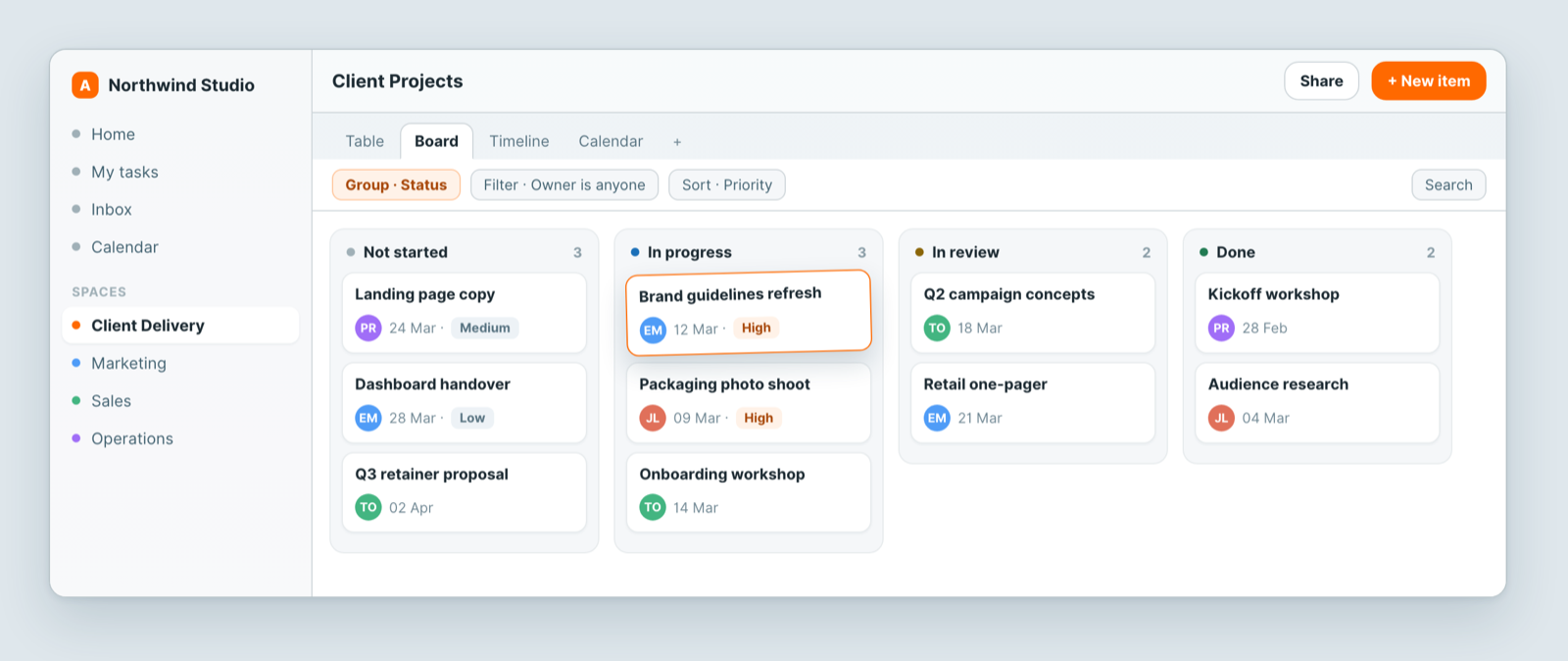
- Board: a kanban board grouped by status. See Board view.
Plan & Track
- Calendar: events on a monthly or weekly calendar. See Calendar view.
- Charts: visual dashboards and reports. See Dashboards and charts.
- Gantt: a project timeline with dependencies. See Gantt and timeline views.
Specialized
- Timeline: resource scheduling on a time axis. See Gantt and timeline views.
- Card: visual cards in a grid. See Card and gallery views.
- Gallery: browse files and images. See Card and gallery views.
- Form: collect data with a custom form. See Build a form and collect responses.
- Blog: publish content as articles.
- Email: read emails like an inbox.
- Vista: an AI-generated live page.
Views vs filters
A filter narrows the rows inside one view, for example Status is not Done. It is saved on that view.
A view is the whole saved lens: its type, plus its filters, sorts, grouping and the fields it shows. Switching views changes all of those at once. Changing a filter changes only the view you are in.
So when you want a different cut of the same data, add a view rather than re-filtering a shared one. See Filter, sort and group.
Who can see a view
A view has its own access list, separate from the sheet's. People who can open the sheet see only the views that include them. A view can also be published as an app for guests or portal customers. See Share a view.
Notes
- Some types need a matching field before you can create them. A board needs a groupable field, and a calendar or Gantt needs a date field. If the option is unavailable, add that field first.
- A view is shared. When someone with the Editor or Admin role on it changes its filters, the change applies to everyone, so add your own view rather than editing a shared one. Viewers' filter changes last only for their own session.
- What is a view in Atwork? A saved arrangement of one sheet's records: a table, board, calendar, Gantt and more, over the same data.
Related: Filter, sort and group · Share a view · Build a sheet with custom fields