Table view
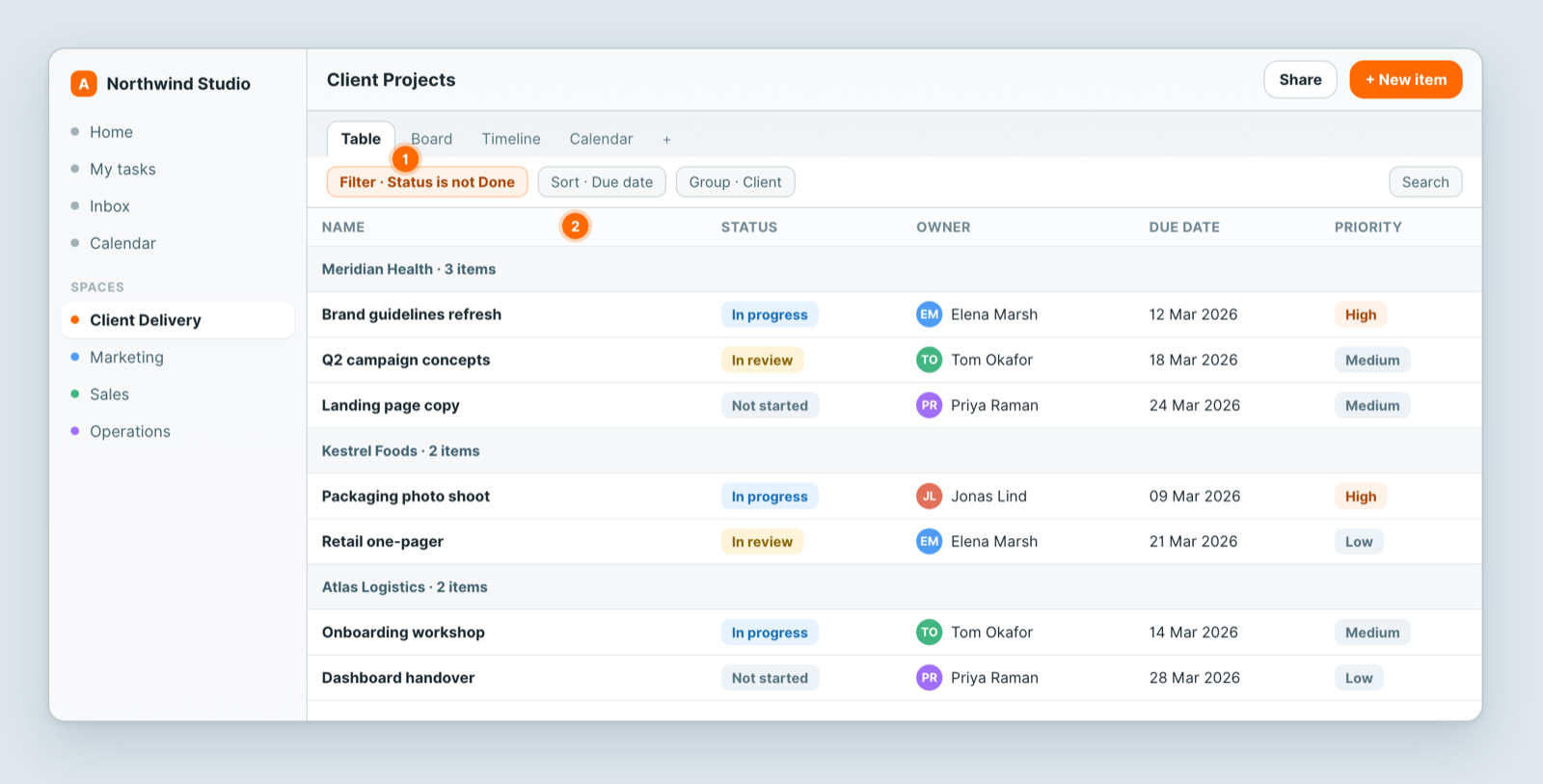
Table view shows every record in a sheet as a row, with one column per field. It is the fastest way to scan, sort and bulk-edit your data.
Steps
- Open a sheet and pick Table in the view switcher at the top.
- Use Filter to narrow the rows, for example to hide everything that is already done.
- Use Sort to order them, and Group to break them into sections by a field such as client or owner.
- Click any cell to edit it in place.
Columns
- Reorder: drag a column by the grip handle in its header.
- Resize: drag the edge of a column header. The title column keeps a minimum width so names stay readable.
- Hide: open the column header's menu and choose Hide, or use Hide fields in the toolbar and untick fields under Shown in table. Tick a field there again to bring it back.
- Sort and group from the header: the same menu has Sort A → Z, Sort Z → A and Group by.
Column order, widths and hidden fields are saved on the view. The row number and title columns stay pinned on the left while you scroll sideways.
Editing vs opening a record
- Edit in place: click a cell and change it. This is quickest for one value, or for working down a column.
- Open the record: hover the title cell and click the arrow icon that appears. The full record opens with every field, including ones hidden in this view. See The item peek.
- The ⋮ menu on the title cell has Open with, Comments, History, Copy link, Lock (or Unlock) and Delete.
Denser rows
Turn on Compact view under Settings → Display in the toolbar to fit more rows on screen.
Notes
- Filters, sorts, grouping and column layout are saved on the view. When someone with the Editor or Admin role on the view changes them, everyone who opens it sees the change. Other people's changes last only for their own session.
- Need a different arrangement for yourself? Add a second view rather than changing the shared one.
Related: Filter, sort and group · The item peek: open a record · Views: see the same data 12 different ways
Related articles
Insights: ask Dana about a sheet
Open the Insights tab on any Atwork sheet and ask Dana, Atwork's AI assistant, for counts, totals, breakdowns and charts in plain language.
Close out your day and review your month
Close out your day in Atwork with a star rating and a note, get a reminder, and see your month on the Review page: streak, average rating, tasks done.
The Planner: Today, Week and My Tasks
Plan your day in Atwork: see every task assigned to you, let Dana draft a time-blocked plan around your meetings, and check your week against capacity.