Close out your day and review your month
Closing out takes under a minute. You decide what happens to today's unfinished tasks, rate the day from 1 to 5 stars and leave an optional one-line note. The Review page turns those close-outs into a picture of your month: your streak, average rating, tasks done, hours tracked and notes. Both live in the Planner.
How do I close out my day?
On Planner → Today, click Close out day at the top of the page. The Close out your day dialog opens.
- What about these? lists today's unfinished tasks, including the ones with no due date. Overdue tasks from earlier days aren't listed. For each task, pick Tomorrow, Next week or Cancel, or leave it as it is.
- Tomorrow makes the task due tomorrow. Next week makes it due seven days from today. A task with no due date gets one.
- Cancel only clears the due date. The task stays open, and because tasks with no due date show on Today, it comes back tomorrow. If the task is dead, mark it done or delete it on its sheet.
- Rate your day from 1 to 5 stars. You can't close out without a rating.
- Add a One-line note (optional): what moved, what got in the way.
- Click Close out day to save, or Not yet to come back to it later.
A task you leave without a choice keeps its due date.
Will Atwork remind me?
Yes, on your workdays. Within half an hour either side of the end of your working hours you get Time to close out your day, unless you've already closed out. It comes at most once a day.
- The email lists what you finished (Done today), what is Still open and what is Overdue, with a Close out your day button that opens the dialog.
- To change how it reaches you, or turn it off, go to Profile → Settings → Notifications and use the In-app, Push and Email switches on Daily close-out. All three are on by default.
- The timing follows your workdays, hours and Timezone in Profile → Settings → Working hours. Set your timezone there: without it, the reminder runs on UTC. See Working hours and availability.
Why does my rating matter?
Dana, Atwork's AI assistant, reads your most recent close-out rating when it drafts your next Today plan. After a 1–2 star day it aims for about 80% of your normal focus time and leaves more buffer. After a 3-star day it plans a normal day, and after a 4–5 star day it plans to full capacity.
What does the Review page show?
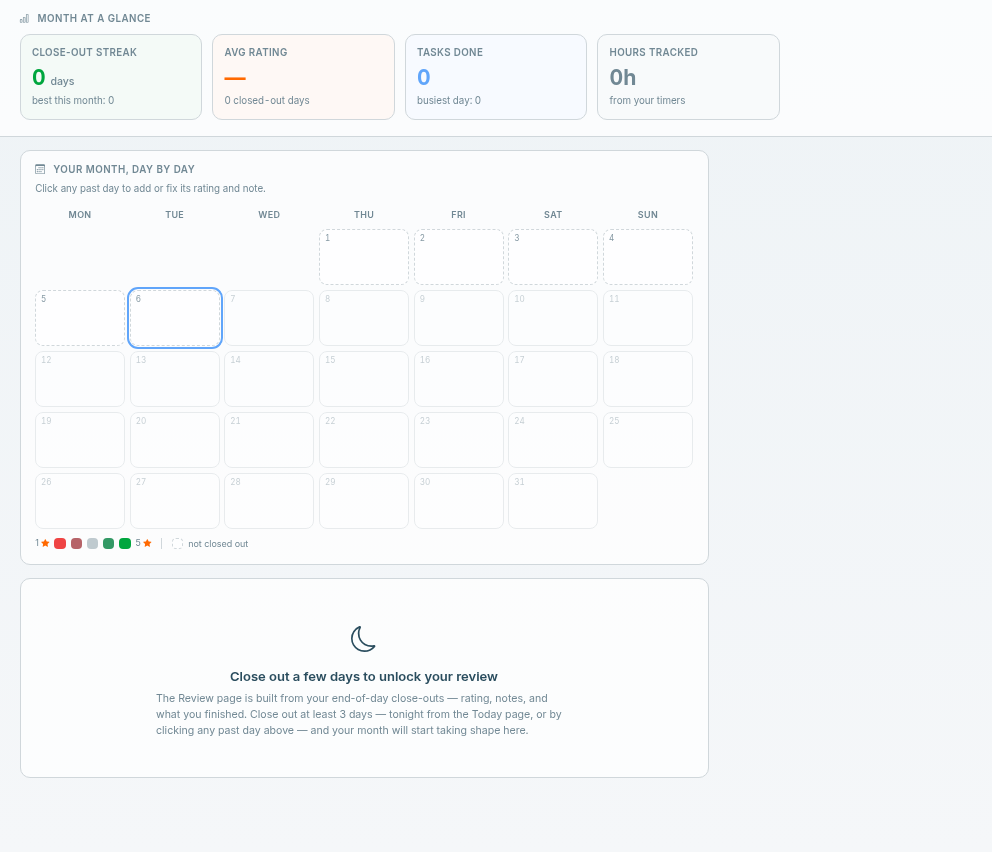
Planner → Review shows one month at a time. Use the arrows to move to the previous or next month, and This month to come back. Month at a glance has four numbers:
- Close-out streak: consecutive closed-out days, counting back from today, or from yesterday if you haven't closed out today yet. Below it, your best streak this month.
- Avg rating: your average stars for the month, with an arrow showing the change from last month, and how many days you closed out.
- Tasks done: the tasks you finished this month, and the most you finished in a single day.
- Hours tracked: the time from your timers.
Because the streak always counts back from today, a past month shows a streak of 0.
How do I read the month, day by day?
Your month, day by day has one square per day. The colour is that day's rating, from red for 1 star through grey for 3 to green for 5. A number in the square is how many tasks you finished that day.
- A dashed square is a day you didn't close out.
- A ring marks today, and future days are faded.
- Hover a day for a summary such as "rating 4/5 · 3 done".
- The month follows your calendar setting: see Set your language, calendar and timezone.
How do I fix or add a past day?
Click the day on the grid. If you closed it out, Edit day opens; if you didn't, Close out day opens.
- Set the stars and the note, then click Save. Save needs a rating.
- Editing a past day never changes any task's due date.
- Future days can't be edited.
- A day you add afterwards counts toward your streak.
This is also how you change today's rating after you've closed out: click today on the grid.
What do the chart, deferrals and notes show?
Once the month has three close-outs, a chart appears below the grid, and your deferrals and notes appear beside it.
- Rating vs tasks done puts Day rating above Tasks done on one shared timeline, so you can see whether your busiest days were also your best ones.
- Deferred at close-out counts what you moved: to tomorrow, to next week, and cancelled. It appears once you've deferred something.
- Close-out notes lists your notes, newest first, each with its stars.
Why is my Review empty?
The Review needs at least three close-outs in the month. Until then you see Close out a few days to unlock your review in place of the chart, deferrals and notes. Month at a glance and the day grid stay, so you can fill in past days straight away.
Who can see my ratings?
Only you. Close-outs, ratings and notes are tied to your account, and the Review page only ever shows your own.
At a glance
| Question | Answer |
|---|---|
| When does the reminder come? | Within 30 minutes of the end of your working day, on workdays |
| When does the Review unlock? | After 3 close-outs in the month |
| What does Next week do? | Makes the task due 7 days from the close-out |
| What does Cancel do? | Clears the due date; the task stays open |
Related: The Planner: Today, Week and My Tasks · Goals · Your profile and notifications