Calendar view
A calendar view plots each record on the day of one of its date fields. Anything with a date can be a calendar: deadlines, shoots, invoices, shifts.
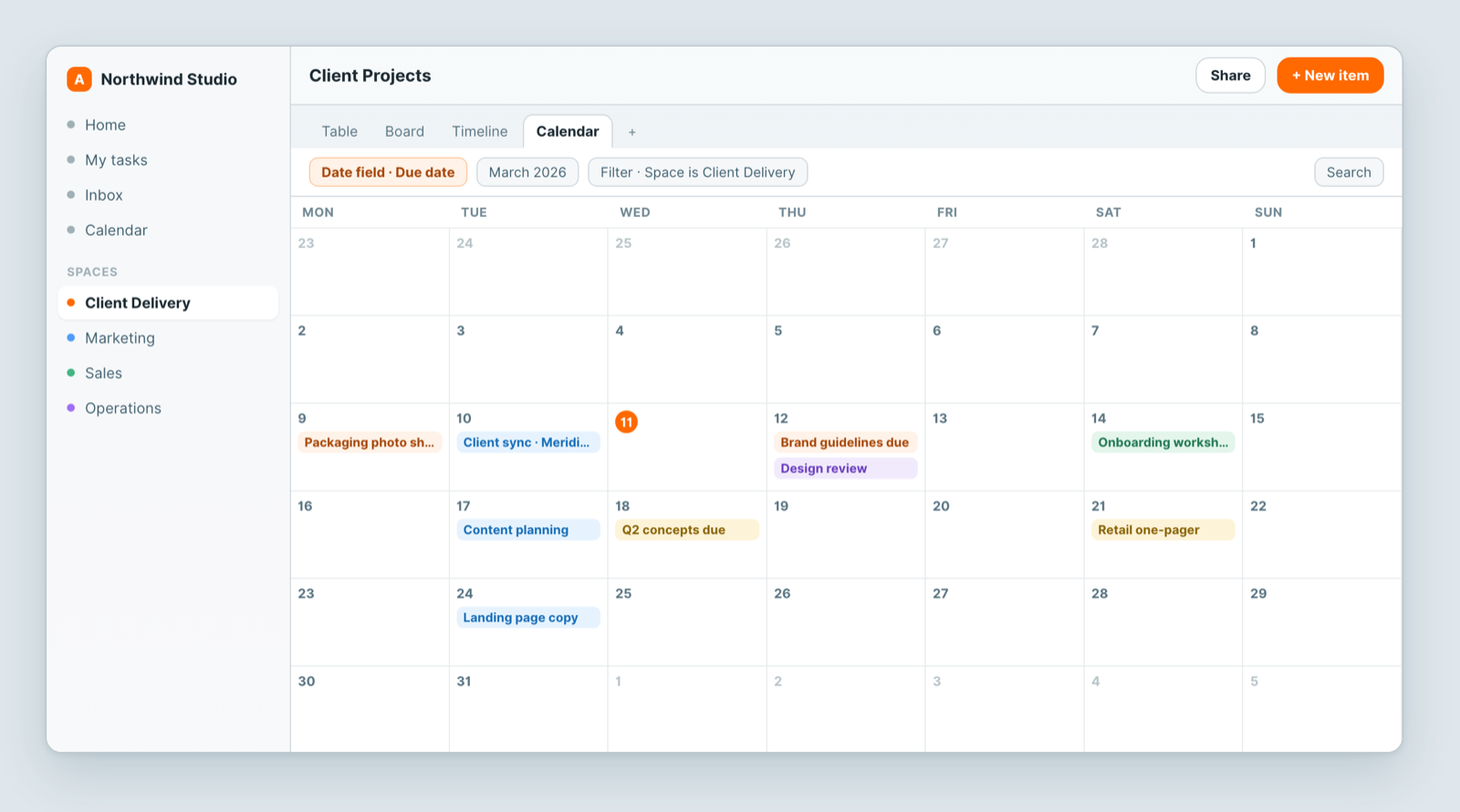
Create one
- Click + in the view switcher.
- Choose Calendar.
- Pick the date field that drives it.
- Name it and save.
If Calendar is unavailable, the sheet has no date field yet. Add one first.
The date field is a choice, not a given
A sheet often has several dates: a start date, a due date, a published date. Each makes a different calendar. Deadlines and start dates answer different questions, so it is normal to keep two calendar views on the same sheet. You can switch the field later under Settings → Date Field.
Day, week, month, year or list
Use the zoom dropdown in the toolbar to switch between day, week, month and year, or List for a plain list of items by date. The view remembers the mode you pick.
Working in it
- Drag an item to another day to change that date field. Drag its edge to change its length when the field holds a date range.
- Click an item to open the record.
- Filter: an unfiltered calendar of everything is unreadable. Narrowing to your own items, or to one client, is what makes it useful.
- Settings has Color by, Show weekends, Show week numbers, Week starts on and Slot duration.
Notes
- Dates display in your timezone and calendar system, so two people may see the same record differently. That is correct. See Dates look wrong.
- This is a view of a sheet, not your meeting calendar. Connect Google Calendar or CalDAV for meetings.
- Who sees this calendar is set on the view itself. See Share a view.
Related: Gantt and timeline views · Share a view · Dates look wrong
Related articles
Insights: ask Dana about a sheet
Open the Insights tab on any Atwork sheet and ask Dana, Atwork's AI assistant, for counts, totals, breakdowns and charts in plain language.
Close out your day and review your month
Close out your day in Atwork with a star rating and a note, get a reminder, and see your month on the Review page: streak, average rating, tasks done.
The Planner: Today, Week and My Tasks
Plan your day in Atwork: see every task assigned to you, let Dana draft a time-blocked plan around your meetings, and check your week against capacity.