Gantt and timeline views
These two look similar, with bars on a time axis, but they answer different questions. Picking the wrong one is the usual reason a plan looks unhelpful.
Gantt: the shape of a project
A row per item, bars spanning start to end, with dependencies between them. Use it for: is this plan realistic, and what slips if this slips?
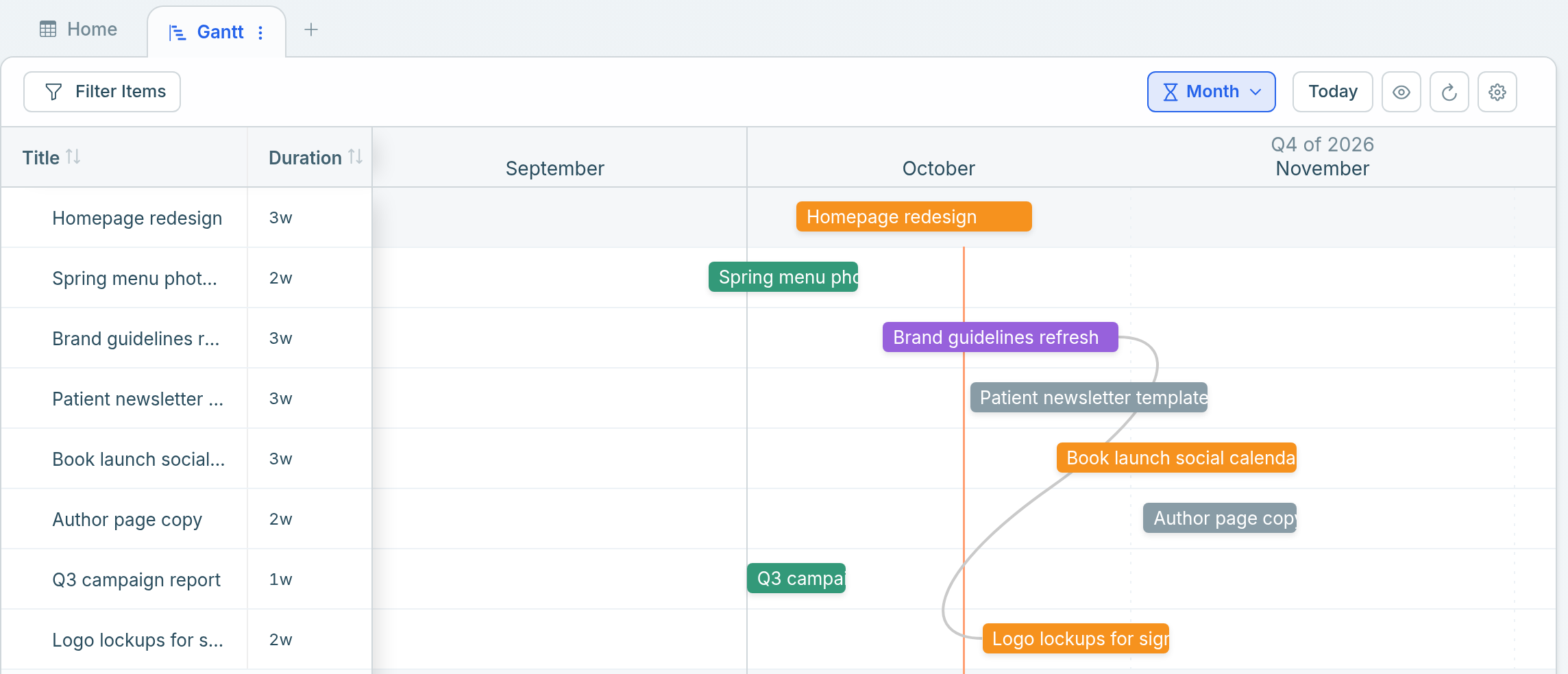
Timeline: who is booked when
Rows are people or resources, and items sit on the row of whoever is doing them. Use it for: who is overloaded next week, and who is free?
Create one
- Click + in the view switcher.
- Choose Gantt or Timeline.
- Gantt needs a date field. Timeline needs a date field and a Resource Field, the field that says who or what the work belongs to. A Select, Multi-Select, person or Relation field works.
- Name it and save.
Start and end dates
Each bar comes from one date field that holds a range: its start date is where the bar begins, and its end date is where it stops. Change the field later under Settings → Date Field.
Dependencies (Gantt)
A dependency says one item cannot start until another is done.
- Hover a bar until its link handle appears.
- Drag from that bar to the bar that depends on it. An arrow joins them.
- To remove a dependency, click the arrow.
Dependencies are stored in the sheet's Blocking and Blocked By fields, so the same link appears on both records. Creating a Gantt view turns on the sheet's dependencies, so both fields are there from the start, and they stay on while the sheet has a Gantt view. See Subtasks and dependencies.
Zoom
- Gantt: Hour, Day, Week, Month, Quarter and Year.
- Timeline: day, week, month and year.
Match the zoom to the question: weeks for a sprint, months or quarters for a roadmap.
Making them readable
- Filter first. Everything you have ever done, on one axis, tells you nothing. Show one project, one quarter, or one team.
- Color by status, so blocked or finished work is obvious at a glance.
- On a Gantt, Progress by fills each bar from a number field, and Baseline by shows a second date range for the original plan, so drift is visible.
Notes
- Items with no date cannot be plotted and will not appear. A near-empty timeline usually means missing dates, not missing work.
- Dragging a bar changes the underlying dates on the record. Clicking it opens the record.
- On a Timeline, Group by switches the Resource Field when the sheet has more than one field that could fill it.
Related: Calendar view · Subtasks and dependencies · Views: see the same data 12 different ways