Share a view
A view has its own access list, separate from the sheet's. Use Access to choose which colleagues see a view and what they can change in it. Use Publish to turn the view into a standalone app with its own link, for your team, guests or portal customers.
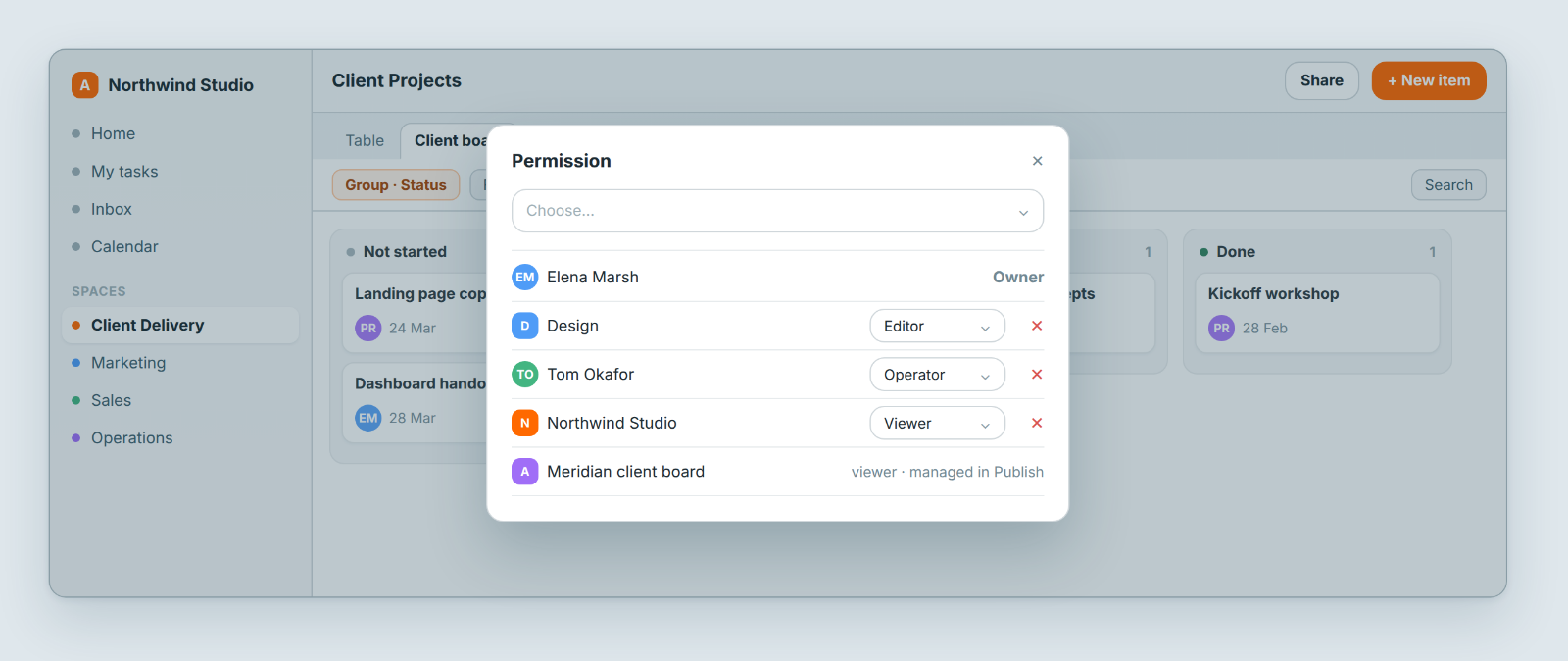
Give colleagues access to a view
- Open the sheet. In the view switcher, click the ⋮ on the view's tab, or right-click the tab.
- Choose Access. The Permission dialog opens with a Choose... picker at the top and the view's owner in the list below it.
- In Choose..., search for a member, a team, or your whole workspace, and select it.
- The new line starts as Viewer. Change the role from its dropdown if needed: Admin, Editor, Operator or Viewer.
- To remove someone, click the red trash icon at the end of their line.
Changes save as you make them. Access and Publish appear in the view menu only for the sheet's owner and people with the Admin role on the sheet.
What each role means in a view
- Viewer and Operator: can open the view. Filters and sorts they change last only for their own session and are never saved to the view.
- Editor: can also change the view's setup (filters, sorts, grouping, visible fields and column order), saved for everyone who opens it.
- Admin: everything an Editor can do, plus deleting the view. Delete appears in the view menu only for people who are also the sheet's owner or an Admin on the sheet.
Whether someone can edit the records in a view is decided by their role on the sheet, not on the view. One exception: someone who is a Viewer on the view cannot add new rows from it. See Roles and permissions.
How view access combines with sheet access
- A view's access list only works for people who can already open the sheet. Adding someone to a view does not give them the sheet.
- Someone who can open the sheet sees only the views that include them.
- A new view starts with a copy of the sheet's access list.
- People added to the sheet later are also added to its views. Removing someone from the sheet, or changing their role there, may not reach a view whose own list was edited, so check the view's Access list after such a change.
Share a view outside your team: Publish
Clients are never added to Access, because they are not workspace members. To show a view to guests or portal customers, publish it as an app:
- Open the view's menu and choose Publish. The Publish view dialog opens.
- Set the app's Name and icon.
- Set the Link: the path after your workspace address, for example
northwind.atwork.so/app/client-status. The link goes live when you publish. - Choose the Item view, which is the layout used when someone opens a record from the app.
- Set App is to the role the app's audience gets. Viewer is the safe default for read-only sharing.
- Under Internal access, add the colleagues or teams who should see the app.
- Set Guest access to Yes or No, and Customer access to All, Segments (then pick the customer segments) or No.
- Click Publish. To change the settings later, reopen the dialog and click Save changes. Unpublish takes the app offline.
A published view shows an icon on its tab: a globe when guests can open it, otherwise an app icon. The app also appears in the view's Access list as a read-only line marked managed in Publish. Change it from the Publish dialog, not from Access.
Before you share with a client
Check the app with a test customer account to see what a customer actually sees: which records, which fields, and what they can change. It takes five minutes. Finding out from a client costs far more. See Portal users and access.
Notes
- Can I share a view with a client? Yes, by publishing it and turning on Customer access. Clients never go into Access, and they take no seat.
- Why can't I see Access or Publish? You need to be the sheet's owner or have the Admin role on it.
- A colleague still can't open the view? Check that they can open the sheet first, then work through Why can't my teammate see a sheet?.
- Filter the view before you publish it, so the app shows only what its audience needs.
Related: Roles and permissions · Why can't my teammate see a sheet? · What is the client portal?