Roles and permissions
Access in Atwork has two levels. The workspace has one Owner, who runs Administration. Each space and sheet has its own list of who can open it, and a role for each of them: Owner, Admin, Editor, Operator, Viewer or Filler. The role decides what that person can do there.
Who is the workspace Owner?
The person who created the workspace is its Owner. Only the Owner sees Administration in the profile menu, with Organization, Users, Teams, Jobs, Locations, the Customer Portal pages and Billing.
Everyone else in Users is a member. There is no workspace-wide role to pick for a member: what they can open and change is set space by space and sheet by sheet.
What can each role do in a space or sheet?
| Role | What they can do | Typical use |
|---|---|---|
| Owner | Everything, always. The space's owner is the person who created it, and they also own every sheet in it. | Whoever set the space up |
| Admin | Everything an Editor can, plus manage who has access, publish views, and delete views and sheets. | The lead of a space or an account |
| Editor | Shape the work: add and change fields and views, create sheets, and create, edit and delete items. | People who design the workflow |
| Operator | Create, edit and delete items. Cannot change fields or views. | People who do the work day to day |
| Viewer | Open and read. Cannot change items, fields or views. | Stakeholders who need to follow along |
| Filler | Used by published forms, so submissions can come in. You don't normally give it to a person. | Published forms |
Who gets access by default?
- Your organization's main space: the whole Organization as Editor, so every member can work in it.
- A team space: that team as Editor. See Teams and jobs.
- Your Home space: only you.
- A new sheet: the same access as the space or folder it is created in.
How do I give someone access?
Only the space's Owner and its Admins can change access.
For a space:
- Open the space's ⋮ menu next to its name and choose Access. The Permission dialog opens.
- In Choose..., search for a person, a team or your whole Organization, and select it.
- The new line starts as Viewer. Pick another role from its dropdown: Admin, Editor, Operator or Viewer.
- To remove a line, click the red trash icon at its end.
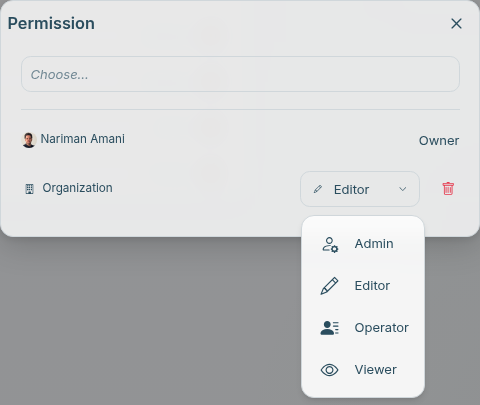
You can also use the Participants card on the space's home page. Its + button (Add participant) opens the same dialog. Click a person on the card to change their role or choose Remove access.
For a sheet: open the sheet, click Config, then Access. The participant avatars at the top of a sheet also have a Manage access link for Admins.
How do I give one sheet narrower access than its space?
A new sheet follows its space. Its Config → Access page says "Inherited from the … space": everyone who can reach the space reaches the sheet with the same role.
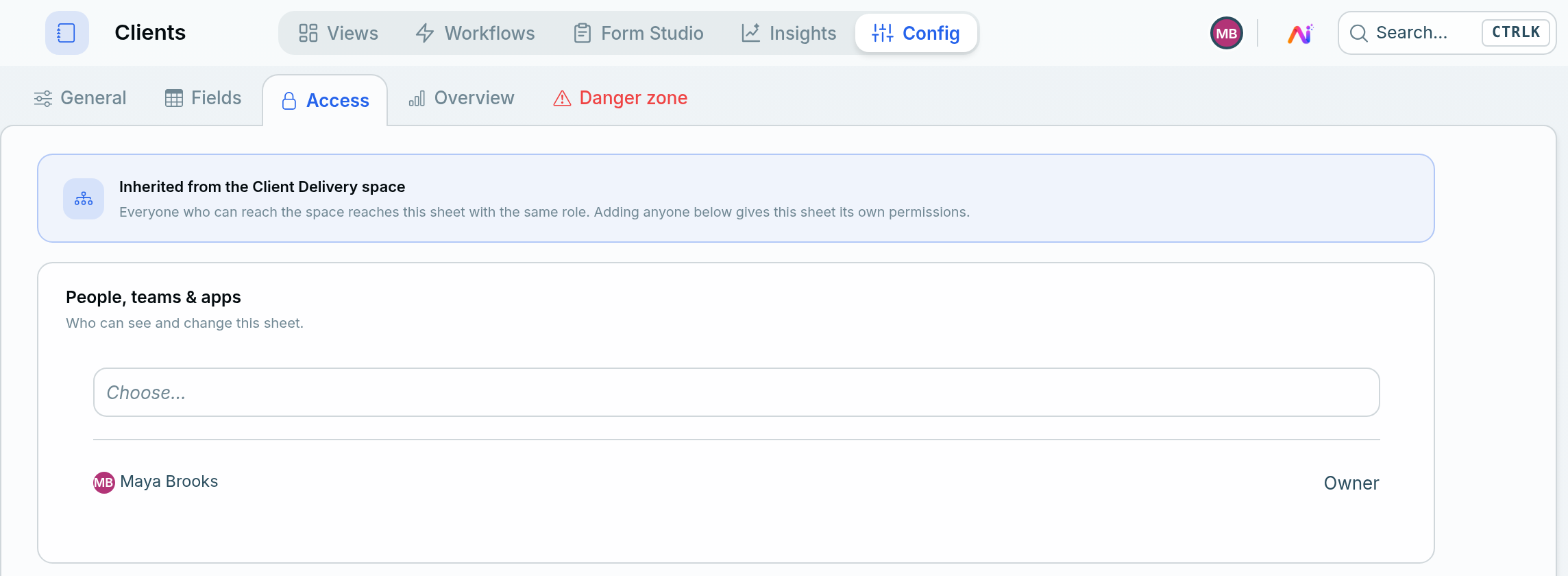
As soon as you add anyone on that page, or change someone's role there, the sheet gets its own list and shows "This sheet has its own permissions". From then on, changes to the space's access no longer reach it.
Removing a line on its own does not do this. The sheet keeps following its space, so anyone you later add to the space reaches the sheet too.
To make a sheet private to a few people, first add those people on the sheet's Access page, so the sheet gets its own list. Then remove the Organization line and any team lines.
What if someone has more than one grant?
The strongest grant wins. Personal, team and Organization grants are combined, and the person gets the highest role among them.
So you cannot give one person less than their team or the whole Organization already has. To restrict someone, add the people who should keep access one by one, then remove the broader grant.
How do clients and other outsiders get access?
Not through roles. Guests open what you publish with Guest access, and portal users sign in to your portal to see their own records. Neither takes a seat. See Members, guests and portal users and Share a view.
How do I check why someone can't see something?
Work down the list. The first check that fails is the answer.
- Are they in Administration → Users?
- Can they reach the space, through a grant to them, their team or the whole Organization?
- Does their role allow what they are trying to do?
- Does the sheet or the view have its own access list that leaves them out?
See Why can't my teammate see a sheet?
Frequently asked questions
What's the difference between Editor and Operator?
An Editor can change how a sheet works: its fields, its views, and which sheets exist in the space. An Operator works with the items inside it, creating, editing and deleting them, but cannot change fields or views.
Can an Admin delete a sheet?
Yes. Admins can delete views and sheets. Editors cannot.
Why does a teammate have access I didn't give them?
They probably reach it through their team or through the whole Organization. Check the Access list for a team line or an Organization line.
Is there a Guest role?
No. Guests come from publishing: turn on Guest access when you publish a view or a page.
Can I change who owns a space?
Not from the access list. When you delete a member in Users, Atwork asks for a replacement person, and everything the member created, including the spaces and sheets they own, is assigned to that person.
Related: Teams and jobs · Members, guests and portal users · Spaces, folders and sheets · Why can't my teammate see a sheet? · Pricing