Teams and jobs
A team is a group of people who work together. A job is what a person does, such as Designer or Account Manager. Each member can have one team and one job. Neither one is a role: roles decide what someone can do in a space or sheet. Teams do give access, though: each team gets its own space, and you can share anything with a whole team at once.
Where do I manage teams and jobs?
Open your profile menu, choose Administration, then Teams or Jobs. Only the workspace owner sees Administration. Both pages are sheets, so you add a team or a job with New Item.
- A team has a Name, a Leader and a Description.
- A job has a Name.
- To put someone on a team or give them a job, set the Team and Job fields on their row in Users.
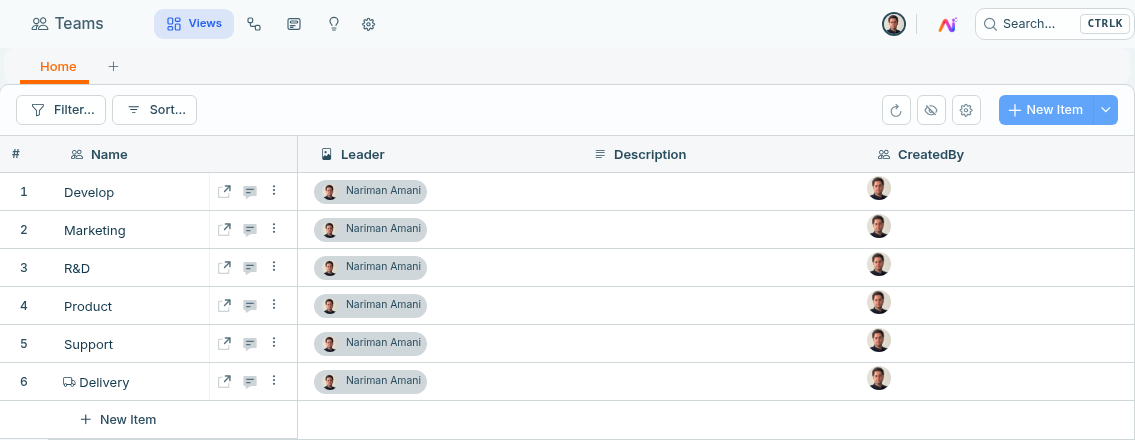
What happens when you create a team?
Atwork creates a team space for it, named after the team, such as "Design's Space". Everyone on the team gets the Editor role in that space.
Membership follows each person's Team field. Move someone to another team and their access moves with them: they leave the old team space and join the new one.
How do I share something with a whole team?
Open the Access dialog of a space or a sheet. In Choose..., search for the team, select it and set its role. The list includes people, teams and your whole Organization.
A team grant covers everyone on the team, including people who join it later. See Roles and permissions.
Teams, jobs and roles: what's the difference?
| Answers | Gives access? | Where it is set | |
|---|---|---|---|
| Team | Who do I work with? | Yes: the team space, plus anything shared with the team | Administration → Teams, and the Team field in Users |
| Job | What do I do? | No | Administration → Jobs, and the Job field in Users |
| Role | What can I change here? | Yes, in that space or sheet | The Access dialog of each space or sheet |
What does the Leader field do?
It records who leads the team, so you can show it, group by it and filter on it. It gives the leader no extra permissions. To let a team lead manage a space, give them the Admin role on it.
How do I use teams and jobs in my sheets?
Add a field of type Team, Team List, Job or Job List to any sheet. Then group and filter by it: for example, a board of client requests grouped by the team handling each one. See Field types explained and Filter, sort and group.
How many teams and jobs can I have?
The Free plan includes 1 team and 3 jobs. Paid plans have no limit. See Plans & billing explained and Pricing.
Frequently asked questions
Can someone be on two teams?
No. Each person can have one team and one job. For work that crosses teams, add a Team List field to the sheet, or share the space with each team.
I added someone to a team. Why can they see the team space but not a client sheet?
Joining a team gives access to the team space and to anything shared with that team. A client sheet in another space needs its own grant: to the person, to their team or to the whole Organization. Work through Why can't my teammate see a sheet?
Can I give one team member less access than the rest of the team?
No. When someone has more than one grant, the strongest one wins. To give people different access, share the sheet with each person instead of with the team.
Does a job give access to anything?
No. Jobs describe what people do and are used for grouping, filtering and reporting.
Related: Roles and permissions · Organization settings · Why can't my teammate see a sheet? · Field types explained