Field types explained
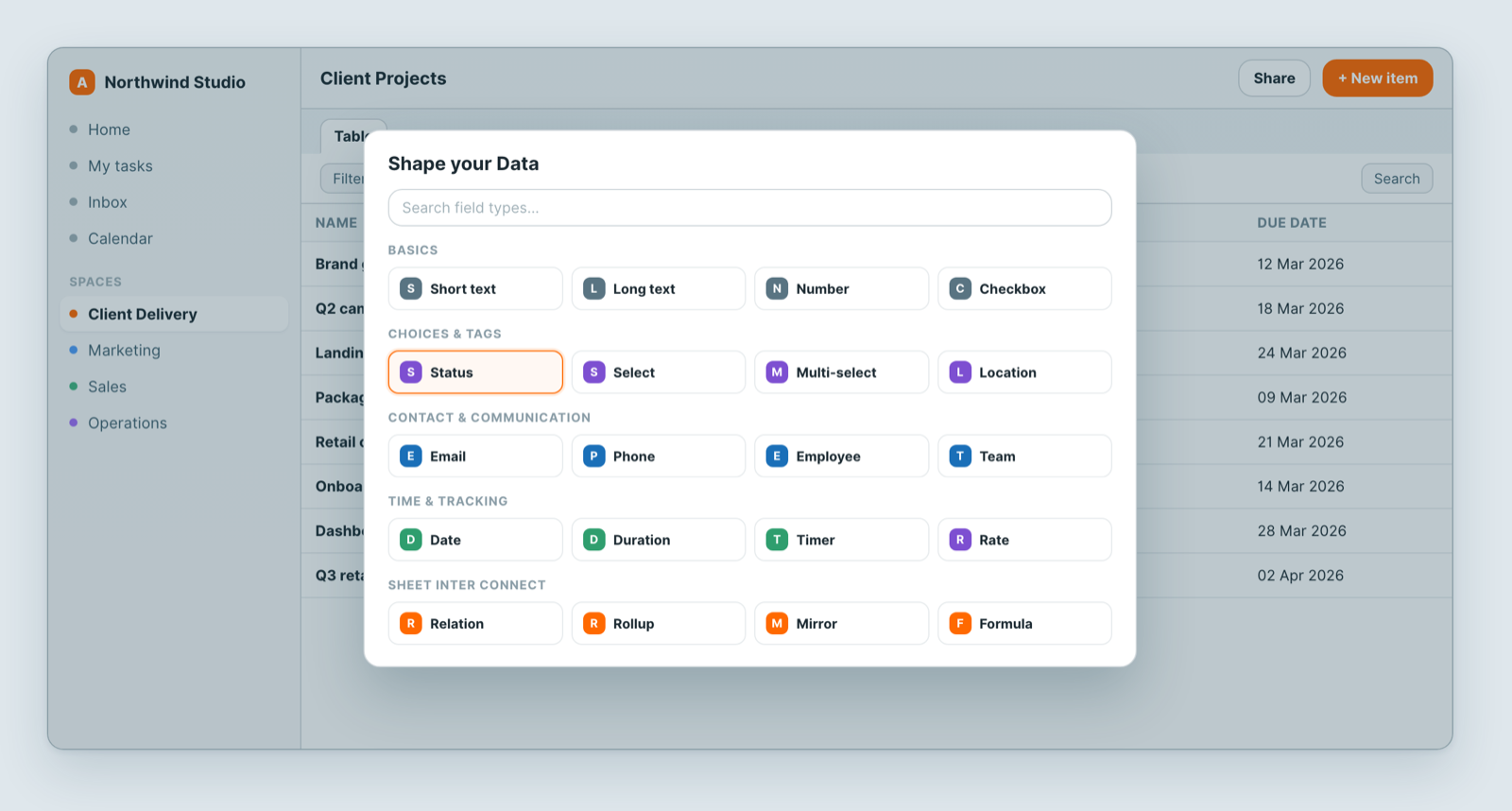
A field's type decides what it can store and what Atwork can do with it: which views can use it, how you can filter and group by it, and whether it can feed a rollup or an export. This page covers the field types most sheets use, grouped the way the Shape your Data picker groups them. To add a field, see Build a sheet with custom fields.
Which field type should I use?
Start from what you want to store:
| I want to store… | Use |
|---|---|
| A name, title or short label | Short text |
| Notes over several lines | Long text, or Document for formatted notes |
| An amount, count or percentage | Number |
| A deadline or publish date | Date |
| The stage a record moves through | Status |
| One choice from a fixed list, like a dropdown | Select |
| Several tags | Multi-select |
| The person responsible | Employee |
| Several people | Employee List |
| A link to a record in another sheet | Relation |
| A value calculated from other fields | Formula |
Can I change a field's type later?
Yes, for many types. Click the field's column header and choose Change type, or open the field's Setting and use Type. Atwork lists only the types this field can become, each marked Keeps all values or Some values may be lost.
- Pick the new type. A preview opens: how many values convert, how many become empty, before-and-after examples, and what uses the field, such as a view that filters or sorts by it.
- Check anything listed under Used by; it may need adjusting after the change.
- Click Change type to apply it, or Cancel to leave the field as it is.
Read the preview before you confirm. If a change loses values you need, open the field's Setting within 30 days and click Restore previous type under Type; edits made to the field since the change are replaced. A text field can become a dropdown: Short text or Long text to Select keeps every value, and each distinct value becomes an option. Some types, such as File, Document, Relation and Formula fields, can't change type.
Basics
The plain building blocks. They filter and sort like a spreadsheet column.
Short text
Stores a single line of text. Best for names, titles, short labels and identifiers.
Long text
Stores multi-line text. Best for notes, descriptions and context that runs to a few paragraphs.
Number
Stores a number, with a display format. Best for revenue, counts, percentages and quantities. Numbers are what rollups total and formulas calculate with.
Checkbox
Stores yes or no. Best for done/not-done flags, approvals and simple toggles. You can group a table by a checkbox to split done from not done.
Choices & Tags
Fields where you pick from a list rather than type. Picking keeps values consistent, which is what makes grouping and filtering reliable.
Status
Stores the stage a record is in — to do, in progress, done, or your own stages. Status is what a board view groups its columns by.
Select
Stores one option from a list you define. Best for pick-one choices such as region, department or size.
Multi-select
Stores any number of options from a list. Best for tags, categories and skills.
Location
Stores one of your organisation's locations, picked from the list you maintain for the workspace.
Job
Stores a role from your organisation, such as Designer or Account manager. Best for work that belongs to a role rather than a named person.
Contact & Communication
Fields for people and ways to reach them.
Stores an email address, with one-click compose from the cell.
Phone number
Stores a phone number. Best for mobile, office and emergency contact numbers in a CRM or contact list.
Employee
Stores one member of your workspace. Best for a single owner, assignee or reviewer. Use it instead of typing a name into a text field: an Employee field can be filtered by person and grouped on, and it stays correct when someone changes their display name.
Employee List
Stores several members. Best for watchers, reviewers and co-owners.
Team
Stores one team from your organisation. Best for team-level ownership.
Team List
Stores several teams per record.
Time & Tracking
Fields that hold time, either a point in it or an amount of it.
Date
Stores a date, and optionally a time. Best for due dates, deadlines, publish dates and milestones. Calendar and Gantt views run on date fields, so add a Date before you add one of those views.
Duration
Stores a length of time. Best for elapsed time, meeting length or sprint length.
Timer
Adds a start/stop timer to each record to track the time spent on it.
File & Media
Fields for attachments, formatted content and links.
File List
Stores one or more attached files per record. Best for galleries, briefs and deliverables.
Document
Stores a formatted rich-text document per record. Click it to open the document in its own window, where you can also download it as HTML.
URL
Stores a web link. Best for external references, shared folders and reference docs.
Sheet Inter Connect
Fields that connect one sheet to another, or calculate from other fields. This is how sheets stop being separate tables. Relations, mirrors and rollups covers them step by step.
Relation
Links a record to records in another sheet — tasks to a project, projects to a client. The other connected fields build on it.
Mirror
Shows one field from the linked record, read-only. The value lives in one place and appears wherever it is needed.
Rollup
Summarises the linked records — for example, the number of open tasks on a project or the total cost of its line items.
Formula
Calculates a value from other fields on the same record: percentages, days between two dates, combined text. It is read-only and recalculates on its own. See Formula fields.
Link
A shortcut to another record or sheet in your workspace.
Interactive & AI Tools
Fields you click, rate or let AI fill.
Button
Runs a workflow on the record with one click. You choose the workflow in the field's settings, for example one that sends an email or creates a follow-up task; until you choose one, the button does nothing.
Vote
Counts upvotes on each record. Best for feature requests or ideas a team ranks together.
Rate
Stores a star rating. Best for satisfaction scores, quality checks or a quick priority.
AI Text
Fills itself with AI-generated text from a prompt you write, such as a summary or a rewrite.
Status vs Select: which one?
Use Status when records move through stages in order and you want a board of them; use Select for a fixed category that describes the record but does not progress. In review is a status; Retainer client is a select option. Many sheets have both: one Status for the workflow and one or two Select fields for categories.
Why use an Employee field instead of text for people?
Because Atwork knows who the person is. With an Employee field you can filter by person, group a table by owner and assign work. A name typed into a text field is only text: it breaks when spelled two ways and cannot be filtered by person.
System fields
Every sheet also records Created at, Created by, Modified at and Modified by for each record, plus an automatic Index number. You do not add them from the picker and cannot edit them; they fill themselves in. Use them to sort by newest, or to filter for records someone changed this week.
FAQ
Can I change a field's type after I create it? Yes, to the types Atwork offers for it: click the column header and choose Change type, then check the preview before you confirm. The steps are near the top of this page.
Why can't I pick my field in a board or calendar? Each view needs a field of a matching type. A calendar or Gantt view needs a Date field, and a board groups by a choice field such as Status. Add the field first, then set up the view.
Which fields can I group a table by? Status, Select, Multi-select, Employee, Team, Job, Date and Checkbox.
Which fields are included when I export a table? Most types, and fields hidden in the view are included too. Files, documents, Employee and Team List, Rate, Vote, Timer, Button and Link fields are not exported. See Export and print your Atwork data.
Related: Build a sheet with custom fields · Relations, mirrors and rollups · Formula fields · Export and print your Atwork data