Build a sheet with custom fields
A sheet is a table of records, and a field is one column of it. Fields decide what you can store, filter on, group by and chart — so the field types you pick shape everything you can do later.
Add a field
- Open a sheet and click + at the right end of the column headers.
- The Shape your Data picker opens. Search for a type, or browse the groups.
- Pick a type, name the field, and create it.
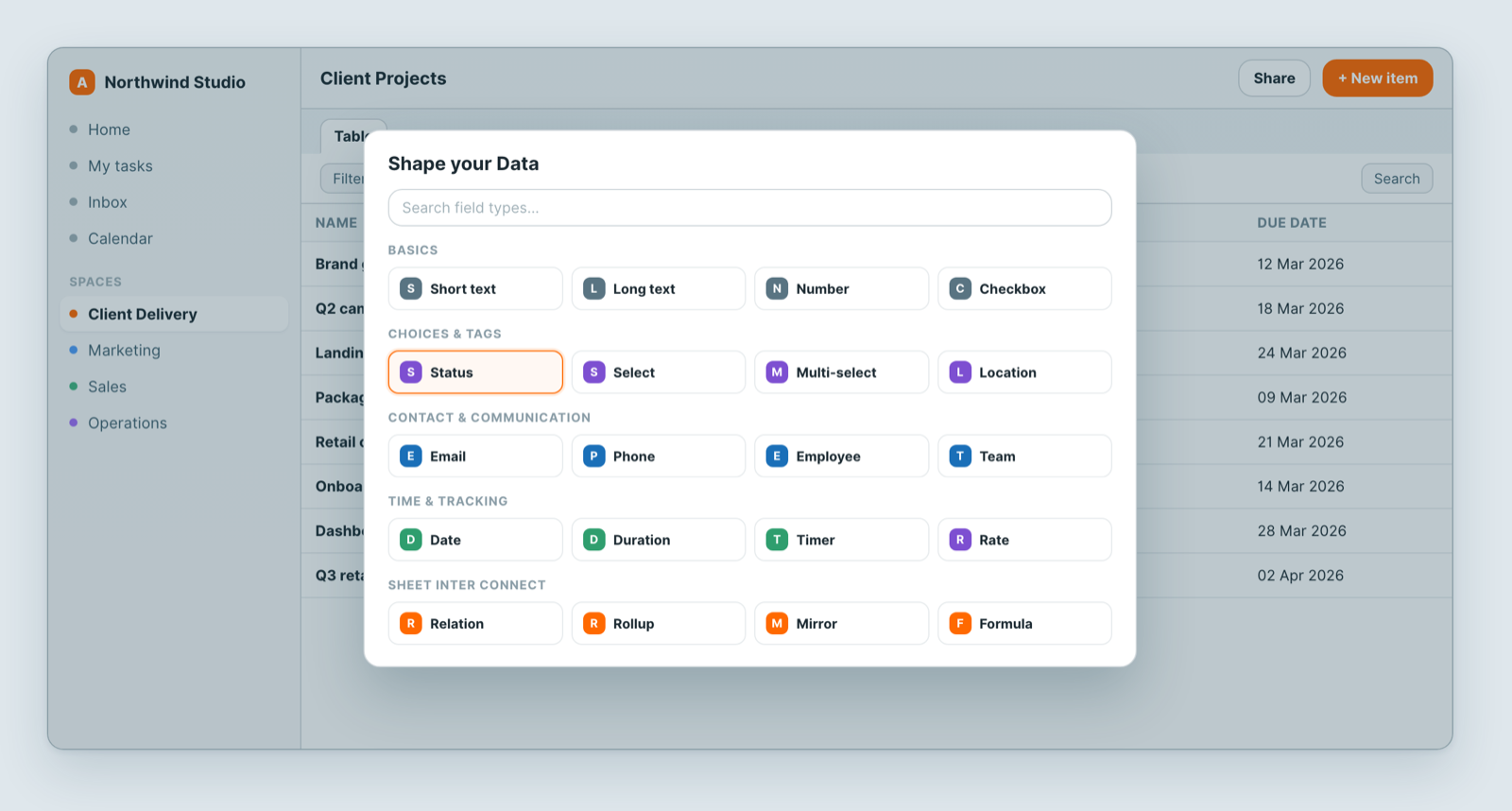
The field types
Basics — Short text, Long text, Number, Checkbox.
Choices & Tags — Status, Select, Multi-select, Location, Job. Use Status for the stage a record moves through; it is what a board view groups by.
Contact & Communication — Email, Phone number, Employee, Employee List, Team, Team List. Use Employee rather than a text field for a person, so you can filter by owner and assign work.
Time & Tracking — Date, Duration, Timer. A date field is what calendar and Gantt views run on.
File & Media — File List, Document, URL.
Sheet Inter Connect — Relation, Rollup, Mirror, Formula, Link. This is how sheets stop being isolated tables.
Interactive & AI Tools — Button, Vote, Rate, AI Text.
Connect two sheets
Use a Relation field to link records in this sheet to records in another — projects to a client, tasks to a project. Once the link exists:
- A Mirror field shows a value from the linked record, so you do not copy it.
- A Rollup field summarises the linked records — count them, or total a number across them.
That is the difference between a spreadsheet and a database: one place holds the fact, everywhere else points at it.
Notes
- Some views require a matching field. A board needs something groupable such as Status; a calendar or Gantt needs a Date. Add the field first, then the view.
- Starting from scratch? The picker also offers Start from a template — a ready-made set of fields for a lead tracker, task board, content calendar and more.
Related: Table view · Views: see the same data 12 different ways · Field types explained