Relations, mirrors and rollups
This is the feature that separates Atwork from a spreadsheet: sheets can point at each other, so a fact lives in exactly one place.
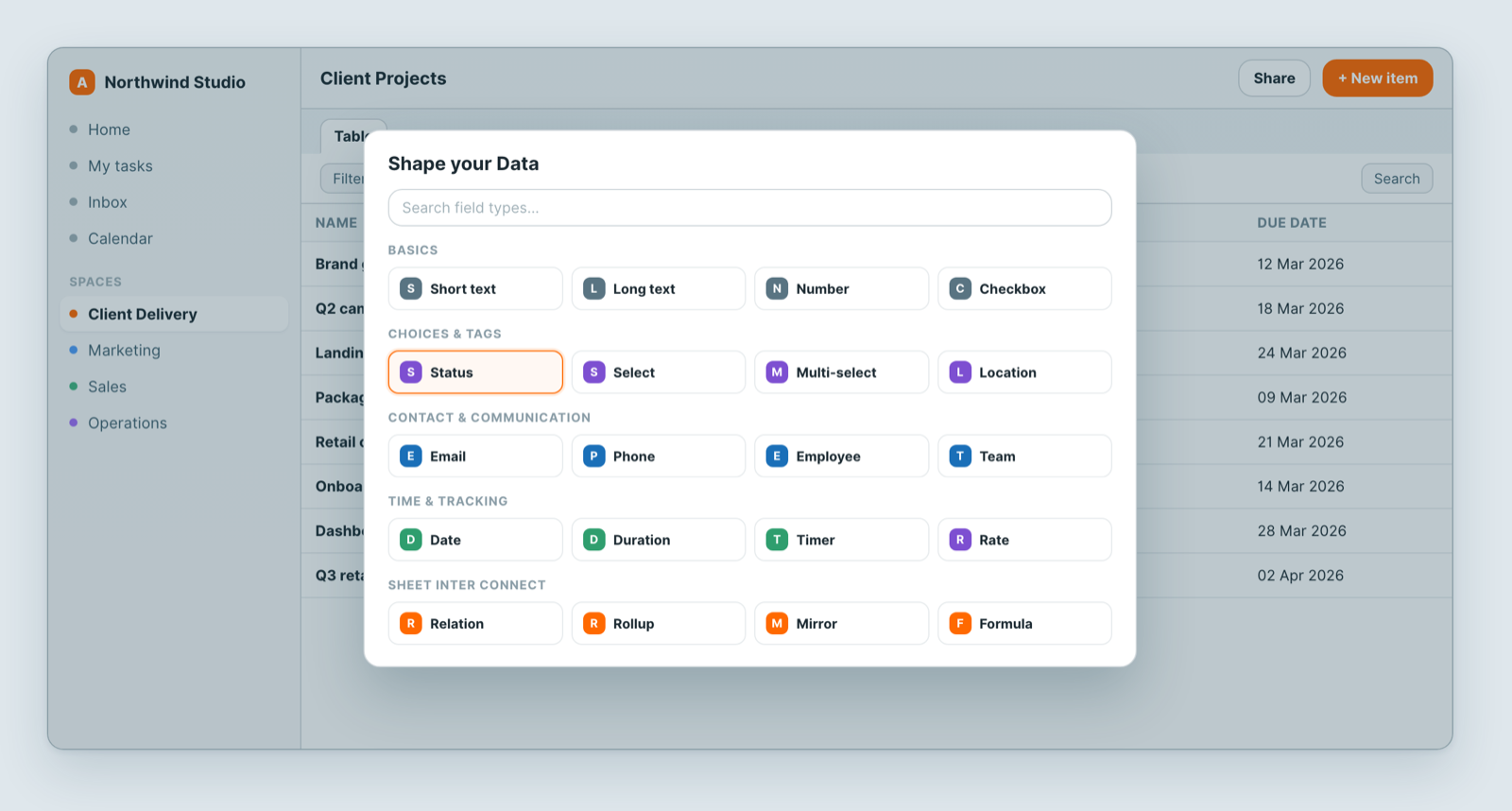
Relation — the link
A Relation field links a record to one or more records in another sheet. Projects → a client. Tasks → a project. Invoices → a client.
Add a Relation field and choose the sheet it points at. Now each record can pick one (or several) records from there.
Why not just type the client's name? Because a typed name is a copy. Rename the client and every copy is wrong. A link stays correct, and lets you pull other facts through it.
Mirror — show a linked value
A Mirror field displays a field from the linked record. Link a project to a client, then mirror the client's account manager or contract tier onto the project.
It is read-only and always current — change it on the client and every project reflects it.
Rollup — summarise the linked records
A Rollup looks the other way: from the client, summarise the linked projects. Count them, sum their values, take the latest date.
So a Clients sheet can show number of open projects and total contract value per client without anyone maintaining those numbers.
A worked example
- Clients sheet.
- Projects sheet with a Relation field to Clients.
- On Projects, a Mirror of the client's account manager — so a project view shows who owns the relationship.
- On Clients, a Rollup counting linked projects, and another summing their value.
Nothing is entered twice, and nothing goes stale.
Notes
- Mirror and Rollup need a Relation first — they travel along it.
- Rollups recalculate on their own; do not maintain them by hand.
- If a rollup looks wrong, check the relation: a record linked to the wrong parent, or not linked at all, is the usual cause.
Related: Build a sheet with custom fields · Formula fields