Card and gallery views
Card view shows each record as a card with a cover image and the fields you choose. Gallery view shows the files attached to your records, one tile per file. Use Card to recognise records by sight, and Gallery to browse the files themselves.
Card view: one card per record
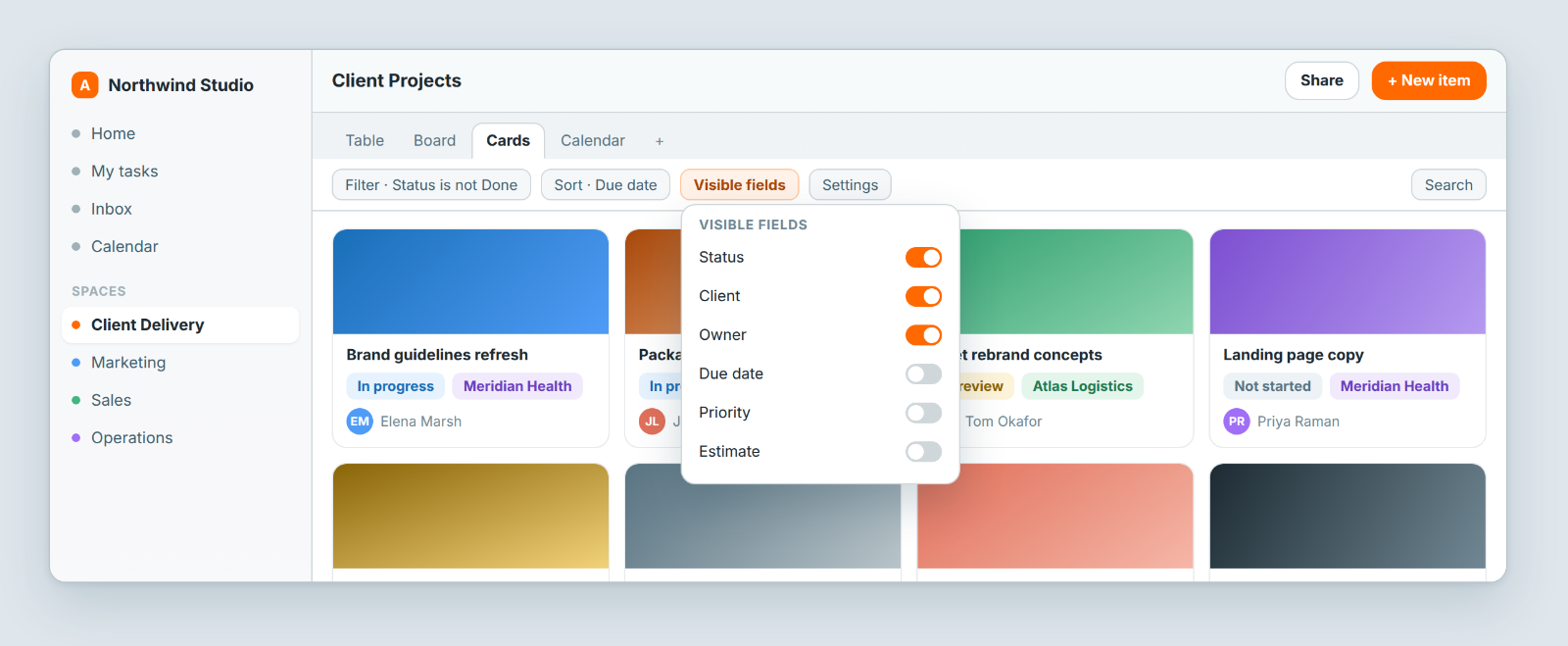
Good for creative work, products, properties and people: anything where the picture is the identifier.
Create one
- Click + in the view switcher and choose Card.
- Name it and save.
- Click Visible fields in the toolbar and switch on the fields each card should show.
- Open Settings to choose the Layout, Grid layout or List layout, and the Cover source. Auto uses the first Cover or File List field, or you can pick a specific Cover or File List field.
Click a card to open the record. The toolbar also has search, Filter and Sort.
Gallery view: one tile per file
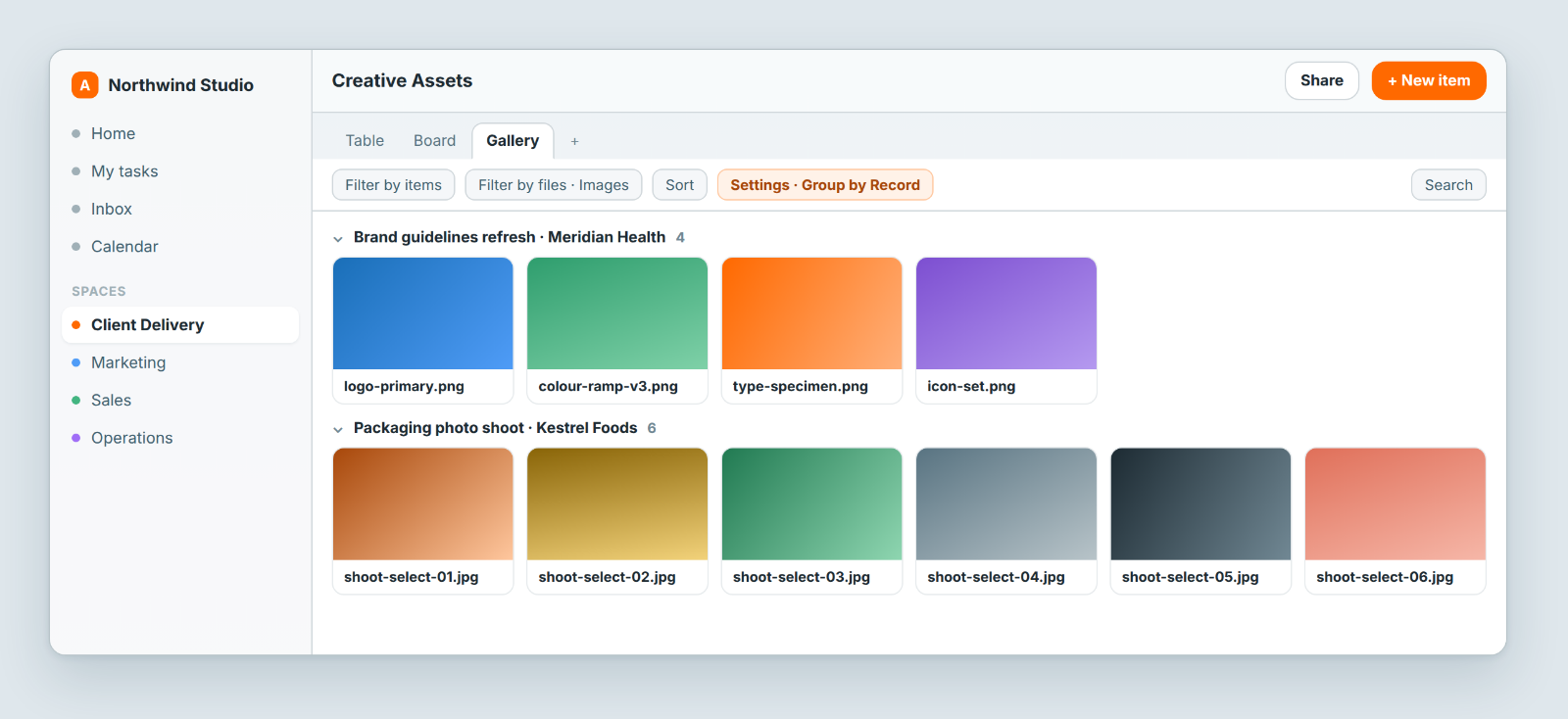
Built for browsing files and images: photography, design assets, proofs and shoot selects. Each tile shows an image thumbnail, or a file-type icon, with the file name.
Create one
- Make sure the sheet has a File List field. Without one, Gallery is unavailable in the view list.
- Click + in the view switcher, choose Gallery, name it and save.
- Open Settings and set the File source: All File List fields, or one File List field.
- Optionally set Tile size (Small, Medium, Large) and Group by: None, Record, Type or Month.
Working in it
- Click a tile to preview the file. To reach the record it belongs to, use the tile's ⋮ menu → Show Record.
- Filter by items narrows which records' files appear. Filter by files narrows by Format (images, videos, audio, PDFs), size, Uploaded by and Uploaded at.
- Select several tiles to download or delete them together.
- Drop files onto the gallery to add new records: each file creates a record with that file attached.
If the view says Gallery isn't configured, no File List field is selected yet. Pick one under Settings → File source.
Keep cards sparse
The temptation is to put eight fields on a card, at which point it is a cramped table with a picture. Two or three, such as status, owner and date, are usually right. If someone needs everything, they open the record.
When a table is better
If people are comparing values such as dates, numbers or owners, a table wins. Cards are for recognition, not comparison. It is normal to keep both on the same sheet.
Notes
- Gallery or Card view? Want one card per record? Use Card. Want one tile per file, even when a record holds twenty? Use Gallery.
- Why is Gallery unavailable? The sheet has no File List field yet. Add one, then create the view.
- Card view has no card-size setting. On a Board, card size is under Settings → Display → Card Sizes. See Board view.
Related: Views: see the same data 12 different ways · Board view · Table view