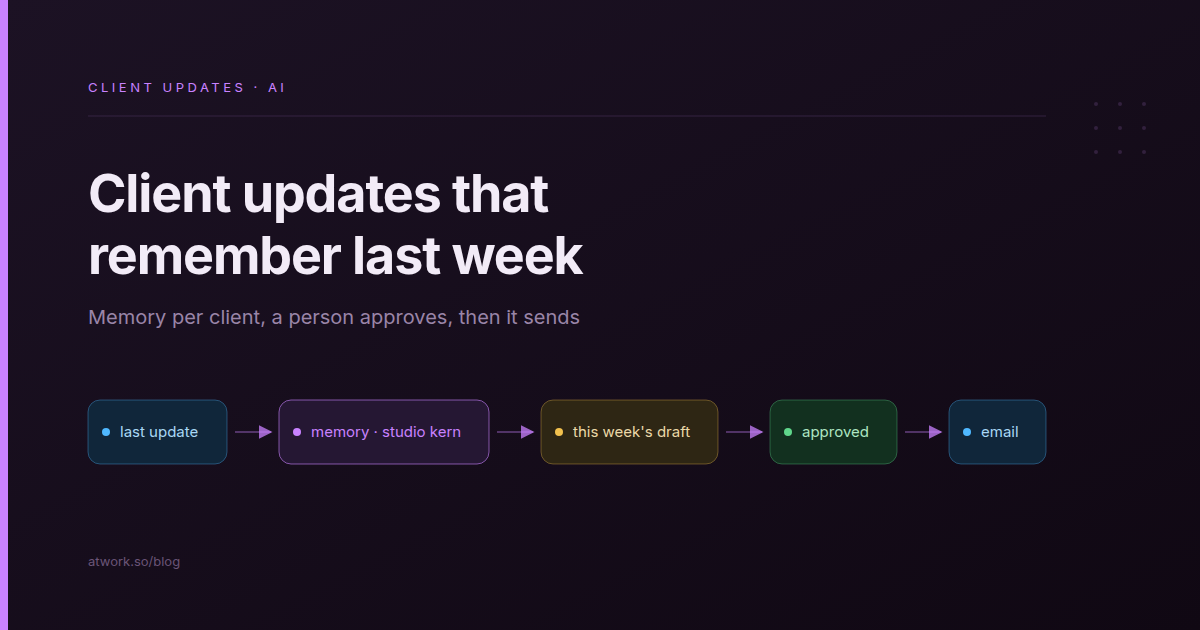
An AI can draft this week's client update in seconds, and it reads like it was written by someone who joined on Monday. It doesn't know you promised the first components by Wednesday, or that you have asked twice for the font licence. That gap is why most AI client updates still get rewritten by hand on Friday afternoon.
In an Atwork workflow, the Agent step can remember earlier runs, grouped by a key you choose. Key that memory to the client, and each Friday's draft starts where the last update ended. Everything it keeps about a client stays one entry you can open, read and forget. If the Agent step is new to you, start with AI agents in workflows.
Below: the memory settings, the build, the approval step, and the questions a client will ask about their data.
Why do AI-drafted client updates read as generic?
Because every run starts from nothing. The draft can describe this week from your board, but it can't know what you told the client last week: the date you promised, the question still open, the thing they asked you to stop doing. Clients read updates as a thread, and a draft that drops the thread reads as a form letter.
A good update has four parts, the ones set out in client status updates without the weekly call: what moved, what's next and by when, what we need from you, and what changed. Two of them depend on last week: "next and by when" is a promise the next update has to keep, and "what we need from you" is often a request made again.
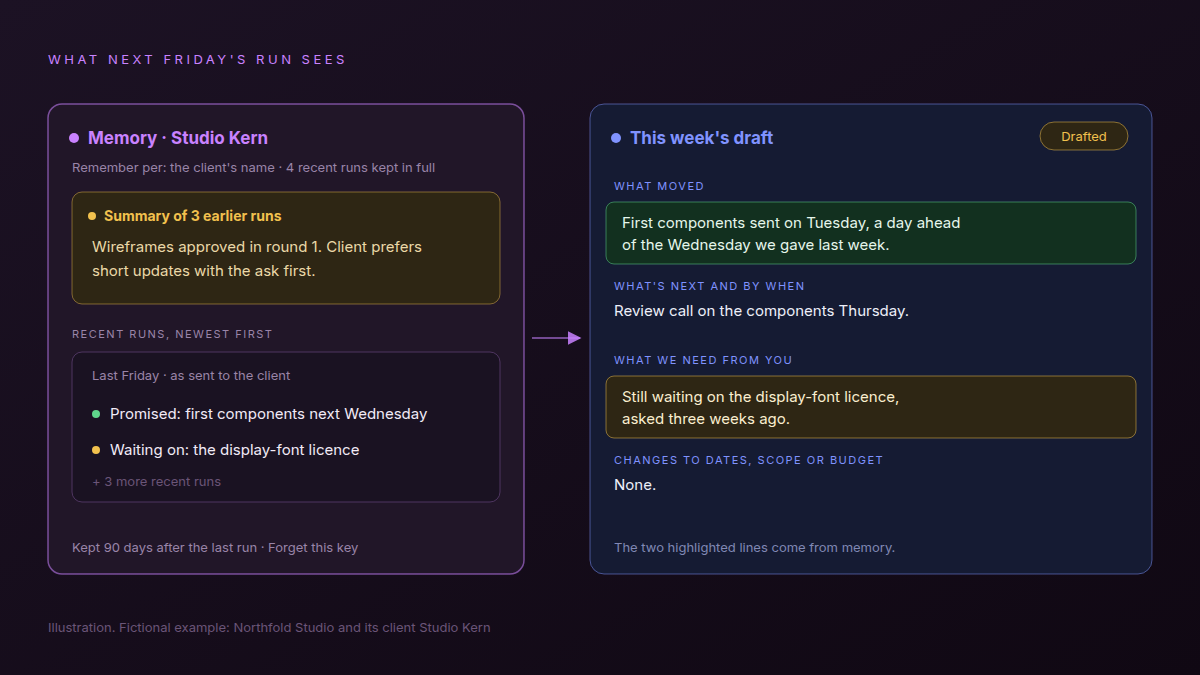
Take Studio Kern, a site rebuild at the fictional agency Northfold Studio. This week's useful line is "the first components went out on Tuesday, a day ahead of the Wednesday we gave you, and we're still waiting on the font licence." Only a draft that knows last week can write it. For which parts of reporting can run without a person at all, see automated client reporting.
What does an Agent step remember between runs?
With Remember earlier runs on, each run stores two things under a key you choose, such as the client: what the step was asked and what it answered. The next run for the same key gets the recent runs word for word and a short summary of the older ones. Everything else starts fresh.
The settings sit on the step's Memory tab:
| Setting | For a weekly client update |
|---|---|
| Remember earlier runs | On |
| Remember per | The client's name, inserted from the client's row |
| Recent runs kept in full | 4, so a month of updates stays word for word (you can keep 1 to 10) |
| What to remember | Steers the summary of older runs: promises and dates, open questions, what is waiting on the client, how this client likes updates written |
| Share with other steps | Empty, unless another step should read the same thread |
Pick a key that outlives the people
The field's own example is the customer's email, which suits customers who are one person. An agency's client is a company, and the person you write to changes.
- The client's name (recommended): readable in Stored memory, and it survives a change of contact.
- The contact's email: a new marketing manager starts with an empty memory.
- The row's Item ID: stable, but Stored memory then lists ids you can't read at a glance.
If you rename a client, its memory stays under the old name.
How do you build a weekly update that remembers last week?
Two small workflows do the drafting. The Friday one lists your clients and starts the drafting one once per client. In the drafting one, an Agent step reads that client's row and remembers per client, and an Update Item step writes the draft back onto the same row. Nothing reaches a client from either.
The build runs on the Clients sheet of the Agency Client Delivery template, after two changes. On Deliverables, open the Client column's menu, choose Setting, then Relation, turn on Show on Clients and save; then link each deliverable to its client, so every client row lists its own work. On Clients, add three fields: This week's draft (long text), Update status (a select with Drafted, Approved and Sent) and Last update sent (long text).
Draft one client update
Build this one first, so the Friday workflow has something to run:
- Manual trigger with one input, Client row, so another workflow can run it.
- Get Item by ID from Clients, with the Client row input. This gives the agent the client's row, including its linked deliverables.
- Agent step from the Ask AI preset (answer: Text), set up in the step. Turn on Read only, limit its access to the Clients and Deliverables sheets, set If the agent fails to Error branch, set the memory as in the table above, and give it the task below.
- Update Item on Clients, the Client row: This week's draft is the agent's answer, Update status is Drafted.
- On the Error branch, Send Notification to whoever runs delivery, saying no draft was made for this client and why.
The task for step 3:
Write this week's update for [Client]. Look up the deliverables linked to this client and what changed on them this week; leave out other clients' work. Use four parts: what moved, what's next and by when, what we need from you, and any change to dates, scope or budget. Say whether anything we promised in earlier updates happened. This is the last update as the client received it: [Last update sent]. Under 150 words, in plain text without markdown, no greeting or sign-off.
Add the two names in brackets with Insert variable from the Get Item by ID step rather than typing them. Keep the clause about other clients' work: in our test runs, drafts borrowed another client's deliverables without it. Publish the workflow.
Friday client updates
- Schedule: weekly, Fridays at 09:00, in your timezone (the canvas card shows this as
0 9 * * 5). - Get Items from Clients, up to 50 rows.
- Run workflow: Draft one client update, once per item, with Client row set to the row's Item ID.
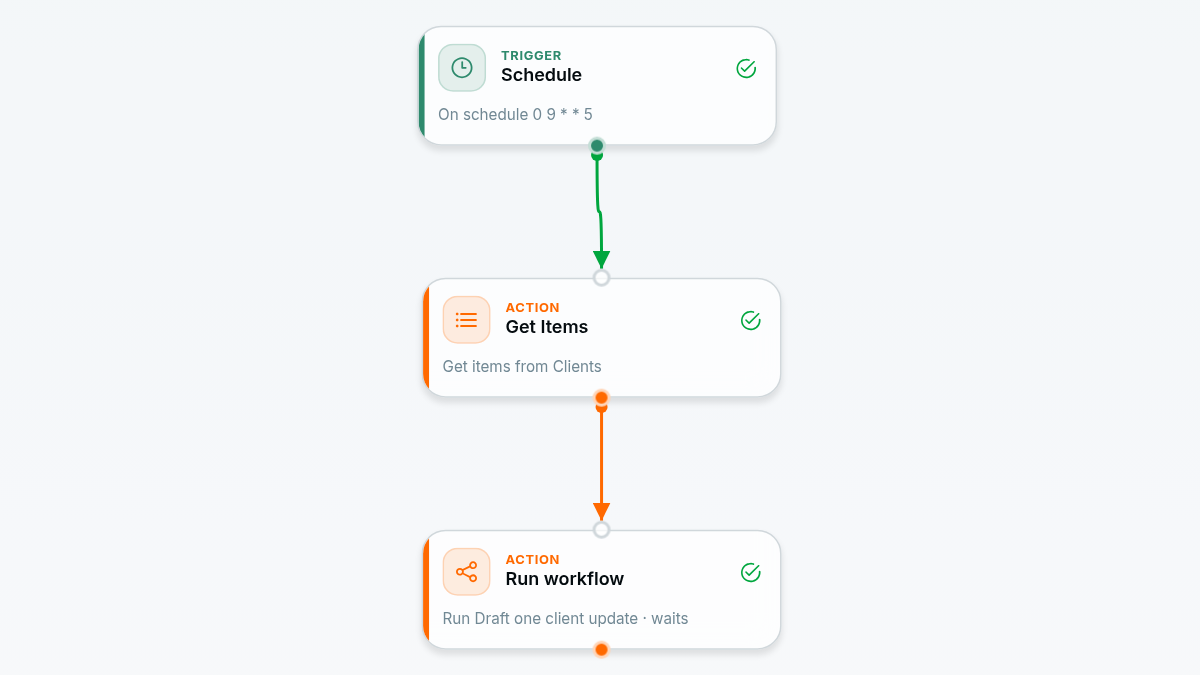
It takes two because an Agent step's answer doesn't carry the row it was about; one run per client keeps every draft on the right row.
Where does a person approve the update before it goes out?
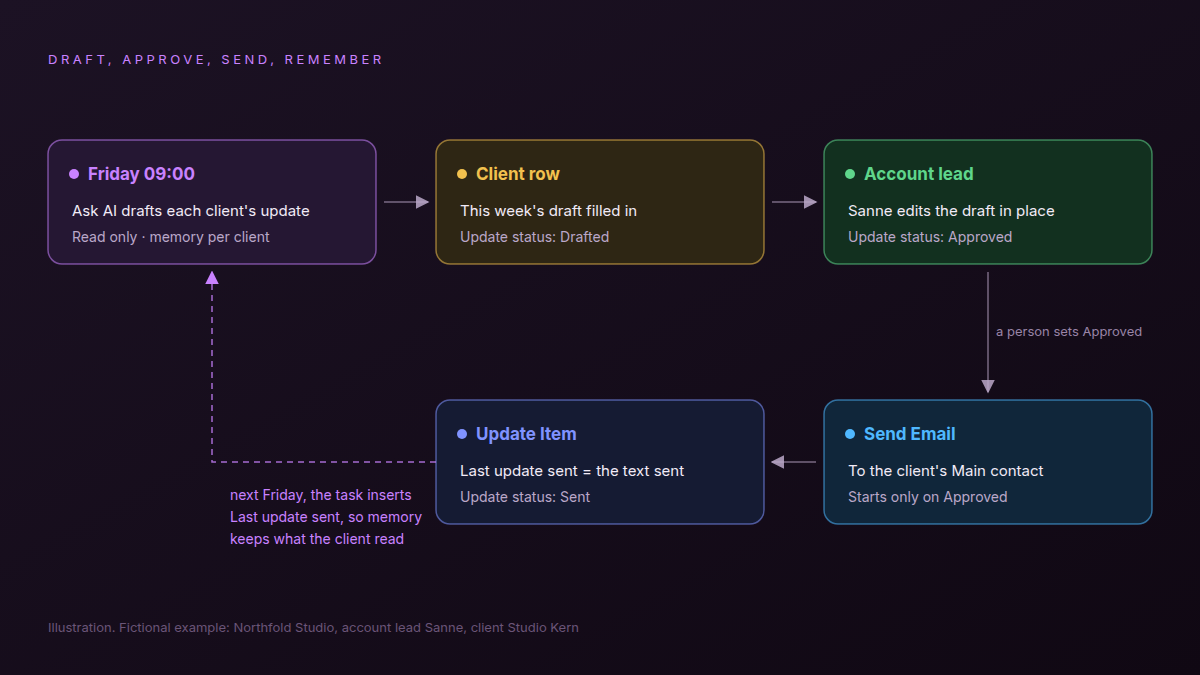
On the client's row. On Friday the account lead opens the rows marked Drafted, edits the draft in place and sets Update status to Approved. That change starts a third workflow, which sends the approved text and records it. The agent drafts; it never sends.
Send approved update:
- Field Changed on Clients, when Update status changes to Approved.
- Send Email through your own mail server: To is the Main contact, Subject is "[Client]: this week" with the name added through Insert variable, Text Body is This week's draft.
- Update Item on the same row: Last update sent is This week's draft, Update status is Sent.
Only a person can start a send. Changes a workflow makes don't start other workflows, so the Drafted status written on Friday morning never sends anything by itself. For clients who live on Telegram, swap step 2 for Telegram's Send Message to the client's group; the setup is in Telegram and Atwork for client updates.
Why the sent text goes back onto the row
Memory keeps the agent's draft, not your edits. Say Marco, who leads Ferro Logistics, softens the paragraph about last month's nine extra hours. Next week's run would remember the version he deleted. The send workflow's last step saves what the client read, the drafting task inserts it, and from then on that is what memory keeps.
An AI remembers what it wrote. Your client remembers what you sent. Make them the same text.
When we tested this, we added a promise of two homepage hero options by Thursday to Studio Kern's approved update, one the agent had never written. The next Friday's draft reported on it.
What does the memory keep about a client, and for how long?
It keeps two things from each run: the task as asked, with the values you inserted, and the agent's answer. A client's memory is kept for 90 days after its last run, so it renews every week while you keep sending updates.
| The question | The answer |
|---|---|
| What does it keep about us? | The task and the answer from each run: the most recent 1 to 10 in full (you choose), older ones as a summary |
| What doesn't it keep? | The rest of the client's row, attached files, and what the agent looked up during the run |
| How long? | 90 days after the last run for that client; each new run restarts the 90 days |
| Who can see it? | People in your workspace who can open the workflow |
| Can you delete it? | Yes: one client with Forget this key, or everything the step remembers with Clear memory |
| Does testing add to it? | No: Try it reads the memory but adds nothing |
Deleting the workflow forgets its steps' own memory. A memory shared by name with other steps stays until you clear it, or until 90 days pass without a run.
How do you see or forget what it remembers about one client?
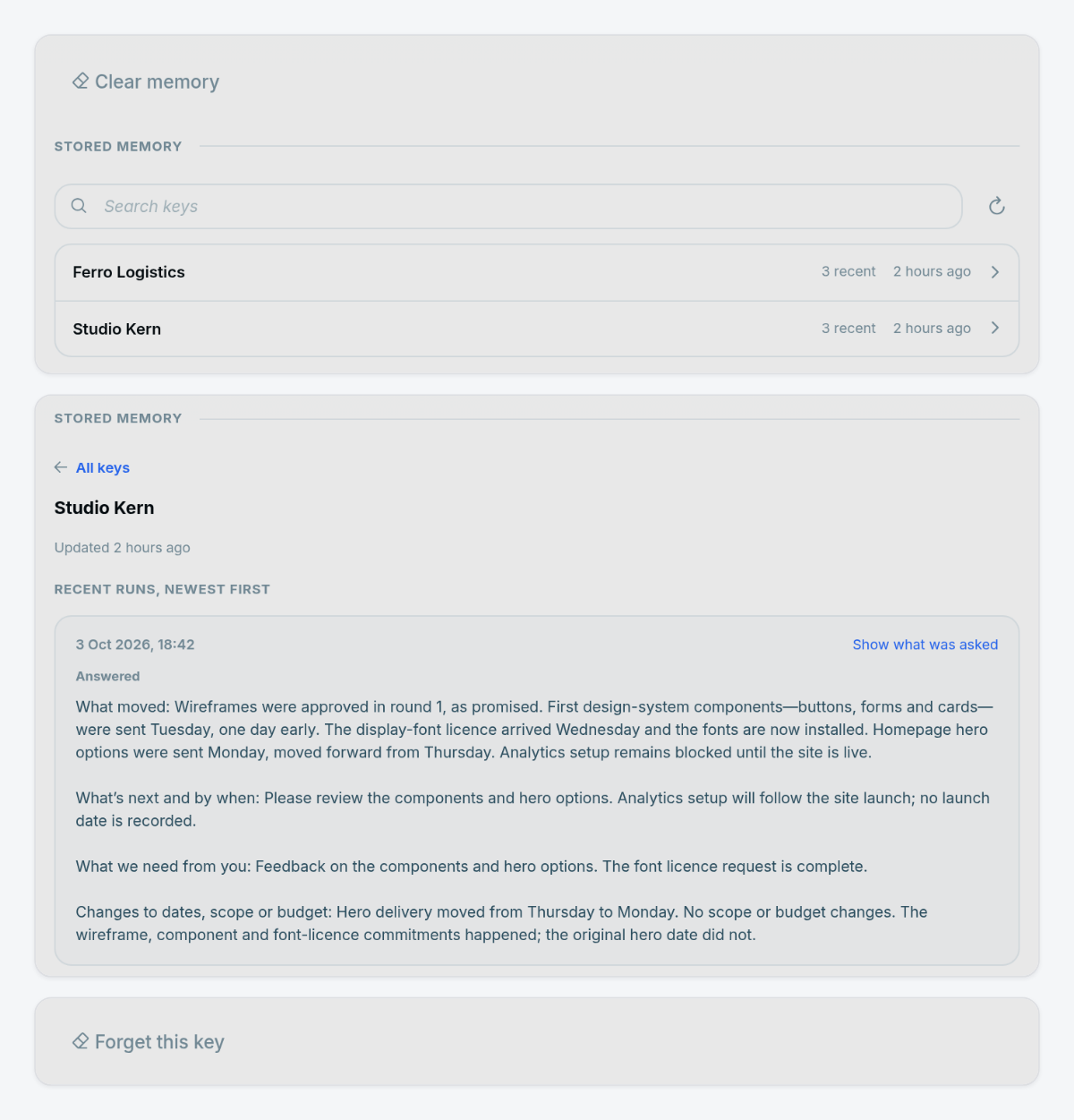
Open the Agent step's Memory tab and look under Stored memory, where each client is one key you can open and read. Forget this key deletes that client's memory; Clear memory deletes every client the step remembers.
- Open Draft one client update, then the Agent step, then Memory.
- Under Stored memory, search for the client. Each key shows its recent and summarised run counts and when it last changed.
- Open the key: any summary first, then the recent runs, newest first. Show what was asked shows the task each run received.
- Forget this key or Clear memory.
When a client leaves, forget their key the day the last update goes out rather than waiting 90 days. Every setting is described in the Agent step reference.
Frequently asked questions
Can an AI remember previous conversations with a client?
In an Atwork workflow, yes. Turn on Remember earlier runs in the Agent step and choose what to remember per, such as the client. Each run then sees that client's recent runs and a summary of older ones.
How long does the AI keep what it remembers?
90 days after the last run for that key. Each new run restarts the 90 days.
Does the client see the memory or the drafts?
No. The memory sits in the workflow, and drafts sit on your client row until a person approves and sends one.
Can a monthly report use what the weekly updates remember?
Yes. Give both Agent steps the same name under Share with other steps, and they read and add to one memory, per client. The report itself is covered in what to put in a monthly client report.
Does the agent send the update by itself?
Not in this setup. It writes a draft onto the row, and a separate workflow sends only what a person approved.
What does a weekly update cost?
Each run draws on your workspace's monthly AI budget, and the workflow's run history shows the AI cost of every run. For the wider numbers, see what AI costs an agency per month.
Where should you start this week?
Pick two retainer clients. Build the two drafting workflows with memory keyed to the client and four recent runs kept in full, and leave sending for later. After the second Friday, check that the second draft picked up what the first one promised. Then add the send workflow.
The flow also depends on your plan. On the pricing page, workflows come with Pro, and scheduled triggers and event automations, which include the Schedule and Field Changed triggers this flow starts from, come with Business.
The Agency Client Delivery template ships the Clients sheet this runs on, with the Main contact and the account lead already on each row. Between updates, the client portal is where a client pulls the same information for themselves.
Turn on memory for two clients, keep the drafts internal for two Fridays, and read week two against week one. Start free