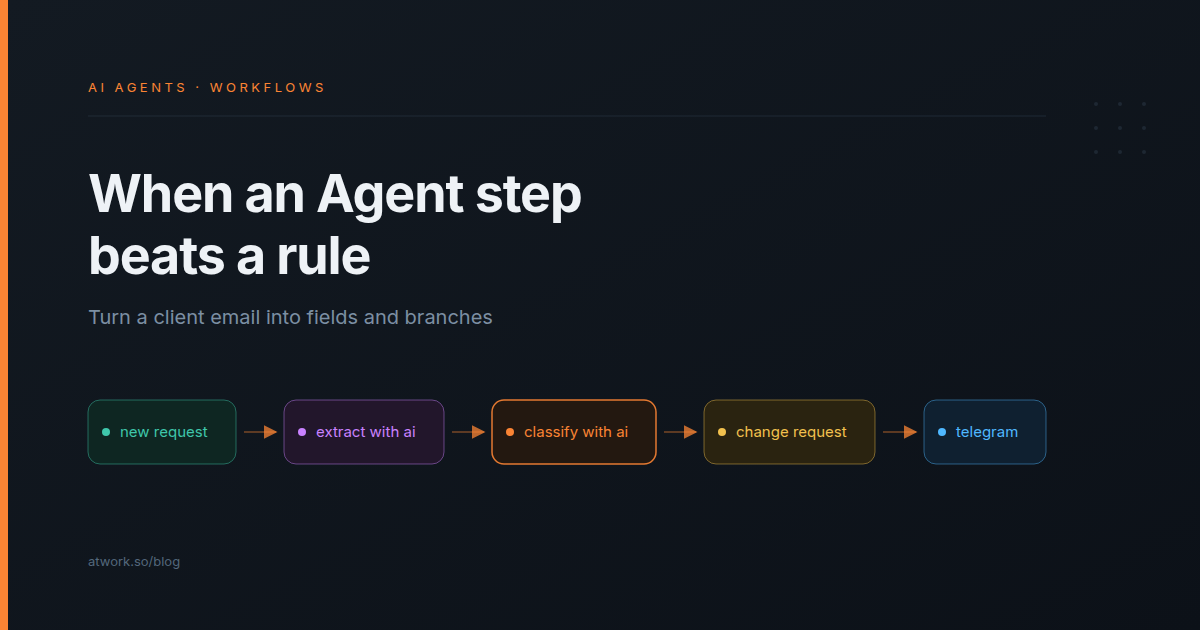
Workflow rules act on fields. Agency work arrives as sentences: a client email asking for "a few more sizes", a brief typed into a form late at night. Until now someone on the team read it, filled in the fields, and only then did the workflow take over. That reading is where AI agents in workflows earn their place. An Agent step in an Atwork workflow does the reading, then hands plain rules something they can act on: a set of fields, or a label that picks a branch. Below: when to use one instead of a rule, one agency intake flow, how to test it before it touches client work, and what it costs and can't do yet.
What is an Agent step in a workflow?
An Agent step is how you put AI agents in workflows: a step on the canvas that hands each incoming item to an AI agent with a task, then passes the agent's answer to the next step. You pick a saved workspace agent or set one up inside the step. The workflow's trigger starts it, so nobody has to assign anything.
- The agent. A saved agent, built-in or one of your own, brings its own model, instructions, tools and knowledge. You can also set one up in the step itself: choose the model, write the instructions, and give it Read or Read & write access. When it works, save it as a workspace agent and reuse it in other workflows and in chat.
- The task. You write it in plain language and add data from earlier steps with Insert variable. The step can also send the agent the incoming item, up to 20 knowledge pages, and text files attached to the item.
- The answer. Text, structured fields or a label, covered two sections down.
Assigning a task to an agent is the other door: a person hands over one job, as in how to delegate work to an AI agent. A step runs every time its trigger fires. Both use the same agents, and custom AI agents in Atwork covers building your own.
When should you use an Agent step instead of a rule?
Use an Agent step when the next decision depends on reading something a person wrote, and a rule when it depends on a field value. Most good workflows use both: the agent reads once and writes fields, and ordinary rules act on those fields from then on.
| What the next step depends on | Use | Why |
|---|---|---|
| Status moved to Approved | Rule | The field already says it |
| Budget field over 5,000 | Rule | A number a condition can compare |
| Whether a client email asks for work outside the retainer | Agent step (Classify) | Someone has to read it to know |
| The deadline buried in paragraph two of a brief | Agent step (Extract) | It isn't a field yet |
| Which account lead owns this client | Rule | A lookup on the Client field |
| What a fourteen-comment thread agreed | Agent step (Summarize) | Reading is the job |
The test fits in one sentence. If you could write the condition against a field, write the rule; if someone has to read a paragraph first, put an Agent step there and write the rule against its answer.
Choosing one or the other for a whole job is covered in AI agent or automation: which one fits the job; this piece puts both in one flow.
What can an Agent step hand to the next step?
One of three answers: plain text, structured fields, or a label. Text suits a draft or a summary. Fields suit anything a later rule or Update item step will use. A label sends each item down its own branch. Four presets set these up for you: Ask AI, Extract with AI, Classify with AI and Summarize with AI.
| Answer | What later steps get | Agency example |
|---|---|---|
| Text | One answer to insert into a message or a field | A draft reply to a client question |
| Structured fields | Each field on its own: text, number, yes/no, list, or one of a list | Deliverable, deadline, budget mentioned, missing information |
| Classify | One branch per label, plus Other for items that fit none | In scope, Change request, Needs info |
When a rule comes next, ask for fields, not prose. A rule can't compare a paragraph, but it can check whether Budget mentioned is No. You can add fields one at a time, or paste an example answer and let the step create the fields from it. For Classify, each label becomes its own branch on the canvas, and your instruction says when each one applies. A support triage agent does the same kind of labelling through assignment and a status instead of a workflow step.
What does an agency intake workflow with an Agent step look like?
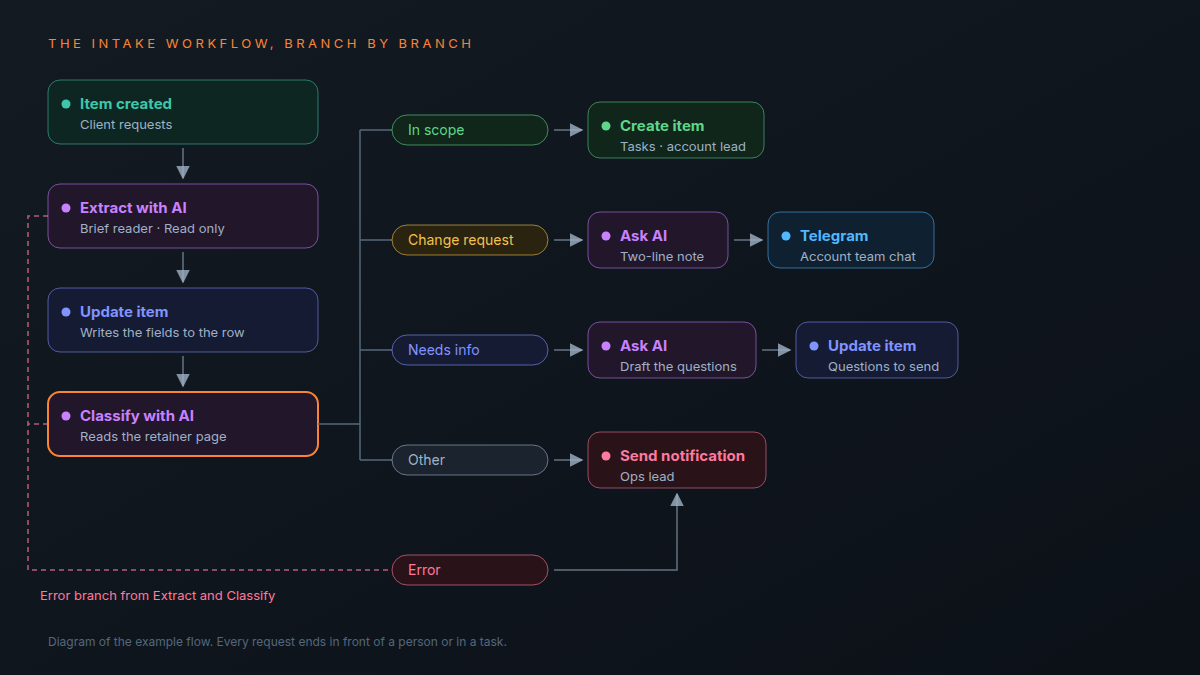
A new client request arrives. One agent pulls out the facts and a second decides whether the request is in scope. An in-scope request becomes a task, a change request becomes a note in the account team's Telegram chat, and anything unclear goes to a person.
The agency, Northfold Studio, and its client, Halden Coffee, are fictional.
- Trigger: Item created on the Client requests sheet. Requests land there as rows, typed in by the account team or sent through a form.
- Extract with AI, using a saved agent called Brief reader, with Read only turned on. Fields: Client, Deliverable, Deadline, Budget mentioned (yes/no), Missing information (a list) and a one-line summary.
- Update item writes those fields onto the request row, so the board shows them.
- Classify with AI, with three labels: In scope, Change request and Needs info. It reads the knowledge page "What our retainers include" and takes the fields from step 2 as its input.
- In scope → Create item in Tasks, assigned to the account lead.
- Change request → Ask AI drafts a two-line note for the account lead, and a Telegram step posts it to the account team's chat.
- Needs info → Ask AI drafts the questions to send back and saves them on the row for the account lead to send.
- Other, and the Error branch → Send notification to the ops lead.
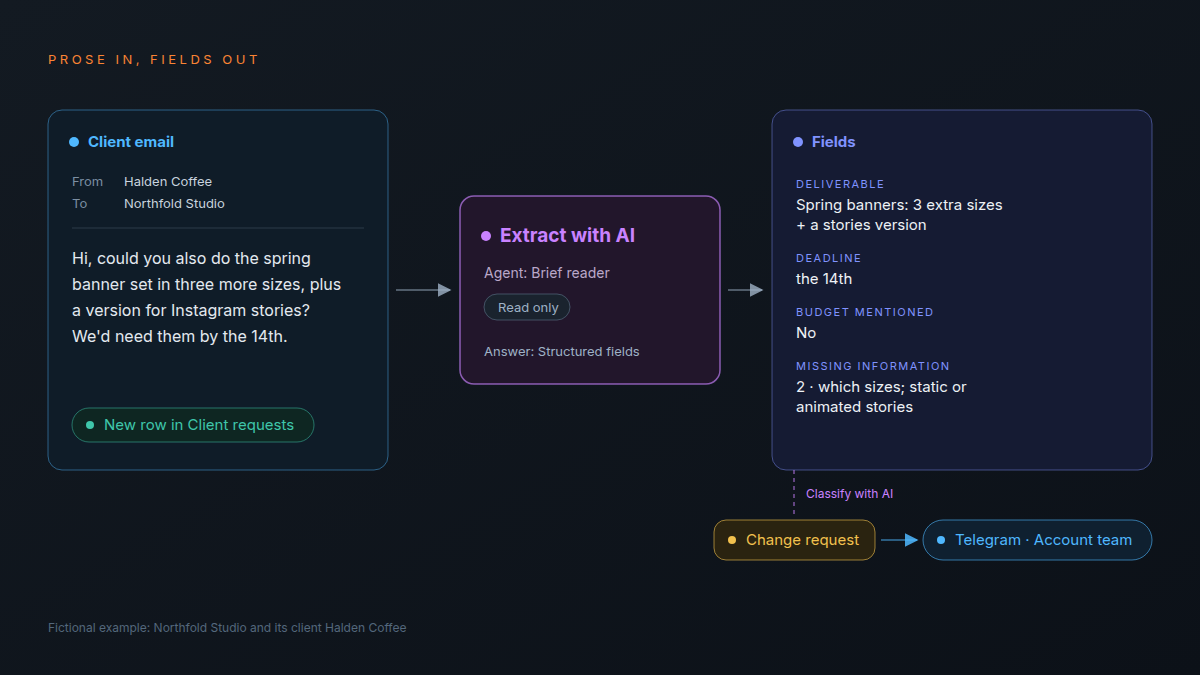
Halden Coffee writes: "Could you also do the spring banner set in three more sizes, plus a version for Instagram stories? We'd need them by the 14th." The answer to expect from step 2 looks like this:
| Field | Value |
|---|---|
| Deliverable | Spring banners: 3 extra sizes + a stories version |
| Deadline | The 14th |
| Budget mentioned | No |
| Missing information | Which sizes; static or animated stories |
Classify then labels it Change request, because the retainer page says Halden Coffee gets one banner set a month. Nobody on the team had to spot it or write it up, which removes the cost behind the change request nobody sends.
Agent → Agent: one agent's answer is the next one's input
The Classify step reads the Extract step's fields, not the raw email, so it decides on clean facts instead of a paragraph. Each agent has one job and its own instructions, which also means you can test each one on its own. When a label looks wrong, you can see straight away whether the extraction missed something or the classification misjudged it.
Agent → integration: the answer goes where the team already talks
The note drafted in step 6 is plain text, and a Telegram step sends it like any other message. Email through your own mail server works the same way. In this flow the message goes to the account team, not to the client: a person decides what Halden Coffee hears about the extra sizes and what they will cost.
How do you test an Agent step before it touches client work?
Press Try it. It runs the step once on the data from the workflow's latest run, read-only, and uses AI credits like a real run. Then read the run history: for each run it shows the model, the tokens used, the AI cost of the run and, item by item, the steps the agent took to reach its answer.
- Keep Read only turned on, under Advanced, while you test.
- Press Try it on the last run's data.
- Run the workflow on three real requests, including one you expect to be unclear.
- In run history, open Show steps for each item. Read how the agent got there, not only what it answered.
- Only then turn Read only off, if the step has to change records itself. With Ask before making changes turned on, the run pauses until the person it runs as approves each change in run history, and the step waits up to a day.
The trace matters more than the answer, the same habit as in what an AI teammate actually does in an agency: check how it got there before you trust where it landed.
What happens when the agent is unsure or fails?
Design the unhappy path before the happy one. A Classify step sends any item that fits no label down an Other branch. Every Agent step also has a setting for when the agent fails: stop the run, skip the failed items, or send them down an Error branch with the reason attached. For client work, unclear items should reach a person.
- Give unclear requests their own label. In the example, Needs info is a label, so a vague request still gets a useful answer: questions to send back. Other is the safety net behind it.
- Route Other to a person. A branch with nothing after it is where requests go to be forgotten.
- Pick failure handling per step. Stop the run when nothing after the step makes sense without it. Skip failed items for bulk enrichment, where one gap doesn't matter. Use the Error branch for anything client-facing, so the item lands in front of someone with the reason attached.
- Bound the run. The time limit defaults to 300 seconds and goes up to 900, and the agent can take up to 10 steps. A run that hits the time limit counts as a failure and follows the setting above.
A rule that breaks stops. An agent that isn't sure still answers, so give the unsure answers somewhere to go.
What does an Agent step cost, and what can't it do yet?
Each run draws on your workspace's monthly AI budget: $1 per org on Free, $5 per seat on Pro and $15 per seat on Business. Run history shows what each run cost. The limits that matter today are about what the agent can read, not about how you combine steps.
| Limit | Today |
|---|---|
| Items in one run, once per item | Up to 50 |
| Knowledge pages per step | Up to 20 |
| Files from the item | Text, CSV, JSON, Markdown, HTML; 5 per run, 10 MB each |
| PDFs and images | Not read yet |
| Time limit | Up to 900 seconds |
| Steps the agent can take | Up to 10 |
The example also depends on your plan. On the pricing page, custom AI agents such as Brief reader come with Pro, and event automations, which include the Item created trigger the intake flow starts from, come with Business.
If most of your intake arrives as PDFs or scanned forms, this step can't read those yet, and a person still has to pull the facts out first. For the arithmetic of a month of agent work, see what AI actually costs an agency per month.
Frequently asked questions
Do you need to write code to add an AI agent to a workflow?
No. Add an Agent step, pick an agent or a preset, write the task in plain language and insert data from earlier steps with Insert variable.
Can an Agent step change records in your workspace?
Only when you allow it. Read only has to be off, and an agent set up in the step also needs Read & write access. You can limit it to chosen spaces and sheets, and with Ask before making changes turned on, every change waits for a person to approve it.
Can one AI agent pass its work to another?
Yes. Put two Agent steps in a row and the second reads the first one's answer. A Run workflow step can also start another workflow and use what it returns.
Can the agent read PDFs or images attached to a request?
Not yet. It reads text, CSV, JSON, Markdown and HTML files attached to the item: up to 5 per run, 10 MB each.
Does the agent remember earlier runs for the same client?
It can. Turn on Remember earlier runs and choose what to remember per, such as the client's name. Memories are kept for 90 days after their last run.
How is an Agent step different from assigning a task to an agent?
Assigning hands one job to an agent when a person decides to. A step runs every time its trigger fires and passes its answer on to the next step.
Where should you start this week?
Pick the one inbox someone on your team still reads and sorts by hand: new requests, change requests or inbound leads. Add one Extract with AI step that writes three fields, keep Read only on, and read ten runs in history before you add a Classify step or anything that sends a message.
When ten runs read the way your account lead would have read the requests, add the second agent. The agents page shows Dana, the built-in assistant you can drop into the step, and the automation features page lists the triggers that can start it.
Put one Extract with AI step on your request intake, keep it read-only, and read ten runs before it sends anything. Start free