Every Monday someone in delivery posts the same message: please fill in Client and Service on your requests. AI autofill is how that message stops. In Atwork, any sheet column can fill itself through its Fill setting, either from a formula or from AI that reads the item and follows one instruction you write.
Below: which columns to give AI, which to give a formula, what happens to values your team typed, and what filling a backlog costs. For where AI fits in the rest of an agency, start with AI agents for marketing agencies.
What is AI autofill in a sheet?
AI autofill is a column that fills its own value on each row. It reads the fields of the same item that you choose and follows one instruction you write, such as "Retainer if it mentions a monthly scope, Project if it is a one-off." In Atwork it is a setting on the column, not a separate field type.
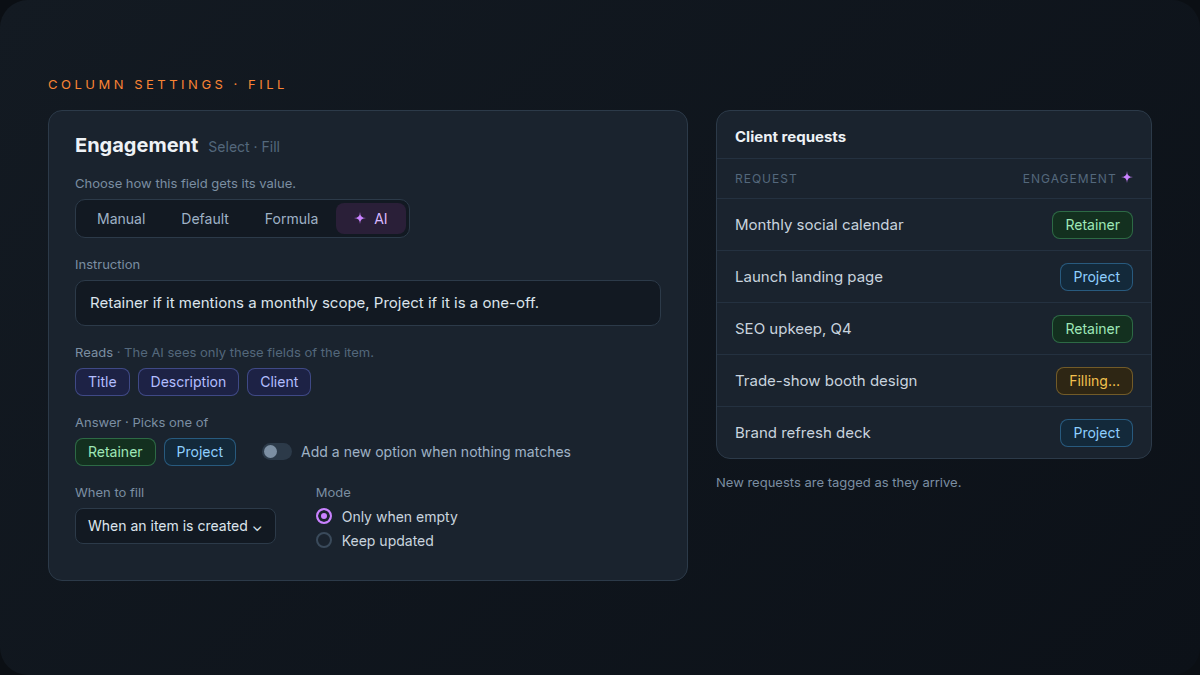
Click a column header and choose Autofill. There are four choices: Manual (people type it, where every column starts), Default (new items start with a value you pick), Formula and AI.
AI fill works on Select, Status, Multi-select, Short text, Long text, Number, Rate, Checkbox, Date and Employee fields, and the field type shapes the answer. A Select column gets one of its own options, a Date column gets a date read from the item, and an Employee column gets a member of your workspace, never a name that is not one.
Which agency columns should fill themselves?
The columns that need judgement over free text: which client and service a request is about, how warm a lead is, what a brief asks for and by when. Those are the fields people skip when they log work in a hurry, and the ones every filter, report and capacity view depends on.
| Column | Field type | Fill | What it reads |
|---|---|---|---|
| Client | Select | AI | Title, Description |
| Service | Multi-select | AI | Title, Description |
| Lead score | Rate, 5 stars | AI | Company, Budget, Notes |
| Deadline | Date | AI | Brief |
| Account manager | Employee | AI | Client, Brief |
| Hours left | Number | Formula | Budgeted hours, Hours logged |
| Over budget | Checkbox | Formula | Budgeted hours, Hours logged |
Tag each request by client and service
Set the Service column to AI, let it read Title and Description, and write the rule as you would explain it to a new coordinator: "Design if it asks for visuals or layouts, Copy if it asks for words, Paid media if it mentions ads or campaign budgets." The AI picks from the options the column already has.
Switch on Add a new option when nothing matches and it can add one when a request fits none of them: at most 5 per fill, and none once the column holds 100. Requests that arrive by email to the sheet are tagged the same way, because a row created from an email starts autofill like one a person adds.
Autofill reads only the item's own fields. When the right label depends on each client's scope, use the AI classifier for client requests instead: a workflow step that checks each request against what that client pays for.
Score a lead
Use a Rate column, or a Number column with a range. The instruction can be as plain as "5 if they name a budget and a start date, 1 if it is a job application." For a Number column you set a minimum and a maximum, and an answer outside that range is not written, so a confused reply never puts a 40 into a 1 to 5 score.
Turn a brief into fields
A brief usually lands as one long description. Four columns can split it: a Date column that reads the deadline out of the text, an Employee column for the account manager, a Short text column for the one-line deliverable (up to 255 characters) and a Long text summary (up to 10,000). The brief stays as the client wrote it; the columns make it something you can filter.
When should a column use a formula instead of AI?
When the answer follows a rule. A formula fill calculates the value from other fields of the item, gives the same answer every time, fills the moment a row is created and uses no AI credit. If the rule fits in one line, a formula is cheaper and more predictable than AI.
Hours left is budgeted hours minus hours logged. Over budget ticks when hours logged pass the budget. Priority can be High when the description contains "urgent" and Normal otherwise. In the formula box, type / to insert fields and functions; the Fill setting previews the result on a real row before you save. Formula fields covers the date and rounding functions formula fills share.
| Formula | AI | |
|---|---|---|
| When it fills | The moment the row is saved | Shortly after, once the AI answers |
| Same answer every time | Yes | Not guaranteed |
| Reads free text | Only exact words | Yes, for meaning |
| AI credit | None | One AI run per row |
| Good for | Sums, flags, rule-based labels | Tags, scores, summaries, dates in prose |
If you can write the rule down, it is a formula. If you would have to ask the account manager, it is AI.
It is the test AI agent vs automation applies to whole workflows, used one column at a time.
Will autofill overwrite what my team typed?
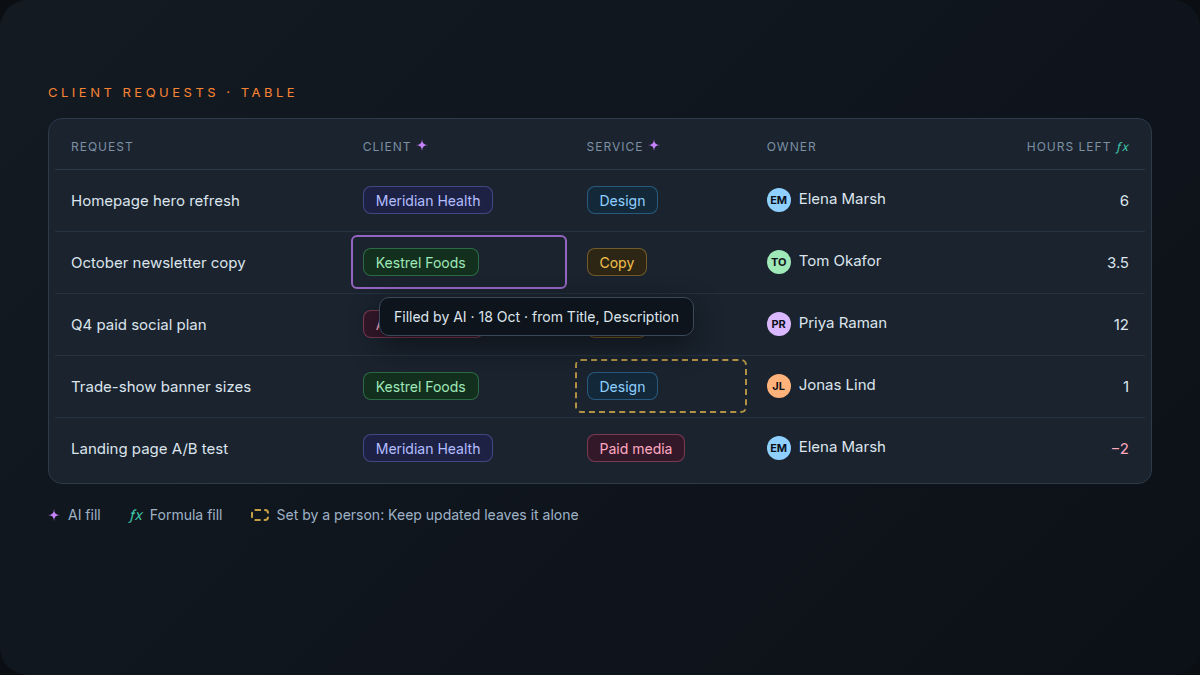
No. In Only when empty mode a column fills only while it has no value. In Keep updated mode it fills again each time its trigger fires, but a value a person set is never changed. Only a refill you start yourself replaces people's values: Refill with AI on a cell or a selection, or Fill existing rows with the scope All cells, including values set by a person.
You choose the trigger under When to fill:
- When an item is created. For tagging new requests as they arrive.
- The first time a field gets a value. For a brief pasted in after the row exists.
- Every time one of these fields changes. For a lead score that should move when the notes change.
When an account manager corrects an AI answer, the cell becomes theirs and later fills leave it alone. A filled column shows a mark after its name, ✨ for AI and ƒx for formula, and hovering a filled cell shows its source: "Filled by AI · 18 Oct · from Title, Description."
What does AI autofill cost?
A formula fill costs nothing. Each row an AI fill writes is one AI run, billed like an Agent run from the monthly AI budget every Atwork plan includes: $1 for the whole workspace on Free, $5 per seat on Pro and $15 per seat on Business. Before a bulk fill, Atwork shows the row count and an estimated cost.
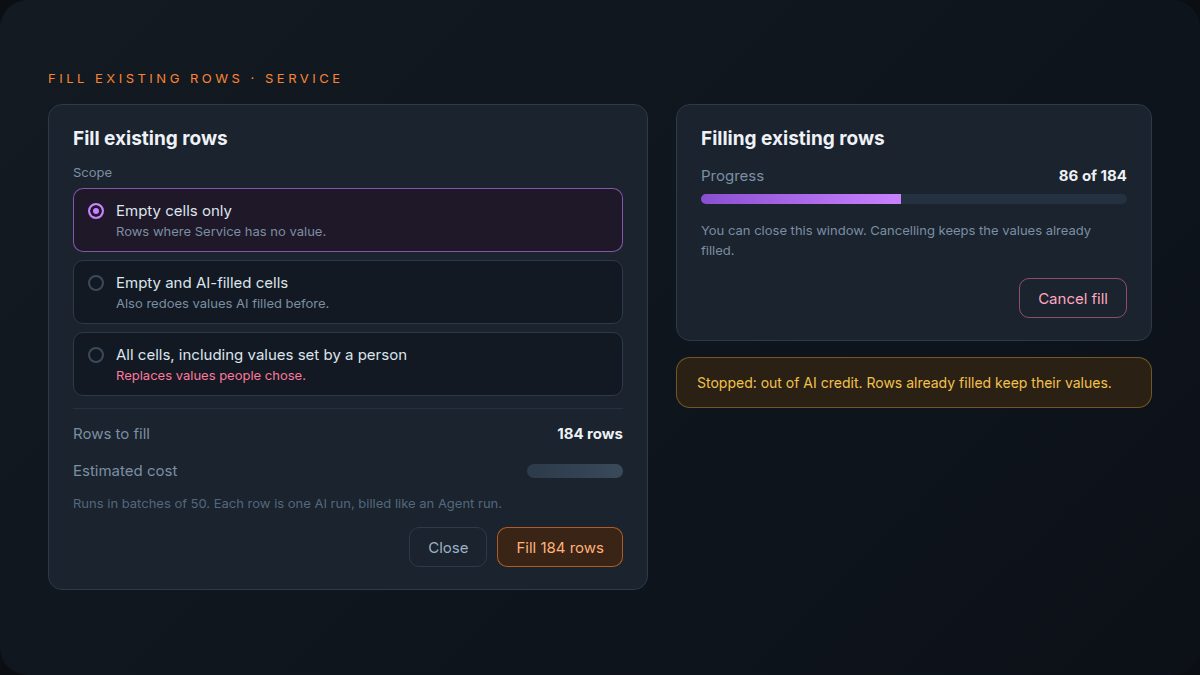
Fill existing rows… handles the backlog, scoped to Empty cells only, Empty and AI-filled cells, or All cells, including values set by a person. One run covers up to 2,000 rows in batches of 50. Cancel fill keeps every value already written, and if the budget runs out partway, the run stops with "Stopped: out of AI credit" and filled rows keep their values. For a few rows, use Refill with AI on a cell (Recalculate for a formula column) or on selected rows.
What AI costs an agency per month sets the budget against the rest of an agency's AI spend; the pricing page lists the plans and the AI budget explains top-ups.
How do you set up your first autofill column?
Open the column's header menu, choose Autofill, pick AI, write one sentence of instruction, choose the fields it reads, then when and how it fills. New rows fill from then on; Fill existing rows… covers the ones already in the sheet.
- Click the column header and choose Autofill.
- Pick AI.
- Write the Instruction in one or two sentences, naming the options exactly as they appear in the column.
- Under Reads, pick the fields the AI may see. It sees only those.
- Set When to fill and the Mode: Only when empty, or Keep updated.
- Save, then open Fill existing rows… and choose Empty cells only.
Fill a field automatically walks through every option, including formula fills and defaults.
Frequently asked questions
Is AI autofill available on the Free plan?
Yes. Every plan can use AI fill, drawing on the plan's AI budget: $1 a month for the whole workspace on Free. Formula fills use no AI credit on any plan.
Will autofill change a value someone on my team typed?
Not on its own. Only when empty and Keep updated never change a value a person set. A refill you start yourself does: Refill with AI on a cell or a selection, or the scope "All cells, including values set by a person."
Can AI autofill add new tags or options?
Yes, with Add a new option when nothing matches switched on: at most 5 new options per fill, and none once the column holds 100. New Status options go into To do.
Does autofill run when a workflow, an AI agent or an email adds a row?
Yes. A row created or changed by a workflow, an AI agent or an email to the sheet starts autofill the same way as one a person adds.
Can I fill rows that already exist?
Yes. Choose Fill existing rows… in the column's header menu or Fill setting, pick a scope, check the estimate and start. One run fills up to 2,000 rows.
What happened to the AI Text field?
It was retired. Existing AI Text columns became Long text columns and kept their values. To have AI write into a column now, set a Long text column's Fill to AI.
What is the difference between a Formula field and a formula fill?
A Formula field shows a calculated value nobody can edit. A formula fill writes an ordinary value into an ordinary column: people can still change it, and once they do, the fill leaves their value alone. Relation, Mirror, Rollup and Formula covers the Formula field.
Where to start
Pick the column your team forgets most, usually Client or Service on the request sheet. Give it an AI fill set to Only when empty, read a week of new rows, then fill the backlog. Move the columns that follow a rule to formulas the same afternoon. Atwork for agencies shows the rest of the setup.
Pick the one column your team forgets most and give it a Fill this afternoon. Start free