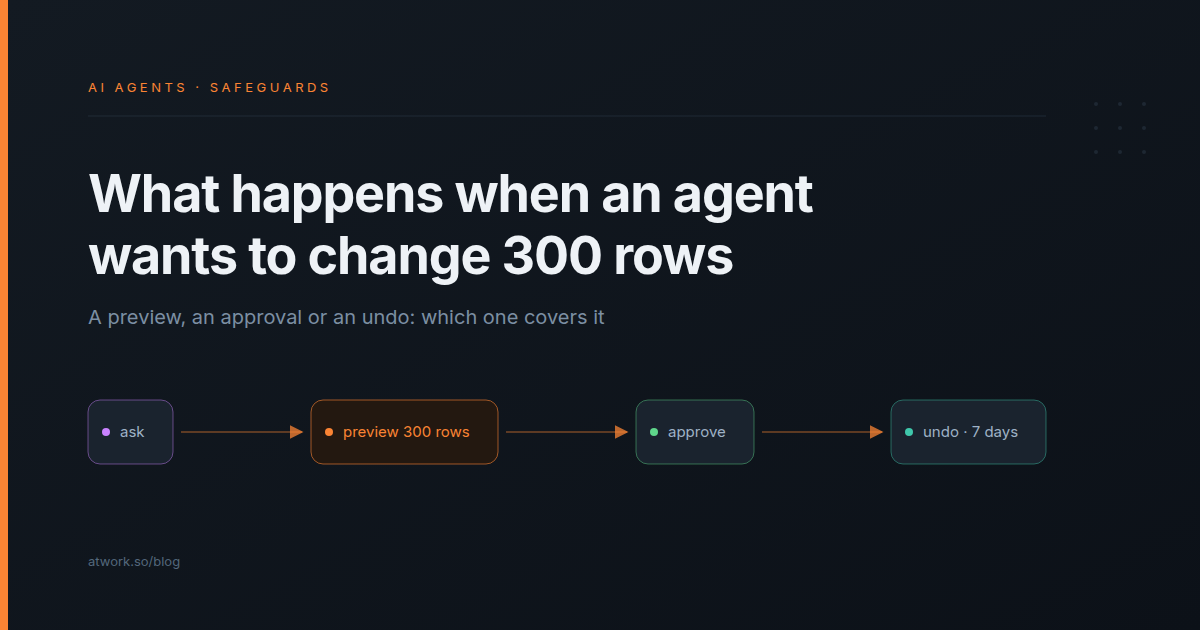
A retainer ends on Friday. Someone has to set the client's 300 open tasks to On hold, hand them to Sara for the handover, and email the client a wrap-up. You ask the agent to do it. AI agent safeguards in Atwork answer the obvious worry with three checks: a preview before a large change to the rows that match a filter, an Undo after it, and an approval before anything leaves the workspace. Each part of the request meets a different check, and you can name which one before you hand the work over.
What does the agent show you before it changes 300 rows?
When the agent updates every row that matches a filter and more than 20 would change, it stops and shows a preview: the number of rows, five sample rows with each value before and after, and two buttons, Update 300 rows and Decline. Nothing changes until you click.
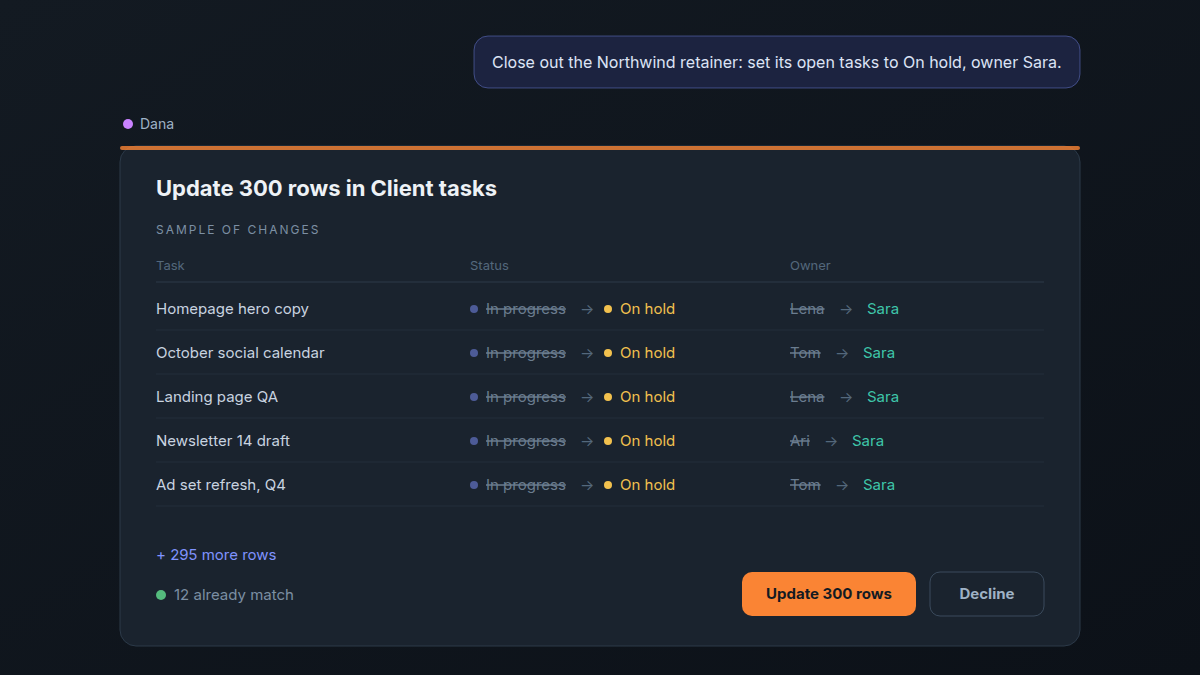
Three lines under the sample are worth reading:
- "+ 295 more rows" is the part of the change you don't see row by row.
- "12 already match" counts rows that already say On hold and Sara. They are left alone and are not part of the 300.
- "can't be edited and will be skipped" appears when matching rows are archived or read-only. The agent works with your access, never more; what an AI agent in your workspace can see covers that boundary.
At 20 rows or fewer, the change runs straight away, and the Undo still covers it. So does an update to rows the agent lists one by one instead of by a filter. Above 1,000 rows, the agent refuses and asks you to narrow the filter.
Can you undo it if the result is wrong?
Yes. The 300-row change is one batch, with one Undo on that step in the chat for 7 days; after that the step reads "Undo expired". One click puts every value back, except values someone has changed since. Only the person who asked for the change, or the org owner, can undo it.
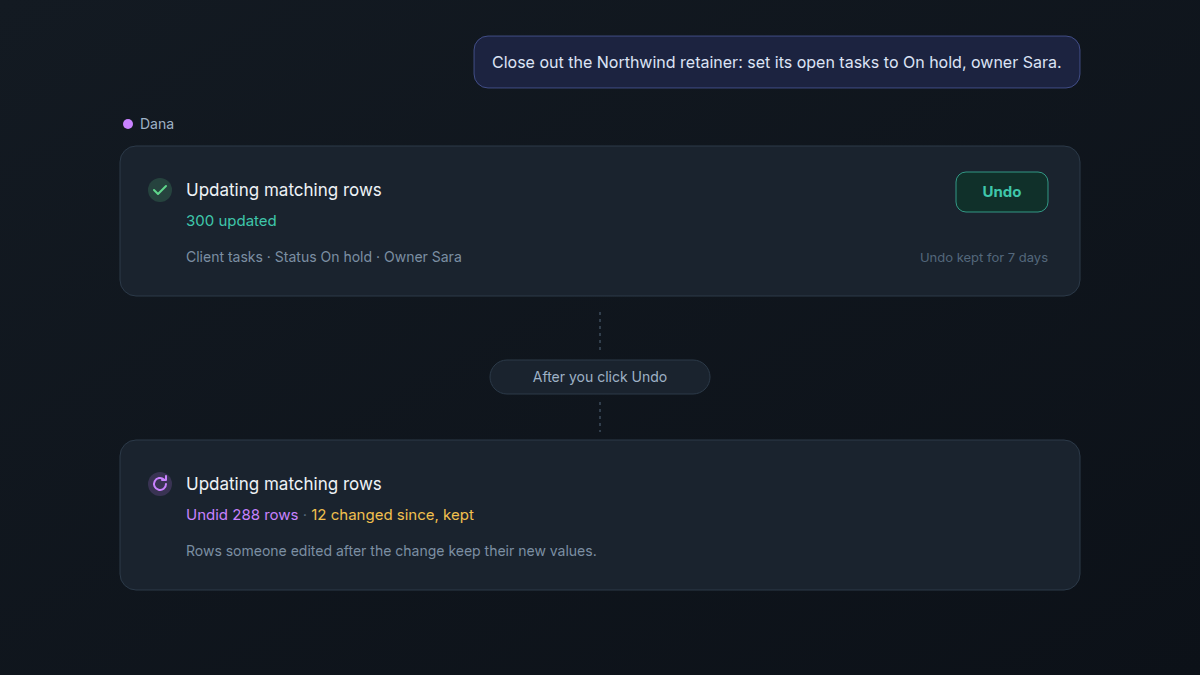
- Later edits win, field by field. If Sara closed 12 of those tasks and handed them on, an undo keeps her status and owner on those 12 and says so: "12 changed since, kept". Had she changed only the owner, their status would still go back.
- You can ask instead of clicking. "Undo the Northwind change" works too.
- New rows come in batches of 200. An agent creates at most 200 rows per call, and updates at most 200 rows it lists one by one, so 300 new rows arrive as two batches, each with its own Undo.
- Undo puts values back, not their side effects. If a workflow emails the client whenever a task moves to On hold, that email has gone.
Elsewhere the Undo is narrower. A page edit has one for 30 seconds, and none when the page is very large. A single-record edit has none: the change shows in the record's history, and you put it back by hand.
Which actions stop and wait for a yes?
Anything that reaches outside the workspace waits: a Slack message, an email, an SMS, a meeting invite. The agent shows an Approval required card with Approve, Deny and Always allow in this conversation. Changes inside your workspace don't wait; the preview and the Undo cover them instead.
| Action | What happens | How you take it back |
|---|---|---|
| Update rows by condition, more than 20 | Preview first: Update N rows or Decline | One Undo for the batch, 7 days |
| Create or update up to 200 listed rows | Runs straight away | One Undo for the batch, 7 days |
| Archive a record | Runs straight away | Unarchive it |
| Edit a page | Runs straight away | Undo for 30 seconds, none on very large pages |
| Edit a single record | Runs straight away | No Undo button; the record's history shows the change |
| Send in Slack, email or SMS, book a meeting | Waits for Approve or Deny | Cannot be recalled once sent |
Always allow in this conversation is wider than it looks. It covers every later action in a connected tool for the rest of that conversation: click it for an internal Slack post, and the next email in that chat goes out without asking too. Use it only in a conversation that will never reach a client. It never skips the consent card for your personal connections, and an agent on an assigned task asks every time.
A custom agent with Integrations access set to Read & write asks in chat before write actions in a connected tool; on Read, it cannot act in them at all.
What happens when the agent is on an assigned task and you're not watching?
It pauses. A custom agent on an assigned task stops at the action that needs approval, comments on the task that it is waiting, and notifies the task's creator: "Agent needs your approval" in the inbox, and an email with a Review request button. The approval card sits above the task's comments, with Approve and Deny.
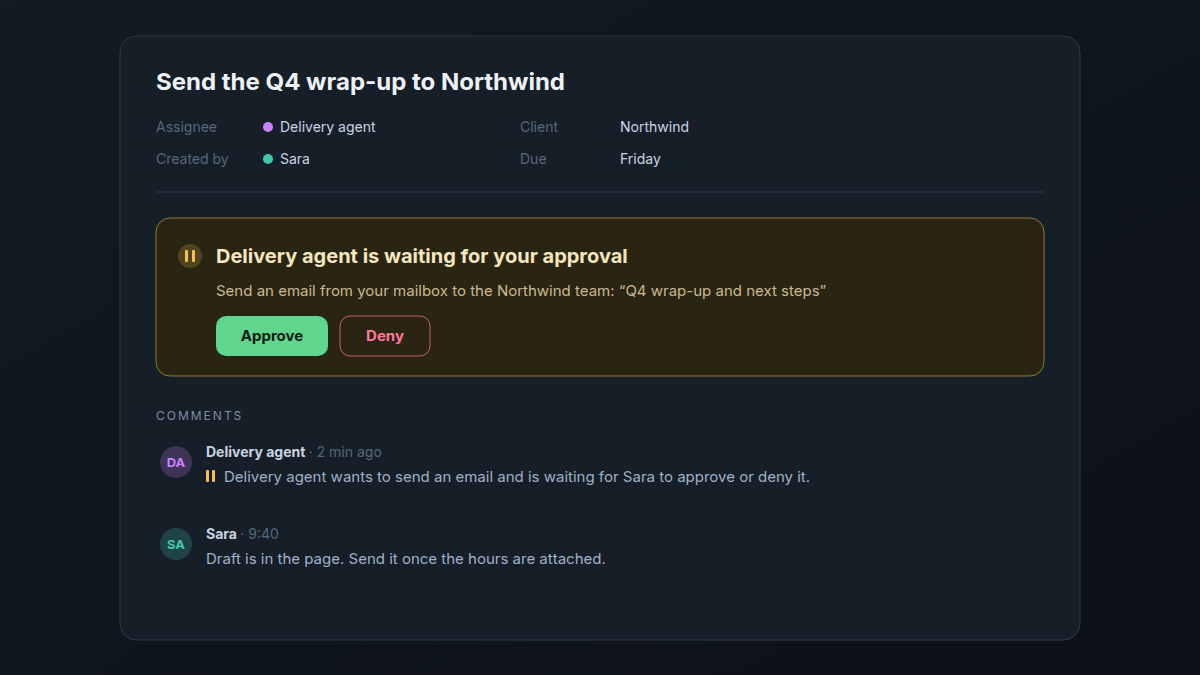
- Approve. The agent carries on.
- Deny, or no answer within a day. The task goes back to the status the agent picks work up from, and nothing is sent.
- Unassign the agent. The request is dropped and nothing is sent. The task keeps its current status, so move it yourself.
The request goes to the task's creator, so create agent tasks from the account of the person who should answer for them.
Can an agent send email from your own account without asking?
Not without your yes. It asks once to use your mailbox, then each send waits for your Approve, unless you clicked Always allow earlier in that chat. The first ask is a Use your connection? card in your own chat, the same for any of your personal connections: Allow this agent, Allow all agents or Not now. Because the card only appears in your own chat, a colleague's agent cannot borrow your mailbox.
To see or withdraw a grant, go to Profile › Settings › Integrations, open the connection, and use Revoke in its Agent access section.
What should an agency let an agent do alone?
Anything the preview or the Undo covers, starting with internal work. Anything a client will read goes through a person. Before a bulk change runs, check which workflows fire on the value it sets, because the Undo will not take back what they send.
| Task | Check that covers it | Our call |
|---|---|---|
| Close out a finished retainer's open tasks | Preview, then Undo for 7 days | Let it run, once you know which workflows fire on On hold |
| Hand a leaver's 150 open tasks to one person | Preview, then Undo for 7 days | Let it run |
| Mark 400 contacts from a lost account Inactive | Preview, then Undo for 7 days | Let it run, read the sample first |
| Draft the Friday client report into a page | A person reads the page | Agent drafts, person sends |
| Email a client from your mailbox | Consent once, then approval per send | A person approves each one |
| Post in a client's Slack channel | Approval per post | Never click Always allow in that chat |
The question before you delegate is which check covers this action: a preview, an approval or an undo. If none of them does, keep the action with a person.
One gap: the chat has no setting that makes it ask before every change, though some tools offer one. If a process needs sign-off at each step, build it as a workflow, where the Agent step has an Ask before making changes option; human-in-the-loop approvals for AI workflows covers that setup. For the wider picture, see what an AI teammate does in an agency.
Frequently asked questions
Can an AI agent delete records in Atwork?
No. Agents have no delete action. They can archive a record, which you can unarchive, and a field an agent removes can be restored.
Does the agent ask before every change?
No. It asks before actions in connected tools and before it uses your personal connections. Changes inside the workspace run without asking, with a preview above 20 rows by condition and a 7-day Undo on bulk changes.
How long can you undo an agent's changes?
Seven days for a bulk create or update, 30 seconds for a page edit. A single-record edit has no Undo button.
What happens if nobody approves the request?
On an assigned task, the request expires after a day: the task goes back to the agent's pickup status, and nothing is sent.
How do you stop an agent using your personal connections?
Choose Not now on the consent card, or click Revoke under Agent access on the connection in Profile › Settings › Integrations.
Where should you start this week?
On one client's board, ask the agent for a change that touches more than 20 rows and that no workflow reacts to, such as setting a priority on every open task. Read the preview, click Update, then click Undo and watch the values come back. Ten minutes, and your team has seen every check work on its own data. The agents page shows what agents can take on, and assigning work to an agent covers setting one up.
Run the 300-row close-out on your own data: preview, update, undo. Nothing changes until you click. Start free