Before an agency lets AI near client work, someone asks what happens if it changes something wrongly. The usual answer is human in the loop: the AI proposes a change, a person approves it, and only then does it land. In an Atwork workflow that is one setting on the Agent step, Ask before making changes.
The setting is the easy part. It protects client work only once three things are decided: which changes it covers, who receives the request, and what happens when nobody answers. If the Agent step is new to you, start with AI agents in workflows. A Monday delivery sweep shows all three, and a later section covers when it is safe to drop the approval.
What does human in the loop mean for an AI step in a workflow?
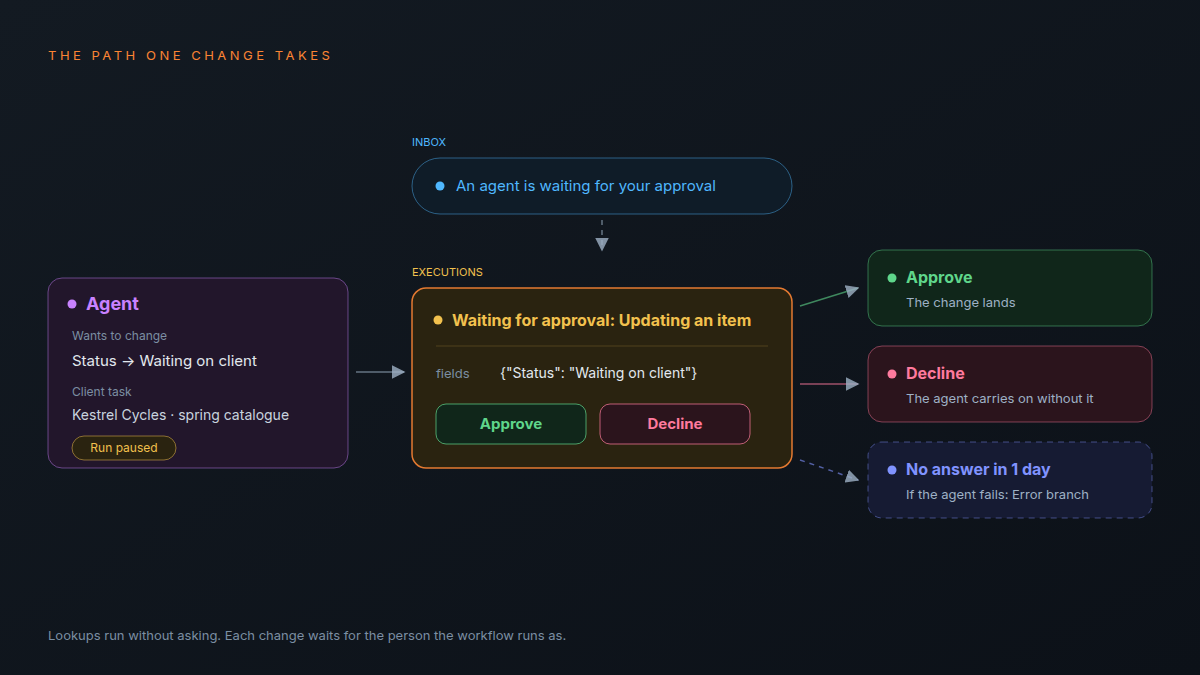
In an Atwork workflow, human in the loop means the Agent step stops before each change it wants to make and waits for one person to approve or decline it. You turn it on with Ask before making changes, on the step's Advanced tab. Lookups still run without asking; only changes wait.
The path one change takes:
- The agent decides to change something, for example to set a task's Status to Waiting on client. The run pauses.
- The person the workflow runs as gets an inbox notification, "An agent is waiting for your approval", which opens the workflow.
- In Executions, the paused run shows a card, "Waiting for approval: Updating an item", with the new values and two buttons, Approve and Decline.
- Approved, the change lands. Declined, the agent carries on without it.
- If nobody decides, the change waits up to a day, then the step's failure setting takes over.
That is stricter than assigning a task to an agent, where only actions that reach outside the workspace stop and ask, as how to delegate work to an AI agent explains.
Which changes need an approval, and which don't?
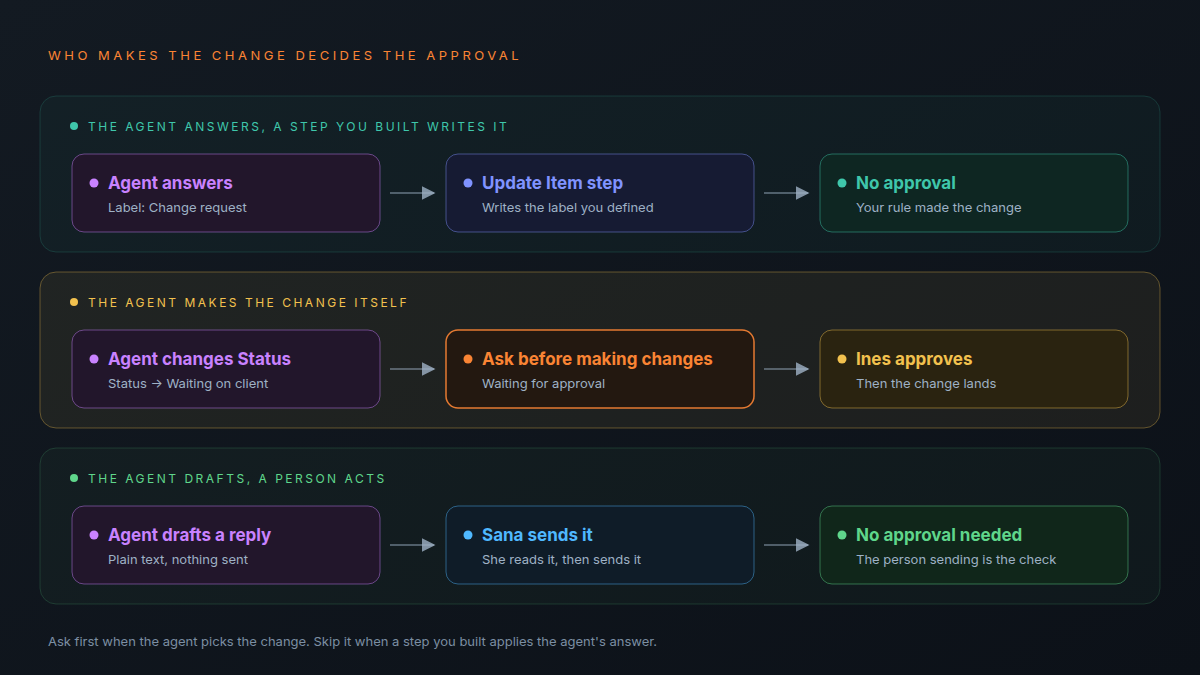
An approval belongs where the agent decides what to change. When the agent only answers, with a label or a field, and a step you built applies that answer, the possible changes were fixed when you built the step. Ask first when the agent picks the change; skip it when your rule applies the agent's answer.
| What happens | Who makes the change | Approval |
|---|---|---|
| The agent labels a request; an Update Item step writes the label | A step you built, from your own label list | Skip it: the agent can only pick a label you defined |
| The agent sets a status or an assignee on a client task | The agent | Ask first |
| The agent drafts a client reply; a person sends it | A person | Skip it: the person sending it is the approval |
| The agent adds tasks to one internal sheet you limited it to | The agent | Ask while you calibrate, then see turning approvals off, below |
| The agent only reads and reports | Nobody | Nothing to approve: with Read only on, the setting disappears |
The test fits in one sentence: if you could write down every change the step can make before it runs, a rule makes it; if the agent chooses, ask first.
What does an approval look like on a real agency workflow?
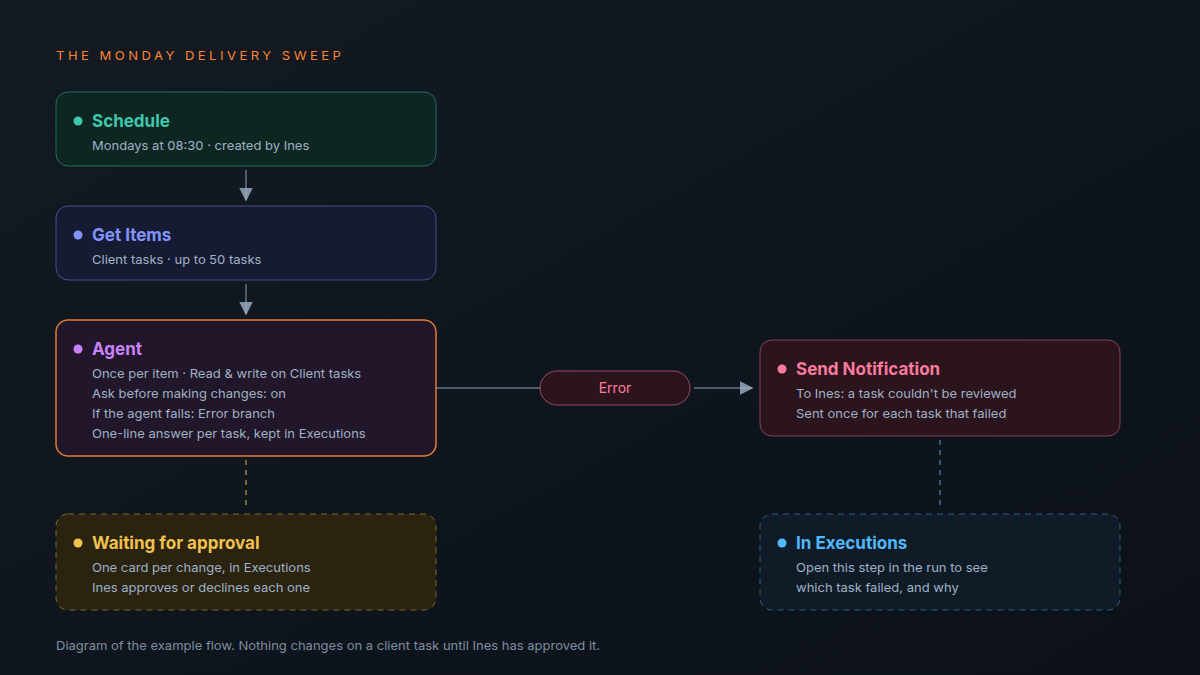
Take a Monday delivery sweep. Every Monday morning an agent reads each client task, proposes a new status or an assignee for the overdue ones, and the delivery lead approves each change before the board moves. At Northfold Studio, nothing changes on a client task until Ines, the delivery lead, has seen it.
The flow on the canvas:
- Schedule trigger, Mondays at 08:30, created by Ines. That makes her the approver.
- Get Items from the Client tasks sheet. It reads the sheet's first 50 rows, not its 50 most overdue tasks, and 50 is also the most a step that runs once per item will take, so the sweep suits a Client tasks sheet of up to 50 tasks.
- Agent, set up in the step: Sheets & items on Read & write, Comments on Read, access limited to Client tasks, Run once per item, Ask before making changes on, and If the agent fails set to Error branch. The task: Read this task and its comments. If it is Done or not yet due, change nothing. If the work is waiting on the client, set Status to Waiting on client. If it is blocked on our side, set Status to At risk. If nobody is assigned, assign the person in the task's Account lead field. Make all changes to a task in one update. End with one line that names the task and says what you changed and why.
- Error branch → Send Notification to Ines, saying a task couldn't be reviewed. Open that step in the run, in Executions, to see which task and why.
The agent's one-line answers stay on the Agent step in Executions, one per task, so each Monday's run is also a record of what changed.
What Ines sees
A notification lands in her inbox and opens the workflow, where she opens Executions. The paused run shows one card per change, each with the action, Updating an item, and the new values the agent wants to write, such as the Status. The card shows what would change but not which task it is on, so the first runs should be small enough to check against the board.
One request per change
Every change waits on its own request with its own notification, so a sweep that finds twelve overdue tasks can ask twelve times. "Change nothing" keeps the tasks that are fine out of Ines's inbox, and "make all changes to a task in one update" keeps it to one request per task. Approving twelve cards in a row without reading them is not an approval.
Who gets the approval request?
Only the person the workflow runs as, and nobody can decide for them. A scheduled workflow runs as the person who created it. A workflow started by a change to an item runs as whoever made that change. So you choose the approver when you choose the trigger.
- Scheduled sweeps reach their creator. Have the delivery lead create the workflow, not whoever happens to build it.
- Item triggers reach whoever edited the item. If a designer's status change starts the run, the designer gets the approval. For changes a lead must sign off, use a scheduled sweep instead.
- There is no stand-in. Anyone else who opens the run sees "Only the person this workflow runs as can decide." If the delivery lead is away, the request waits a day, then follows the failure setting, so before a holiday turn the sweep off or have the person covering set up their own.
The approval goes to the person the run belongs to, so choosing the trigger is choosing the approver.
What happens if nobody approves within a day?
Each change waits up to one day. After that it counts as a failure, and the step's If the agent fails setting decides: Stop the run fails the whole run, Skip failed items drops that item, and Error branch sends the item down its own path with the reason. Until then, every step after the Agent step waits.
| If the agent fails | What happens to a change nobody answered |
|---|---|
| Stop the run | The whole run stops and is marked as failed |
| Skip failed items | That item is dropped; the other items go on |
| Error branch | The item goes down the Error branch, with the reason attached |
For client work, pick the Error branch and connect it to a notification, so an unanswered change lands in front of someone instead of disappearing.
- A day is the ceiling, not the plan. Schedule the sweep for when the approver is at their desk: Monday morning, not Friday at five.
- Declining is not failing. A declined change is dropped and the agent carries on. If it proposes a different change, that one asks again.
What doesn't an approval protect you from?
An approval covers the changes one Agent step makes, and nothing else. It doesn't limit what the agent reads, it doesn't cover the other steps on your canvas, and approved changes don't start your other workflows. Each of those has its own control.
- Reading isn't gated. Limit what the agent can reach with Read only, Limit access and What the agent can use. What an AI agent can actually see covers scope and whose permissions apply.
- Canvas steps run as written. Update Item, Send Notification and integration steps have no approval of their own. Put a person before anything a client sees.
- Approved changes don't trigger workflows. A workflow that tells the account team when a task goes At risk won't run when the agent sets it, so whoever approves the change passes it on.
- An approval is only as good as the reading. Keep each run small enough that every card gets read.
When is it safe to turn approvals off?
When a change has stopped being a decision. If a kind of change comes back approved, unchanged, week after week, don't switch approvals off on an agent that writes. Where you can, turn that change into a rule, a step you build; where you can't, keep the approval. Keep approvals on for anything a client sees.
- Run the sweep for four Mondays with approvals on.
- In Executions, note which changes you declined and why.
- List the changes you never declined. One that doesn't depend on reading the task can become a rule: a workflow started when the task is created or updated, whose steps make the change the same way every time. Then take that change out of the agent's task.
- Keep the approval on any change you sometimes declined, and on any that depends on the agent reading the task and its comments.
- Every week, open Show steps on one item and read what the agent looked at, not only what it changed. As what an AI teammate actually does in an agency puts it, read the trace rather than the result.
Frequently asked questions
Can you approve an AI agent's change straight from the notification?
The notification arrives in your inbox and opens the workflow. The decision is made on the paused run in Executions, with Approve or Decline.
Who can approve an agent's changes in a workflow?
Only the person the workflow runs as: the creator for a scheduled workflow, and the person whose change started it for an item trigger.
What happens when you decline a change?
The change is dropped and the agent carries on without it. If it proposes something else, that waits for approval too.
How long does an approval wait?
Up to a day per change. After that, the step's If the agent fails setting decides what happens.
Does the agent ask before it reads anything?
No. Lookups run without asking. Use Read only and Limit access to control what it can reach.
Do changes the agent makes trigger other workflows?
No. Changes an agent makes don't start workflows, so a workflow that reacts to a new status won't run when the agent sets one. Pass on what the team needs to know when you approve.
What does an approved run cost?
Each run draws on your workspace's monthly AI budget, and Executions shows the AI cost of every run. What AI costs an agency per month breaks the numbers down.
Where should you start this week?
Pick one change you would want to see before it lands, such as a status on a client task. Build the Monday sweep with Ask before making changes on, the Error branch connected to a notification to you, and a sheet small enough that the first run asks for fewer than ten decisions. Read every card.
The agents page shows the agents you can put in the step, and the Agent step reference lists every setting. The sweep also depends on your plan: on the pricing page, workflows come with Pro, and scheduled triggers, which the sweep starts from, come with Business.
Build one Monday sweep with Ask before making changes on, and read every card before you trust it with more. Start free