The Agent step in workflows
The Agent step runs an AI agent inside an Atwork workflow: it reads what earlier steps pass it, does the task you describe, and hands its answer to the next step. Use it to summarise requests, pull details out of text, sort items into labels or draft replies.
Add an Agent step
You add the Agent step from the Node library in the workflow builder.
- Open a sheet, go to its Workflows tab, and open or create a workflow.
- In the Node library, click Agent or drag it onto the canvas.
- Open the step and work through its tabs: Agent, Task, Answer, Memory, Advanced and Test.
- A dot on a tab means something is missing there; To save this step: lists what.
- Save the step, then publish the workflow.
The Node library also has four presets: Ask AI (text answer), Extract with AI (structured fields), Classify with AI (labels) and Summarize with AI. A preset only fills in the answer type and the instruction.
Agent: which agent runs
The Agent tab picks who does the work: a saved agent, or one set up inside the step.
- Saved agent picks from the Agent list, grouped into Built-in and Your agents. Built-in holds Dana, Atwork's AI assistant; Your agents holds the agents your workspace created. A saved agent runs with its own instructions, model, tools and knowledge.
- Set up here builds an agent for this step only: a Model (Fast & affordable, Balanced or Advanced), Instructions for the agent, and What the agent can use. Each tool group (Sheets & items, Pages, Calendar, Comments, Members, Dashboards, Integrations, Web search, Vista pages) is Off, Read or Read & write.
Workspace owners can click Save as a workspace agent, enter an Agent name and Save agent. The agent is then reusable in other workflows and in chat, and the step uses it. To build agents in Settings, see Create an agent and give it knowledge.
Task: what the agent does
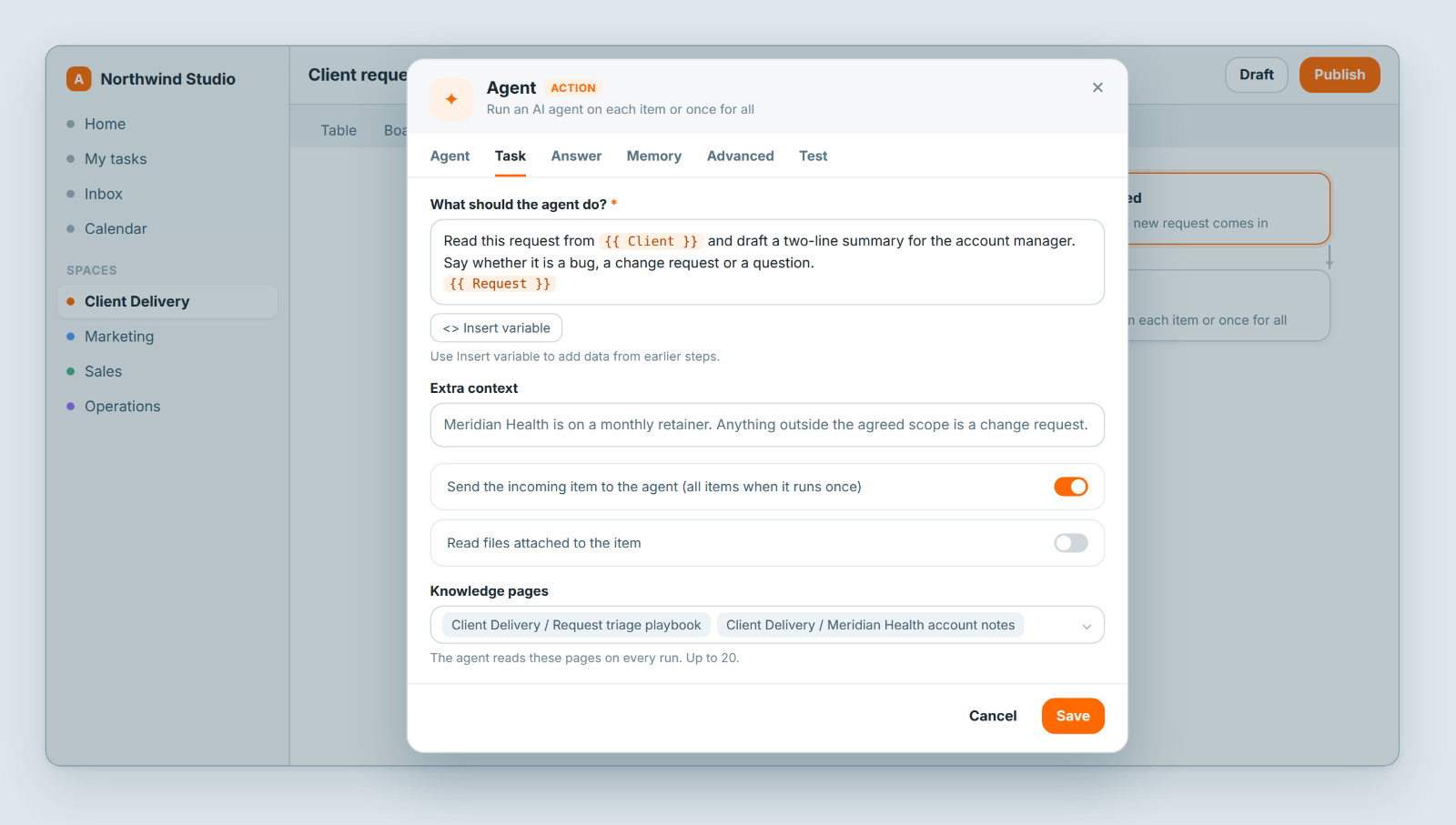
The Task tab holds the instruction the agent follows on every run, and the data it gets.
- What should the agent do? is required. Insert variable adds data from earlier steps, such as the request's text.
- Extra context adds anything else the agent should know.
- Send the incoming item to the agent (all items when it runs once) is on by default.
- Read files attached to the item reads text, CSV, JSON, Markdown and HTML files in the item's File List fields: up to 5 per run, 10 MB each.
- Knowledge pages: up to 20 pages the agent reads on every run.
For example: "Read this request from Meridian Health and draft a two-line summary for the account manager. Say whether it is a bug, a change request or a question."
Answer: what comes out
The Answer tab sets the shape of the answer, which decides how later steps use it.
- Text: one answer that later steps use as "output", for example in a notification.
- Structured fields: the agent fills in fields you define, and later steps use each one. A field has a Field name, a type, a Required switch and a description; a One of a list field also takes Allowed values, separated by commas. Or paste a JSON example under Create fields from an example and click Create fields.
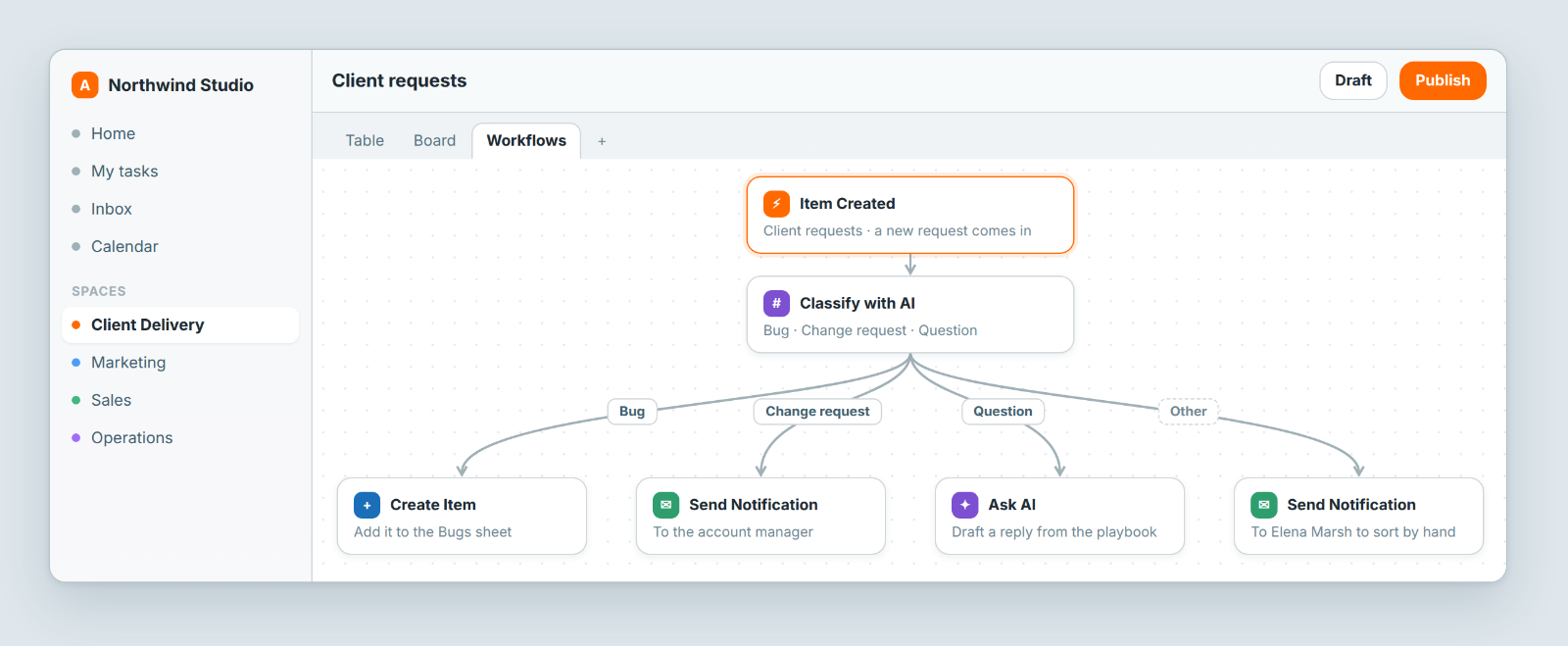
- Classify: the agent picks one of your Labels per item, and each label is its own branch on the canvas. Items that fit no label go to Other.
Memory: remember earlier runs
Turn on Remember earlier runs and the agent sees its last answers for the same customer, ticket or other key.
- Remember per sets the key: insert a variable such as the customer's email or the ticket id.
- Share with other steps: steps with the same name, in any workflow, read and add to one memory. Leave it empty to keep it to this step.
- Recent runs kept in full: 1 to 10, default 3. Older runs fold into a summary, and What to remember says what it should keep.
- Stored memory: search the keys, open one, or Forget this key. Clear memory forgets everything.
Memories are kept for 90 days after their last run.
Advanced: approvals, access and limits
The Advanced tab sets what the agent may change, who approves it, how it runs and what happens when it fails.
Ask before making changes
The run pauses before each change until the person the workflow runs as approves it. They get the notification "An agent is waiting for your approval" and choose Approve or Decline on the paused run in Executions; nobody else can decide. After a decline, the agent carries on without that change. Lookups run without asking.
The step waits up to 1 day. Then the wait times out and If the agent fails applies.
A workflow runs as the person whose change started it, or who ran it by hand. Runs started by an event in a connected account run as the person who connected that account. Scheduled runs run as the workflow's creator.
Read only and Limit access
Read only: the agent can look things up but never change anything blocks all changes. Limit access narrows the agent to chosen spaces and sheets; empty means everything the workflow's user can see.
Workflows it can run
The agent can start these workflows, pass them data and use what they return. Only workflows that start with a Manual trigger are listed.
Run mode and limits
- Once per item runs the agent separately for each item, up to 50. More fails the step.
- Once for all items runs it once with every item.
- Time limit (seconds): 10 to 900, default 300. Max steps: 1 to 10, default 10.
If the agent fails
Stop the run marks the run as failed. Skip failed items drops the items the agent couldn't answer. Error branch sends them down a separate branch, with the reason in their error field.
Test it and read the run
Try it on the Test tab runs the step once on the data from the workflow's latest run. It is read-only and uses AI credits like a normal run, and the test stops after a minute.
Executions, the history icon in the builder's toolbar, lists every run. For an Agent step it shows the model, tokens in and out, AI cost of this run, and Show steps for the tools the agent used.
Chain steps
An Agent step's answer is data like any other step's, so the next step can use it.
- Agent → Agent: the second step uses the first one's output or fields through Insert variable, for example one extracts details and the next drafts the reply.
- Agent → any other step: send the drafted reply by email, Slack or Telegram with Integration Action (it needs a connected account), alert a teammate with Send Notification, or write it back with Update Item.
- Run workflow starts another workflow's published version, as the same person, with Inputs, Wait for it to finish, Run it and If the workflow fails. Only Manual-trigger workflows are offered.
Limits at a glance
| Setting | Limit |
|---|---|
| Items, Once per item | 50 |
| Knowledge pages | 20 |
| Files per run | 5, up to 10 MB each |
| Approval wait | 1 day |
| Memory | 90 days after the last run |
| Recent runs kept in full | 1 to 10 (default 3) |
| Time limit | 10 to 900 seconds (default 300) |
| Max steps | 1 to 10 (default 10) |
| Try it | 1 minute |
Notes
- PDF and image files are skipped.
- Changes the agent makes never trigger workflows: no loops, but no follow-on automations either.
- Every run uses your workspace's AI budget; see Plans & billing explained.
- Over 50 items in Once per item mode fails the step. Use Once for all items, or narrow the items first.
- Approvals go only to the person the workflow runs as.
Related: Create an agent and give it knowledge · Automate the repetitive parts · Test and debug an automation