Email to this sheet
Every sheet can have its own email address. Anything sent or forwarded to it becomes a new row in the sheet, so client requests, briefs and forwarded threads land where the work happens, with no mailbox to connect.
Before you start
- You need edit rights on the sheet. Viewers don't see the option.
- Add a document field for the email body and a file field for attachments. Fields are matched when the address is created, and only fields the sheet already has are used.
Create the address
- Open the sheet in a Table, Board or Calendar view.
- Click the arrow next to the New button and choose Email to this sheet.
- The workflow builder opens on the Inbound email trigger. The address is already assigned, with an Inactive badge.
- Click Publish. The badge changes to Active, and mail sent to the address starts arriving as rows.
- Click Copy to copy the address.
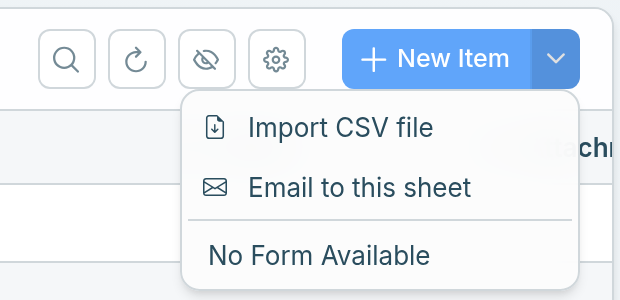
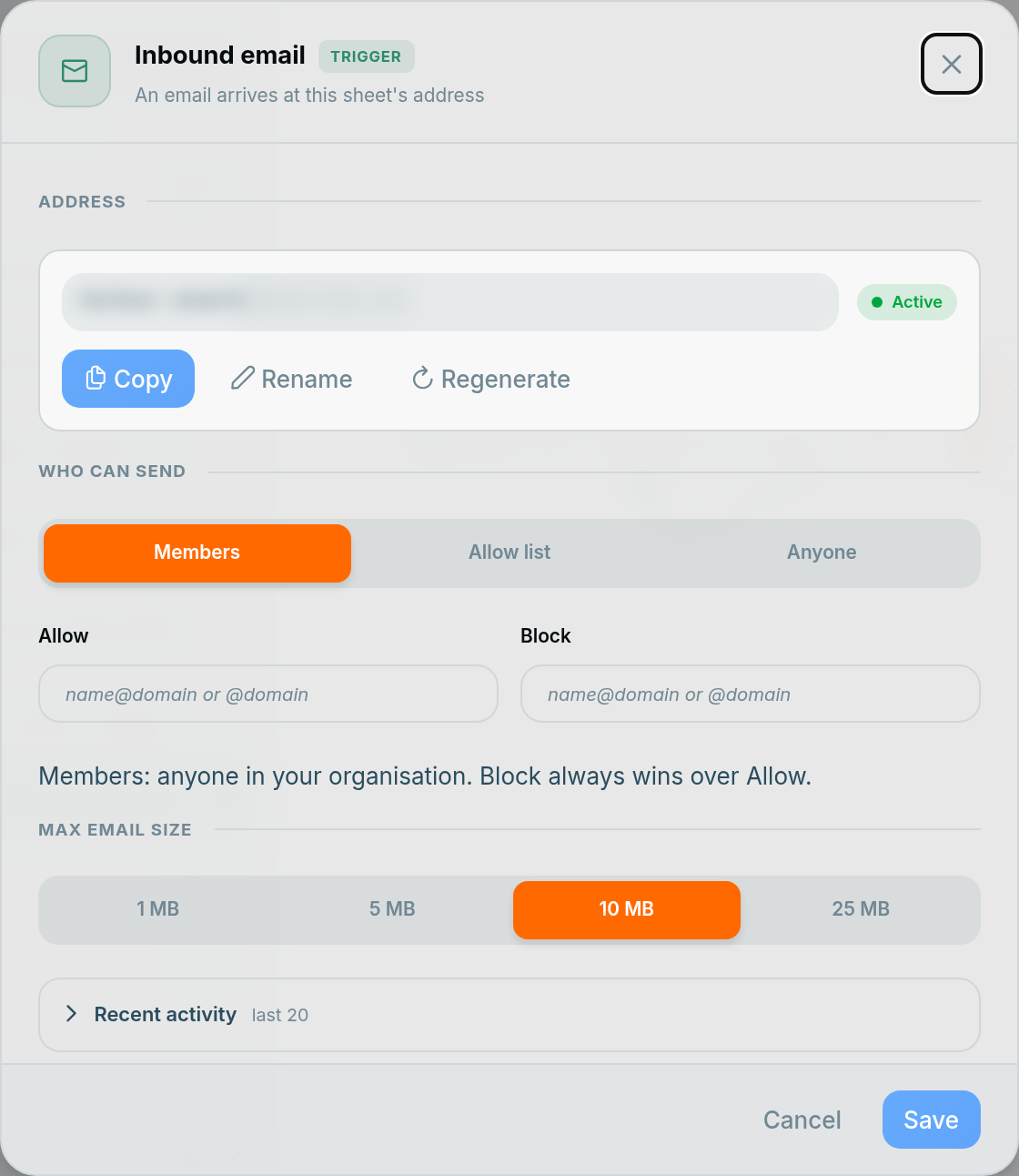
If the sheet already has an address, Email to this sheet opens the workflow that owns it instead of creating a second one.
Send a test
From the email address on your Atwork profile, send an email to the address you copied. A new row appears in the sheet, and Recent activity in the trigger shows Accepted.
If it shows Rejected, the reason is next to it. Most often the sender isn't allowed by Who can send. Not a member means it came from an address that isn't on any member's Atwork profile.
The address
The address is the sheet's name, a dot, then your workspace's name, at atworkinbox.com. For a sheet called Harbour in the workspace brightside, that is [email protected]. A sheet whose name has no Latin letters gets a random name, so rename it to something people recognise.
Rename. Use 3 to 30 lowercase letters, digits or hyphens, starting and ending with a letter or digit. Availability is checked as you type. The old address stops working immediately, and its name stays reserved for 30 days.
Regenerate. Gives the sheet a new random address, and the old one stops working immediately. Use it when the address has leaked or spam starts arriving.
Who can send
- Members (the default): members of your organisation, sending from the email address on their Atwork profile. A member who forwards a client's email is the sender, so forwarding works.
- Allow list: only the addresses and domains in Allow, which needs at least one entry. Members are not let in automatically, so add your own team's domain if they will send or forward to it.
- Anyone: everyone except what is in Block.
Each entry in Allow or Block is a full address ([email protected]) or a whole domain (@harbour.co). Wildcards aren't supported. For anyone on a public mail service, add their full address: the service's domain would let in all of its users. Block always wins over Allow.
With Members or Allow list, the sender's email provider must also confirm that the message really came from that address. If it can't, the email is rejected as unverified sender. This stops anyone from faking a member's or a client's address.
Changed a setting? Save, then Publish again. The address follows the published version of the workflow.
Automated mail and size
- Auto-replies such as out-of-office messages, mailing-list mail and bulk mail are refused, whatever Who can send is set to. This also prevents mail loops.
- Max email size is 1, 5, 10 or 25 MB, with 10 MB as the default. It covers the whole email, attachments included.
What lands in the row
- Subject → the row's title.
- Body text → the sheet's first document field, or its first long-text field if it has no document field.
- Attachments → the sheet's first File List field.
- The sender, if they are a member → a member field with "Reporter" in its name, if the sheet has one.
Every email creates a new row. Replies in the same thread are not merged into the first row.
To change what goes where, open the Create Item step in the workflow, change its field values, then save and publish.
Recent activity
The trigger lists the last 20 emails sent to the address and what happened to each:
- Accepted: the email became a row.
- Rejected: the email was refused, with the reason: not on allow list, not a member, blocked sender, unverified sender, inactive (the workflow isn't published) or plan limit.
- Duplicate: the same email arrived again, so no second row was created.
- Throttled: too many emails arrived in a short time.
- Failed: the email couldn't be processed. Ask the sender to send it again.
One address per sheet
A sheet has one address, and only one workflow can own it. If you add an Inbound email trigger to a second workflow on the same sheet, a banner says the address is already in use and links to the workflow that owns it.
Turn it off
Unpublish the workflow from its menu. The badge shows Inactive, and mail sent to the address is rejected. Publish again to turn it back on.
Related: Automation triggers · Connect email: IMAP and SMTP · Test and debug an automation