Automate the repetitive parts
An automation watches for something happening and then does something. Every one has the same three parts: a trigger, optional conditions, and one or more actions.
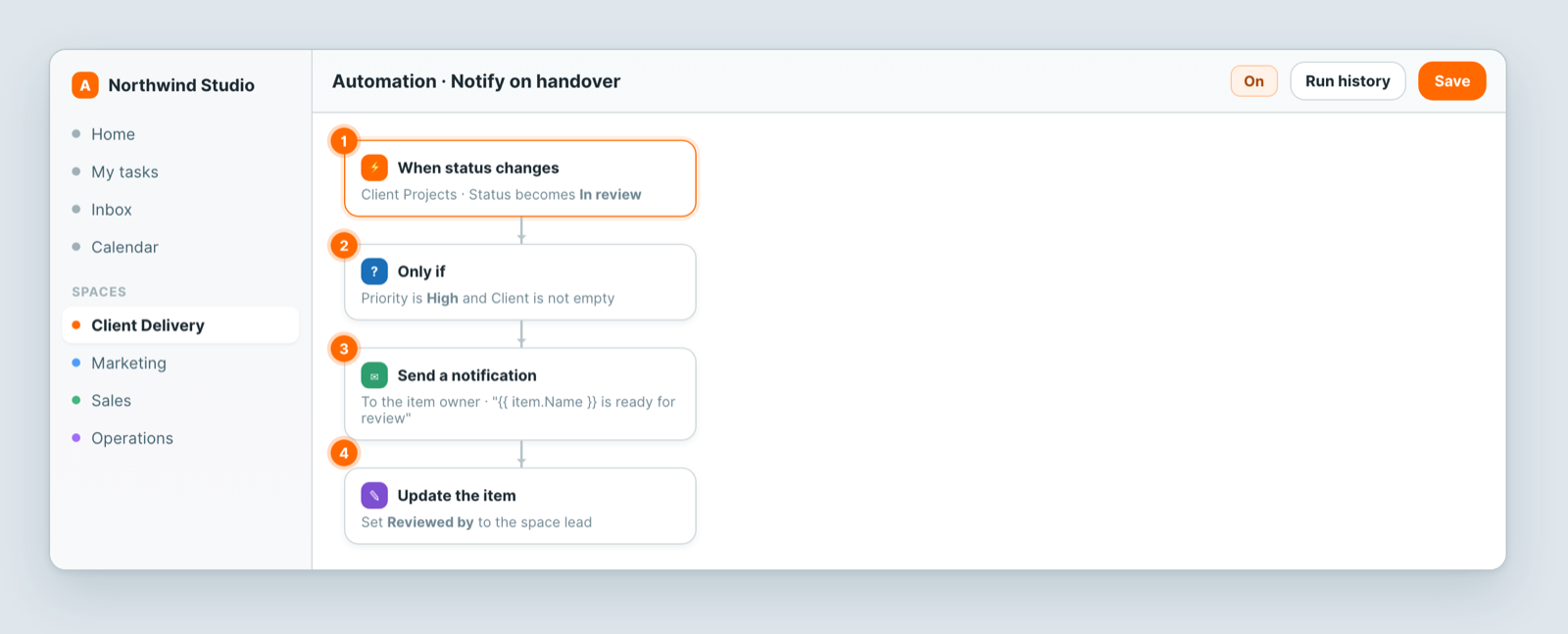
Trigger — what starts it
A record created, a record updated, a field changing to a particular value, a form submitted, or a schedule.
Be specific. When Status becomes In review fires when it matters; when anything is updated fires constantly and gets muted.
Conditions — when it should actually run
Narrow it: only high priority, only when a client is set, only if the due date is this week. Date conditions are evaluated in the workspace timezone.
Actions — what happens
Create or update a record, send a notification, send an email, or call a connected tool.
Using values from the record
Actions can reference the record that triggered them, so a notification can say "Brand guidelines refresh is ready for review" rather than "an item changed". Insert the field where you want its value.
Good first automations
- Form submitted → notify whoever handles intake.
- Status becomes Blocked → notify the project owner.
- Due date is tomorrow and status is not Done → remind the owner.
- Record created → set defaults, so nobody fills them in by hand.
Before you rely on it
Test it once with a real record. Then check the run history — that is where you find out whether it fired and what it did.
If an automation stops working later, check the connection it depends on first: an expired token fails quietly. See Connect Atwork to your tools.
Related: Build a form and collect responses · Connect Atwork to your tools