Connect Atwork to your tools
A connection links your Atwork workspace to an outside account, so your data and your automations can reach it. Connect once, then reuse it anywhere — in a workflow, on a booking page, or to pull mail into a sheet.
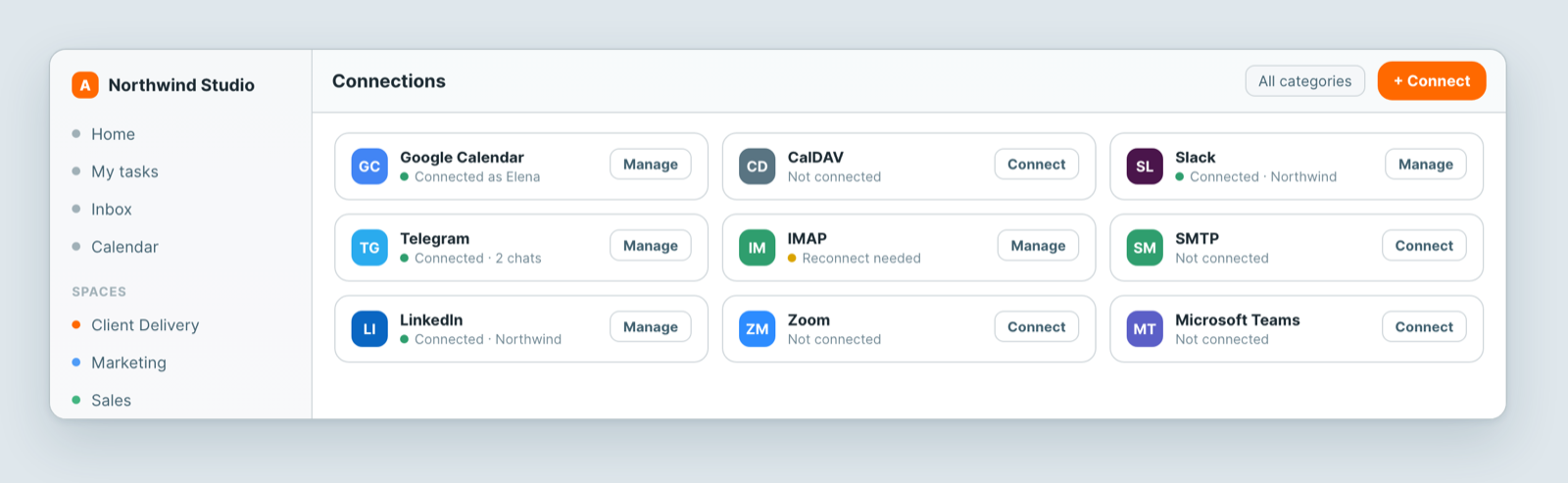
Connect a tool
- Open Settings → Connections.
- Find the tool and click Connect.
- Sign in to that service and approve the access it asks for. You come back to Atwork with the connection listed.
Share an account with your team and its agents
The owner can share any account they connect: choose Everyone in the organization to make it a shared connection. Members can do the same once the owner turns on Members can share their connections with the organization in Settings → Shared connections → Sharing rules. A shared connection appears in Settings → Shared connections, and the owner and admins choose which agents use it. An agent can use an account only after it is added to that agent's Integrations card, and your own accounts also need your yes the first time. See Choose which connections an agent can use.
What you can connect
Calendar — Google Calendar, CalDAV. Two-way sync, and the availability behind your booking links.
Email — IMAP to read mail into Atwork, SMTP to send from your own domain.
Chat — Slack, Telegram. Post updates into a channel, or turn an incoming message into a record.
Meetings — Zoom, Google Meet, Microsoft Teams. Meeting links generated on a booking.
Social — LinkedIn. Publish a post, with an image, from a workflow.
The Connections screen is the source of truth: if a tool is not listed there, it is not available to your workspace yet.
Keep them healthy
Each connection shows a status dot. Green is working. Amber means the access token expired or was revoked at the other end — usually because a password changed or the grant was withdrawn. Click Manage and reconnect; nothing else needs redoing, and anything that depended on it starts working again.
A silently broken connection is the usual reason an automation "stopped running", so check here first.
Build your own
Prefer to wire it up yourself? Atwork has an API for reading and writing sheet data, and runs an MCP server so an AI assistant can work with your workspace directly.
Related: Views: see the same data 12 different ways · Build a sheet with custom fields