Choose which connections an agent can use
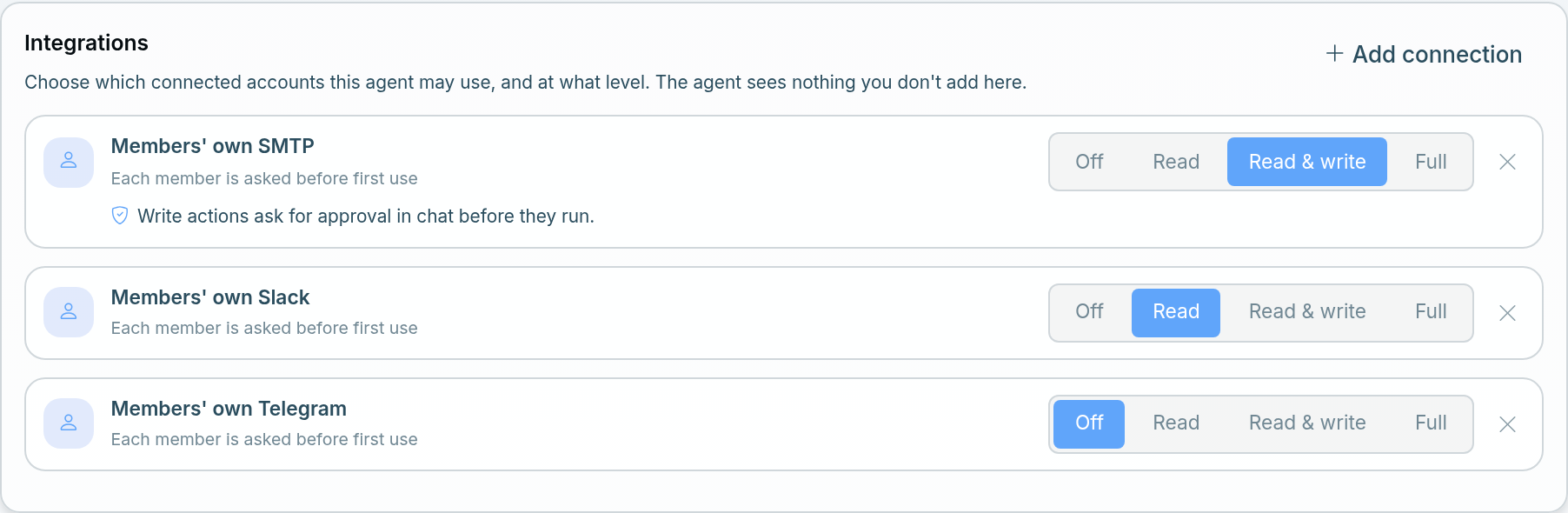
A custom agent can use only the connected accounts you add to it, at the level you choose: a shared mailbox, the team's Slack, a Zoom account, or each member's own account. You set this on the agent's Integrations card. Owners and admins can edit agents.
Add a connection to an agent
- Open Settings → Agents and choose the agent.
- On the Integrations card, choose Add connection.
- Pick what the agent may use:
- A shared connection, such as "SMTP · hello@". These are accounts someone connected for Everyone in the organization.
- Members' own accounts for an app, such as Members' own Slack: "Each member is asked before first use".
- All connections: "Every shared connection, and members' own once they agree".
- Set the level on the new row, then Save the agent.
A new row starts at Read. The card's own line sums it up: "The agent sees nothing you don't add here." An agent with no rows shows "This agent can't use any connected accounts".
If the menu has no shared accounts yet, the owner connects one in Settings → Connections and chooses Everyone in the organization. Members can share their own accounts the same way once the owner turns on Members can share their connections with the organization (see below). See Connect Atwork to your tools.
The four levels
| Level | What the agent can do | What asks first |
|---|---|---|
| Off | Nothing; the row stays so you can turn it back on | — |
| Read | Look things up in the account | — |
| Read & write | Also send, post and create | Every write action, in chat |
| Full | Also delete and archive | Deletes and archives, every time |
- At Read & write, the row shows "Write actions ask for approval in chat before they run." The agent shows an Approval required card with Approve, Deny and Always allow in this conversation.
- At Full, the row shows "Deletes and archives ask every time." Always allow never covers a delete or an archive.
- The level applies to the whole connection. There is no list of allowed channels, recipients or domains. To keep an agent out of a channel, don't give it a connection that reaches it.
- If you add both a specific connection and All connections, the specific row's level wins for that connection.
Members' own accounts and the first-use card
When an agent first needs a member's own account, that member sees a Use your connection? card in their own chat: the agent wants to use their connection, and "Sending still asks you first." They choose:
- Allow this agent: this agent may use the account in their chats.
- Allow all agents: every agent may use it in their chats.
- Not now: nothing is used.
The card only appears in the account owner's own chat, so another member's conversation never uses it. Each send still waits for their Approve.
Shared connections and the sharing rules
Settings → Shared connections lists every account shared with the organization. Its Agent access column shows which agents can use each one. To change an agent's level, open the agent: on a connection's Agent access tab, Open agent takes you there.
Under Sharing rules:
- Members can share their connections with the organization is off by default, so only the owner can share an account. When it is on, members can choose Everyone in the organization when they connect one.
- New shared connections are available to all agents is off by default. When it is on, every account shared from then on is added to every custom agent at Read. Leave it off if some accounts, such as a client's mailbox, should reach only one agent.
- Deletes ask for approval is always on: "Agents ask in chat before they delete or archive data in a shared account."
Sending email without asking
By default, every email an agent sends waits for Approve. The owner can change that for shared mailboxes in Settings → AI policy → Approvals with Agents can send email without asking, which "Applies to shared email connections only". It is off by default.
With it on, an agent sends from a shared email connection without the approval card, in chats and in workflows. An Agent step that has Ask before making changes turned on still asks, and the switch never covers a member's own mailbox. Deletes and archives always ask stays on.
Revoke access
- A shared account: remove its row from the agent's Integrations card with the ×, or set it to Off.
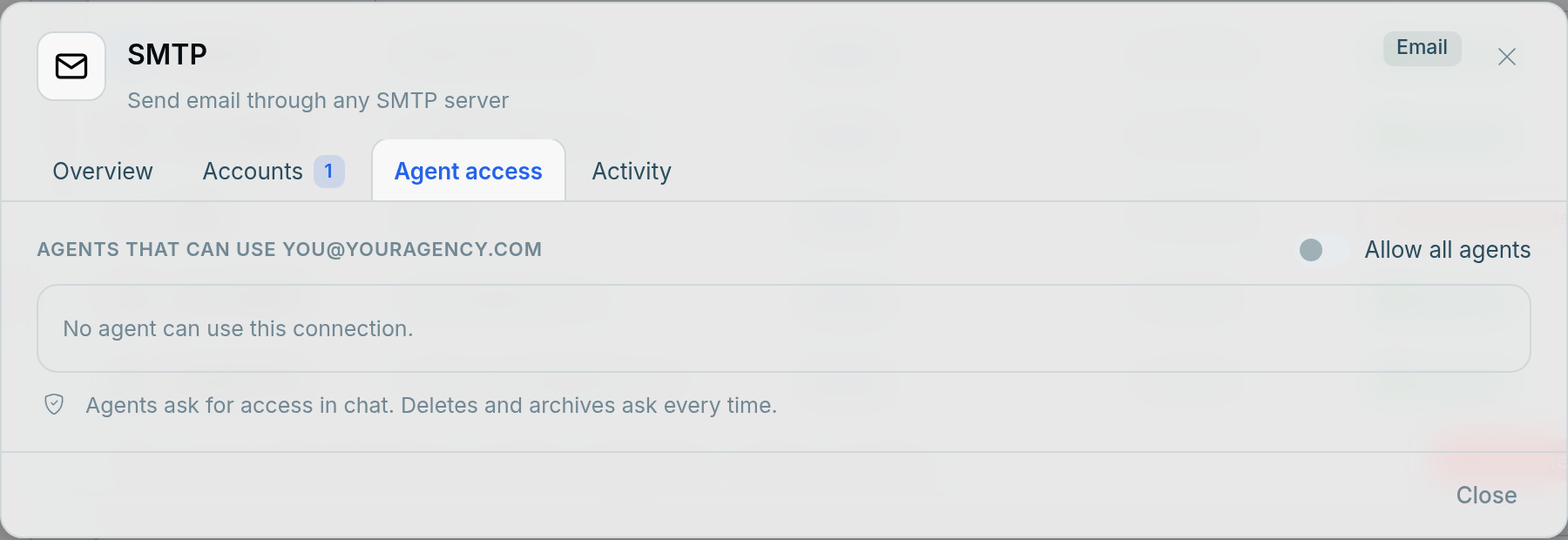
- Your own account: open Settings → Connections, open the app, go to the Agent access tab, and click Revoke next to the agent. If you chose Allow all agents, switch that off on the same tab.
- Stop sharing an account: in Settings → Shared connections, Stop sharing lists the Agents that lose access before you confirm.
Each agent you allowed has its own row on the tab, with a Revoke button. Before you allow any, the tab looks like this:
Related: Create an agent and give it knowledge · Connect Atwork to your tools · Connect email: IMAP and SMTP · Slack and Telegram