Company and AI profiles
The company profile tells every agent in your workspace who your company is. Your AI profile tells agents who you are and how you like to work. Write each one once, and agents read it before they reply.
What are the company profile and the AI profile?
The company profile is one page about your organization: what you do, what you sell, who your customers are, how you work and your terms. Your AI profile is a private page about you: your role, how you like replies, how you work, your expertise and your current focus. Both hold only what you write. Neither records your conversations.
Where do I find them?
- Company profile: Settings › Organization › AI › Company profile. Members open a read-only copy under Personal › AI and apps › Company profile.
- AI profile: Settings › Personal › AI and apps › AI profile, or AI profile in your avatar menu.
Which agents read each profile?
Every agent in the organization reads the company profile. Your AI profile reaches only the work you start yourself, never a workflow, a form reply or a reply to a customer.
| Where the agent works | Company profile | AI profile |
|---|---|---|
| Dana and custom agents in chat | Yes | Yes, yours |
| Tasks you assign to an agent | Yes | Yes, yours |
| Comments where you mention an agent | Yes | Yes, yours |
| Workflow Agent steps and fields that fill with AI | Yes | No |
| Replies on forms and booking links | Yes | No |
| Customer portal and support tickets | Yes | No |
Insights and the editor's AI read both profiles too. Agents use an edit from their next reply.
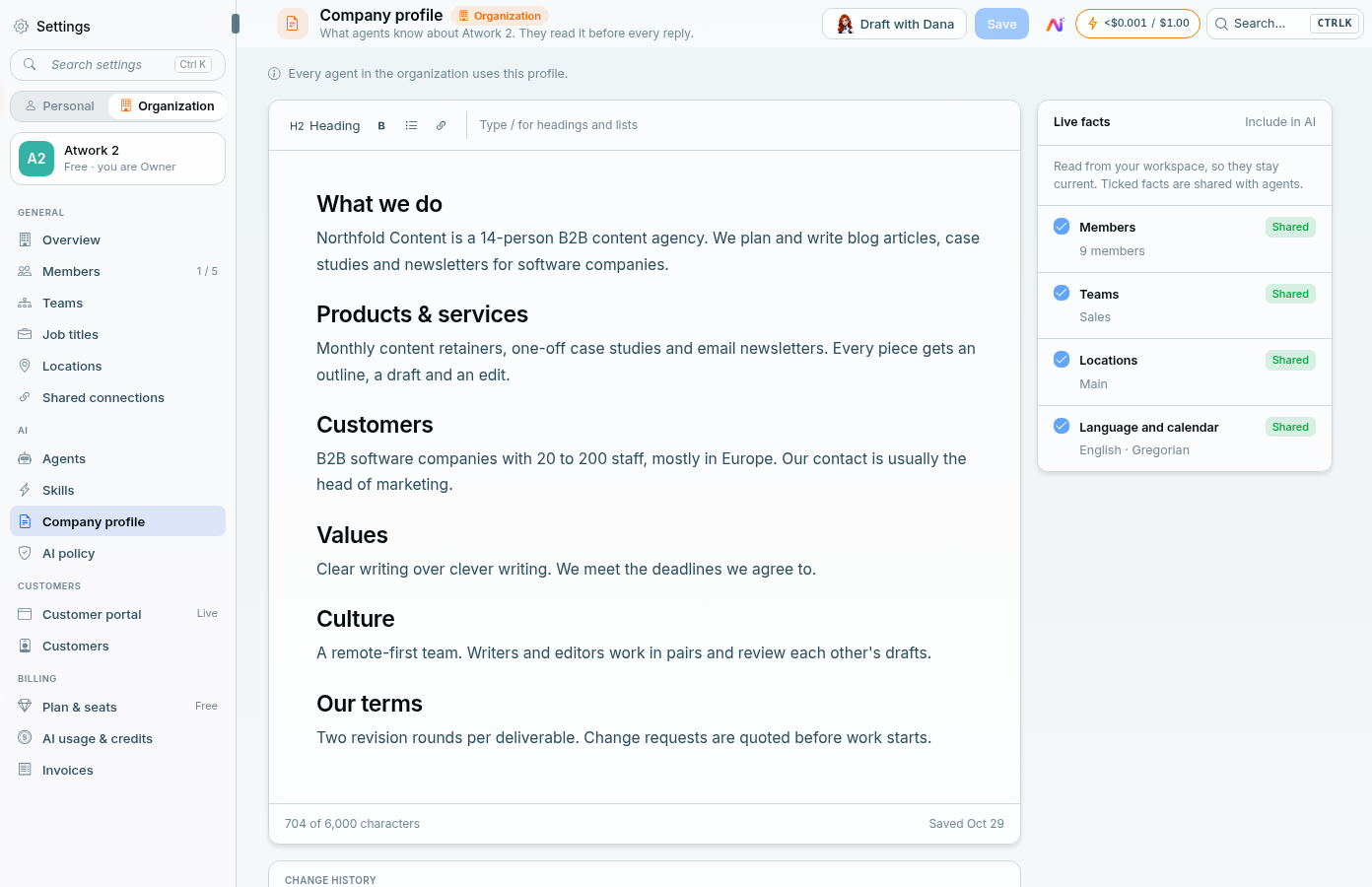
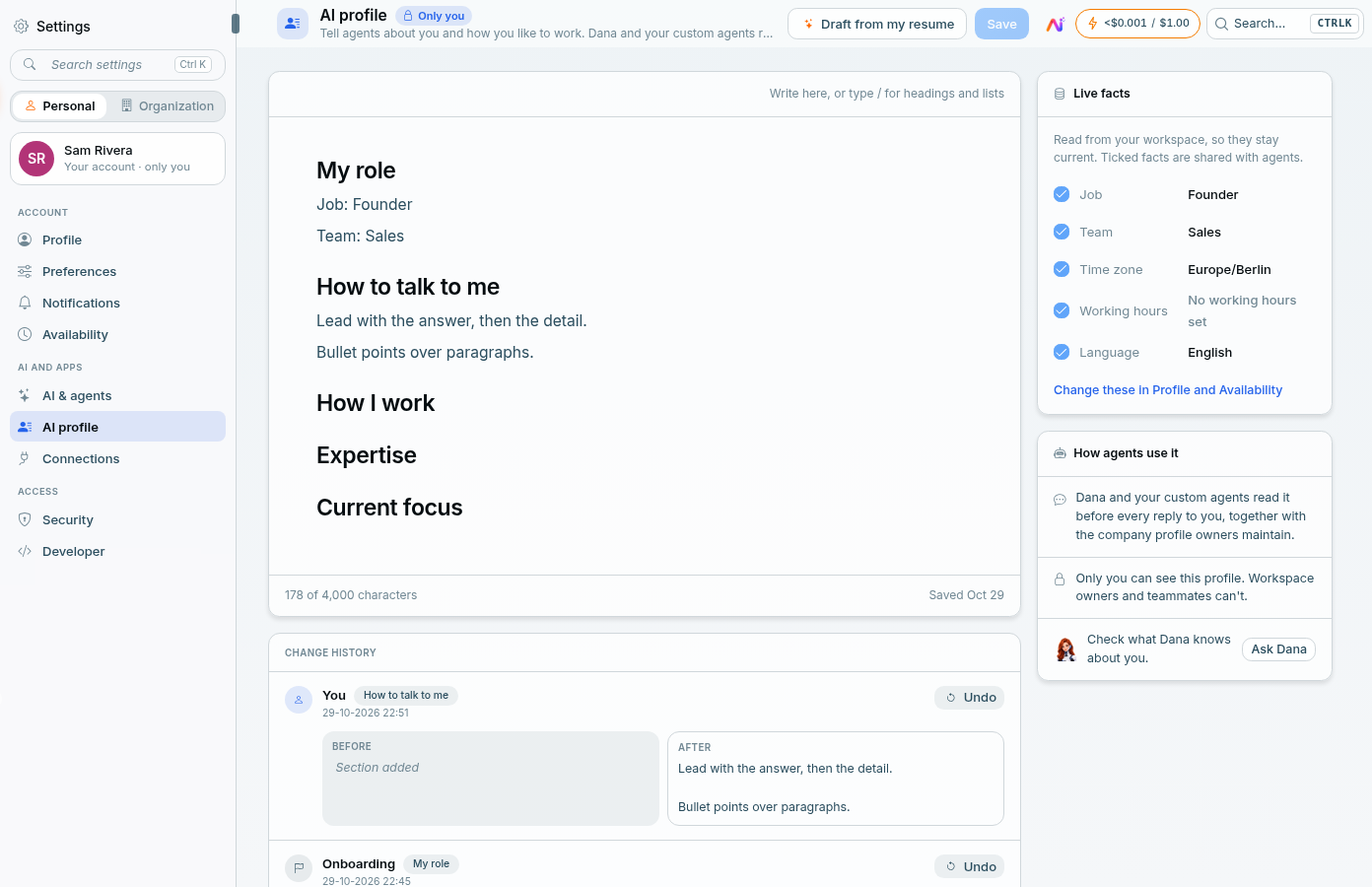
Next to each profile, Live facts lists details read from your workspace, so they stay current: Members, Teams, Locations, and Language and calendar for the company, and your Job, Team, Time zone, Working hours and Language for you. On the company profile, tick Include in AI for each fact agents should see.
How do I write the company profile?
A new company profile starts with six headings: What we do, Products & services, Customers, Values, Culture and Our terms. Write short facts under each, add your own headings if you need them, then choose Save.
The counter under the editor shows how much of the 6,000 characters you have used, and Save waits until you are under the limit. Owners and Admins can edit the company profile. Members can read it.
How do I draft it from our website?
- Choose Draft with Dana. The Draft from our website window opens with Company website filled in from your email's domain, unless you sign in with a free email address. Change it if you need to.
- Choose Draft. Dana reads your home page and up to 3 pages about your company, products and customers.
- In Review Dana's draft, compare Current and Draft for each section. Edit the draft text if you like, then Accept or Discard it.
- Choose Apply to put the accepted sections in the editor, marked Drafted by Dana.
- Keep or Discard the drafted text, then choose Save. Nothing is saved until you do.
Dana drafts What we do, Products & services, Customers, Values and Culture. She never drafts Our terms, so write that section yourself.
How do I fill in my AI profile?
Your AI profile starts with My role, How to talk to me, How I work, Expertise and Current focus, and holds up to 4,000 characters. Only you can see it. Workspace owners and teammates can't.
To start from your resume, choose Draft from my resume and add a PDF or DOCX of up to 5 MB. Dana drafts My role and Expertise for you to review and leaves out your contact details. Drafting uses a little AI credit.
What happens when Dana suggests a change?
When a conversation shows that a profile is out of date, Dana may suggest a one-line change after she finishes your request. A card asks, for example, Change the company profile? or Add to your AI profile?, and shows the heading, Before and After. Approve it, choose Edit to change the line first, or choose No. If you say no, Dana won't suggest this again.
She suggests at most once per conversation, and you can ask her to add something to a profile at any time. A change to the company profile needs an Owner or Admin. Custom agents don't suggest profile changes.
How do I undo a change?
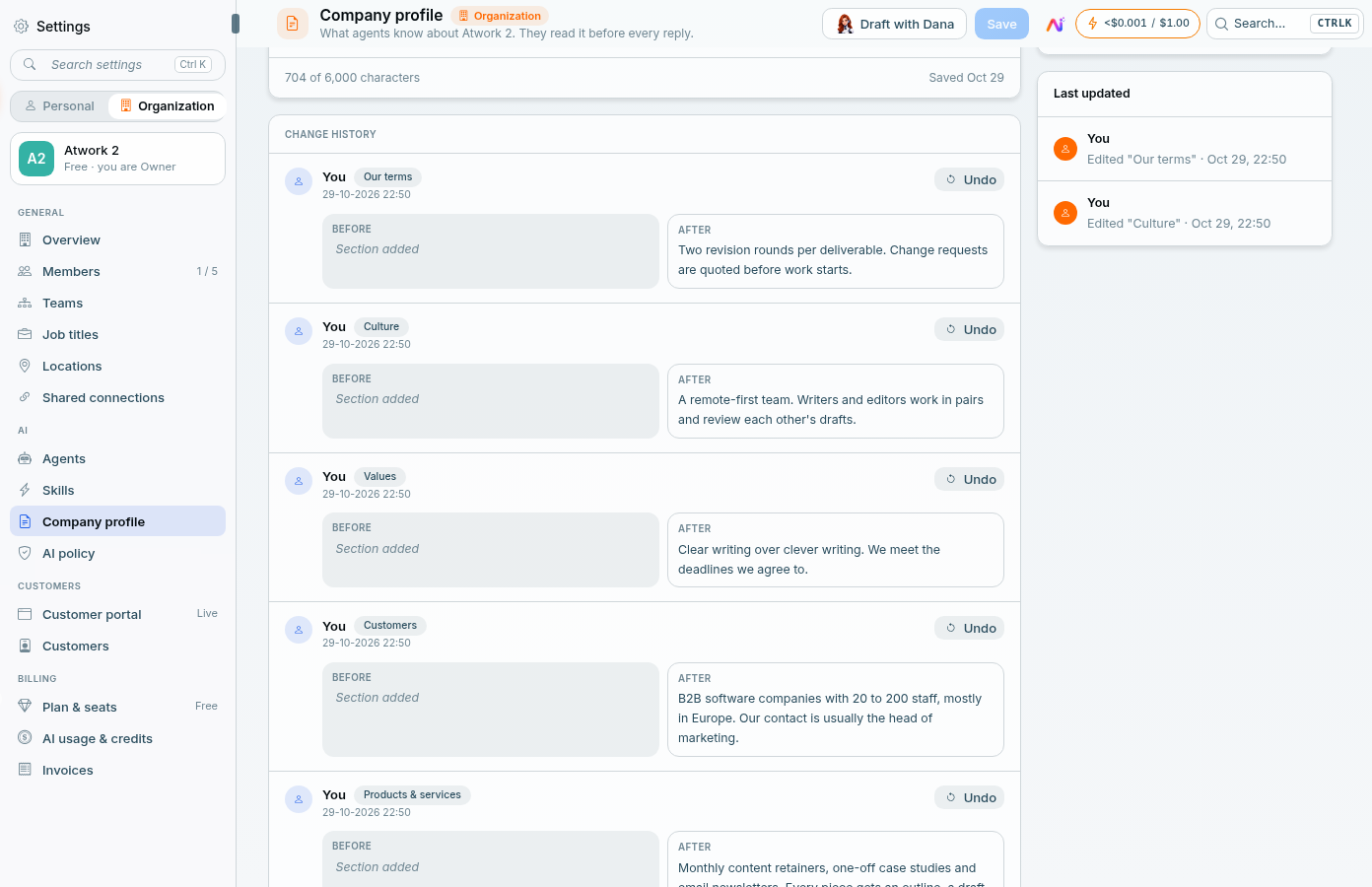
Change history lists one entry per changed section, with Before, After, who made the change (you, a teammate, Dana or Onboarding) and when. Choose Undo on an entry to put that section back.
Undo isn't available once the section has changed again after that edit. Edit the section in the profile instead. Members can see the company profile's history but can't undo.
Frequently asked questions
Can the workspace owner see my AI profile?
No. Only you can see your AI profile. Owners, Admins and teammates can't.
Why can't I edit the company profile?
Only Owners and Admins can edit it. Members see it read-only, so ask an Owner or Admin to make the change.
Why did my resume draft fail?
Use a PDF or DOCX under 5 MB. A scanned PDF has no text Dana can read, so export your resume from a document instead. If your AI budget is used up, add credit first.
Related: Meet Dana, your AI assistant · Skills for custom agents · Create an agent and give it knowledge