How to set quiet hours for notifications
Turn on quiet hours to hold your push notifications and notification emails while you're outside your working hours. They arrive together, as one push and one email, when your working hours start again. Anyone in your workspace can turn it on for their own account, and it changes nothing for your teammates.
Before you start
- Set your working hours in Settings → Availability. Quiet hours follow them. Until you set some, you can't turn the switch on, and it says Set your working hours first.
- Check your time zone. Your hours are read in your own time zone, shown on the same page under Weekly hours, for example Times are in UTC+01:00 (your time zone). To change it, choose Change time zone.
Turn on quiet hours
- Click your avatar and choose Settings.
- In the left menu, under Account, choose Notifications.
- Scroll down to Quiet hours, the last section on the page.
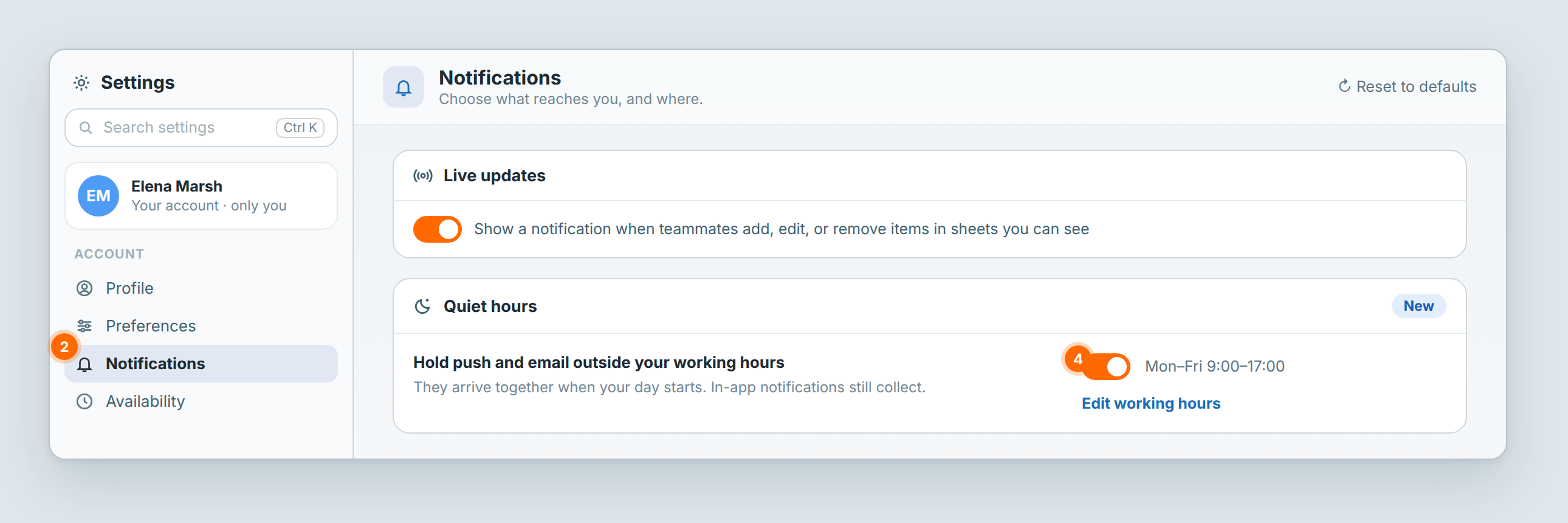
- Turn on Hold push and email outside your working hours.
The switch turns on and saves by itself. Next to it you see the days and hours it follows, for example Mon–Fri 9:00–17:00, or Hours vary by day when your days differ. Edit working hours opens Settings → Availability.
To get there faster, type quiet hours into Search settings at the top of Settings.
What changes outside your working hours
- Push and email wait. This covers every event in the Where notifications go table on the same page, on the channels you have turned on there. Account emails, such as a password reset, are never held.
- One push and one email when your hours start. The push says how many came in, for example 3 notifications while you were away. The email lists them by type, up to 20, and counts the rest. Its Open inbox button takes you to your Inbox.
- What you've already read is left out. If you read or archive a notification in Atwork before your hours start, it isn't in the push or the email.
- Your Inbox still collects everything as it happens. In-app notifications aren't held.
- Breaks and days off count as outside your hours. If your day has two ranges, such as 9:00–12:00 and 13:00–17:00, a mention at 12:30 waits until 13:00. A day marked Unavailable is outside your hours all day, so a notification on that day waits for your next working day.
- Time off doesn't change it. Quiet hours follow your weekly hours only. On a day you added under Out of office, push and email still arrive together at your usual start time.
- Telegram isn't held. Telegram messages still arrive right away. To stop them, turn off Telegram for those events in Where notifications go.
Turn quiet hours off
Turn off Hold push and email outside your working hours. Anything held so far goes out within about a minute, as one push and one email.
Ask Dana instead
Ask Dana, for example "Turn on quiet hours" or "Turn off quiet hours". Dana shows the change on a card: choose Approve. If you haven't set your working hours yet, Dana offers to set them first.
Quiet hours or Do not disturb?
Use quiet hours for the hours you never work. Use Do not disturb for a meeting or a block of focus time.
| What differs | Quiet hours | Do not disturb |
|---|---|---|
| When it applies | Every day, outside your working hours | Until you change your status, or for 30 minutes, 1 hour, until tomorrow or a time you pick |
| Push | Held, then sent together when your hours start | No push while it's on |
| Held, then sent together | Still sent | |
| Your Inbox | Collects as usual | Collects as usual |
| Teammates see it | No | Yes, as your status |
| Where you set it | Settings → Notifications | Click your avatar, then your status, and pick a time under Do not disturb for |
Related: Your profile and notifications · Working hours and availability · Notifications aren't arriving · The Inbox