A change request rarely announces itself. It arrives as "Could you also do a takeaway version?" in the same inbox as a note about opening hours, and whoever reads it decides in seconds. Absorbing the work usually wins, because raising a change costs more than doing it, as scope creep prevention explains.
You can classify client requests with AI before anyone makes that call. A Classify with AI step in an Atwork workflow reads each request as it arrives, compares it with what that client pays for, and labels it in scope, change request or new project, so a change gets priced before anyone starts it. If the Agent step is new to you, AI agents in workflows introduces it.
Below: the labels, the scope, the build, the unclear requests, and how to check a decision.
What does it mean to classify client requests with AI?
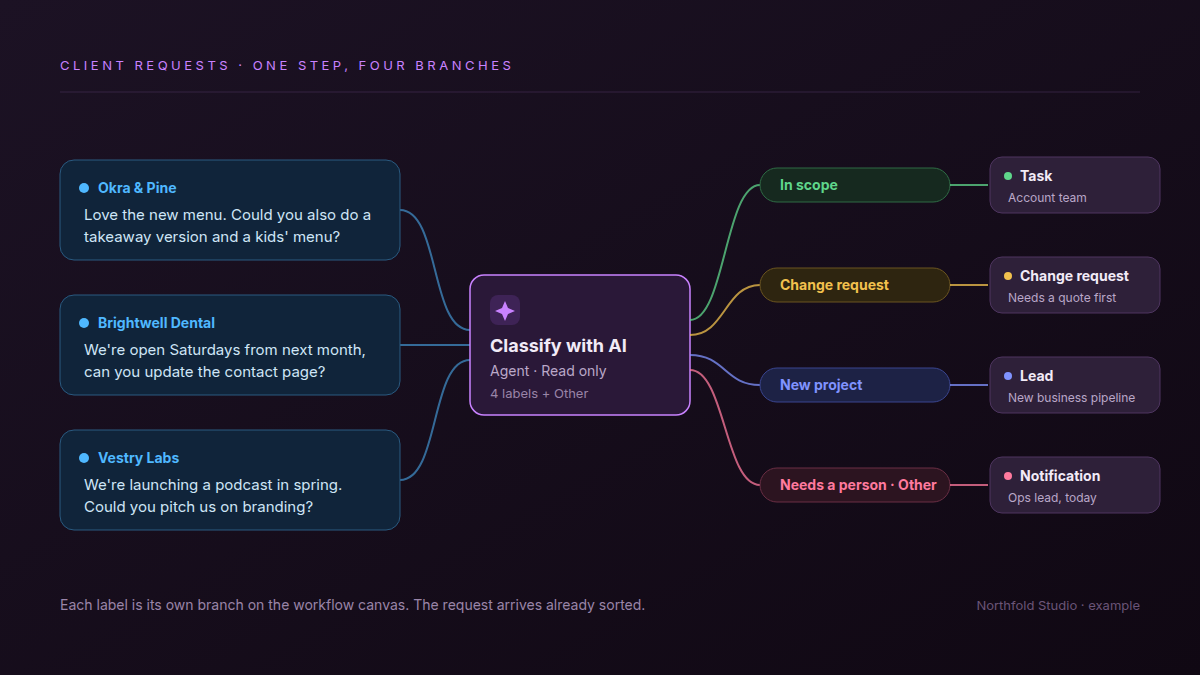
A workflow step reads each new request, compares it with what that client pays for, and picks one of your labels. Each label is its own branch on the workflow canvas, so the request arrives at the right next step already sorted.
| Label | Example request | What its branch does |
|---|---|---|
| In scope | Brightwell Dental: "We're open Saturdays from next month, can you update the contact page?" | Becomes a task for the account team |
| Change request | Okra & Pine: "Love the new menu. Could you also do a takeaway version and a kids' menu?" | Opens a change request with What changed drafted, for the account lead to price before work starts |
| New project | Vestry Labs: "We're launching a podcast in spring. Could you pitch us on branding?" | Adds a lead to the new-business pipeline |
| Needs a person | "Can we jump on a call about summer?" | Notifies the ops lead today |
The labels are yours. Agencies that bill revision rounds separately can add a label for an extra round. Keep it to four or five, because every label is a branch someone has to maintain.
Where does the agent learn what each client's scope is?
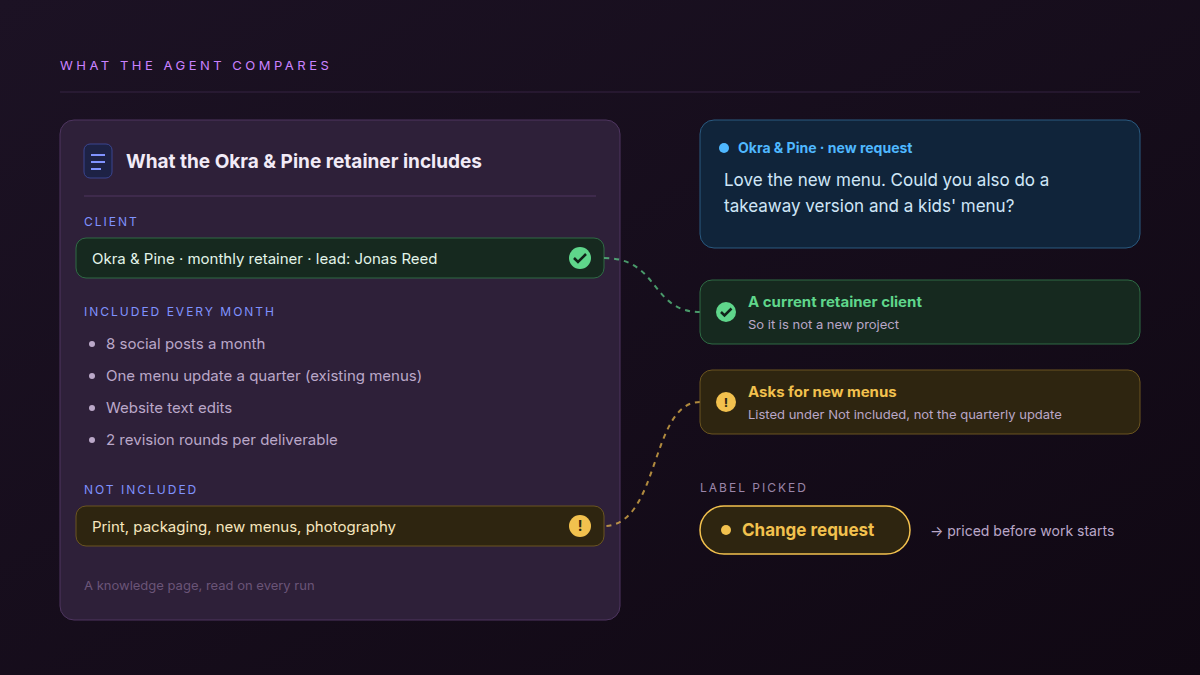
From text you write where it can read it: a knowledge page per retainer, or a scope field on each client's row. It can't read a signed PDF or a scanned contract, so the deliverables list has to exist as plain text. Ten lines per client is enough.
- Knowledge pages. Attach up to 20 pages to the step and the agent reads them on every run. One page per retainer, such as "What the Okra & Pine retainer includes", suits a handful of clients.
- A scope field on the Clients sheet. With Sheets & items set to Read, the agent looks up the requesting client's row, so the setup keeps working past 20 clients.
- What to write. What's included per month or per project, how many revision rounds, what is excluded, and the account lead's name. If clients are already linked records, as in what an agency project management template should contain, the scope is one more field on that row.
If your scope only lives in the contract PDF, this step can't use it until someone pastes the deliverables list into a page. Stop over-servicing retainer clients makes the same ask and suggests tagging every request by hand as in scope, out of scope or ours. The classifier takes over the first two tags. Ours, absorbing work on purpose, stays the account lead's call.
How do you set up a request classifier in Atwork?
Requests land as rows in a sheet, and a workflow starts on each new row. One Classify with AI step picks the label, and each branch does its job with ordinary steps: create a task, open a change request, add a lead or notify a person. The agent stays read-only, and the steps write the results.
- Requests land as rows. A Form Studio form on a Client requests sheet asks for the client, the request and any deadline. The trigger is Item Created on that sheet.
- Classify with AI. Choose Set up here, pick a model, and put the brief below in Instructions for the agent; the step won't save without both. Add the request to the task through Insert variable, and the labels In scope, Change request, New project and Needs a person. If the agent looks clients up on a sheet, set Sheets & items to Read under What the agent can use, since every option starts at Off. Then turn on Read only on the Advanced tab.
- In scope. Create Item adds a task to the Tasks sheet.
- Change request. A second, smaller Ask AI step drafts one line on what changed, so the Classify step only decides and each can be tested on its own. Create Item opens a row in a Change requests sheet with the four fields from scope creep prevention: What changed is pre-filled; the effect on the plan, the trade and who decides are left for the account lead. Send Notification asks the account lead to price it before work starts. Pricing, swapping or absorbing it on purpose stays their choice. The label only makes sure somebody chooses.
- New project. Create Item adds a lead to the New business sheet.
- Needs a person, Other and Error. All three go to one Send Notification to the ops lead.
Each branch also gets an Update Item step that writes its label to the row's Request type, with Needs a person for Other and Error. A branch carries the agent's label, not the request, so in every Update Item and Create Item step fill Item ID, the client and the request through Insert variable from the Item Created trigger.
Every setting on the step, from knowledge pages to failure handling, is in the Agent step reference.
Write the instruction like a brief
Give each label one sentence saying when it applies, add the tie-breaker from the next section, and give the agent a way out. For Northfold Studio, the agency in this example, it reads:
Compare the request with the client's retainer page. In scope: the retainer lists this work and the client wants more of the same. Change request: new work for a current client that the retainer doesn't list or explicitly excludes. New project: work for a client with no current retainer, or a piece big enough to need its own brief. Needs a person: no clear ask, a meeting request, or a message that isn't about work. If a request could be In scope or Change request, choose Change request. If you can't tell from the message, choose Needs a person.
Classification quality comes from this paragraph, not from the model picker.
Which mistake should the classifier make?
The cheaper one. A request wrongly flagged as a change request costs the account lead a minute to wave through. A change request wrongly marked in scope gets done for free, and nobody prices it. So tell the agent which way to lean: when a request could be either, choose Change request.
| Mistake | What it costs | Who notices |
|---|---|---|
| In scope marked as a change request | A minute of the account lead's time | The account lead, straight away |
| Change request marked as in scope | The work, done free, and a precedent | Nobody, until the margin report |
| New project marked as a change request | A small quote where a pitch belonged | The account lead, usually |
| Anything vague forced into a label | Depends on the label it landed on | Nobody, unless there's a Needs a person label |
The rule cuts both ways. If account leads start ignoring the notifications, loosen the instruction.
What happens to requests that fit no label?
In Atwork the Classify step answers with one of your labels, and anything that matches none goes down the Other branch. Because the agent picks from your list, a vague request usually lands on the nearest label rather than on Other. Give it an honest label for "not sure", and send Other there too.
- Needs a person is a label, not a failure. Say in the instruction when to use it, as the sample above does.
- Other is the safety net. Wire it to the same notification as Needs a person, so nothing disappears.
- Error is the third path. Set the step's failure handling to Error branch, so a request the agent couldn't answer reaches the same person with the reason attached. The alternatives are wrong for client work: Stop the run leaves the request unrouted, and Skip failed items drops it.
- Attachments have limits. The agent reads the message plus text, CSV, JSON, Markdown and HTML files, but not PDFs or images. Tell it that a request which is only a PDF brief goes to Needs a person.
An AI classifier never says "I don't know" unless one of your labels does.
How do you check why a request got its label?
Open the run in Executions. Every step that ran is listed, so the branch a request took is plain. The run shows its AI cost, the Classify step shows the model and tokens, and its output holds the label it picked. Show steps lists the tools the agent used, such as a lookup on your Clients sheet. The label itself carries no written reason.
- Send four real requests through the form, one per label, including a deliberately vague one.
- Open each run in Executions. If the agent looks clients up on a sheet, open Show steps and check it read the right row; a label chosen from the wrong client's scope is a guess.
- When a label is wrong, fix the instruction or the scope page, not the branch. Then press Try it on the Classify step: it reruns the step on the latest run's data, read-only, and shows the picked label.
- For the first two weeks, read every Needs a person item and spot-check five In scope ones each Friday.
Frequently asked questions
Can AI tell an in-scope request from a change request?
Yes, when the client's scope is written down where it can read it. Without that, it is guessing from the wording, and wording is what makes a change request look routine.
Does the agent reply to the client?
Not in this flow. It labels the request and drafts a line for your team. A person sends anything the client sees.
Can it sort requests that arrive by email?
Yes. Connect the mailbox so each email lands as a row, then put the Classify step and its branches inside the Email inbox workflow that the setup creates, not in a separate workflow.
Can the agent change the request itself?
Only when Sheets & items is set to Read & write and Read only is off. In this flow Read only is on, and Update Item steps write the label onto the row.
What does classifying a request cost?
Each run draws on your workspace's monthly AI budget, and Executions shows the AI cost of every run. What AI costs an agency per month puts those numbers in context.
Is this the same as support triage?
No. Support triage sorts customer questions by topic and urgency. This sorts client work by what it costs you.
Where should you start this week?
Write the scope page for your three busiest retainers first: ten lines each, covering what's included, what isn't and how many revision rounds. Then add one Classify with AI step with the four labels, keep it read-only, and let it label a week of requests before any branch creates anything.
The Agency Client Delivery template ships the board the tasks and change requests land on, and Atwork for agencies covers the wider setup.
Write the scope page for your busiest retainer, then let one Classify step label a week of requests before it routes anything. Start free