A client portal is the page your client opens instead of emailing you for a status update. Most articles about client portals for agencies list features. This one is about the decision underneath the feature list: what your client should actually see, who decides that, and what happens to your week once they can see it.
The short version is one opinion, and everything below follows from it. A portal should be a scoped view of work you are already doing. The moment it becomes a second place you copy work into, it starts dying. The worked examples here use Atwork's client portal, but the decisions come first, and they apply wherever you build one.
What is a client portal, and what is it not?
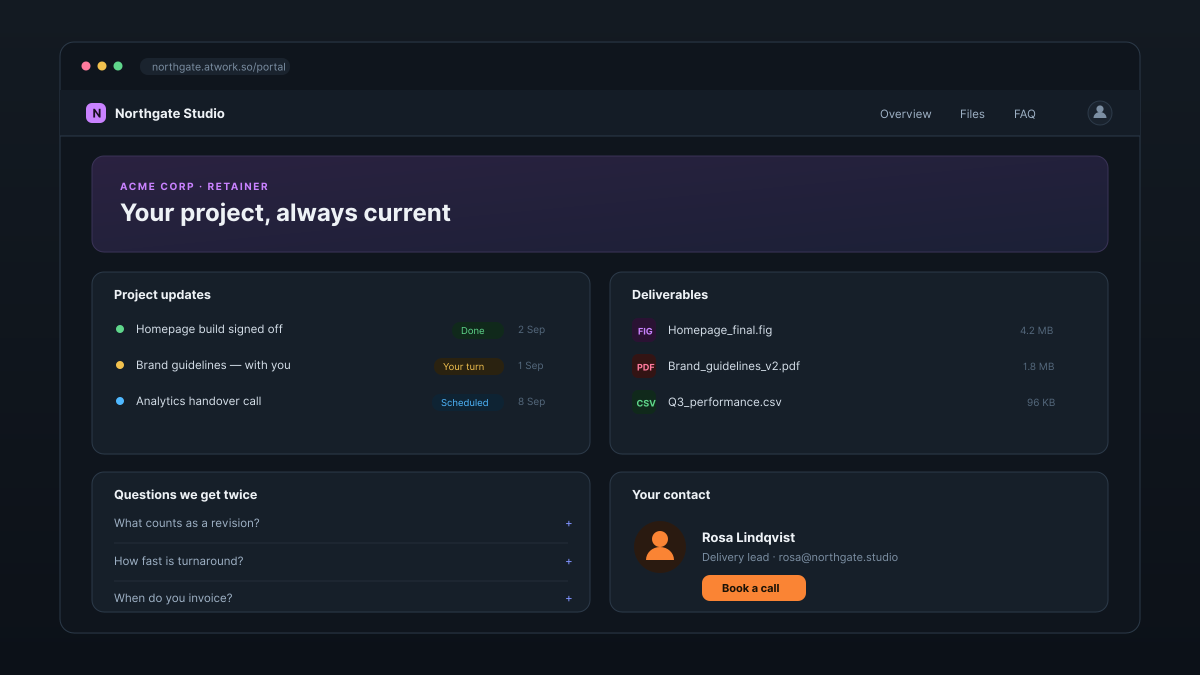
A client portal is a branded page where a client sees the state of their own work — where it stands, the deliverables, who to ask, the answers to the questions they ask twice — without an account in your workspace. What it is not is a second system you retype work into.
That distinction decides whether the portal survives. Month one you keep it current because it is new. By month two the portal says one thing and the project says another. The client notices once, quietly stops trusting it, and goes back to emailing you. Now you have a portal and the emails.
A portal that someone has to remember to update is a second inbox with worse notifications.
The test to apply before you build anything: if updating the portal is a task on somebody's list, the portal will be wrong within three weeks.
What should a client actually see?
Four things earn their place on a client-facing page. Everything else is either noise to the client or a liability to you.
- Where it stands. Not your task board. A client does not want forty tasks with assignees; they want the current phase, what is next, and what is waiting on them.
- The deliverables. The current file, not a thread with seven versions and a final_v3 in the middle of it.
- Who to ask. A name, a face, and a way to reach them. This single card removes more email than any status feed.
- The answers they ask twice. Turnaround times, what counts as a revision, when you invoice. A short FAQ ends a category of email permanently.
What to leave out is just as load-bearing: internal estimates, per-task assignees, your margins, and anything in progress that is not ready to be judged. Showing a client a half-finished design because you believe in transparency costs you a revision round.
How do you give a client access without giving them your workspace?
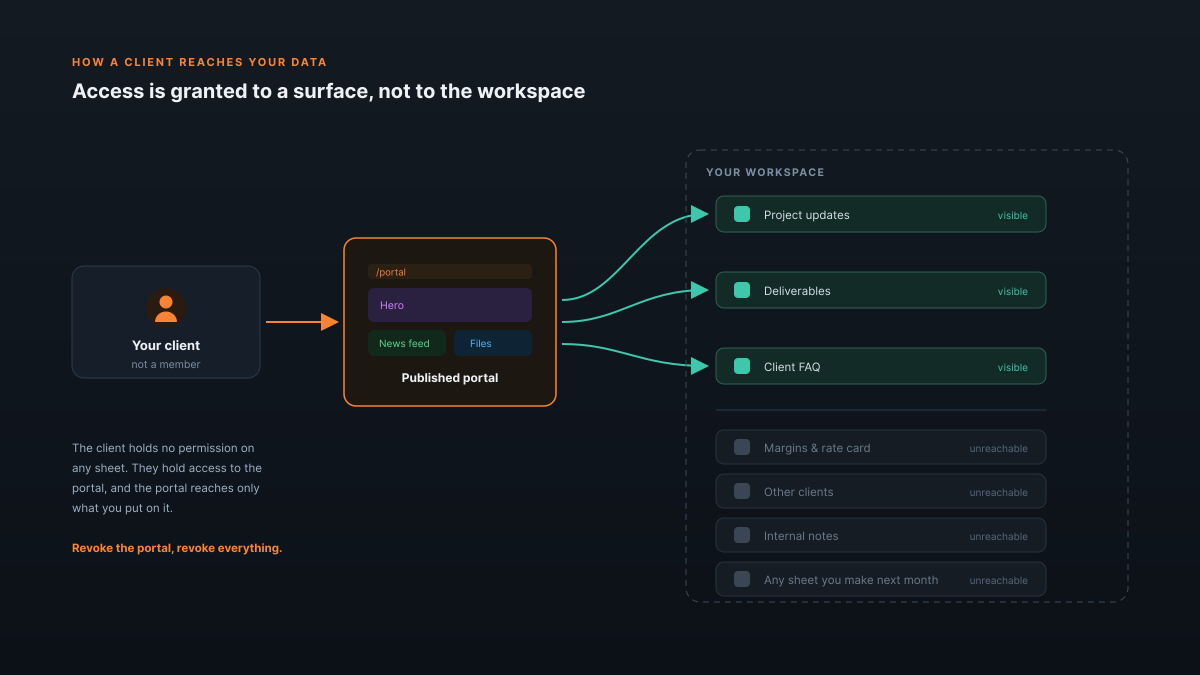
You grant it the other way round from how most tools do it. Instead of adding the client to your workspace and then restricting what they can reach, you publish a specific surface and give access to that surface. The client is never a member of your workspace at all.
This sounds like a technicality. It is the whole ball game, because it decides what happens by default when you are not thinking about permissions:
- The blast radius is the surface, not the workspace. Adding a new sheet next month does not quietly expose it to anyone.
- Revoking is one action, not an audit of every place the client was granted something.
- The safe state is the default. New things are invisible to clients until you deliberately put them on the portal.
Here is where the common approach is genuinely weaker, and it is worth being precise rather than smug about it: permission-by-restriction works fine on the day you configure it. It fails later, when somebody creates a sheet and it inherits a default nobody reviewed. That is the failure mode behind Notion's client access problem and behind most of the portal bolt-ons agencies end up buying on top of Monday.com.
Should the portal require a login?
Both answers are defensible, and the right one depends on what the portal holds rather than on how serious you want to look.
- No login. The portal is a link. Right for a single project, a short engagement, or a client whose five stakeholders rotate constantly. The link is the credential — anyone who has it is in, including whoever it gets forwarded to.
- Login. Clients get accounts, can register themselves, verify by email, and reset their own passwords. Right for retainers, and for anything holding documents or invoices.
Start without a login for your first client. Turn it on when the portal holds something you would mind being forwarded. In Atwork both switches live on the Page tab of the portal builder — Require sign-in to view the portal and Allow customer registration.
How much branding is enough before it becomes a website project?
Enough is your logo, your colours, your own login page, and a password-reset email that does not name your vendor. Not enough is a colour picker on an otherwise generic page. Too much is a bespoke design system for a page five people read.
The tell is the transactional email. If your client requests a password reset and the mail arrives in another company's name, the white-labelling was cosmetic. That is why the portal builder has an Emails button in its header — the customer-facing verify and reset messages are yours to word.
How do you keep a portal current without a Friday update ritual?
You point the portal at the data you already maintain, field by field. The news feed reads your updates sheet. The files widget lists the deliverables you already attach to rows. The FAQ is a sheet of questions and answers. Nobody updates the portal, because the portal is a view.
This is the mechanical answer to the failure mode in the first section. If your Thursday habit is moving a project to In review, the client's Thursday view changes because you did that — not because you also remembered to go and say so.
What does this look like in Atwork?
The portal builder is at Administration → Customer Portal → Portal. You drag widgets onto a canvas of stacked sections, each split into one to three columns, and the right-hand panel switches between Content, Theme and Page.
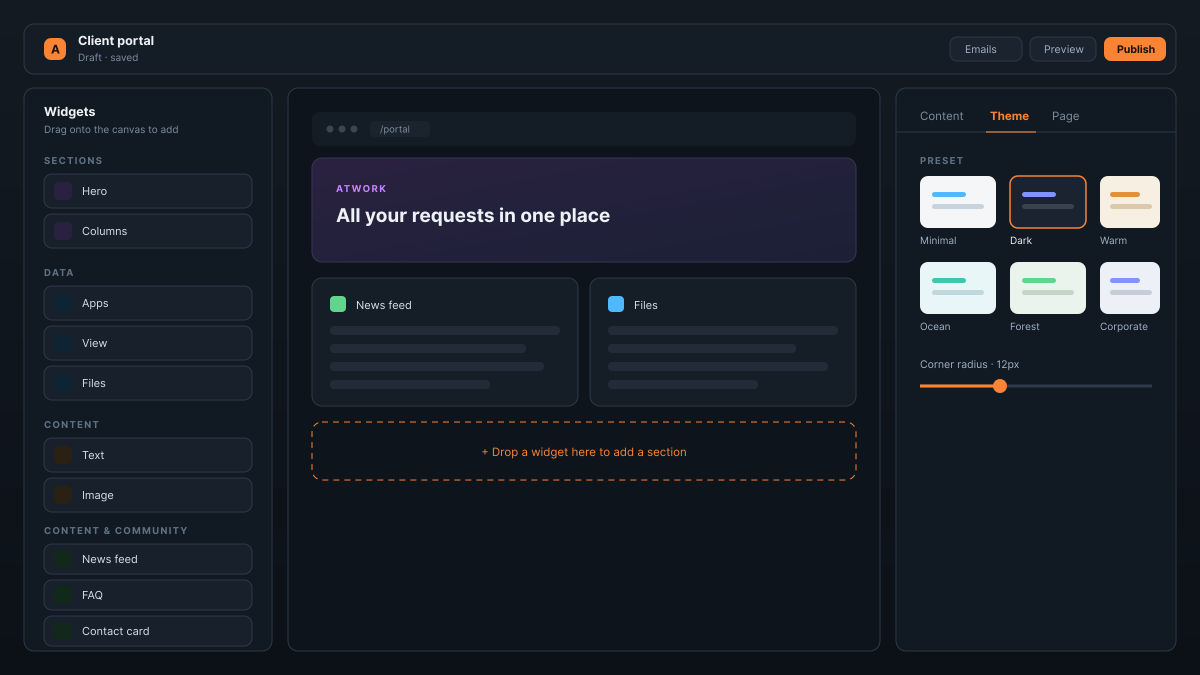
The palette is grouped by what a widget does:
- Sections — Hero, Columns
- Data — Apps, View, Files
- Content — Text, Image
- Content & community — News feed, FAQ, Contact card
Theme carries six presets — Minimal, Dark, Warm, Ocean, Forest and Corporate — plus a corner-radius control, so the portal takes your look rather than ours. Customer accounts live one item below the builder, under Administration → Customer Portal → Customers. Preview shows the client's view; Publish makes it live.
One honest limit, because it changes how you set this up today: there is no rule that automatically shows each client only their own rows. Per-client scoping is done by pointing a client's portal at a filtered view or a surface built for them, rather than by one portal that partitions itself. For a handful of retainer clients this is a few minutes of setup each. For fifty self-serve customers it is the wrong shape, and you should wait.
If you want the underlying structure rather than a blank canvas, the Agency Client Delivery template ships the sheets a portal like this reads from, and the agencies solutions page covers how it sits next to the rest of delivery.
Pick your least complicated retainer client. Give them the four things above and nothing else. If they stop asking where things are, add the second client.
Put one client in and give them a scoped view. Thirty days costs an afternoon to walk away from. Start free