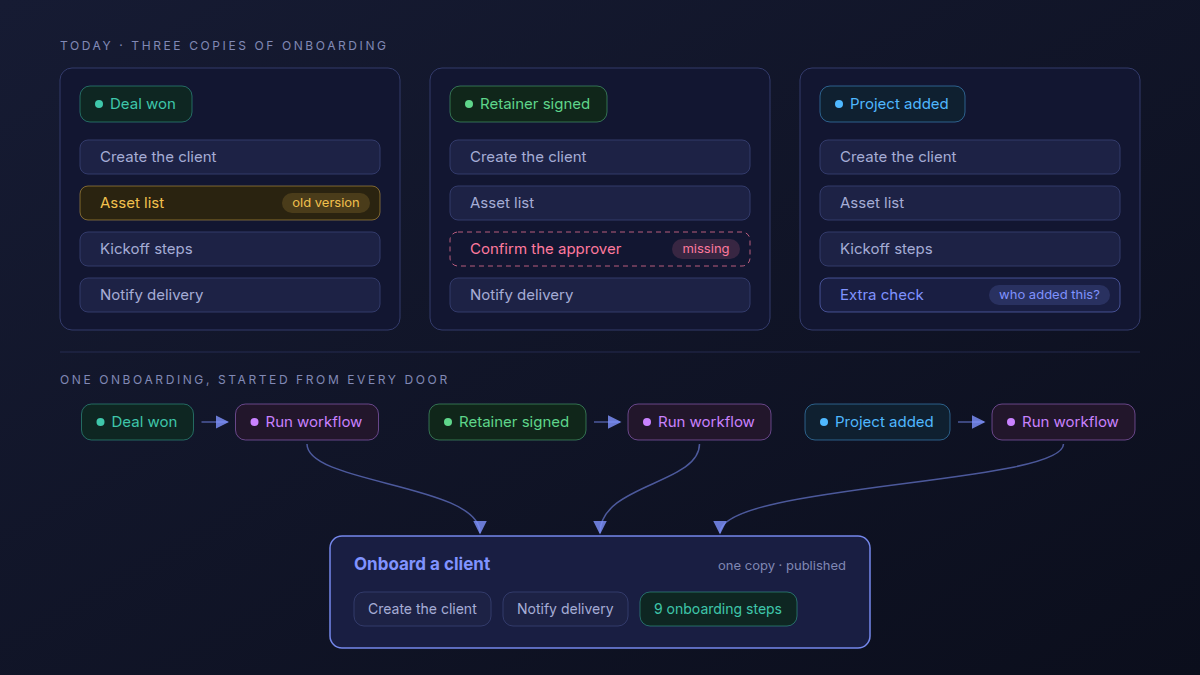
Most agencies that automate onboarding end up with three onboardings: one in the workflow that runs when a deal is won, one in the new-retainer workflow, and one for projects that skip the pipeline. Each copy of the client onboarding workflow was identical the day it was built. By spring, one still sends last year's asset list and one never asks the client to confirm the approver.
The fix is to build onboarding once, as its own workflow that takes the client's details as inputs, and let every door start it with Atwork's Run workflow step. Below: the split, one build, the run history, changes and limits. New to workflows? Start with how to build your first workflow automation.
Why does automated client onboarding drift?
Because it gets copied. Every workflow that can bring in a client carries its own version of the setup, and each copy is edited on its own: the asset list here, a new step there. Three copies of one process become three processes, and nobody can say which one a given client got.
How to structure an agency workspace describes the same drift in per-client boards, and its test applies here: what has to be improved in several places gets improved in one.
What is a reusable onboarding workflow?
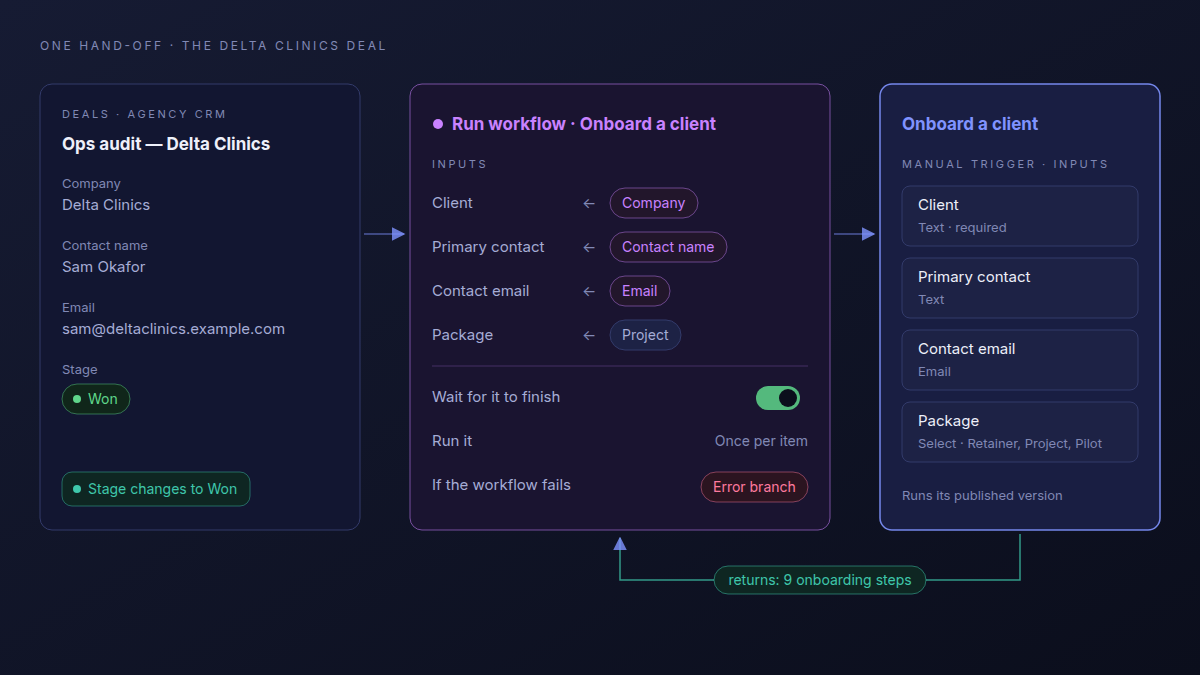
A reusable onboarding workflow starts with a Manual trigger, declares the inputs it needs (the client, a contact, an email, the package) and does the setup. Other workflows start it with a Run workflow step and fill those inputs from their own trigger. It always runs its published version, as the person whose action started the run.
Other tools call this a sub-workflow. In Atwork:
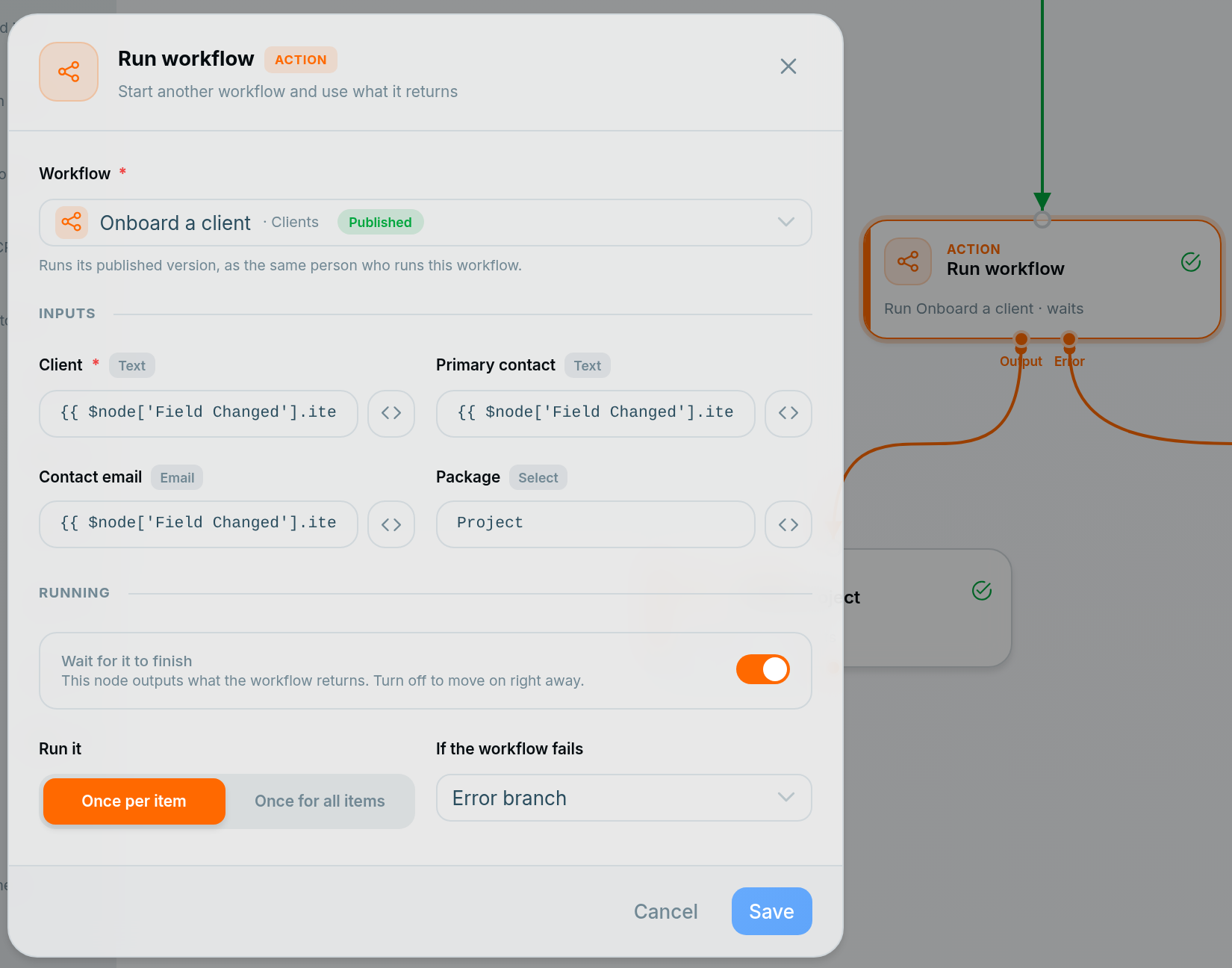
- Manual trigger only. Only such workflows appear in the Run workflow step's list, and the trigger's parameters (Text, Email, Select, Date and more) are the inputs.
- Waiting is optional. With Wait for it to finish on, the caller gets what onboarding returns and can route a failure.
What belongs in the onboarding workflow, and what stays in each caller?
Put in the onboarding workflow everything a new client needs however they arrived: the client record, the onboarding steps and the heads-up to delivery. Keep in each caller only what that door knows: the package sold, the project a won deal creates, and whether this is a new client at all.
| Job | Where it lives | Why |
|---|---|---|
| Create the client record | Onboard a client | Every client needs one |
| Create the nine onboarding steps | Onboard a client | One list to improve |
| Tell the delivery team | Onboard a client | Same message every time |
| Say which package was sold | The caller, as an input | Only the door knows it |
| Create the project from the deal | The Deal won workflow | Only a won deal has one |
| Start only for a new client | Each door's trigger | Every run creates a client record |
If clients only ever reach you one way, one workflow is enough. And as workflow automations teams actually keep argues, let your structure settle before you automate on top of it.
How do you build it in Atwork?
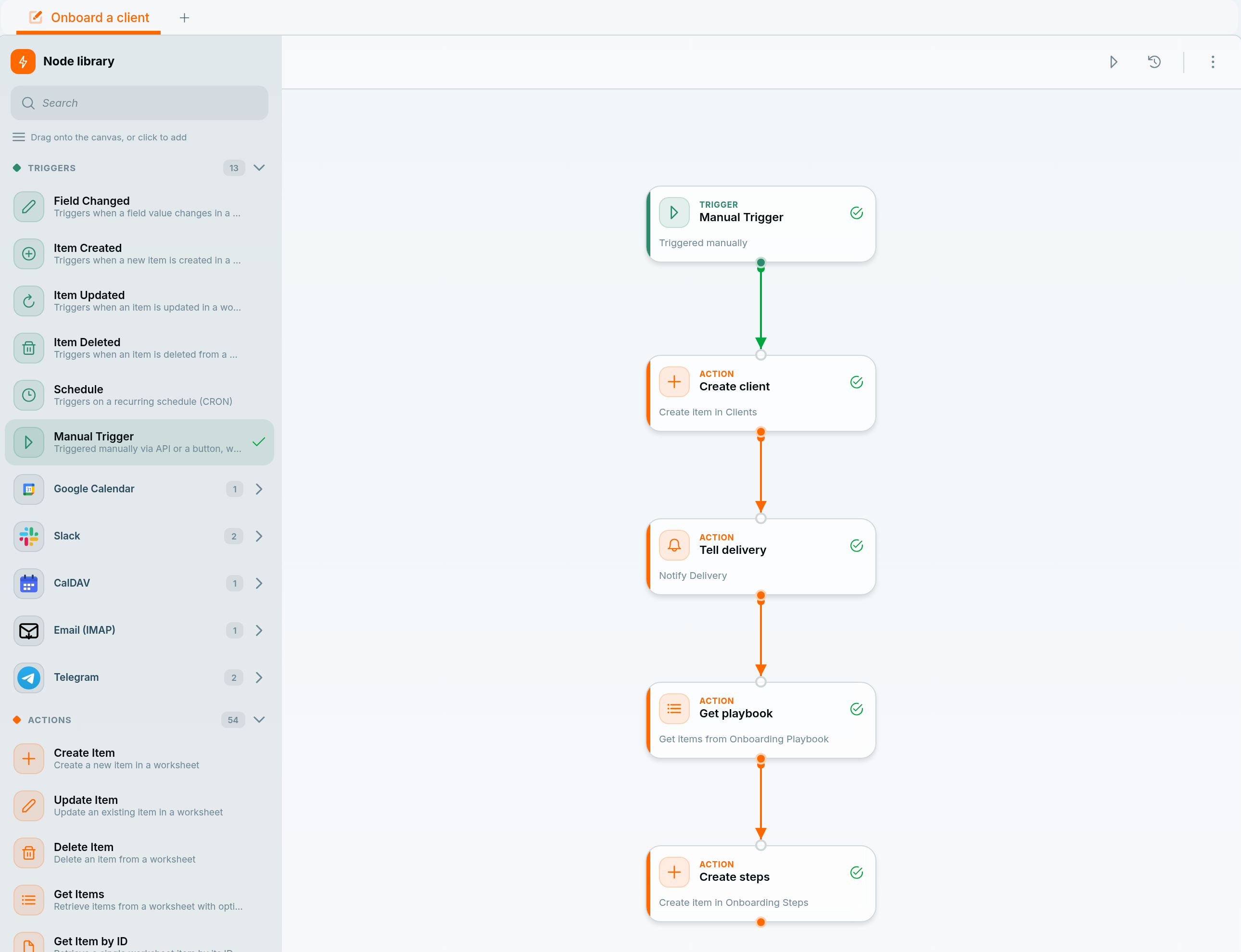
Install the Agency Client Onboarding template, add an Onboarding Playbook sheet, and build Onboard a client: a Manual trigger with four inputs, a step that creates the client, a notification, and two steps that copy the playbook for the new client. Publish it, then give each door a Run workflow step.
The playbook is its own sheet, kept apart from the clients' steps so the workflow copies only its nine rows: the steps from the 9-step client onboarding checklist, each with its Day from kickoff. Double-click a step's title on the canvas to give it the name in bold; run history shows those names.
- Manual Trigger with four parameters: Client (Text, required), Primary contact (Text), Contact email (Email) and Package (Select: Retainer, Project, Pilot).
- Create client, a Create Item step in Clients: the client, contact and email from the inputs, the package in the description, and Onboarding set to In progress.
- Tell delivery, a Send Notification step to the Delivery team, naming the client and package.
- Get playbook, a Get Items step on Onboarding Playbook: the nine rows.
- Create steps, a Create Item step in Onboarding Steps, once per row: titled with the client and the step ("Delta Clinics · Run the kickoff call"), with Day from kickoff from the row.
Create Item can't take a passed-in value for a choice field such as Package, so the package goes in the description. Keep Tell delivery before Get playbook, or it goes out once per row.
The Deal won workflow that starts it
- Field Changed on Deals: Stage, with the specific value Won.
- Run workflow: Onboard a client, with Client from Company, Primary contact from Contact name, Contact email from Email, and Package typed as Project. Wait for it to finish on; If the workflow fails set to Error branch.
- Create project, a Create Item step in Projects, named after the deal with Status Kickoff: the job the Agency CRM guide leaves to a person.
- From the step's Error output, Send Notification to Maren, the ops lead.
The other two doors
| Door | Trigger | What it passes |
|---|---|---|
| A deal is won | Field Changed on Deals: Stage is Won | Company, Contact name and Email from the deal; Package: Project |
| A new client signs a retainer | Field Changed on Retainers: New client is ticked | The linked contact's details; Package: Retainer |
| A new client's project is added by hand | Field Changed on Projects: New client is ticked | The linked contact's details; Package: Project |
These doors wait for a tick, because a returning client's second retainer isn't a new client: add a Yes/No field, New client, to Retainers and Projects, and tick it after linking the contact. Each door then reads the contact with a Get Item by ID step. Projects that Deal won creates never tick it, so they can't set off the Project door.
Where do you see what the onboarding workflow did?
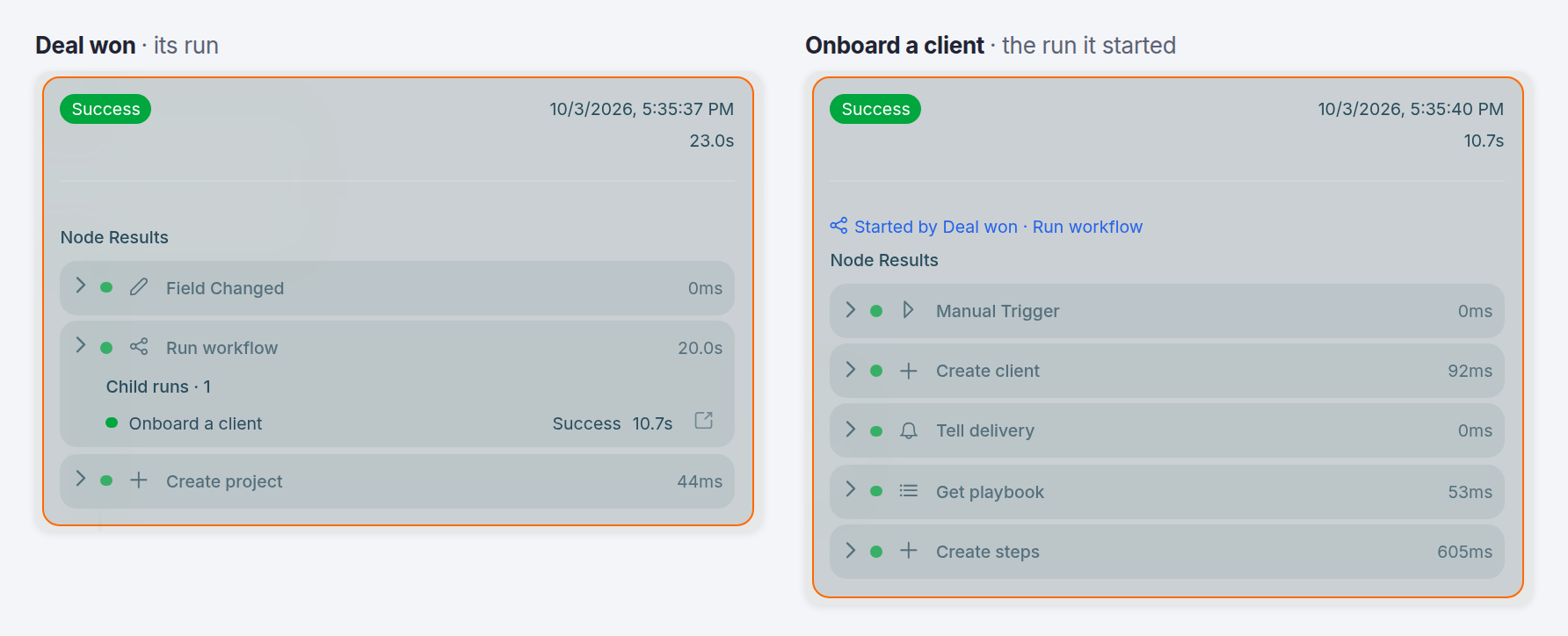
In the caller's run. Open Executions on the Deal won workflow and pick the run: under the Run workflow step, Child runs · 1 lists the onboarding run with its status, duration and a link. The onboarding run names the workflow and step that started it.
- Under Run workflow, open the run listed in Child runs · 1.
- It reads Started by Deal won · Run workflow, a link back.
- Check its steps: Create client, Tell delivery, Get playbook and Create steps. If it failed, the Error output has already told Maren.
More on reading runs: test and debug an automation.
How do you change onboarding without breaking the workflows that start it?
Edit Onboard a client and publish it. Every door uses the new version from its next run and keeps the old one until you publish, so a half-finished edit never reaches a client. Only a new required input needs care, because every door has to fill it first.
- Edit, then publish. Add the step you were missing, say one that builds the Access & Assets chase list, publish once, and all three doors have it.
- Add an input as optional first. A required input a door doesn't fill fails that door's runs: no client, no steps, no project. Add Kickoff date as not required and publish, fill it in each door's Run workflow step and publish the doors, then make it required. A door you missed reads Required inputs left empty: 1.
- Removed inputs are marked. A door's step shows a dropped input as "No longer an input" and stops sending it.
- Off means off everywhere. While Onboard a client is turned off or unpublished, each door's step says so and fails.
- The playbook is a sheet. Rewording a step or moving its day needs no publish.
If improving onboarding means editing three workflows, it will be improved in one of them.
What are the limits of starting one workflow from another?
A waiting caller waits at most a day, and onboarding runs with the access of the person whose action started the caller. Workflows nest at most three levels deep. This build also leaves client emails to a person, and Test run can't fill the inputs.
- A day at most. Add a Delay, say a day-seven asset check, and a waiting caller gives up after a day; that item fails. Put delayed checks in their own workflow.
- Whose access. Field Changed runs as whoever moved the deal to Won, so that person needs access to the Client Onboarding space.
- It doesn't email the client. "Send welcome email and kickoff invite" lands as an onboarding step for the account lead to send.
- Test it through a caller. Test run on Onboard a client sends empty inputs, so move a test deal to Won instead.
Frequently asked questions
Can one workflow start another workflow?
Yes. Add a Run workflow step and pick a published workflow that starts with a Manual trigger.
Does the first workflow wait for the second one?
Only if Wait for it to finish is on. Then it can use what the second workflow returns and route a failure; off, it moves on right away.
What happens if the onboarding workflow fails?
With Wait for it to finish on, If the workflow fails decides: Stop the run, Skip failed items or Error branch. With it off, the caller never hears how onboarding went. Keep it on and use Error branch.
Why not start onboarding when a new client row is created?
Rows a workflow creates don't start other workflows, so a client row that Deal won created would never set it off. The hand-off has to be a step.
Can an AI agent start the onboarding workflow?
Yes. Add it under an Agent step's Workflows it can run, and the agent can start it and use what it returns. See AI agents in workflows and the Agent step reference.
Is this the same as installing a template?
No. A template installs the sheets once; the onboarding workflow fills them for each new client.
Where should you start this week?
Open every workflow that can bring in a client and write down what each does for onboarding. Move the shared part into one Onboard a client workflow with four inputs, publish it, and replace each copy with a Run workflow step. Then move a test deal to Won and read the child run.
The Agency Client Onboarding template ships the sheets and the nine steps; the Agency CRM template ships Deals, Projects and Retainers. For the wider setup, see what an agency project management template should contain and workflow automation in Atwork.
Build Onboard a client once, start it from your Deal won workflow, and move one test deal to Won before you add the second door. Start free