Most automation guides list every trigger and every action a tool supports, which is useful roughly never. What you actually need is one working automation, built end to end, on something you genuinely do by hand — and enough judgment to know which of your habits are worth automating at all.
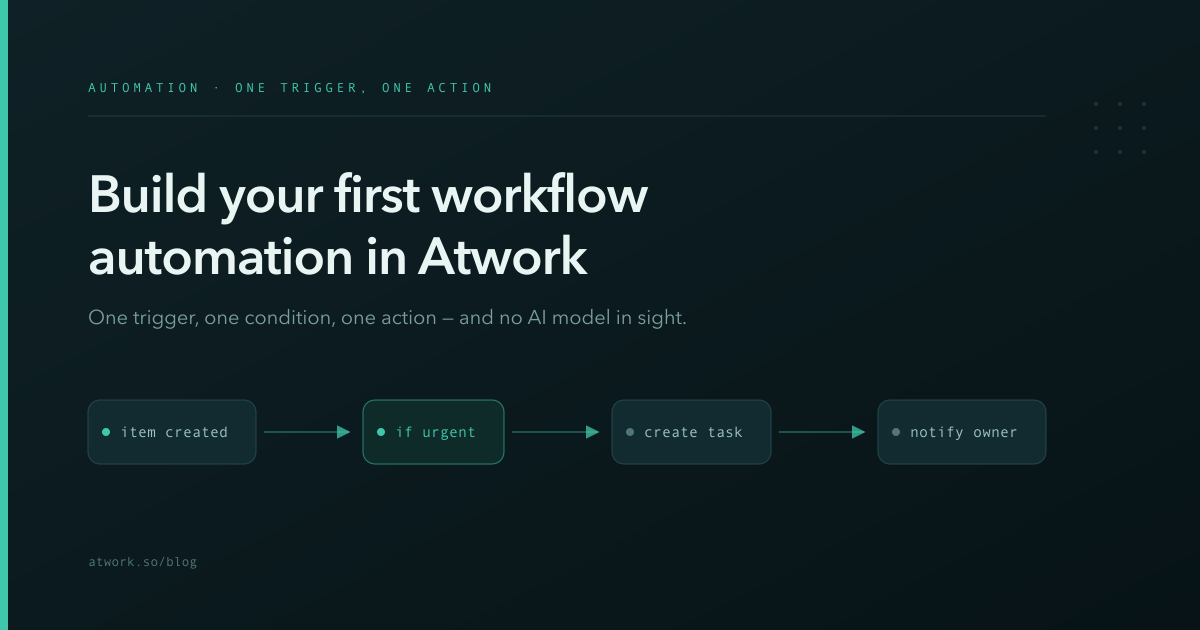
A workflow in Atwork is three parts: a trigger that starts it, conditions that decide whether it should continue, and actions that do something. That is the whole model. This guide builds one.
What can a workflow actually do for you?
It removes the small administrative acts that sit between the real work: creating the follow-up task, notifying the owner, setting the field everyone forgets, chasing the thing that has gone quiet.
None of these are hard. That is exactly why they are worth automating — they are too small to feel urgent and too frequent to skip, so they get done late or not at all. A workflow does them at the moment they become due, every time, without anyone remembering.
What a workflow cannot do is exercise judgment. It follows the rule you gave it, precisely and forever. If the job needs someone to read a paragraph and decide what it means, that is an agent's job, not an automation's — and it is worth being clear which one you are building before you start.
What should your first automation be?
Something you did by hand this week, that you will do again next week, and that nobody will be hurt by if it fires slightly wrong.
Good first candidates:
- When a request comes in, create the follow-up task that always follows it
- When a deal reaches a certain stage, notify the person who owns the next step
- When an item is created without an owner, flag it
- Every Monday, create the recurring checklist somebody currently makes by hand
Bad first candidates: anything that emails a customer, anything that deletes, and anything with more than one condition. Not because those are impossible, but because a first automation should teach you the mechanics on low stakes. You can build the ambitious one second.
The test: can you say the rule out loud in a single sentence, starting with the word when? If you need the word usually or depending, pick something else.
How does a workflow start? The four triggers
Every workflow begins with exactly one trigger. There are four kinds, and choosing the right one prevents most of the trouble people have later.
- An item is created. Fires once, at the moment a new row appears. Best for intake — anything that should happen to every new request, lead or task.
- An item is updated. Fires whenever anything on the row changes. Broad, and the most common cause of a workflow that runs far more often than intended.
- A specific field changes. Fires only when the field you named changes. This is usually what people mean when they reach for item updated — when Status changes, when Owner changes, when the due date moves.
- A schedule. Fires on a timetable rather than in response to anything. Best for digests, recurring creation, and checks like anything still open after seven days.
If you are unsure between updated and field-changed, choose field-changed. It is the narrower of the two, and a workflow that fires too rarely is a much easier problem to debug than one that fires constantly.
How do you stop it firing on everything?
Conditions. A condition sits between the trigger and the actions, and the workflow only continues if it is met.
This is the part first-time builders skip, and it is the part that determines whether the automation is useful or annoying. A trigger of item created on your requests sheet fires for every single request. Add a condition of priority is urgent and it fires for the ones that matter.
Conditions can test a field's value, whether a field is empty, and combinations of both. Practical guidance:
- Start with one condition. You can add the second after you have watched it run.
- Prefer conditions on stable fields. A condition on a status you rename next month is a workflow that silently stops working.
- Think about the empty case. What should happen when the field the condition tests has not been filled in? Usually: nothing, which means your condition should require a value rather than merely not-equal something.
That last point catches people. A condition of priority is not low is true when priority is empty, so the workflow fires on every unfilled row.
What can it do once it fires?
Actions. A workflow can create an item, update an item, delete one, notify someone, and wait before doing the next thing.
The two you will use most:
- Create an item. The follow-up task, the onboarding checklist, the review record. You can set its fields from the item that triggered the workflow, so the new task carries the context rather than being a blank stub.
- Update an item. Set the owner, move the status, stamp a date, fill the field everyone forgets.
The one worth knowing about early is delay — wait a set period before continuing. That is what turns a workflow into a chaser: when a request is created, wait three days, and if it is still unassigned, notify the team lead. Nothing else in your workspace does that, and it is the automation most teams find they needed.
Actions run in order, so the sequence matters: set the fields before you notify someone, or the notification arrives describing a half-finished record.
How do you test one without spamming your team?
Build it pointed at yourself, then widen it.
A reliable sequence:
- Set the notify action to you, not the real recipient. Everything else stays as intended.
- Create one real item that should trigger it. Watch what happens.
- Create one item that should NOT trigger it — this is the test people skip, and it is the one that catches a condition you wrote backwards.
- Check the timing. Did it fire once, or three times? A workflow triggered on item updated that also updates the item can re-trigger itself; if you see repeats, narrow the trigger to a specific field.
- Point it at the real people and leave it alone for a week.
Step 3 deserves emphasis. Confirming that an automation fires is easy and proves almost nothing. Confirming it stays quiet when it should is what tells you the condition is right.
Which automations do teams regret building?
Three patterns, consistently.
The over-notifier. Fires on every update to every item and notifies a channel. Within a week everyone mutes it, and now they are also missing the notifications that mattered. Fix: condition it down to the changes people actually need to hear about.
The invisible mutator. Silently changes fields with no notification and no trace anyone notices. When it turns out to be wrong, nobody can tell when it started. Fix: if a workflow changes data, make sure something visible records that it did.
The one nobody can read. Fifteen conditions and six branches, built by someone who has since left. Nobody dares change it, so it survives long past the process it encoded. Fix: keep each workflow to one job, and give it a name that says what it does rather than what it is for.
The common thread: automations are easy to add and hard to remove, because removing one means knowing what depended on it. Build fewer, name them well, and review them once a quarter.
Build one this week
Pick the thing you did by hand on Monday. Write it as a sentence starting with when. Build it with one condition, point the notification at yourself, and test both that it fires and that it stays quiet.
The teams that get value from automation are not the ones with the most workflows — they are the ones whose workflows they can still explain a year later. And once the deterministic work is handled, the judgment-shaped jobs are where an AI agent earns its place.
Start free and automate the thing you already did twice this month.