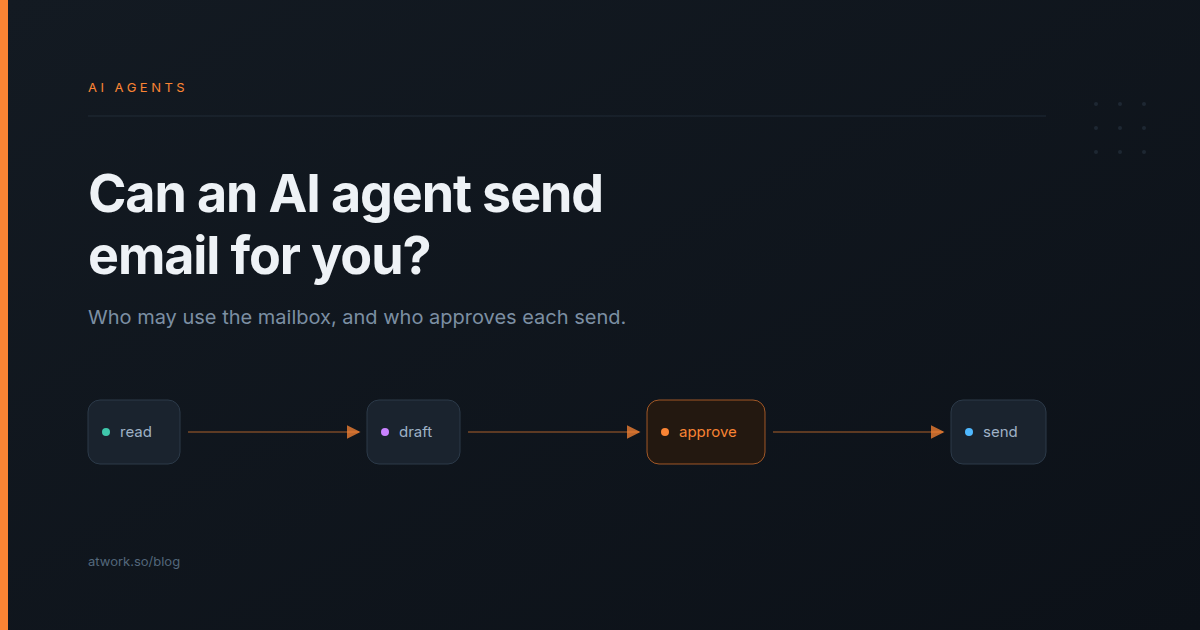
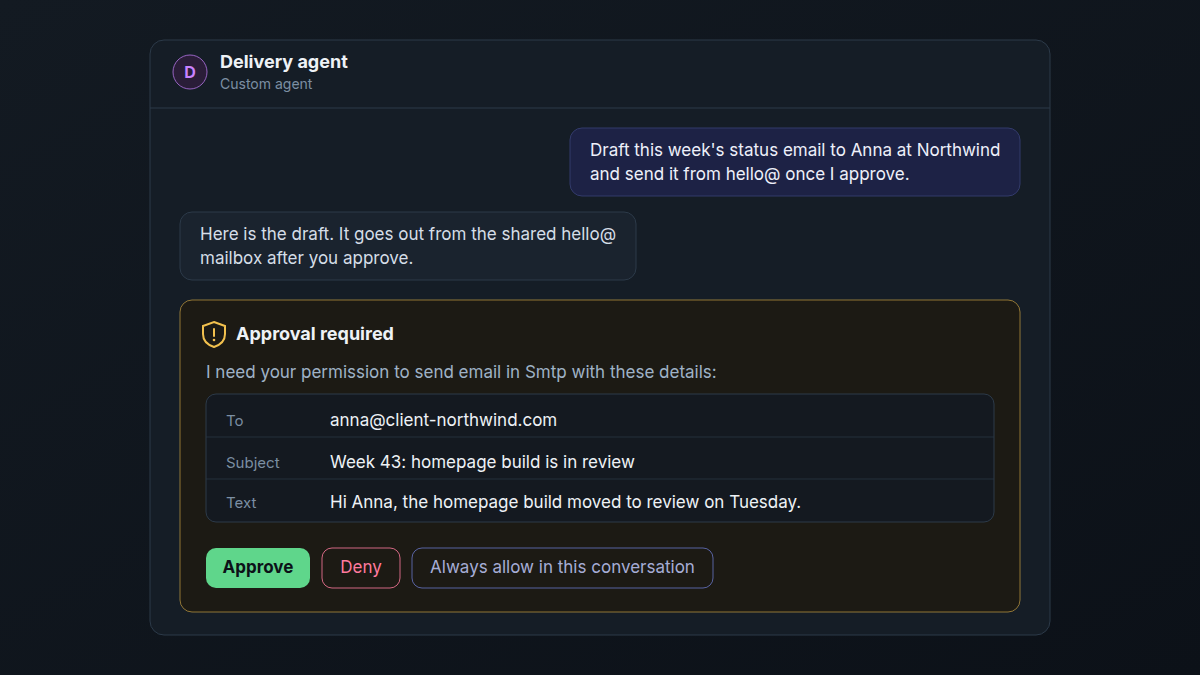
An account manager asks the delivery agent to send Northwind the weekly status email from the agency's hello@ mailbox. Two people decide whether that email goes, at different times. Whoever set the agent up decided, weeks earlier, that it may use hello@ at all. The person chatting decides, now, whether this email leaves. So yes, an AI agent can send email for you in Atwork, and it takes both switches. Below: where each one sits, what the four access levels allow, and a setup a small agency can copy.
Can an AI agent send email for you?
Yes, from a mailbox your team connects over SMTP, such as a shared hello@ address. By default the agent writes the email in chat, shows you the recipient, subject and text on an Approval required card, and sends only when you click Approve. A sent email cannot be recalled, so that card is the last check.
- Read. An agent does not open a mailbox itself. Mail reaches it as rows: forward client mail to a sheet with Email to this sheet, or bring a mailbox in over IMAP with a workflow. The agent reads those rows like any other data it may see.
- Draft. Ask in chat: "Draft this week's status email to Anna at Northwind from the tasks that moved." Ask for changes until it reads right.
- Send. The agent asks before it sends, from the connection it was given. Connecting the mailbox is covered in Connect email: IMAP and SMTP.
Who decides which accounts an agent can use?
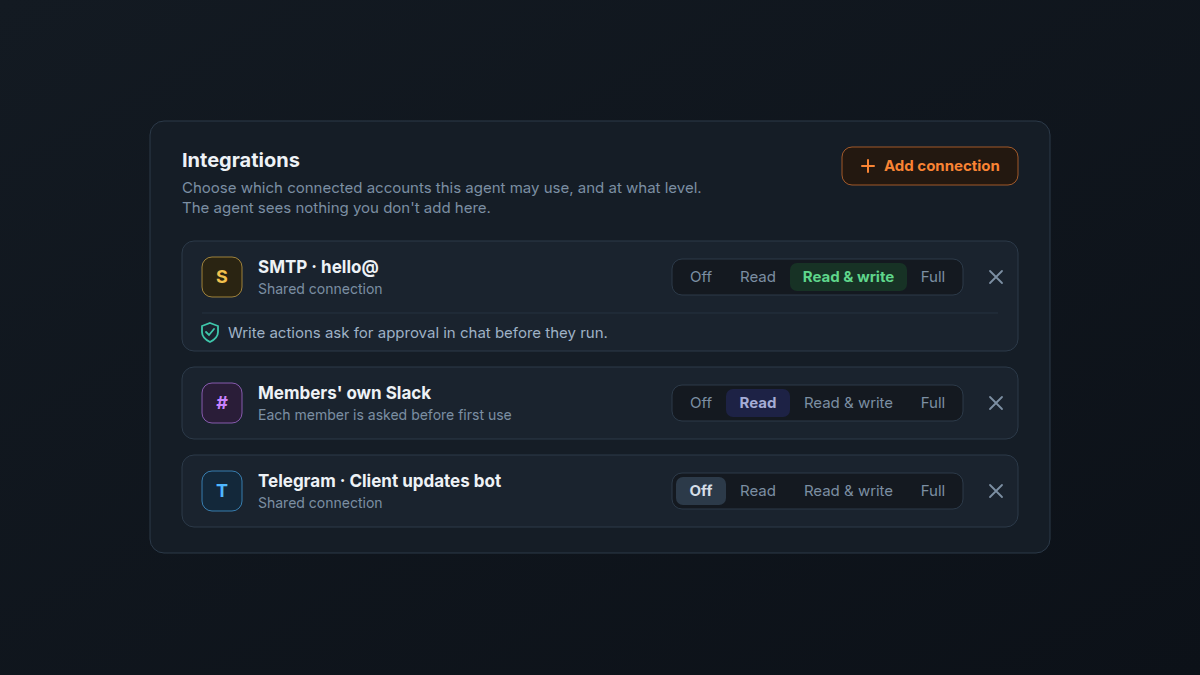
An owner or admin, on the agent's Integrations card under Settings → Agents. The card puts it plainly: "Choose which connected accounts this agent may use, and at what level. The agent sees nothing you don't add here." An agent with no rows says "This agent can't use any connected accounts".
That is a separate boundary from data access, which decides the spaces and sheets an agent can read (what an AI agent in your workspace can see). Add connection offers three kinds of row.
Shared connections
One account the whole team uses, such as hello@, support@ or the studio's Slack. The owner connects it in Settings → Connections and chooses Everyone in the organization. Members can do the same once the owner turns on Members can share their connections with the organization under Settings → Shared connections → Sharing rules; it ships off. On the agent it appears as a row like "SMTP · hello@", marked Shared connection. For client mail, this is the account to hand an agent: the agency owns it, and client replies come back to a mailbox the team already reads.
Members' own accounts
A row like Members' own Slack lets the agent use each person's own account, and says how: "Each member is asked before first use". Nobody's account is used until that person agrees, and then only in their own chats.
The third option, All connections, means "Every shared connection, and members' own once they agree". Fine for a two-person team, wrong for most agencies: one row hands the agent every client mailbox and channel you share.
What do Off, Read, Read & write and Full allow?
Every row has four levels. Off keeps the row but blocks the account, Read lets the agent look things up, Read & write lets it act after a person approves, and Full adds deletes and archives, which ask every time. A new row starts at Read, and the level covers the whole connection.
| Level | What the agent can do | What still asks first |
|---|---|---|
| Off | Nothing with this account; the row stays so you can turn it back on | Nothing to ask |
| Read | Look things up, such as channels or upcoming meetings | Nothing to ask; it cannot send |
| Read & write | Send, post and create, as well as read | Every write action, on an Approval required card |
| Full | Everything above, plus delete and archive | Deletes and archives, every time |
The level is the only dial. There is no list of allowed Slack channels, recipients or domains: an agent at Read & write on hello@ can draft to any address, and the approval card is where a person checks who it is going to. If an agent must never reach a client's channel, give it no connection that can.
What happens the first time an agent wants your own mailbox?
A Use your connection? card appears in your own chat. It names the account and adds "Sending still asks you first." Choose Allow this agent, Allow all agents or Not now. Nothing is used until you choose, and each send still waits for your Approve.
Because the card only appears in your own conversations, a colleague's agent cannot borrow your inbox to send in your name. What each send looks like after that, including on assigned tasks while you are away, is in what happens when an AI agent wants to change 300 rows.
Can an agent ever send without asking?
Only from a shared email connection, and only if the owner turns on Agents can send email without asking in Settings → AI policy → Approvals. The setting says "Applies to shared email connections only", and it ships off. Deletes and archives always ask sits next to it and cannot be turned off.
Permission is decided once, by the owner or admin who sets up the agent. Approval is decided every time, by the person chatting. An email to a client should need both.
Leave the email switch off for any mailbox a client reads: a sent email has no Undo. It also reaches workflows. With it on, an Agent step started by a schedule can email a client from a shared mailbox with nobody watching, unless that step has Ask before making changes turned on. Human-in-the-loop approvals for AI workflows covers where those belong, and an AI policy for a 10-person agency covers the rest of the policy page.
One button also stops the asking. Always allow in this conversation lifts the ask for later actions on connected accounts in that chat, the next email included; deletes and archives still ask. Use it only in a chat whose agent has no connection that reaches a client.
How should an agency set this up?
One agent per job, only the connections that job needs, and Read & write only where the job is sending or posting. Keep client email on shared mailboxes the agency controls, leave the email switch off, and let a person approve every client email.
| Agent | Connection | Level | Why |
|---|---|---|---|
| Reporting agent | Internal Slack, shared | Read & write | Posts the Friday summary to the team channel; each post asks |
| Client inbox triage | SMTP · support@, shared | Read & write | Reads the support sheet, drafts replies; a person approves each one |
| Scheduling agent | Zoom, shared | Read & write | Creates meeting links for client calls; each one asks |
| Research agent | None | No rows | Works from your pages and the web; no account to misuse |
Some sends stay with a person whatever the settings say:
- The first email to a new client contact. Tone and names matter most before anyone knows you.
- Anything about scope, money or a missed deadline. A scope creep reply written by an agent reads as the agency not caring enough to write it.
- Anything from someone's own mailbox. It goes out in their name, so they approve it.
- Any chat whose agent can reach a client. Skip Always allow there and approve each send.
For where agents fit the rest of delivery, see what an AI teammate does in an agency and Atwork for agencies.
How do you see and take back what an agent can use?
Take a shared account back on the agent's Integrations card: remove its row, or set it to Off. Take your own account back in Settings → Connections: open the app, go to its Agent access tab, and click Revoke next to the agent.
For the whole picture, open Settings → Shared connections. Its Agent access column lists the agents that can use each shared account, so a client mailbox reached by three agents stands out. On a connection's Agent access tab, Open agent goes straight to the card where the level is set.
That page also holds the rule New shared connections are available to all agents. It ships off; leave it off. When it is on, every account shared from then on is added to every custom agent at Read, the next client's mailbox included.
Frequently asked questions
Can an AI agent send email without my approval?
Not by default. Every send waits for Approve on an approval card. The exceptions: the owner turns on Agents can send email without asking, which covers shared email connections only, or you click Always allow in this conversation, which covers later actions on connected accounts in that chat. Deletes and archives still ask.
Can a colleague's agent use my mailbox?
No, not without your yes. Your own connections need your consent on a Use your connection? card, which only appears in your own chat. You can withdraw it later under Settings → Connections.
Can an agent read my inbox?
Not directly. An agent reads email that has arrived in a sheet, through Email to this sheet or an IMAP workflow, and only in sheets it is allowed to see.
Can I limit an agent to one Slack channel or certain recipients?
No. Access is set per connection, at one of four levels, with no channel or recipient list. To keep an agent out of a client's channel, give it no connection that reaches it, and read the recipient on each approval card.
How do I stop an agent from using a connection?
For a shared account, remove the row from the agent's Integrations card or set it to Off. For your own account, click Revoke on the app's Agent access tab in Settings → Connections.
Where should you start this week?
Take 15 minutes with one agent. Open it under Settings → Agents, add your shared hello@ connection at Read & write, and ask it to email you a two-line test. Read the approval card, click Approve, and check your inbox. Then remove the row and ask again: the agent can no longer send. The agents page shows what else an agent can take on for an agency.
Give one agent one shared mailbox at Read & write, and approve its first email yourself. Both switches, set in fifteen minutes. Start free