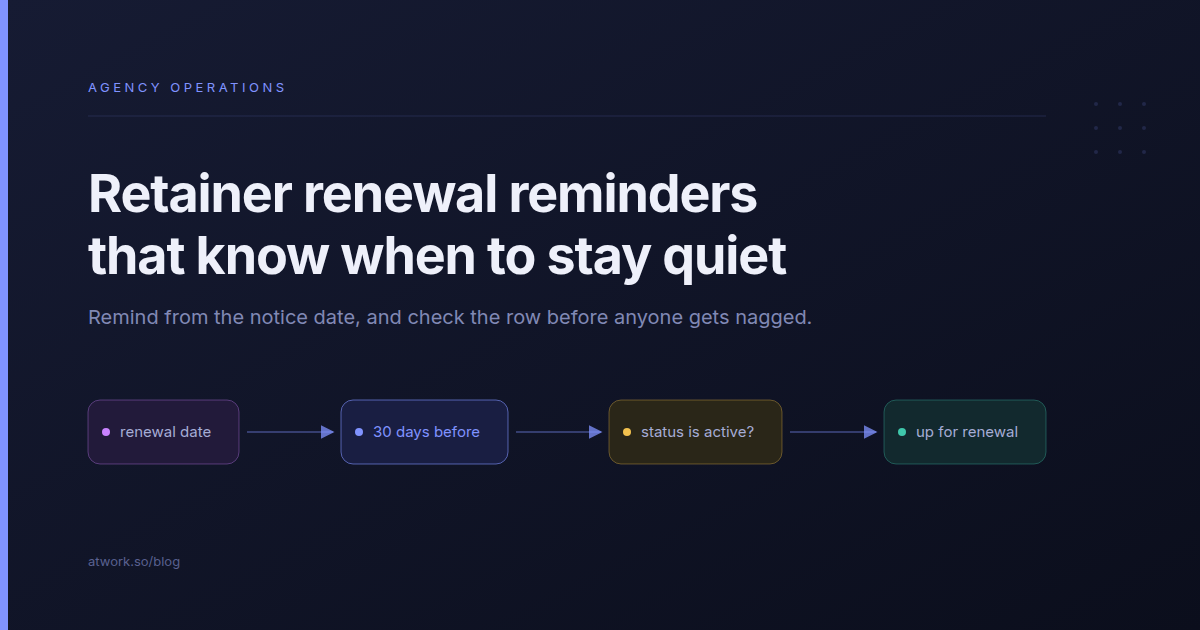
Most agencies find out a retainer is up for renewal when the invoice stops. The end date was in the contract PDF, or in a spreadsheet row nobody has opened since kickoff, and by the time anyone looks, the notice window has closed. Retainer renewal reminders fix that only if they fire early enough and only while they are still needed. This guide sets up three date-driven workflows in Atwork, each reading its date from the row it is about: a renewal reminder, a follow-up when nothing happened, and a kickoff reminder.
Why do agencies miss retainer renewals?
Agencies miss renewals because the date lives outside the work. The retainer's hours and status sit in one place, the renewal date sits in a contract, and the reminder, if there is one, is set for the end date, which is usually after the notice window has closed.
Nobody owns the date, so it stays with whoever signed the contract. And the reminder fires regardless of what happened since: the account lead gets reminded about a retainer that ended in the spring, learns to dismiss the reminder, and misses the one that mattered. The fix is a reminder that lives on the retainer, counts back from the right date, and looks at the row before it says anything.
What is a date-driven workflow?
A date-driven workflow starts when a date in a row arrives, or a set number of minutes, hours or days before or after it. In Atwork's automations the trigger is called Date reached. Each row carries its own date, and the workflow checks that row's conditions at the moment it runs, not when you built it.
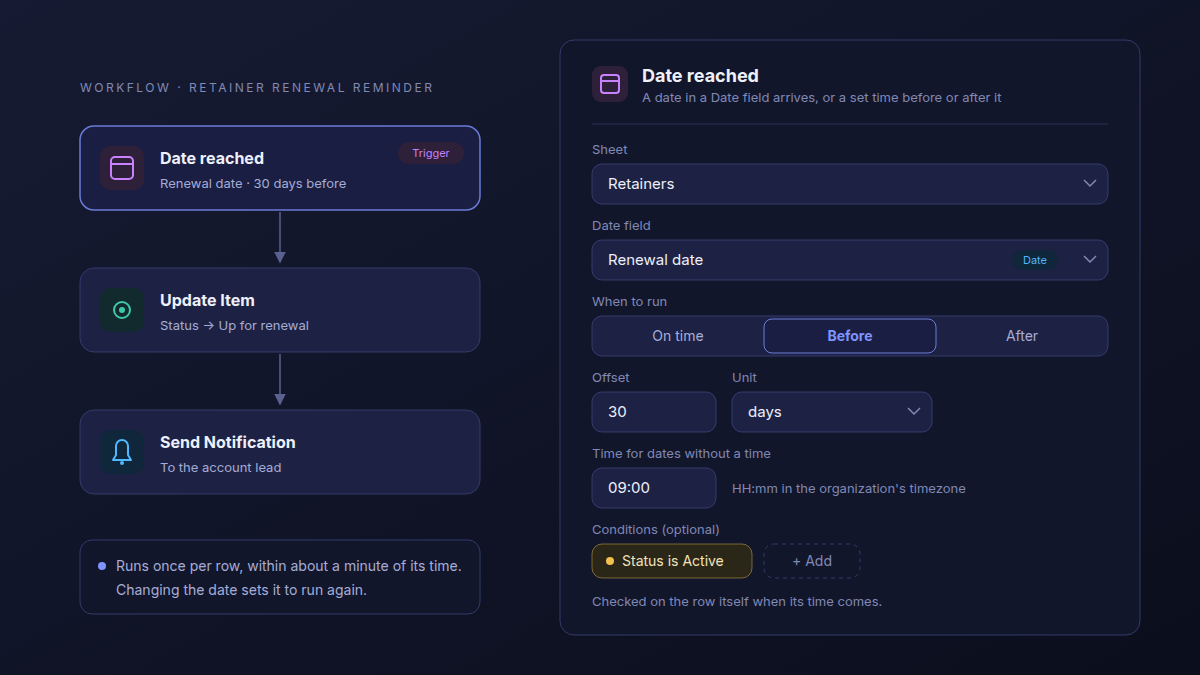
That last part is what keeps a reminder quiet: a retainer that was paused or ended no longer matches Status is Active, so the reminder skips it.
| Calendar reminder | Scheduled sweep | Atwork | |
|---|---|---|---|
| What starts it | An event you typed in | A clock, such as every morning at 09:00 | Date reached: the row's own date, or a set time before or after it |
| One date per retainer | Yes, one event each, kept by hand | No, it searches for rows that are due | Yes, read from a Date field on the row |
| Checks the row before acting | No | Only if you build the search | Yes, conditions are read when the time comes |
| When the date moves | You move the event | The next search picks it up | The reminder moves with it |
| Setup for five retainers | Fastest: five events and you're done | One workflow and a search | One Date field and one workflow |
With five retainers and one person who moves the events, a calendar is enough. The workflow earns its place when there are more rows than anyone keeps in their head, or when the reminder has to do something besides ring.
How do you set up a retainer renewal reminder?
Add a Renewal date to each retainer, then build one workflow: Date reached on that field, 30 days before, only while the retainer is Active. The workflow marks the retainer Up for renewal and tells the account lead. Most of the setup is filling in the dates.
- On your Retainers sheet, add a Date field called Renewal date and fill it in for every live retainer. In the Retainer Management & Utilisation template, the Status options Active, Up for renewal, Paused and Ended are already there; the date is the one field you add.
- Create a workflow and pick the Date reached trigger. Set Sheet to Retainers and Date field to Renewal date.
- Set When to run to Before, Offset to 30 and Unit to days. Time for dates without a time defaults to 09:00; change it to when your team starts.
- Under Conditions (optional), add Status is Active.
- Add an Update Item step. Set Sheet to Retainers and Item ID to the row that started the run, from the Date reached trigger, then set Status to Up for renewal.
- Add a Send Notification step for the account lead. You pick the receivers in the step, a person or a team; the workflow does not read them from the row, so if each retainer has a different lead, a shared account team is the simpler choice.
- Optionally, add a Create Item step that puts a task to prepare the renewal on your task sheet.
- Publish the workflow.
Add a second rung
A second workflow catches the renewal that stalled. Use the same trigger and date field with Before, 7 days, the condition Status is Up for renewal, and a Send Notification step for the agency owner. When the renewal is agreed, set Status back to Active and enter the next renewal date, and the second rung finds nothing to do.
A reminder that fires after the client signed is worse than no reminder. It teaches the team to dismiss the next one.
Start from the notice date
Many retainers roll over unless someone gives notice, so the date that matters is the last day to give it. If the contract asks for two months' notice, a reminder 30 days before renewal arrives a month too late.
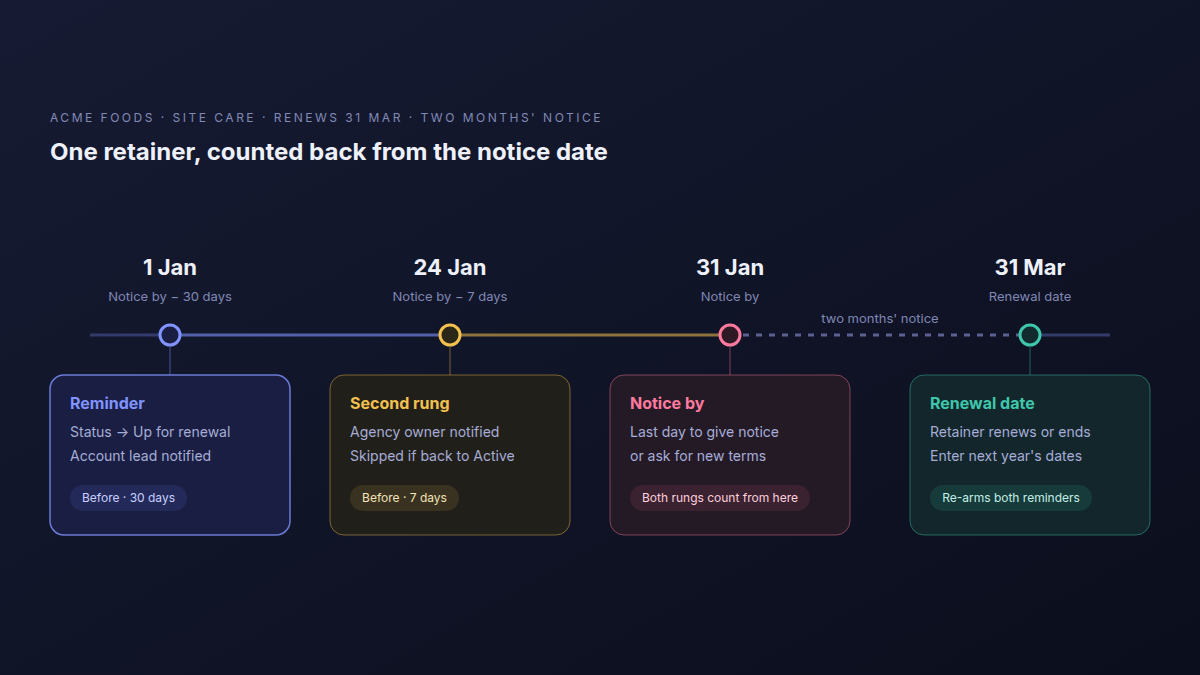
There are two ways to handle it. Add a second Date field, Notice by, and point both workflows at it. Or keep one field and fold the notice into the offset: two months' notice plus a month to prepare is Before, 90 days on Renewal date. The rule for the offset is your notice period plus the time you need to prepare the numbers. Common advice is 60 to 90 days ahead; your contract's notice clause decides.
Preparing means hours sold against hours delivered, and every request you absorbed: how to stop over-servicing retainer clients covers logging them, and three ways to price an agency retainer covers what to change when the numbers say the price is wrong.
How do you follow up when a date passes and nothing happened?
Use After instead of Before. Put the date something happened on the row, such as the day a proposal went out, and let the workflow look again a few days later. If the deal moved on, it stays quiet. If it is still waiting, it nudges the account lead.
On the Deals sheet of the Agency CRM template:
- Add a Date field Proposal sent, and fill it in when the proposal goes out.
- Create a workflow with Date reached on Proposal sent, After, 3 days.
- Add the condition Stage is Proposal.
- Add an Add comment step. Set Sheet to Deals and Item ID to the row that started the run, from the Date reached trigger. Set Visibility to Internal note and mention the account lead: "No reply on the proposal yet. Worth a call today." Mentioned members are notified. Or use Create Item to add a follow-up task instead.
If the client replied and the deal moved to Negotiation, Won or Lost, the condition fails and the row is skipped. If you resend the proposal, change Proposal sent to the new date and the follow-up runs again three days after it.
How do you remind the team before a project kickoff?
Point the trigger at a Kickoff date, one day before, and only while the project is still in Kickoff. The delivery team hears about it the morning before, and the checklist sits on the project itself rather than in someone's notes.
On the Projects sheet, add a Date field Kickoff date. Set Date reached to Before, 1 day, or Before, 2 hours when the date includes a time. Add the condition Status is Kickoff. Then add a Send Notification step for the delivery team, and an Add comment step with the kickoff checklist: brief signed off, client access granted, first-week tasks assigned. As in the other two workflows, set the comment's Sheet to Projects and its Item ID to the row that started the run, from the Date reached trigger. If the kickoff moves, change the date and the reminder moves with it.
| Renewal | Follow-up | Kickoff | |
|---|---|---|---|
| Sheet | Retainers | Deals | Projects |
| Date field | Renewal date (or Notice by) | Proposal sent | Kickoff date |
| When to run | Before, 30 days | After, 3 days | Before, 1 day |
| Only when | Status is Active | Stage is Proposal | Status is Kickoff |
| Then | Set Up for renewal, notify the account lead | Internal note mentioning the account lead | Notify the delivery team, comment the checklist |
What happens when a date changes or has already passed?
Each row runs once, within about a minute of its time, and changing the date sets it to run again. Rows whose time had already passed when you published the workflow don't run.
- Once per row. It does not repeat by itself every year. When a client renews, enter next year's date and next year's reminder is set.
- Past rows are skipped, not caught up. Publish a 30-day reminder today and every retainer renewing in the next 30 days is skipped. Check those by hand once.
- Dates without a time run at 09:00 in your organization's timezone, unless you change the time in the trigger.
- Conditions are read when the time comes, on the row as it is then.
Let Dana draft it
If you would rather describe the reminder than build it, ask Dana on the Retainers sheet: Remind me 30 days before each retainer's Renewal date, only while Status is Active, and set Status to Up for renewal. Dana drafts a Date reached workflow with those steps. You check the draft and apply it.
Frequently asked questions
Can a workflow run 30 days before a date?
Yes. In the Date reached trigger, set When to run to Before, Offset to 30 and Unit to days. The offset can be minutes, hours or days, before or after the date.
How far in advance should you send a renewal reminder?
Your notice period plus the time you need to prepare the renewal numbers. With two months' notice and a month to prepare, that is 90 days; common advice is 60 to 90.
Will the reminder still go out if the client already renewed?
Not if you enter the new renewal date when they renew, because changing the date moves the reminder. Conditions add a second check on the row when the reminder is due.
What time does a reminder for a date without a time run?
At 09:00 in your organization's timezone, unless you change Time for dates without a time in the trigger.
What happens to rows whose date has already passed?
They don't run, and they are not caught up later. Handle those by hand once.
Can Dana build the workflow for me?
Yes. Describe the reminder with its date field, offset and condition, and Dana drafts the Date reached workflow for you to review and apply.
Start with the renewal
Pick the retainer that renews next and build its reminder this afternoon: one Date field, one workflow, one condition. The Retainer Management & Utilisation template gives you the Retainers sheet with its Status options and the hours-sold numbers the renewal conversation needs; add the Renewal date field and the first workflow above. Every trigger is in the automation triggers help article, and the automation rules teams keep is worth reading before you build a fourth.
Put one retainer in, give it a renewal date, and let the workflow count back from it. Start free