An agency AI policy is usually a document: a page on client confidentiality, a list of approved tools, a line about telling clients when AI helped. That page has a job, but it does not decide what AI costs or what it is allowed to change. Settings do. In June, Uber limited every employee to $1,500 a month in token spending per AI coding tool, after the company blew through its AI budget earlier in the year. A 10-person agency needs much smaller numbers and the same idea: a limit that software enforces, not one that lives in a PDF.
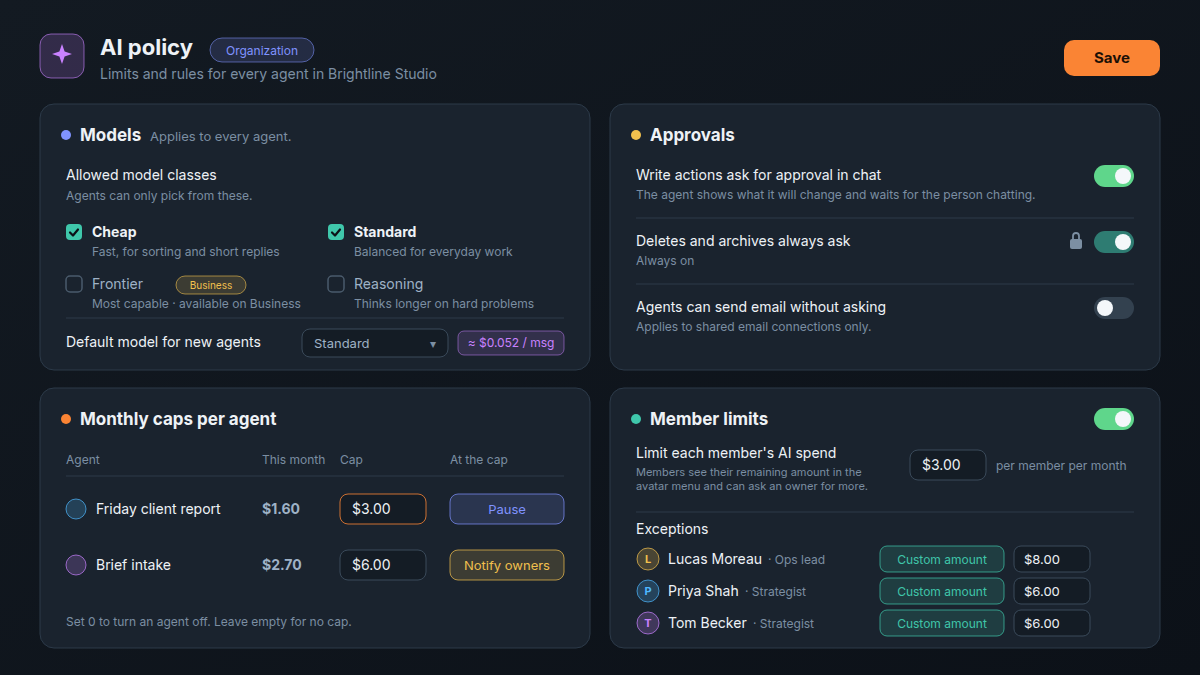
In Atwork, those limits live on one page, Settings › AI policy. Below are the five decisions it holds, the defaults it ships with, and the defaults we would set for a 10-person agency on Pro.
What should an AI policy for a small agency decide?
Five things: which models agents may use, which actions need a person's yes, how much each agent may spend a month, how much each member may spend a month, and who hears when credit runs low. Give the policy one owner, usually the agency owner, and one person who runs it day to day, usually the Ops lead.
| Decision | Shipped default | Agency default |
|---|---|---|
| Models | Everything your plan allows | Cheap and Standard, Reasoning off |
| Approvals | Write actions run without asking | Write actions ask for approval in chat |
| Agent caps | No cap on any agent | A cap on every agent, set from its runs |
| Member limits | Off ($10 a member when turned on) | On at $3, with three exceptions |
| Alerts | Owner emailed at 80% and 100% | Keep on, and forward to the Ops lead |
The settings are the cost-and-control half of a policy. A short written note on client data and on telling clients when AI did the work still belongs next to them, and this article is not legal advice on what it should say.
Which AI models should a 10-person agency allow?
On Pro, allow Cheap and Standard, leave Reasoning unticked, and make a Standard model the default for new agents. Tick Reasoning only when an agent plans multi-step work, such as a weekly report that reads several sheets. On Business, add Frontier when a named job needs it, not for everyone.
The Models card sets the Allowed model classes: Cheap, Standard, Frontier and Reasoning. Your plan sets the ceiling. Free allows Cheap, Pro goes up to Standard, and Frontier is available on Business. With Reasoning unticked, agents still reason, but at no more than medium effort.
The list covers your custom agents and the agents inside workflows. An agent whose model is no longer allowed runs on the default model instead, so tightening the list never breaks an agent. Dana, the built-in assistant, picks its own model. The Default model for new agents shows its approximate cost per message, which is the cheapest pricing lesson in the product. For matching a model to a job, see Which AI Model Should Power Your Agent?.
Which AI actions should need a yes?
Turn on Write actions ask for approval in chat, which ships off. Keep Agents can send email without asking off until one agent has earned it. Deletes and archives always ask, and that switch stays on. Write approval covers chats only. In a workflow, an Agent step asks only when that step has Ask before making changes turned on.
With approval on, an agent that wants to create or change rows shows what it will change and waits for the person chatting. That costs a click and catches the bulk edit nobody meant. The email switch applies to shared email connections, in chats and in workflows alike. With it on, an Agent step in a scheduled workflow can email a client without asking, unless that step has Ask before making changes turned on. How previews and undo work is in What Happens When an AI Agent Wants to Change 300 Rows.
For scheduled workflows, turn on Ask before making changes for every Agent step that changes client work. The run pauses until the person it runs as approves each change in the workflow's run history, and they get a notification. Lookups still run without asking, and the step waits up to a day. Where those approvals belong is in Human in the Loop: Where AI Approvals Belong in a Workflow. Approval decides what an agent may change, not what it spends, so the monthly cap stays the cost control for every run.
How much should each agent be allowed to spend a month?
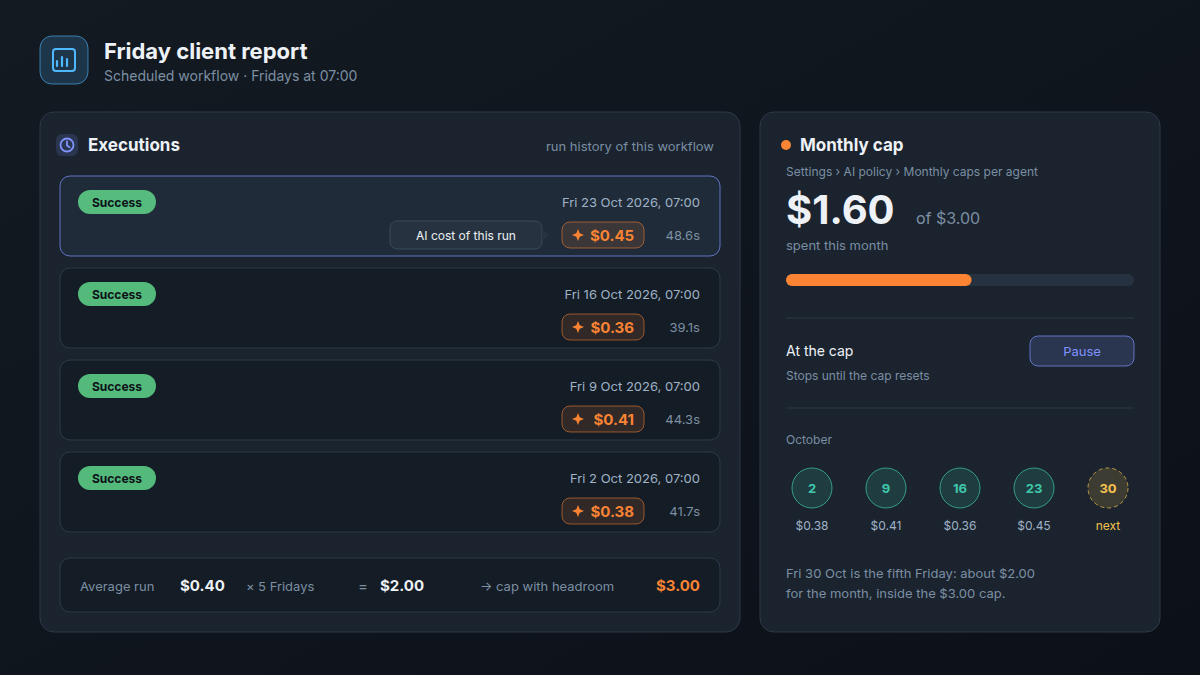
Every agent needs a cap, because none ships with one. The Monthly caps per agent table lists every agent, Dana included, with what each has spent This month. An agent inside a workflow joins the table after its first run. Set each cap from the agent's runs: a typical run's cost, times the runs in a month, plus headroom. Then choose what happens At the cap.
- Pause for scheduled jobs. It "stops until the cap resets", and it is the default. The Friday client report can wait a few days.
- Notify owners for agents that must not stop. The agent keeps running on top-up credit and the owners get one email. With no top-up credit, it stops at the cap like Pause.
- 0 to turn an agent off without deleting it. An empty cap means no cap, so leave none empty.
A worked cap: the Friday client-report workflow's last four runs cost $0.38, $0.41, $0.36 and $0.45, an average of $0.40. A month has at most five Fridays, so the job needs $2.00, and a $3.00 cap with Pause leaves room for one long week. A brief-intake agent that reads each new client brief runs about 40 times a month at around $0.10, which is $4.00, so give it $6.00 with Notify owners: intake should not stop on the 28th. Owners and Admins can both set caps.
Should each person have a monthly AI limit?
Yes, as a guardrail rather than a meter. The AI budget is one pool, and member limits ship off. Turned on, the default is $10 a member, and a 10-seat Pro plan has $50 a month, so five people at the default can spend the whole pool. Set the default below what the pool leaves per person.
On Pro, at the $10 default, five people can spend a 10-person agency's whole monthly AI budget before anyone else has asked a question.
Agent runs count against members too. Every run is charged to a person: a scheduled workflow to whoever created it, a workflow started by an edit to whoever made the edit, and an autofill to whoever's edit filled the row. So the Friday report spends from the Ops lead's limit, and a member's limit stops an agent even when its cap says Notify owners. For the 10-person agency above:
- Pool: 10 seats × $5 = $50 a month.
- Default, $3: the owner and six others, $21 at most. The brief-intake runs spread across the account managers who add briefs, about $1 each.
- Two strategists, $6 each: $12 at most.
- The Ops lead, $8: up to $3 for the Friday report they scheduled, $5 for their own work.
- Total: $41 if every limit were reached, which leaves $9 of the pool spare.
Turn on Limit each member's AI spend, set the default, and add the three people under Exceptions with a Custom amount. Members see what they have left under Your AI limit in the avatar menu. A member who reaches it sees "You've reached your monthly AI limit" with an Ask an admin button. The request goes to the owner, who is the only one who can raise a limit.
Who owns the policy: the owner or an Admin?
The owner. Only the owner can change models, approvals and member limits, and only the owner sees billing and gets the credit emails. An Admin, such as the Ops lead, runs the organization's settings day to day and sets each agent's monthly cap. To make someone an Admin, open them in Settings › Members and set Role to Admin.
| Power | Owner | Admin |
|---|---|---|
| Change models and approvals | Yes | Read only |
| Member limits | Yes | No |
| Set an agent's monthly cap | Yes | Yes |
| Plan & seats, invoices, AI usage & credits | Yes | No |
| Credit emails at 80% and 100% | Yes | No |
| Members, teams and organization settings | Yes | Yes |
One gap to plan around: the 80% and 100% emails reach only the owner, and Admins cannot open AI usage & credits. So the owner forwards those emails to the Ops lead, or reads the page with them in a weekly check-in. The Ops lead can still read each agent's spend this month in the caps table on AI policy.
How do you read what an AI run cost?
In three places. A custom agent's Recent runs list shows the cost per run. In a workflow's run history, under Executions, each run shows its AI cost, and each Agent step its model, tokens and cost. A skill test shows the time and cost of its last result, before any agent relies on the skill.
Once a month, give it 15 minutes. The owner opens AI usage & credits and reads Agents against their caps, Member spend and Daily spend (last 30 days). Then raise a cap that paused a good week, lower one that never comes close, and look at anyone who asked for more twice. Why AI is metered rather than charged per seat, and what a month of it costs, is in What AI Actually Costs an Agency Per Month. What it adds to the rest of your tool bill is in How Much Should an Agency Spend on Software?.
Frequently asked questions
Can an Admin change the AI policy?
Partly. Admins can open AI policy and set each agent's monthly cap. Models and Approvals are read-only for them, and Member limits is hidden. Only the owner can change those.
What happens when a member reaches their AI limit?
Their AI requests stop with "You've reached your monthly AI limit" until the monthly reset. The Ask an admin button sends a request to the owner, who can raise their limit or give them an exception.
What happens when an agent reaches its monthly cap?
That depends on its setting. With Pause, the default, the agent stops until the cap resets. With Notify owners, it keeps running on top-up credit and the owners get one email. A cap of 0 turns the agent off.
Who gets an email when AI credit runs low?
The owner, at 80% and at 100% of the monthly plan allowance, each at most once a month. Top-up credit is not counted. The switch is in the Alerts card on AI usage & credits and is on by default. Members also see a notice in the avatar menu when credit runs low.
Can an agent send email without asking?
Only if the owner turns on Agents can send email without asking, which ships off. It covers shared email connections, in chats and in workflows. With it on, a workflow's Agent step started by a schedule or a teammate sends without asking, unless that step has Ask before making changes turned on. Leave it off until one agent has sent a few weeks of drafts that nobody needed to fix.
Where should you start this week?
Three changes, in this order, take one afternoon:
- Turn on Write actions ask for approval in chat, untick the model classes you do not need, and save.
- Read the last runs of each agent and give every agent a cap.
- Turn on member limits at a default the pool can carry, with exceptions for whoever owns the scheduled workflows and your heaviest users.
The AI budget for each plan is on the pricing page, and what agents can take on for an agency is on the agents page.
Turn on approval in chat, cap every agent and set one member limit this afternoon. The whole policy fits on one settings page. Start free