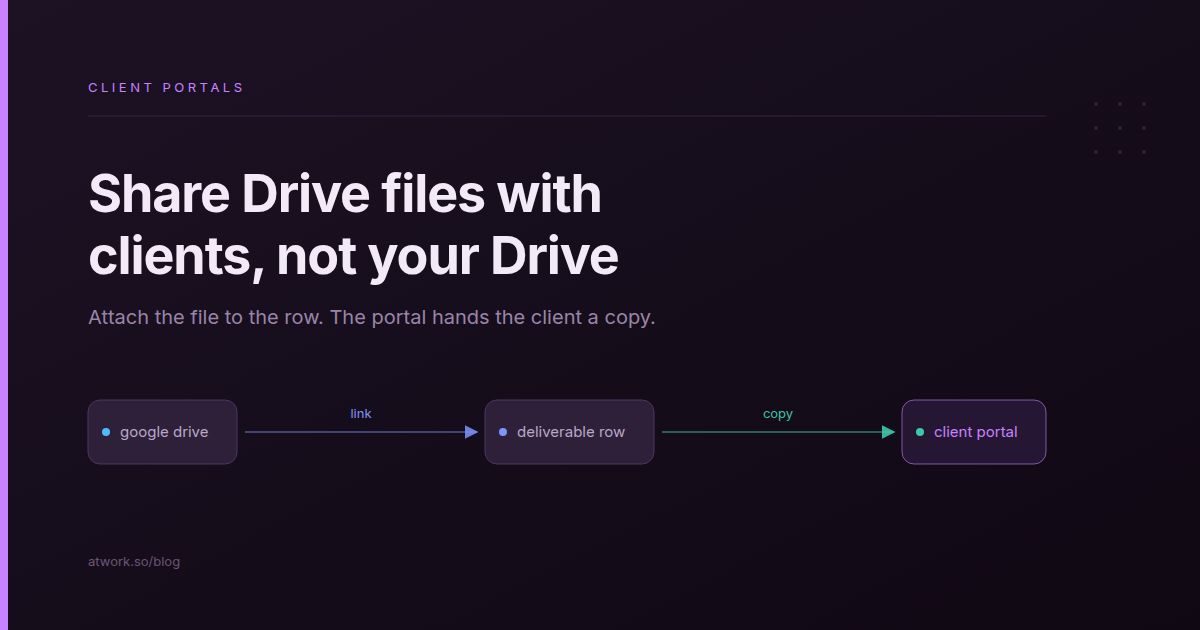
Your agency's final files live in Google Drive. Getting them to the client usually means sharing the folder, sending an "Anyone with the link" URL, or downloading the file and uploading it somewhere else. Each leaves something behind: a folder the client can browse, a link nobody revokes, a second copy nobody updates. This guide shows how to share Google Drive files with clients without sharing your Drive. In Atwork, you attach the file to the deliverable's row and the client portal hands the client a copy. The client never gets into your Drive, needs no Google account, and your sharing settings never change.
Why does sharing a Drive folder with a client go wrong?
A folder share hands the client the folder, not the deliverable. They see whatever sits next to the final file, the access outlives the project, and they choose between five versions named "final-v3". Drive's sharing was made for people who work in the files with you; a client receiving a handover is a different job.
- The client reaches more than the deliverable. Share a parent folder once to save time, and the client can open every subfolder under it, other clients' project names included.
- Links outlive the project. An "Anyone with the link" URL keeps working for whoever it was forwarded to, long after the retainer ends.
- The approved version is not obvious. The folder holds every round, and the client downloads the newest one, which is not always the one you agreed.
None of this makes a Drive share wrong. For a one-off handover to a client who lives in Google Workspace, sharing one file is free and fine, and if the client needs to co-edit a Doc with you, a Drive share is still the right tool.
| Method | What the client reaches | Needs a Google account | When you edit or delete the original |
|---|---|---|---|
| Share the folder | The folder and everything you add to it later | Usually, for a share with named people | They see the edit at once; a deleted file is gone for them |
| Share the file by link | The live file, for anyone who has the link | No, with "Anyone with the link" | They see the edit at once; a deleted file is gone for them |
| Atwork | A copy of the file attached to the deliverable's row, on their portal | No | They get the newer version when they next open it; a deleted original leaves them the last copy |
Where should a deliverable's files live?
In Drive, where your team already edits them, and linked from the deliverable's row in Atwork. The row already holds the round, the approver and the approval status, so the file sits next to the decision about it. When that sheet is on the client's portal, the client sees the row, the status and the file in one place.
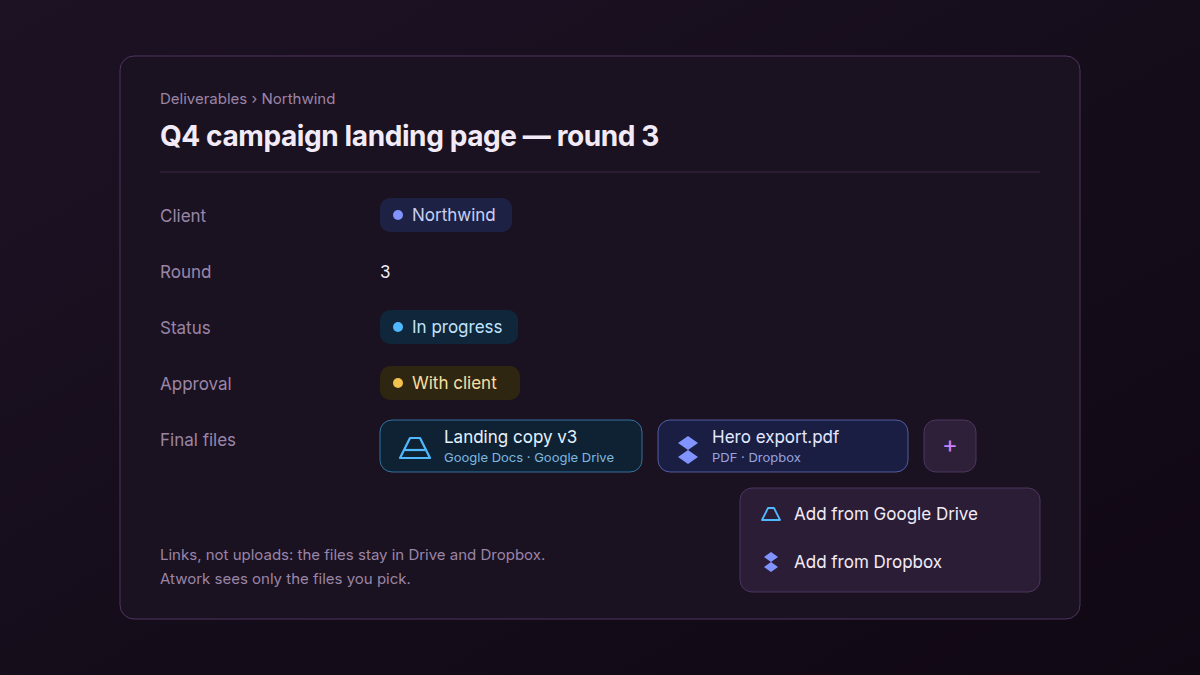
Add a File List field to your deliverables sheet, call it "Final files", and use Add from Google Drive or Add from Dropbox in the cell. You can pick several files at once, but not folders. Atwork stores a link, not an upload, so the file stays in Drive and the team keeps working on it there. Atwork only sees the files you pick, not the rest of your Drive.
Teammates who open the cell see Drive's own preview with their own Google access; someone without access gets a Request access in Drive button. That matters at the approval stage, where revision rounds multiply when nobody is sure which file was approved.
Google Drive or Dropbox?
Both attach to File List fields, comments and chats, and both reach the client portal as copies. Google Drive goes further: you connect it once in Settings, agents read its files, workflows have Drive actions, and a template gives every row its own Drive folder. Dropbox needs no connection; you sign in to Dropbox in its own window when you pick a file.
| Where it works | Google Drive | Dropbox |
|---|---|---|
| File List fields | Yes | Yes |
| Comments and chats | Yes | Yes |
| Page previews | Yes | Yes |
| Client portal copies | Yes | Yes |
| Agents read the files | Yes | No |
| Workflow actions | Yes | No |
| A folder for every row | Yes | No |
What does the client see on the portal?
A copy of the file that Atwork stores and serves, with Preview and Download. The client needs no Google or Dropbox account and gets no access to your Drive. Atwork makes the copy the first time it is needed: when the client loads the rows, or when they open the file and see "Preparing file…" for a moment.
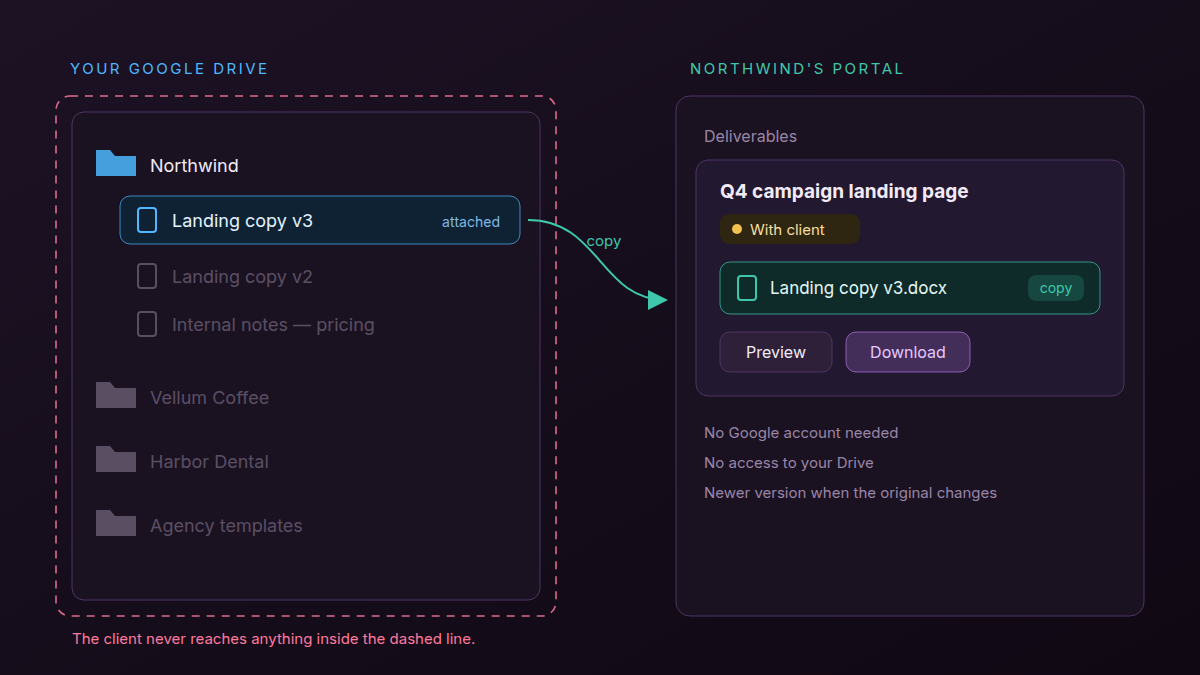
Google Docs reach the client as Word files (.docx), Sheets as Excel files (.xlsx), and Slides as PDFs; other files arrive as they are. Nothing is shared in Google, so your Drive's sharing settings stay as they were. Clients cannot add Drive or Dropbox links from the portal, and the copies count toward your organization's storage in Atwork. New to portals? Client portals for agencies covers what else belongs on one.
The client gets the file. They do not get your Drive.
What happens when you change or delete the original?
Edit the file in Drive, and the client gets the newer version the next time they open it. Delete or move it, and the client keeps the last copy Atwork made. To take a file back, remove it from the row, and the copy goes with it.
When the client opens a copy more than ten minutes old, Atwork checks the original and replaces the copy if it has changed. If the check fails, because the file was deleted or a connection lapsed, the client still gets the stored copy. Only when no copy was ever made and the original is gone does the client see "This file was removed by the team that shared it."
The honest limit: the client gets a file, not the live Doc. Comments they type into a downloaded Word file never reach your Google Doc. If a client needs to co-edit, share that one Doc in Drive and keep the portal for finals.
How do you give every client project its own Drive folder?
Use the Drive folder per row workflow template. For each row it creates a new folder inside a parent folder you choose, puts the folder's link on the row, and can share the folder with the people named on the row. It is one setup per sheet and runs on your own Drive connection.
Open the sheet's Workflows tab, choose Start from a template, then Drive folder per row. Pick the Parent folder and the field for the link, then choose whether to Create a folder for every new row and whether to Share the folder with the row's people as Viewer, Commenter or Editor. A Create Drive folder button covers rows that existed before.
Two things it does not do. It always creates a new folder, named after the row, and never links one you already have. And files you drop into that folder do not appear on the row; the row holds the folder's link. Attach the finals to the File List field so they reach the portal.
Where else do Drive files show up?
Beyond File List fields, Google Drive files also work in comments and chats, pages, agents and workflows in Atwork. Dropbox files work in comments, chats and pages.
- Comments and chats. Attach from Google Drive or Attach from Dropbox in item comments, threads, inbox chats and space conversations. They insert a link, so each reader needs their own access.
- Pages. Paste a Google Docs, Sheets, Slides or Drive link, or a Dropbox link, alone on an empty line, and it becomes an embedded preview.
- Agents. Agents read the Google Drive files on a row (in a chat, the ones you added yourself) and can use up to five Drive files as knowledge. They do not read Dropbox files. See Files and agents.
- Workflows. Google Drive actions create folders, copy a template Doc, upload, get and share files.
How do you set this up for one client this week?
Start with one client and one deliverable. Connect Drive, add a File List field to your deliverables sheet, attach the final file to one row and show that sheet on the client's portal. Then sign in to the portal the way the client will and check what they get.
- Open Settings › Connections (under AI and apps) and click Connect on the Google Drive card.
- Add a File List field called "Final files" to your deliverables sheet.
- On one deliverable's row, click Add from Google Drive in that field and pick the final file.
- Show that sheet on the client's portal from Settings › Customer portal; Build your client portal walks through it.
- Sign in to the portal as a test customer, open the file, and check that you get Preview and Download.
At the end of the project, the same row is the record of what was delivered and when, which makes the agency project handover a matter of pointing at it.
Frequently asked questions
Does my client need a Google or Dropbox account to open the files?
No. The portal serves a copy that Atwork stores, with Preview and Download. The client signs in to your portal, not to Google or Dropbox.
Does Atwork get access to my whole Google Drive?
No. Atwork can reach only the files you pick and the files it creates for you, such as the folders from the Drive folder per row template.
What happens on the portal if I edit or delete the file in Drive?
After an edit, the client gets the newer version the next time they open it. After a delete or a move, they keep the last copy. Remove the file from the row to withdraw it.
Can I use Dropbox instead of Google Drive?
Yes, for File List fields, comments, chats, page previews and the portal; you sign in to Dropbox when you pick a file. Agents, workflow actions and folders per row work with Google Drive only.
Do the copies count against my Atwork storage?
Yes, the portal copies count toward your organization's storage. The originals do not, because a File List field holds only a link to them.
Start with one client
Keeping finals in Drive is the right instinct; the weak point has been the last step. Attach the file to the row and let the portal hand over the copy. The Agency Client Delivery template sets up clients, briefs and deliverables, each deliverable with a round number and an approval state of its own. It ships without a File List field, so add "Final files" to its Deliverables sheet before the first handover. More on running client work in Atwork: Atwork for agencies.
Connect Drive, attach one deliverable to its row, and put that row on a client's portal. It takes ten minutes to see what your client sees. Start free