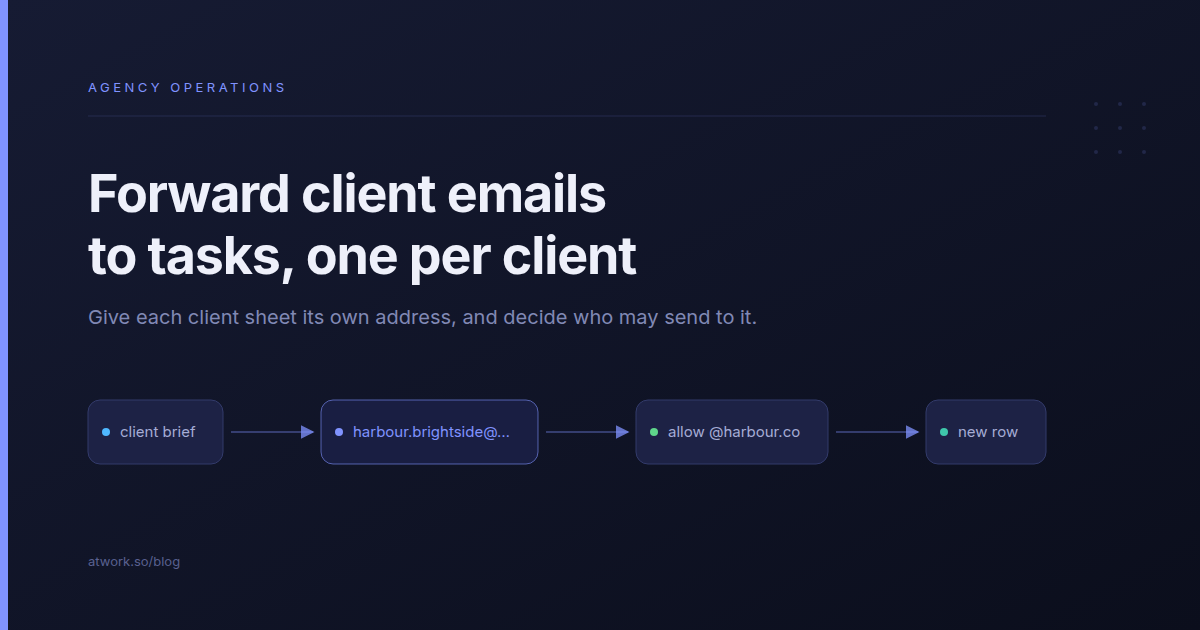
Monday, 9:40. The Q4 campaign brief is in the account manager's inbox. A revision request is in a CC thread the designer joined on Friday. A "can you just swap the hero image" went to the founder, who is on holiday. Someone will retype all three into the project board, or one of them will be missed. The fix most agencies reach for is to forward client emails to tasks. The useful question is where to forward them.
In Atwork, every sheet can have its own email address. Choose Email to this sheet on a client's sheet, and anything sent or forwarded to that address arrives as a new row. This post covers why one address per client beats one shared intake address, when to connect a mailbox instead, and how to keep strangers off the address.
Why do client requests get lost in email?
A request lands in whichever inbox the client happened to pick, and it becomes work only when someone retypes it into the project board. Nothing ties the email to the client's work, so every request depends on one person noticing it, copying it over and telling the team.
- CC threads. The request sits in message eleven of a thread about something else.
- Holidays. The client writes to the person they know, who is away for a week.
- The quick ask. "Can you just…" never reaches the board, gets done anyway, and nobody prices it.
That last one is where scope creep starts. A request nobody logged is one nobody can push back on.
What is a sheet email address?
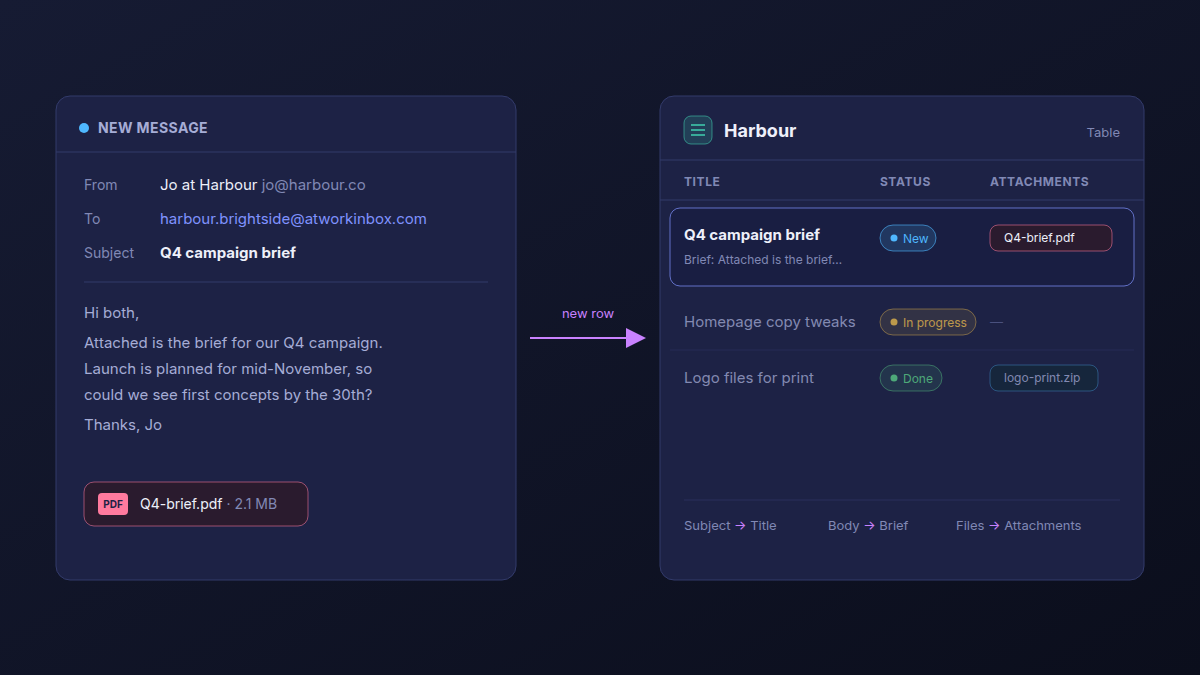
Every Atwork sheet can have its own email address. An email sent or forwarded to it arrives as a new row in that sheet: the subject becomes the title, and the body and attachments go into the row's fields. There is no mailbox to set up and no password to share, because the address belongs to the sheet.
The address is the sheet's name, a dot, then your workspace's name (the brightside in brightside.atwork.so), at atworkinbox.com. Brightside Studio, the agency in this example, keeps a sheet called Harbour for its client Harbour & Co, so that sheet's address is [email protected].
Should each client get its own address?
Yes, if each client already has its own sheet. With one address per client sheet, the address does the sorting. Mail for Harbour & Co lands in Harbour's sheet, and mail for every other client lands in theirs. Nobody triages a shared inbox, and there are no routing rules to keep up to date.
If your workspace isn't split by client yet, how to structure an agency workspace walks through the options first.
One intake address or one per client?
| One agency intake address | One address per client sheet | |
|---|---|---|
| Who sorts the mail | Someone files each row under the right client | Nobody: the address is the sort |
| What the client is told | "Send requests to our intake address" | "Send requests to your address" |
| Adding a client | Add their domain to the shared allow list | Create their sheet and its address |
| Sender rule | One list covering every client's domain | Each address allows only that client's domain |
| Offboarding a client | Remove their domain from the shared list | Regenerate the address, or unpublish its workflow |
A single intake address still makes sense with three clients and one delivery lead who reads everything anyway. Past that, sorting becomes somebody's daily chore.
When is a sheet address better than connecting a mailbox?
When the mail is requests that should become rows. A sheet address receives only what is sent to it, needs no credentials, and checks who sent it. Connect a mailbox when you want an existing inbox in Atwork: its past mail, everything new that arrives, and replies sent from your own domain.
| Sheet address | Connected mailbox | |
|---|---|---|
| Setup | Choose Email to this sheet, then Publish | Server, port and usually an app password |
| What arrives | Only mail sent to that address | New mail in the folders you watch |
| Who can send | Members, an allow list or anyone, plus a block list | Anyone who can reach the mailbox; filter with workflow conditions |
| Existing mail | Starts empty | Can also import the last 7, 30 or 90 days |
| Replying from your domain | No: the address only receives | Yes, with SMTP connected |
The two work side by side: you can keep hello@ connected as a mailbox and still give each client sheet its own address. The mailbox route has its own walkthrough in using Atwork as an email client, and email workflows that turn your inbox into a task list shows what to automate once it is connected.
For machine-sent mail, such as order confirmations, where you need single fields pulled out of the body, a parser service like Zapier or Make does the job better. A sheet address puts the whole body in one field.
How do you keep spam and strangers off the address?
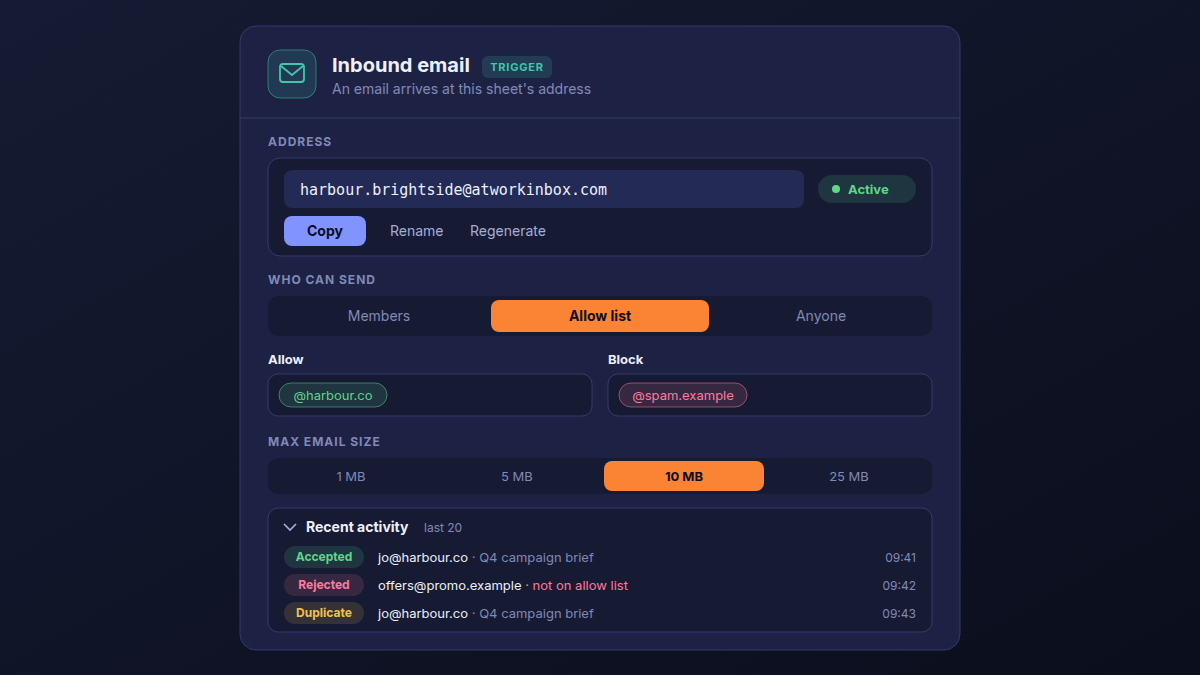
By default, only members of your organization can send to a sheet address. For a client sheet, switch Who can send to Allow list and add the client's domain, such as @harbour.co. Block always wins over Allow, and automated mail is refused whatever the setting.
- Who can send. Members, the default, accepts your own people when they send from the address on their Atwork profile, so a delivery lead can forward a client's email straight in. Allow list accepts only what you list, so add your team's domain too if they will forward. Anyone accepts everyone except the block list.
- Allow and Block. Each entry is a full address (
[email protected]) or a whole domain (@harbour.co), with no wildcards. For anyone on a public mail service, list their full address: the service's domain would let in all of its users. - Confirmed senders. Under Members and Allow list, the sender's email provider must confirm the message really came from that address, so a forged From line is turned away.
- Automated mail refused. Out-of-office replies, mailing lists and bulk mail never become rows, which also stops mail loops.
- Max email size. 1, 5, 10 or 25 MB per email, attachments included. The default is 10 MB.
- Regenerate. If the address leaks or spam starts, the sheet gets a new random address and the old one stops working at once.
- Recent activity. The last 20 emails and what happened to each: Accepted, Rejected with the reason, Duplicate, Throttled or Failed.
An address that anyone can write to is a public form. Decide who may send before you hand it out.
What should a request look like when it lands?
The subject becomes the row's title. The email body goes into the sheet's first document field and attachments into its first File List field. Those fields are matched when the address is created, so add a document field and a File List field to the sheet before you choose Email to this sheet.
Then add the columns your team works from: Status, Owner, Due date and a Change request checkbox. Ask clients to name the deliverable in the subject, "Q4 campaign brief" rather than "Quick question", because the subject becomes the title on the board.
Every email becomes its own row, replies included, so each ask shows up separately. The same email sent twice is logged as a duplicate and creates nothing.
The address is the trigger of an ordinary workflow, so the workflow can do more with each row. Its Create Item step can fill in the Owner, and a Classify with AI step can label each request in scope or change request, as in how to classify client requests with AI.
How do you set up the first one?
About five minutes per client: add the fields, choose Email to this sheet, set who can send, publish, and send a test. The Email to this sheet help article covers every setting.
- Add the fields. On the client's sheet, add a document field for the email body and a File List field for attachments.
- Create the address. Click the arrow next to the New button and choose Email to this sheet. The workflow builder opens on the Inbound email trigger, with the address assigned.
- Set who can send. Choose Allow list, add the client's domain and your team's domain (full addresses for anyone on a public mail service), then Save.
- Publish. The badge next to the address changes from Inactive to Active.
- Test it. Copy the address and send an email from an address on the allow list, such as your own work address. A row appears, and Recent activity shows Accepted.
- Tell the client. Send the address with one line on what it is for: new requests and briefs, one per email.
Change who can send later, and you save and publish again: the address follows the published workflow. No client sheets yet? The Agency Client Delivery template gives you a delivery setup to start from.
Frequently asked questions
Can clients without an Atwork account send to the address?
Yes, once Who can send is Allow list with their address or domain on it, or Anyone. The default, Members, refuses anyone outside your organization.
What happens to attachments?
They land in the sheet's first File List field. The whole email, attachments included, must fit the maximum size you set.
Do replies in the same thread add to the same row?
No. Each email becomes its own row. The same email sent twice is logged as a duplicate.
What if the address gets out?
Use Regenerate. The old address stops working at once.
Can the address use our own domain?
No. Sheet addresses are always at atworkinbox.com.
Can one sheet have more than one address?
No. Each sheet has one address, owned by one workflow.
Where should you start this week?
Pick one client this week, give their sheet an address, and forward the briefs already sitting in your inbox. By Friday you will know whether the rest of your clients should get one too.
Install the Agency Client Delivery template, give your first client its own address, and forward this week's briefs to it. Start free