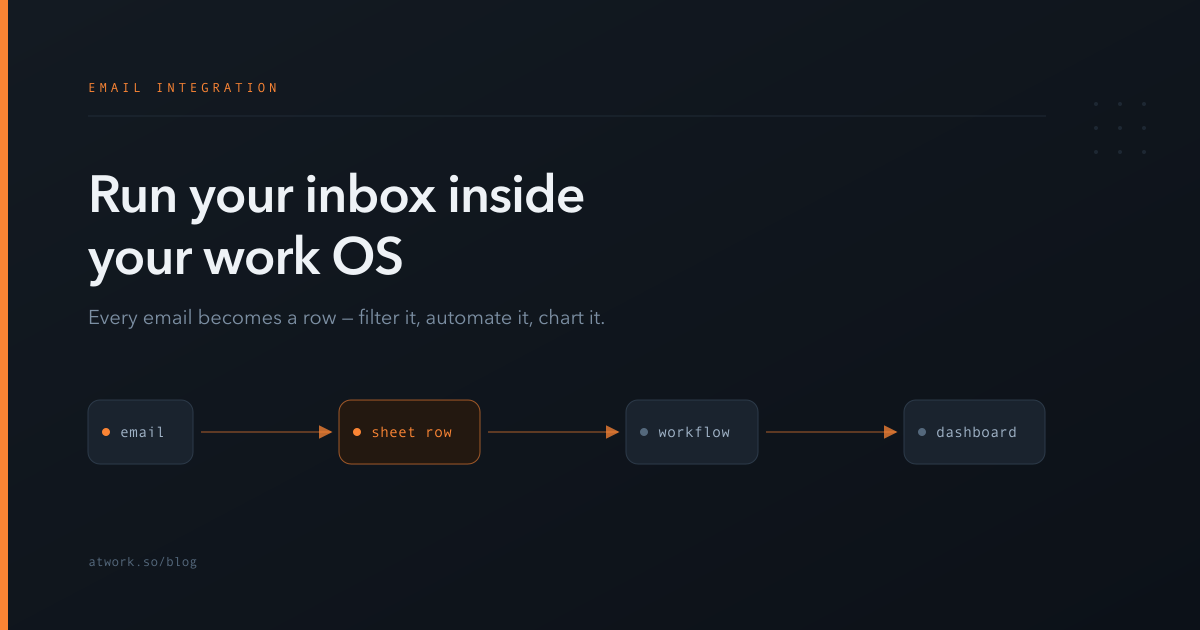
Most teams run their real work in one tool and their email in another, and spend the day carrying information across the gap. When you connect your email to Atwork, that gap disappears: your mailbox becomes part of your workspace, and every message becomes something your whole team can see, assign, automate, and measure.
This article walks through what that actually gets you — not just a tidier inbox, but workflows that fire when mail arrives, dashboards built on your email traffic, and one place where a message and the work it caused live together.
Why use a work OS as your email client?
Because email is where work arrives, but rarely where it gets done. Connecting your mailbox to Atwork turns each incoming message into a structured row in a sheet — sender, subject, date, and the full formatted body — so the same tools you already use for tasks, projects, and CRM apply directly to your email.
Think about what happens to an important email today. Someone reads it, mentally converts it into a task, retypes the gist into a project tool, and hopes the two stay in sync. The email itself stays locked in one person's inbox, invisible to the rest of the team. If that person is on holiday, the thread is effectively lost.
A dedicated inbox tool solves the visibility problem but creates a new silo: now your conversations live in one product and your work in another, connected by yet another integration. Atwork's approach is different. Email is not bridged into the work OS — it becomes data inside it. Once a message is a row, nothing about it is special anymore: it can be filtered, grouped, assigned, automated, charted, and linked to the rest of your work like any other record.
What does your inbox look like inside Atwork?
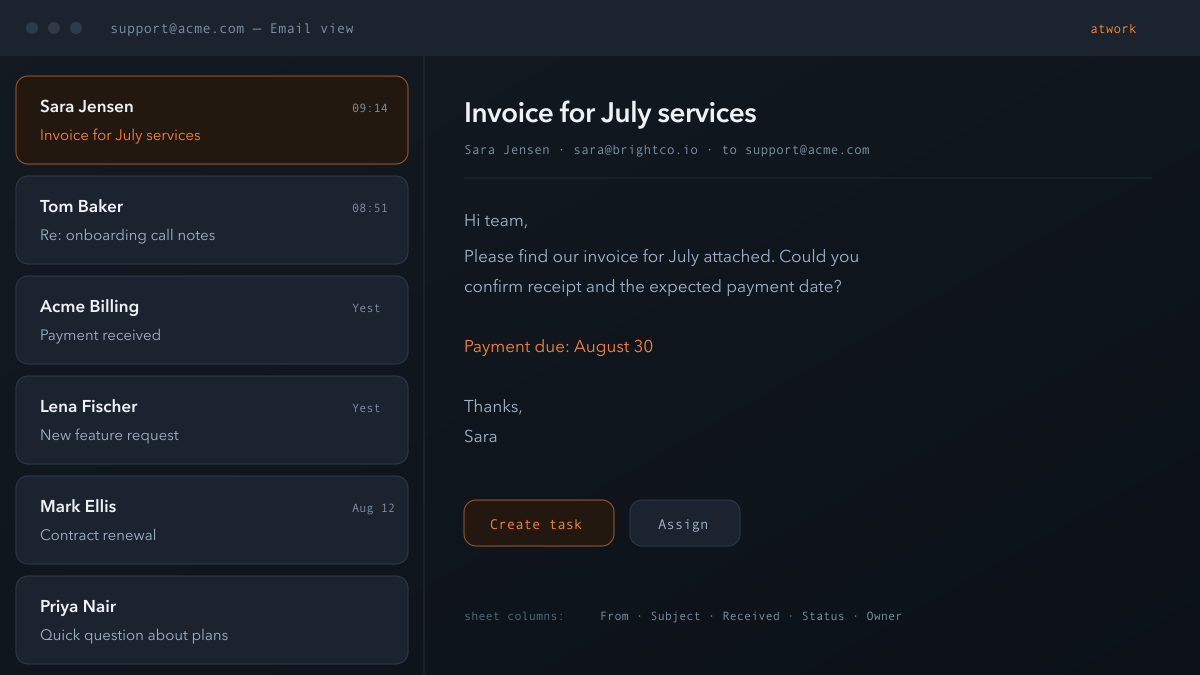
A connected mailbox appears as an email sheet in your space, and you read it through a dedicated Email view: a familiar two-pane inbox with your message list on the left and the full formatted message — headings, links, highlights and text colors intact — on the right.
You can connect a Gmail account or any standard mailbox from your email provider. Atwork can also import your existing messages, not just new arrivals, so the sheet starts with history in it rather than an empty list waiting to fill up.
Under the inbox view sits an ordinary sheet, and that is where it gets interesting. The sender, subject, and received date are real typed columns, which means everything you do with sheets works on mail:
- Filter to just the messages from one customer, one domain, or one week.
- Group by sender to see who generates the most conversation.
- Sort and search across everything you have ever received, in the same place you search tasks and documents.
- Add your own columns — a status, an owner, a priority — and email triage becomes visible, trackable work instead of a private mental exercise.
Because it is a shared sheet, your team gets the benefits of a shared inbox without password-sharing: everyone with access sees the same messages, and an owner column makes it obvious who is handling what.
How do you turn incoming emails into tasks automatically?
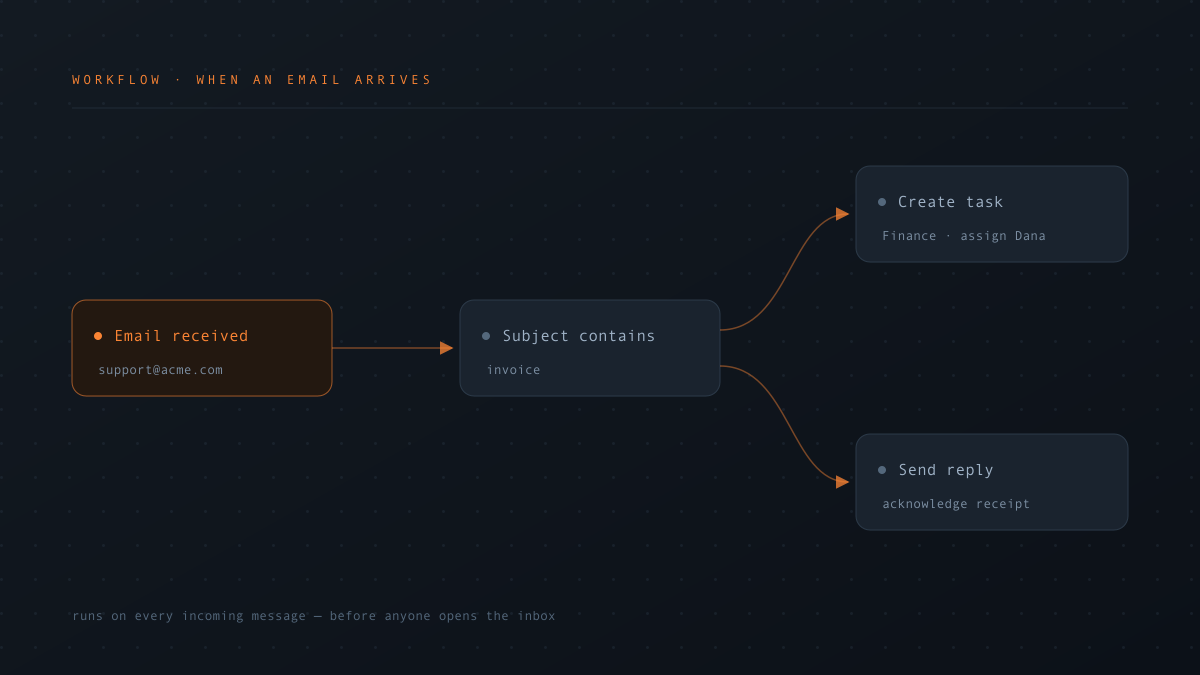
Atwork's workflow engine can use incoming email as a trigger. When a message lands in a connected mailbox, a workflow fires with the email's fields — sender, subject, body — available to every following step, so routine triage happens before anyone opens the inbox.
Some patterns teams reach for first:
- Support triage. A message arrives at your support address → a task is created with the subject as its title, assigned to whoever is on duty, with the original email linked for context.
- Lead capture. Mail from a new address → a contact row is created in your CRM sheet, so prospects stop dying in someone's inbox.
- Routing by content. Messages whose subject mentions an invoice go to the finance list; everything from one key account pings its owner directly.
- Escalation. A message tagged urgent notifies a channel immediately instead of waiting for the next inbox sweep.
The important part is that these are ordinary Atwork workflows, not a special email feature with its own rules. Anything a workflow can do — create items, update statuses, notify people, call other steps — it can now do in response to an email.
Can you send email from Atwork?
Yes — workflows can send email as well as react to it. That closes the loop: the same automation that files an incoming request as a task can send an acknowledgement back to the requester, and later steps can mail status updates as the work progresses.
A few examples of what sending from workflows makes possible:
- Auto-acknowledgement. Every message to your support address gets a reply confirming it was received and logged — sent seconds after arrival, every time.
- Status notifications. When a task created from an email is marked done, a workflow emails the original sender that their request is resolved.
- Outbound routines. Recurring workflows can send scheduled mail — a weekly summary to a client, a reminder to a supplier — without anyone drafting it by hand.
Because sending is a workflow step, it composes with everything else: conditions decide whether to send, and the email's own fields (who wrote to you, what about) fill in the reply.
Can you build dashboards on your email?
Yes, and this is where treating email as data pays off most visibly. Since every message is a row with typed columns, your email traffic can feed the same dashboards as the rest of your work — charts and counters over senders, dates, and any triage columns you have added.
Questions that are genuinely hard to answer from a normal inbox become one chart each:
- How much mail do we actually get, and is it growing week over week?
- Who are our heaviest correspondents — which customers, which domains?
- How many messages are still unhandled, and who owns them?
- What did this week's mail turn into — how many tasks, how many leads?
Put those on the same dashboard as your task and deal charts and you can finally see email in its real context: as one stream of incoming work next to all the others, instead of a black box that only its owner can describe.
How does email connect to the rest of your work?
An email row is a first-class citizen of your workspace, so everything social and structural in Atwork applies to it. You can discuss a message with your team right where it lives, hand it to an owner, and keep it linked to the task or deal it produced — no forwarding, no screenshots of threads.
In practice that means:
- Comments on the email itself. The discussion about a message happens on the message, visible to the team, instead of in a forwarded side-thread.
- Ownership. An owner column plus a status column turns "someone should answer this" into a tracked assignment.
- Connections to real records. The email that started a deal sits next to the deal; the request that became a task stays attached to the task.
- One search. Looking for what a customer asked for? Their emails, their tasks, and their documents are in the same workspace and the same search.
This is the practical difference between an integration and a home. An integration copies data between two products that remain strangers. When the inbox lives inside the work OS, there is nothing to keep in sync.
How do you get started?
Connecting a mailbox takes a few minutes: add your Gmail or other email account from Atwork's integrations, let it create the email sheet, and optionally import your existing messages so the history is there from day one. Then open the Email view and you have an inbox your whole team can work from.
A good way to feel the difference is to start with one workflow. Pick the email chore your team does by hand every day — filing support requests, acknowledging inquiries, alerting an owner — and automate that one path. Once the first messages flow through it, the next workflows tend to suggest themselves.
If you want to see how far the inbox-as-workspace idea goes, connect a mailbox to your Atwork workspace and try it on this week's email. The messages will keep arriving either way — the difference is what happens to them next.