Every team has a handful of email chores it does by hand, every day: filing requests, replying "got it, we're on it", copying details into other tools, remembering to follow up. Each one takes a minute, and together they quietly eat the morning. If your mailbox is connected to Atwork, all of them can be workflows — automations that turn emails into tasks, replies, and updates the moment a message arrives.
Here are seven worth copying, from the ones almost every team needs to a few that only reveal their value once the basics are running. If you haven't connected a mailbox yet, start with our overview of using Atwork as your email client — this article assumes your email is already flowing into a sheet.
How do email workflows work in Atwork?
A connected mailbox delivers every incoming message into an email sheet, and Atwork's workflow engine can use that arrival as a trigger. The workflow receives the email's fields — who sent it, the subject, the body — and every following step can use them: in conditions that decide what to do, and in actions that do it.
That's the whole model. Each recipe below is just a different arrangement of the same three parts: a trigger (an email arrived), an optional condition (does it match?), and one or more actions (create a task, send a reply, notify someone). None of them require anything special of the sender — they work on ordinary email.
1. Support triage: every request becomes an assigned task
The workhorse. A message arrives at your support address, and a workflow creates a task from it — the subject becomes the title, the message is linked for context, and the task is assigned to whoever handles support. No one has to watch the inbox for work to enter the system.
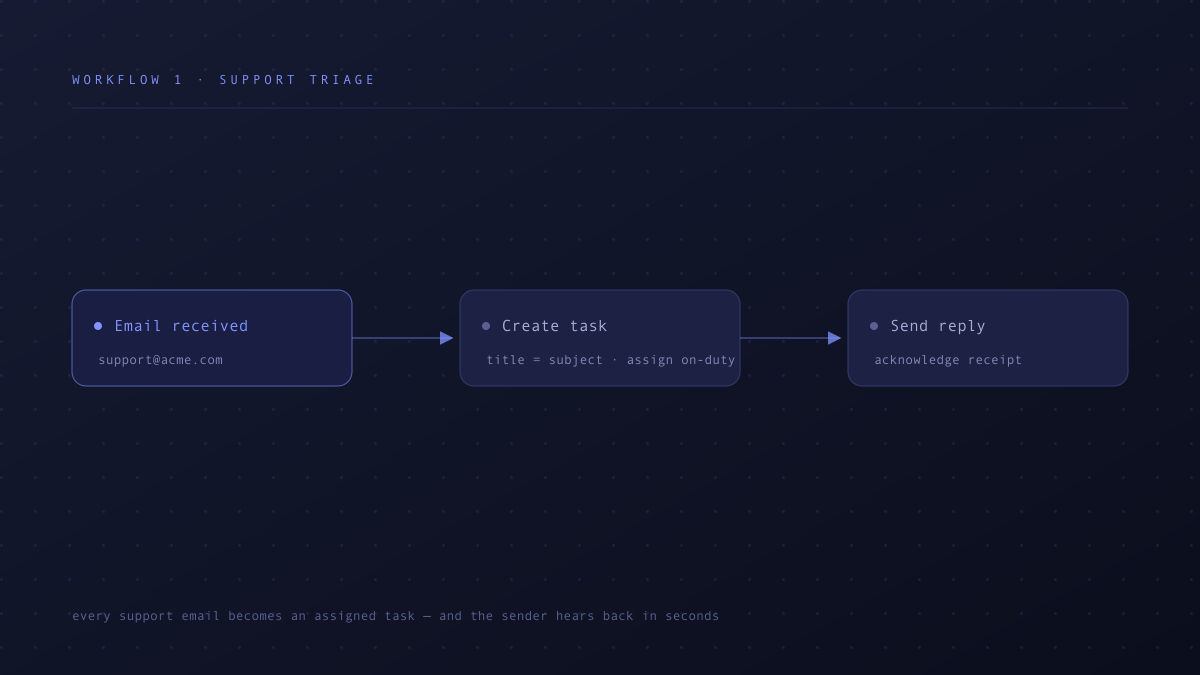
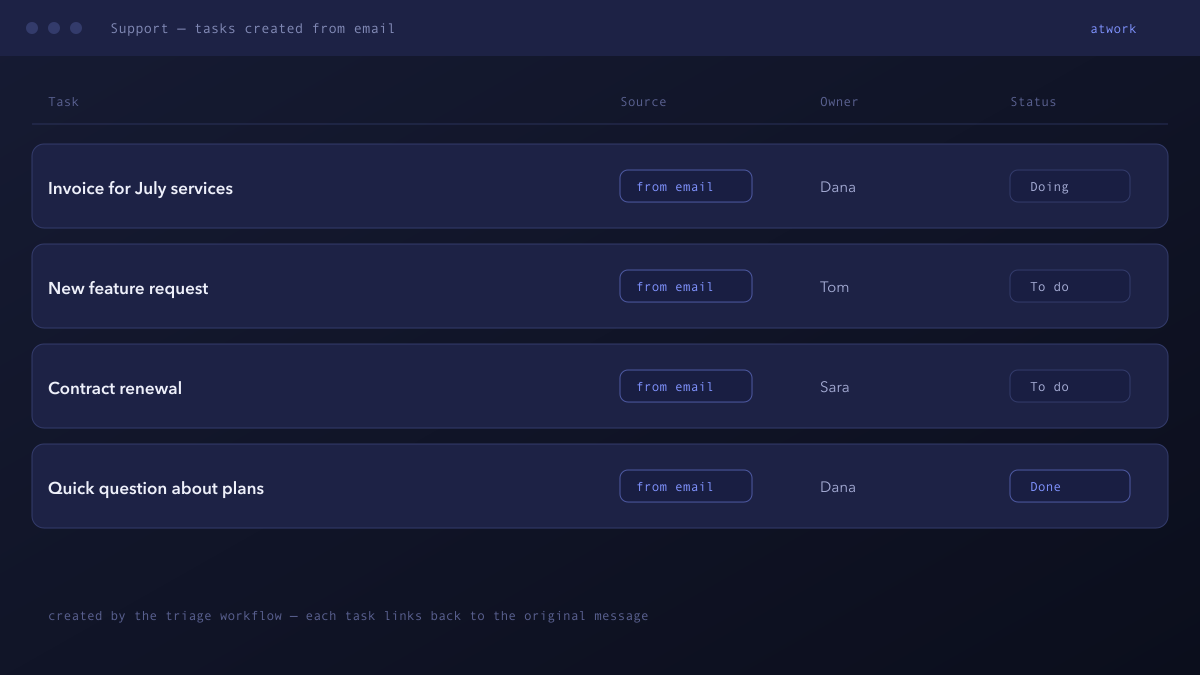
What changes in practice is subtle but large: "the inbox" stops being a to-do list only one person can see. Requests become items with owners and statuses, visible to the whole team, and nothing depends on the person who happened to read the mail first.
2. Auto-acknowledgement: reply before anyone opens the inbox
Pair the triage workflow with a send step and every request gets an immediate reply: received, logged, someone is on it. The sender's details come from the email itself, so the response is addressed and personal without anyone typing it.
This is the cheapest customer-experience win available. The silence between "I emailed them" and "they answered" is where customers get anxious and send the follow-up that doubles your queue. An acknowledgement sent seconds after arrival removes that silence — for every message, at any hour.
3. Lead capture: new senders become CRM contacts
When a message comes from an address you haven't seen before, a workflow can create a contact row in your CRM sheet — name and email from the message, source marked as inbound. Your pipeline fills itself from your inbox instead of relying on someone remembering to copy details across.
The pattern matters most for small teams, where inbound interest arrives on a founder's or salesperson's personal thread and dies there. With capture running, the question "did we ever follow up with that person?" has an answer you can look up.
4. Invoice routing: money mail goes straight to finance
A condition on the subject or sender — mentions of an invoice, mail from a billing address — routes the message into the finance team's list, with a task to review it. The rest of the inbox never has to care.
Routing rules like this are what conditions are for: they encode the sorting your team currently does by reading. Anything you can recognise in a sender or subject — a customer domain, a keyword, an order number pattern — can become a lane that mail sorts itself into.
5. VIP escalation: key accounts never wait
For a handful of senders — your biggest customer, a partner mid-launch, a renewal at risk — waiting for the next inbox sweep is too slow. A workflow that matches those senders can notify the account owner the moment their mail lands, so the response time for the people who matter most is minutes, not "when someone checks".
The useful discipline here is the list itself: deciding which addresses warrant interruption forces the conversation about which accounts actually are critical.
6. Resolution notice: tell the sender when the task is done
Workflows don't only react to email — they react to your work, too. When a task that was created from a message is marked done, a workflow can email the original sender that their request is resolved. The loop closes itself: ask, acknowledge, deliver, confirm — with exactly one of those steps done by a human.
This is the recipe teams forget, and it's the one senders remember. Most support interactions end in silence; yours end with an answer.
7. The Monday digest: a summary email nobody has to write
Workflows can also run on a schedule. A Monday-morning workflow can gather what last week's mail turned into — requests handled, tasks still open, leads captured — and send the summary to the team or a client. The report exists because the emails are rows: counting and grouping them is just a query, and sending the result is one more step.
Start with an internal digest; once you trust it, the same pattern makes client-facing status mail — the weekly update your account managers currently assemble by hand.
How do you build your first email workflow?
Start with the chore that annoys you most — for most teams that's triage — and automate only that path: one trigger, one condition at most, one or two actions. Watch a few real messages flow through it, adjust, and then add the next recipe. Within a week the inbox stops being a place where work hides.
All seven recipes run on the same foundation: a mailbox connected to Atwork, an email sheet, and the workflow builder. Connect your inbox, copy recipe number one, and let this week's email test it for you.