Here is what's new in Atwork for late October 2026: seven lead changes and nine smaller ones, shipped between 20 and 28 October. Google Drive and Dropbox files sit on your rows, pages take comments and keep their history, agents read a profile of your agency, an AI policy sets what AI may use and spend, Settings moved into one place, every row shows what added it, and a workflow can start on a row's date. Our first October roundup covers the first half of the month.
| Feature | Where you find it | The step it replaces |
|---|---|---|
| Google Drive and Dropbox | Add from Google Drive or Add from Dropbox in a File List field | Downloading client files to upload them again |
| Page comments and history | Select text › Add comment, and History, on any page | Reviewing a brief over email |
| Company and AI profiles | Settings › Company profile and AI profile | Explaining your agency in every chat |
| AI policy and the Admin role | Settings › AI policy and Members | Watching AI spend by hand |
| The new Settings | Settings, with search | Hunting for the menu that holds a setting |
| Row source | The Source field on every row | Asking around who added a row |
| Date reached trigger | A workflow's trigger | Calendar reminders for renewal dates |
Can you keep client files in Google Drive or Dropbox and still attach them to a row?
Yes. Connect Google Drive once, then use Add from Google Drive to put its files in any row's File List field; Add from Dropbox does the same for Dropbox. Drive and Dropbox files can also go into comments and chat, a row can have its own Drive folder, and a Drive or Dropbox link pasted into a page shows the file in place.
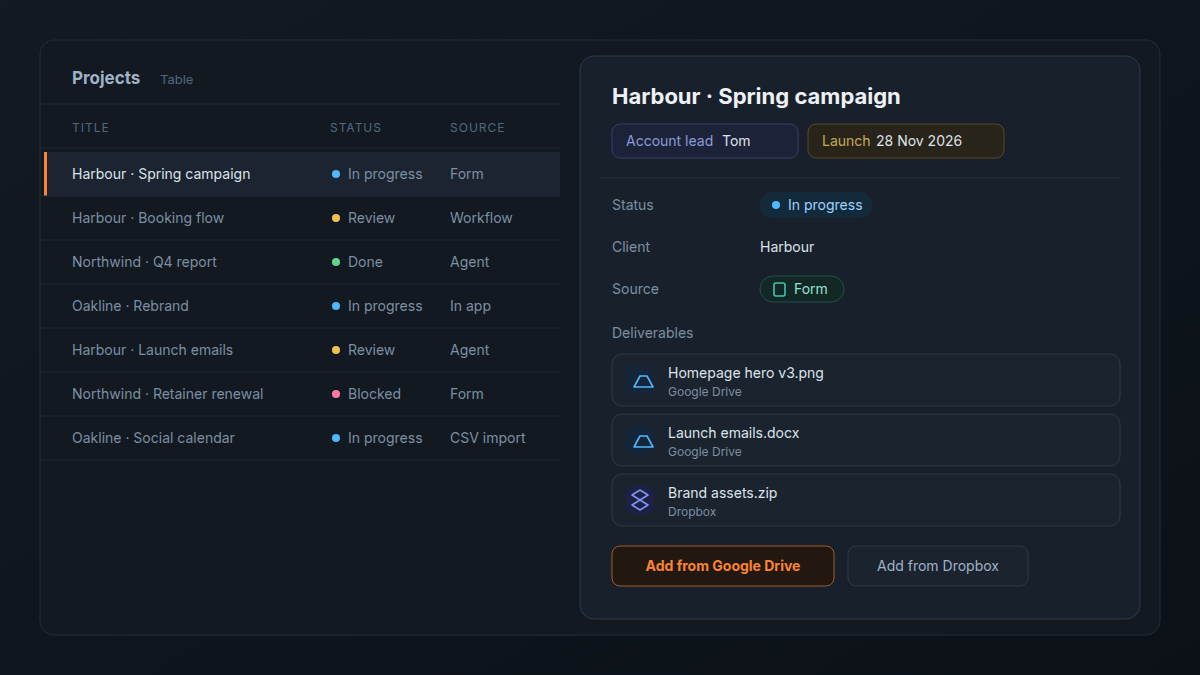
A campaign's deliverables can stay in the client's shared Drive folder, where the client already works, while each file sits on the project row your team plans from. The row holds a link to the file, not a copy, so it always opens the version the client is looking at.
Drive folder per row goes one step further: each row gets its own Google Drive folder, linked on the row. You choose the parent folder, whether every new row gets a folder, and whether to share it with the people in the row's member fields as Viewer, Commenter or Editor. If a file is deleted or moved in Drive, the row tells you and keeps the link until you remove it.
Dropbox files you share through the client portal stay available there. If you are still deciding what a client should see at all, start with what a client should see in a portal.
Can you review a brief inside an Atwork page?
Yes. You can now comment on any part of a page, reply in the thread, and resolve it when it's settled. Every page also keeps its version history: browse its earlier versions and restore any of them.
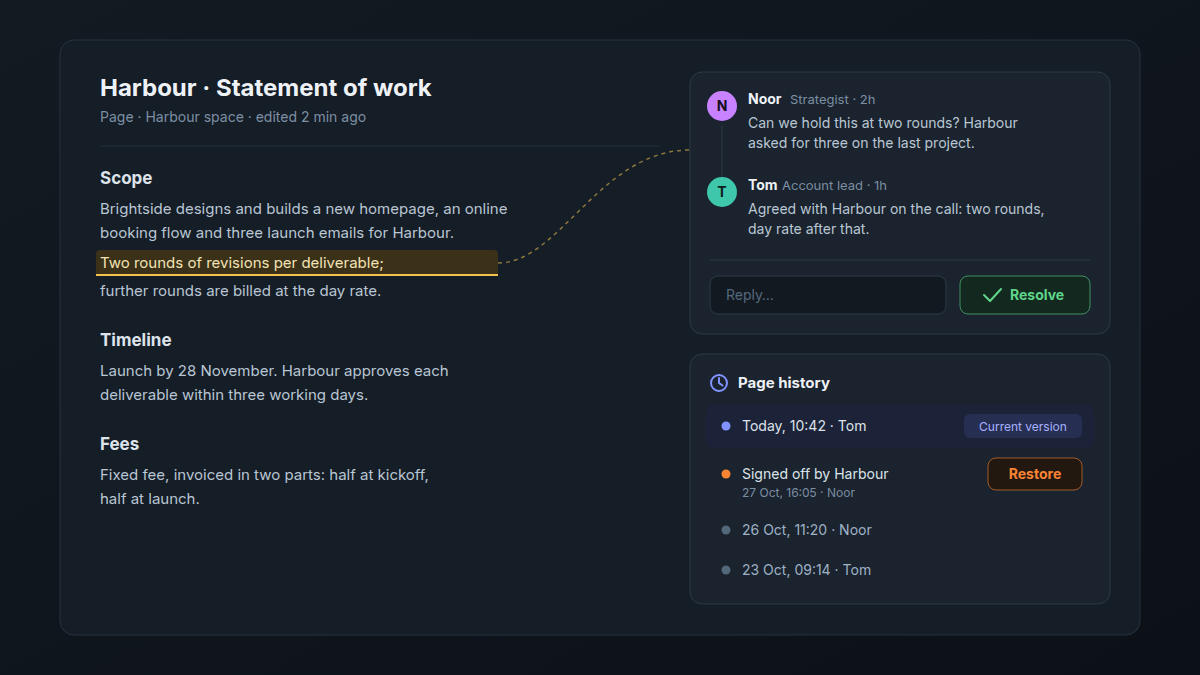
An account lead and a strategist can mark up a statement of work in the page itself, settle each thread and resolve it, and if the client signed off on Tuesday's wording, restore Tuesday's version instead of rebuilding it from an email attachment.
To start a thread, select text on the page and choose Add comment; the Comments panel lists open and resolved threads separately. Versions are saved automatically while you edit, and Save version keeps one under a name of your choice, such as "Signed off by Harbour". Open History to browse them. Restoring a version first saves the page's current content as a Before restore version, so nothing is lost.
How do you tell Atwork's agents about your agency once?
Write a company profile and your own AI profile. The company profile, in Settings › Company profile, describes your agency; your AI profile, in Settings › AI profile, describes you and your role. Atwork's agents read both, so a draft starts from your services, your clients and your tone instead of a blank page.
You don't have to start from nothing. Enter your agency's website under Draft from our website, and Dana reads your home page and up to three pages about your company, products and customers, then drafts each section for you to accept, edit or discard. Nothing is saved until you press Save. For your AI profile, Draft from my resume turns a PDF or DOCX resume into a short My role and Expertise.
Owners and Admins edit the company profile; members can read it. Your AI profile is private: no one else in the workspace can see it. Each profile keeps a change history, so you can see what changed and undo an edit.
Who controls AI spend: the owner or an Admin?
Both, with different jobs: the owner chooses the models, approval rules and member limits, owners and Admins (the new role) set each agent's monthly cap, and billing stays with the owner. Settings › AI policy holds those rules for every agent in your organization: which models they may use, when they must ask before acting, a monthly cap per agent and, if you want one, a monthly limit on each member's AI spend.
- Models. Allow any of four model classes (Cheap, Standard, Frontier and Reasoning) and pick the default model for new agents. Frontier models are available on the Business plan.
- Approvals. Write actions can ask for approval in chat, and deletes and archives always ask. A separate switch lets agents send email from shared email connections without asking.
- Monthly caps per agent. At its cap, an agent either pauses until the cap resets or keeps running on top-up credit while owners get one email. A cap of 0 turns an agent off.
- Member limits. Limit each member's AI spend per month, with exceptions. Members see what's left in their avatar menu and can ask an owner for more.
An agency with a client-reporting agent that runs every Friday can cap it at a fixed amount so it pauses rather than eating the team's budget, and give its two strategists a higher member limit than everyone else. You can also test a skill before an agent uses it, and see what each run cost.
Every plan includes a monthly AI budget: $1 per organization on Free, $5 per seat on Pro and $15 per seat on Business (see pricing). For what that buys an agency in practice, read what AI costs an agency per month.
Admins can manage organization settings, not billing. They also choose which agents use each shared connection, so an Admin can run the workspace day to day without holding the company card.
Where are Atwork's settings now?
In one place, with search. Settings now holds your own settings (Profile, Preferences, Notifications, Availability, Connections) and your organization's (Members, Teams, Locations, Customers, Shared connections, Agents, Skills, Company profile, AI policy, Plan & seats) in one list, and its search box finds a setting by name.
Members, teams, locations and customers are now sheets, so you can add your own fields and views to them, as to any other sheet. Add Retainer, Account lead and Renewal date fields to Customers, then a view grouped by account lead, and your client list lives next to the work instead of in a separate spreadsheet.
How do you see what added a row?
Open any row and its Source field shows what added it: a form, an agent, a workflow, an integration, an API key, an MCP client, a CSV import, the client portal, or a person in the app. Source is set automatically, and you can filter a view by it.
That turns questions an Ops lead asks every week into one filter: everything the intake form added since Monday, every row an agent created, or the rows a workflow imported overnight. Source records what created the row. Item history, where later changes show up, now reads as a clear timeline.
Can a workflow run when a row's date arrives?
Yes. The Date reached trigger starts a workflow when the date in a row's Date field arrives, or a set number of minutes, hours or days before or after it. Choose the sheet and the Date field, then On time, Before or After.
A reminder to the account lead 30 days before a retainer's end date starts the renewal conversation before the last invoice goes out. Add a condition, such as Status is not Renewed, and a retainer that already renewed skips the reminder: conditions are checked on the row when its time comes.
The trigger runs once per row, within about a minute of its time, and changing the date sets it to run again. Dates without a time use a time of day you choose, in your organization's timezone. Rows whose time had already passed when you publish the workflow don't run.
What else changed?
Nine smaller changes shipped too: brief-first onboarding, Dana as a guide, Dana editing what she built and changing your settings, deeper web research, connection access per agent, comment workflows, pinned fields, quiet hours with Do not disturb, and an item panel that stays open.
- Brief-first onboarding. Describe your work when you sign up, and Atwork builds the workspace around it.
- Dana as your guide. New workspaces get a personal walkthrough from Dana, Atwork's assistant.
- Dana edits what she built, and changes your settings. Ask Dana to change or delete fields, views, dashboards, workflows and access, or to change your theme, language, notifications and calendars, all from chat. Build with Dana
- Deeper web research. Agents read the web pages they find and list the sources they used.
- Connection access per agent. Choose which connections each agent may use, at Read only, Read and write or Full access. Agents ask for access in chat, and deletes and archives ask every time. Review connected apps and shared connections in Settings, and revoke access.
- Comment workflows. The Comment added trigger starts a workflow when a member, or a customer on your portal, comments on a row, and Add comment posts a comment from a workflow. Comments by workflows and AI agents never start the trigger.
- Pin fields to the top. Choose Pin to top in a field's menu to keep up to four key fields under the item title, such as Account lead and Launch date.
- Quiet hours and Do not disturb. Turn on Quiet hours in your notification settings to hold push and email outside your working hours; they arrive together when your day starts. Set Do not disturb from your avatar menu for 1 hour or until tomorrow, and teammates see your status.
- The item panel stays open. It stays beside the sheet while you move from row to row.
Frequently asked questions
What's new in Atwork in late October 2026?
Seven lead changes: Google Drive and Dropbox in File List fields, comments and version history on pages, company and AI profiles, an AI policy with the new Admin role, a new Settings, row source, and the Date reached trigger. Nine smaller ones include quiet hours and pinned fields.
Does Atwork work with Google Drive and Dropbox?
Yes. Add Google Drive or Dropbox files to any File List field, to comments and to chat, and paste a Drive or Dropbox link into a page to preview the file. Drive can also give every row its own folder.
Can an Admin manage billing?
No. Billing stays with the owner. Admins manage organization settings and can set each agent's monthly AI cap, while models, approval rules and member limits stay with the owner.
Can you limit what AI costs each month?
Yes. In Settings › AI policy, set a monthly cap for each agent and, if you want, a monthly limit for each member. Every plan includes a monthly AI budget, starting at $1 per organization on Free.
Can a workflow start on a date in a row?
Yes. The Date reached trigger runs a workflow when a row's date arrives, or a set number of minutes, hours or days before or after it.
Where should you start?
Start with the change that removes a step you did by hand this week, and try it on one client first: put their files on their project row, or set a reminder before their retainer ends.
Connect Google Drive and put one client's files on their project row this afternoon. Atwork is free for up to 5 members, with no credit card. Start free