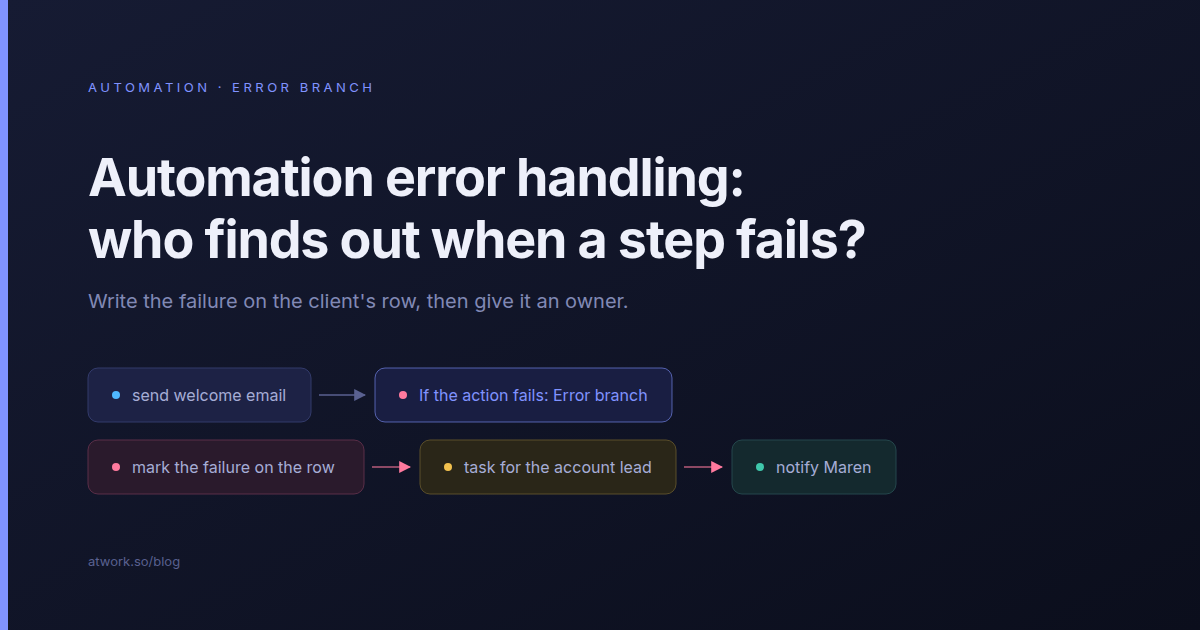
A step in a client automation fails: the welcome email to a new client is rejected, the weekly update never reaches the client's shared Slack channel, the client's Drive folder is never created. Most agencies hear about it from the client. That is where automation error handling usually breaks down, and it is a large part of why teams switch their automations off. The fix is an error branch that ends at a person: it writes the failure onto the client's row and gives someone a task with their name on it.
Below: the default, which Atwork steps can route a failure, what the branch should do, and how to read run history.
What happens when a step in an automation fails?
By default the run stops at the failed step and is marked as failed. Steps after it never run, and steps before it already did, so a client can end up with a folder but no welcome email. Atwork does not message anyone about it. The failed run waits in Executions, the workflow's run history, until someone opens it.
That is fine while you are building. Once a client is waiting on the result it is not: nobody's job is to open Executions every morning, and the client notices the missing email first.
Which steps can send a failure down an error branch?
Every step from a connected tool can: Slack, Microsoft Teams, Telegram, email through your own mail server, Google Drive and the other tools you connect. So can Agent steps, and Run workflow steps that wait for the other workflow to finish. Each has a setting for what happens when it fails, with three choices. Sheet steps such as Create Item and Update Item, HTTP Request and Send Notification have no such setting, so a failure there stops the run.
| Step | Setting | Error branch? |
|---|---|---|
| Slack, Teams, Telegram, email, Google Drive and other connected tools | If the action fails | Yes |
| Agent | If the agent fails | Yes |
| Run workflow, with Wait for it to finish on | If the workflow fails | Yes |
| Create Item, Update Item, HTTP Request, Send Notification | None | No, a failure stops the run |
Zapier lets you add an error handler to any Zap step, and Make offers five kinds of handler (Skip, Retry, Resume, Commit and Rollback). Atwork covers fewer steps. It covers the ones that reach outside Atwork, where an expired connection, a removed app or a rejected address can break a run that worked yesterday.
Stop, skip or error branch: how do you choose?
Choose Stop the run when later steps depend on this one and a half-finished run is worse than none. Choose Skip failed items when the step is a nice-to-have. Choose Error branch whenever a person has to act on the failure, which includes anything a client was meant to receive.
| Choice | What happens | Use it when |
|---|---|---|
| Stop the run | The workflow stops at this step and the run is marked as failed | Later steps need this one to have worked |
| Skip failed items | Items the step failed for are dropped; the rest go on | Losing one is harmless, such as an internal heads-up |
| Error branch | Failed items go down a separate Error output; the rest go on | Someone has to fix it, such as a client email |
Skip failed items is the quietest of the three: the run finishes as succeeded, and only the step's line in Executions says that anything was dropped. With Error branch, a step that sends to five clients and fails for one sends the other four down its Output as normal. They are not sent again; only the fifth goes down the Error branch.
What should an error branch actually do?
Two things: mark the failure on the row the run was about, so anyone who opens the client's record sees it, and give a named person a task they will see today. A message to a channel is not enough on its own. Once a step routes its failures, the run finishes as succeeded, so the branch is the only alarm left.
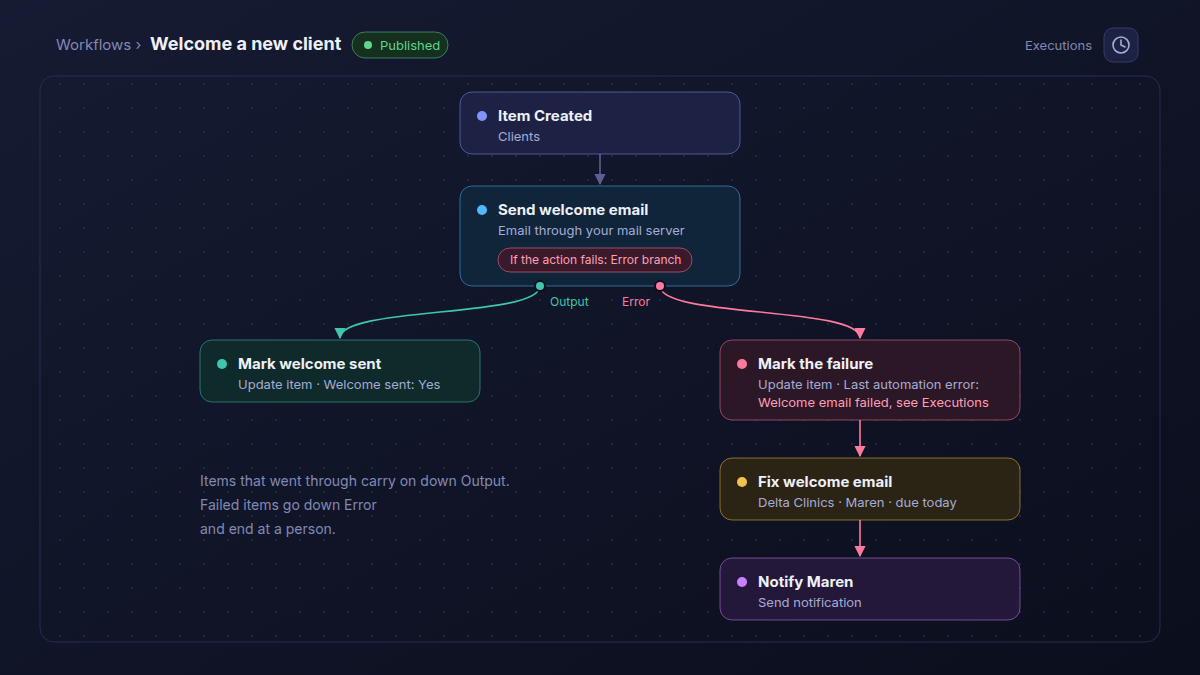
- Mark it on the row. From the Error output, add an Update Item step on the client's row and set a text field such as Last automation error to a fixed note: Welcome email failed, see Executions. The reason itself is on the failed step in that run.
- Open a task with an owner. Add a Create Item step in your team's task sheet, assigned to the account lead, due today, naming the client and the step that failed.
- Tell that person directly. Add a Send Notification step to the same person. Rows a workflow creates don't start other workflows, so a "new task, notify the assignee" rule will not fire for this task.
- Never report a failure on the channel that failed. A Slack failure reported to Slack can fail the same way.
When a message to a client's Slack channel fails
The usual cause is that someone removed the app from the channel, or the channel was archived after the project closed. The branch marks the failure on the client's row and gives the account lead a task to re-add the app or point the step at the right channel.
When a client email is rejected by the mail server
The mail server refuses the address, often a typo in the contact's email or a mailbox that no longer exists. The branch marks the failure on the client's row, and the account lead gets a task to confirm the address with the client and send the email again.
When a client's Drive folder can't be created
Usually the Google Drive connection has expired, or the parent folder was moved or is no longer shared with the account behind the connection. The branch marks the failure on the row and gives ops a task to reconnect Drive or fix the parent folder.
How do you read run history after a failure?
Open Executions, the history icon in the builder's toolbar. A failed run names the step and the error. A run whose failures went down an error branch is listed as succeeded, and the step says how many items failed and why. Run history is where you check what happened, not where you get told.
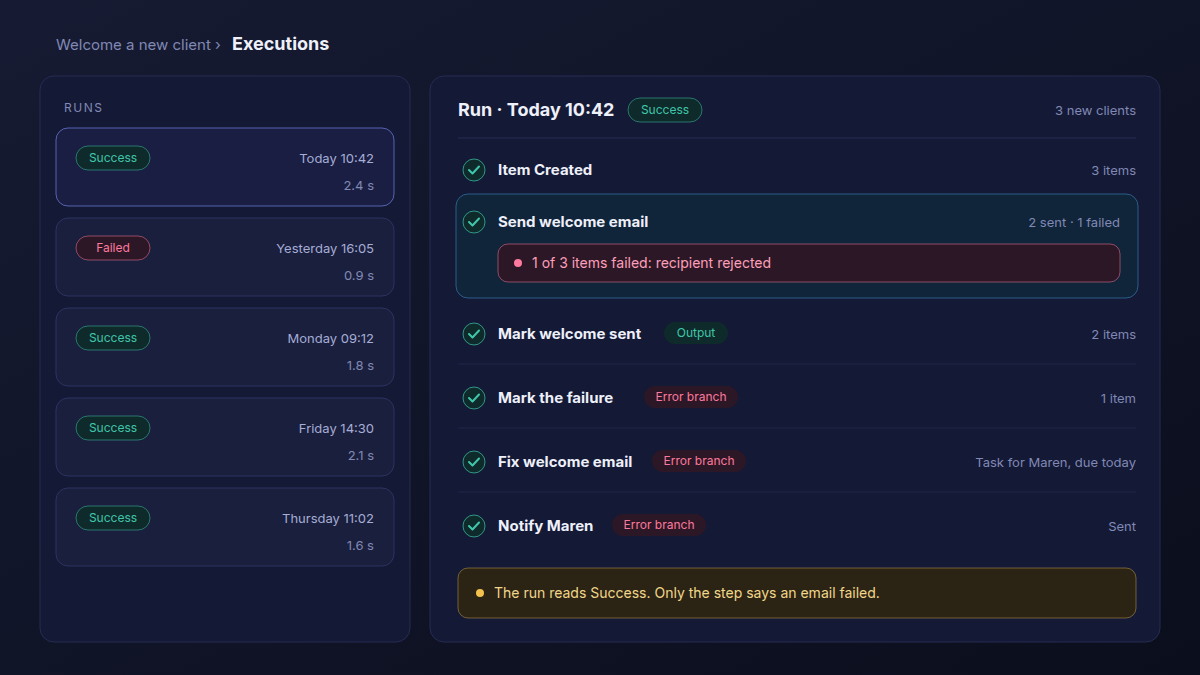
- Open the workflow and click the history icon to open Executions.
- Pick the run. Read the succeeded runs too when a step routes its failures, because they can carry failed items.
- Open the step. It shows the error, or a line such as "1 of 3 items failed: recipient rejected".
- If the reason is an expired connection, open your profile menu and choose Connections, which shows a dot while a connection needs reconnecting. Under Your connections, the tool's row reads Reconnect needed.
The builder also catches one kind of break before a run ever starts: it will not publish a step that reads from a step that no longer exists, and lists each one under "Can't publish — fix these first". More on reading runs in test and debug an automation.
How do you test an error branch before a client depends on it?
Make the step fail on purpose with a test record. Post to a channel the app is not in, send to an address your own mail server rejects, or point the Drive step at a folder the connection cannot write to. Then check that the row field, the task and the notification all arrived, and point the step back.
Trigger it the way a real client would, from a test client row, then open Executions: the run should read succeeded, with the step reporting one failed item and every step on the Error branch green.
An error branch that tells nobody turns a red run into a green one.
Frequently asked questions
What is an error branch in an automation?
A second output on a step that receives only the items the step failed for. The steps you connect to it run only when something failed.
Does Atwork tell me when an automation fails?
It records the failed run in Executions but does not message anyone. To be told, set the step to Error branch and add a Send Notification step to the person who should act.
Will a failed Slack or email step send twice?
Not with Error branch or Skip failed items. The items that went through carry on and are not sent again; only the failed ones go down the Error branch or are dropped.
How do I show the failure on the client's record?
Connect an Update Item step to the Error output and set a text field on the row to a fixed note such as Welcome email failed, see Executions. The exact reason is on the failed step in that run.
Which steps can't have an error branch?
Sheet steps such as Create Item and Update Item, HTTP Request and Send Notification. A failure in one of them stops the run.
Should every step have an error branch?
No. Give one to the steps where a person has to act when they fail, usually anything a client was meant to receive. For the rest, Stop the run or Skip failed items is enough.
Where should you start this week?
Open the one workflow that sends something to a client and set that step to Error branch. Add the write-back to the client's row and the task for the account lead, then break it once on purpose with a test record. One workflow that fails loudly is worth more than ten that fail into a channel nobody reads.
The Agency Client Onboarding template ships the client sheets to hang this on, and build your client onboarding workflow once shows the same Error branch on a Run workflow step. New to workflows? Start with how to build your first workflow automation and workflow automation in Atwork.
Pick the one workflow that emails a client. Set that step to Error branch and break it once on purpose. Start free