The Support Desk app
The Support Desk app turns Atwork into a help desk. Customers file tickets, an assistant answers first from your own documentation, and your team picks up what needs a person.
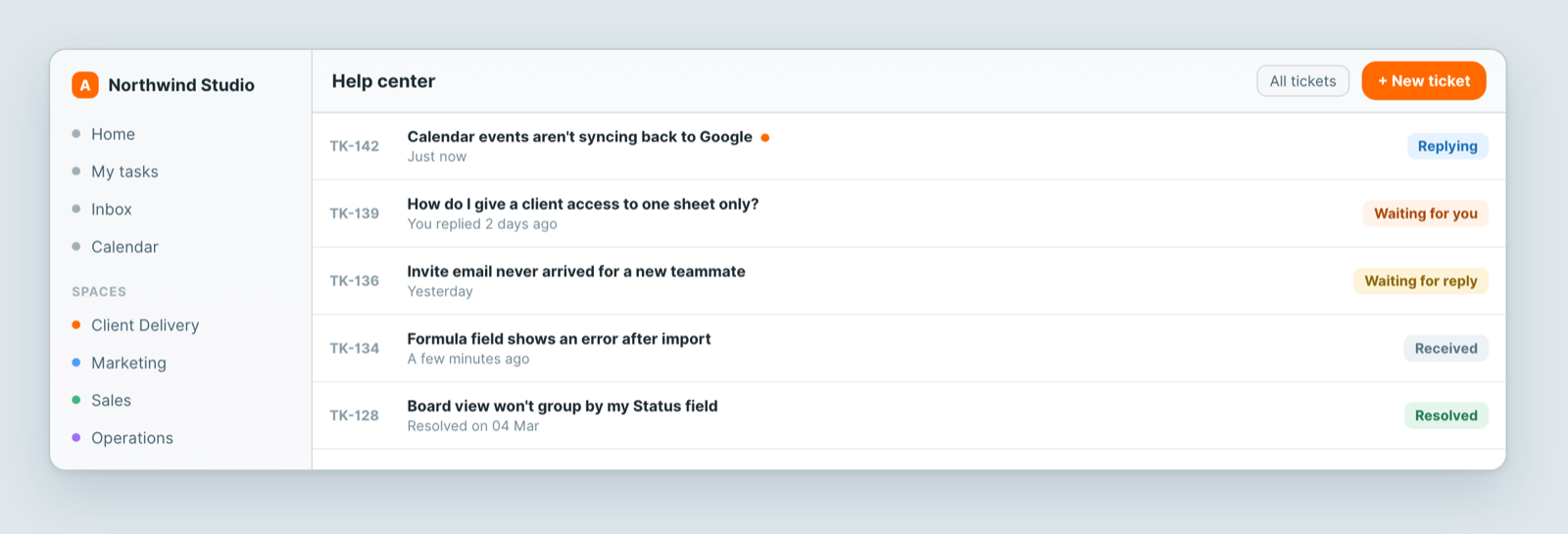
Install it
Open the launchpad and install Support Desk. It creates its own space with a Ticket sheet, statuses and views already set up.
Set it up
- Add the people who will handle tickets to the space — access follows the space, so nobody sees tickets until you do.
- Set a default assignee, so a new ticket is never unowned. For the support agent to answer first, make the agent the default.
- Create a support agent and give it your documentation as knowledge. This is what makes first-line answers useful rather than generic. See Create an agent.
- Write down what it must not answer — refunds, contracts, anything legal — and where it should hand over.
How a ticket flows
A customer files it. The assistant answers if it can. If it cannot, or the customer asks for a person, it hands over and a human takes it — in the same thread, with the whole history visible. The customer never repeats themselves.
Take tickets from clients without an account
Clients and customers can open a ticket on your client portal with a name and an email address, without signing in. You need three things on the portal: Support Desk installed, a My tickets widget pointed at the Ticket sheet, and Allow customer registration switched on.
- Install Support Desk from the launchpad.
- Go to Settings › Customer Portal › Portal.
- Add the My tickets widget and point it at the Ticket sheet.
- On the Page tab, tick Allow customer registration.
- Publish the portal.
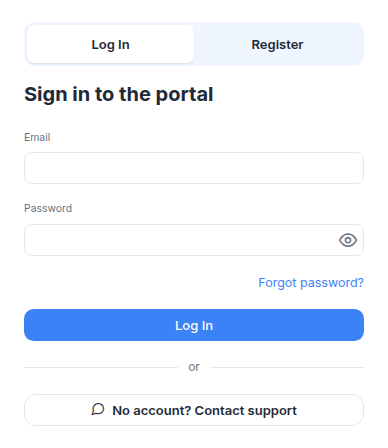
- Open your portal in a private window, click No account? Contact support on the sign-in card, and file a test ticket with your own email address.
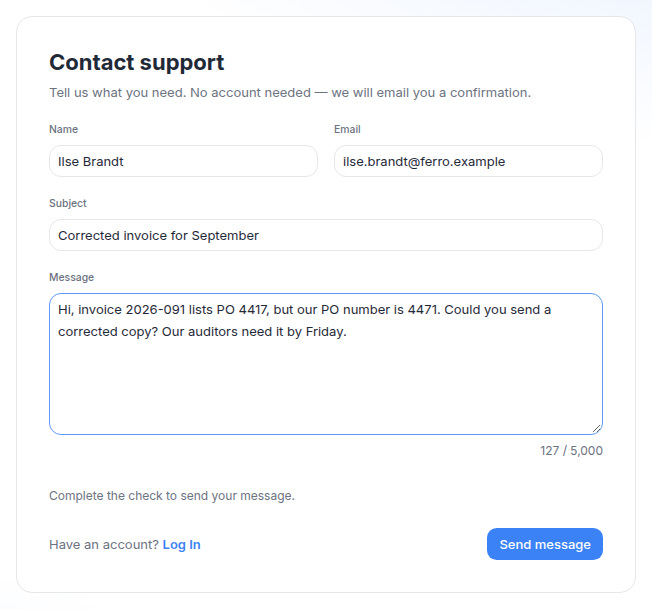
The Contact support form asks for a name, an email address, a subject and a message, and a security check. The ticket lands on the Ticket sheet, and the requester is added to your CRM as a contact, or matched to an existing one by email address.
What the requester gets:
- A confirmation email with a View your ticket button. The page shows the ticket's status and the public replies, and has a box to answer in.
- A link that works for 30 days. Every reply email carries a fresh one. If the address already has a portal account, reply emails link to the signed-in ticket page instead.
- An email for each public reply, from a person or the support agent, at most one per ticket every 10 minutes. Internal notes are never emailed.
What a requester without an account can't do: attach files, or close or reopen the ticket from the link. They can ask in a reply, and your team changes the status.
Allow customer registration also lets visitors create a portal account, so check what a new account can see on your portal before you switch it on. Anyone the ticket link is forwarded to can read the ticket and reply; the confirmation email says so.
Close and reopen
A client signed in to the portal can close their own ticket from the ticket page with Close ticket, which sets it to Resolved, and bring it back with Reopen, which sets it to New. Each button shows only if your Ticket sheet has that status.
Statuses your customers see
Customers see plain-language states — received, being answered, waiting on you, waiting on us, resolved — rather than your internal handling. Whether AI or a person is working on it is your business, not theirs.
Getting value from it
- Feed the assistant real articles. Its answers are only as good as what you give it.
- Watch what it escalates. Every handover is a gap in your documentation — fix the doc and the next customer is answered instantly.
- Chart it. Tickets per week, and how many needed a person, tells you whether the documentation is working.
Related: Apps and the launchpad · Create an agent and give it knowledge · What is the client portal? · Track and reply to your ticket