The CRM app
The CRM app installs contacts, companies and a deal pipeline, already connected.
Install it
Open the launchpad and install CRM. It creates its own space with the sheets and views set up.
Make the pipeline yours
The default stages are a starting point. Change them to the stages you actually use — the words your team says out loud in a pipeline review. A stage nobody can define is a stage that collects deals forever.
Keep the list short. Six stages is usually enough, and each should mean a real change in the customer's commitment, not just internal activity.
Work it as a board
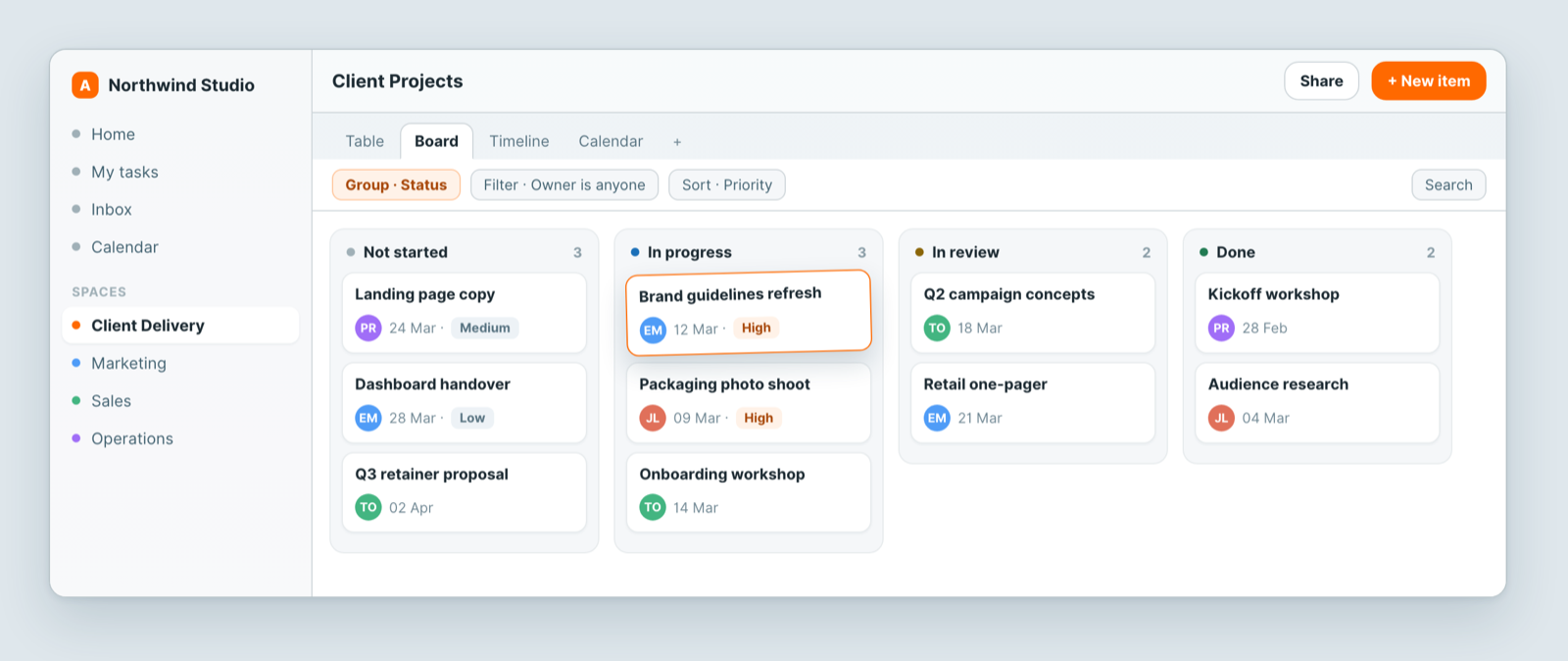
Group by stage and drag deals across as they progress. The column counts show where deals accumulate — which is the most useful thing a pipeline tells you.
Add a close date and an owner and you can filter to what is closing this month, and whose it is.
Connect sales to delivery
This is where CRM in a work platform beats a standalone one. Link a deal to the project that follows it: when it closes, delivery already knows what was sold, by whom, and on what terms — no handover document, no re-typing.
A Relation to your projects sheet is all it takes. See Relations, mirrors and rollups.
Automate the admin
- Deal moves to Won → create the delivery project and notify the team.
- Deal sits in a stage too long → remind the owner.
- Form submission → create a contact and a new deal.
Related: Apps and the launchpad · Board view · Automate the repetitive parts