How to set a form's thank-you screen
The thank-you screen is what people see after they submit your form. You can show your own message with their answers filled in, show a short reply Dana writes to each person from their answers, or send them to a page on your website. Anyone who can change the sheet's structure sets it in Form Studio.
Before you start
- You need permission to change the structure of the sheet the form saves its answers to.
- You need a form. To build one, see Build a form and collect responses.
Open the thank-you screen
- Open the sheet the form saves to and choose Form Studio.
- Choose the form's tab. It opens in Build.
- Above the form, choose Thank-you screen.
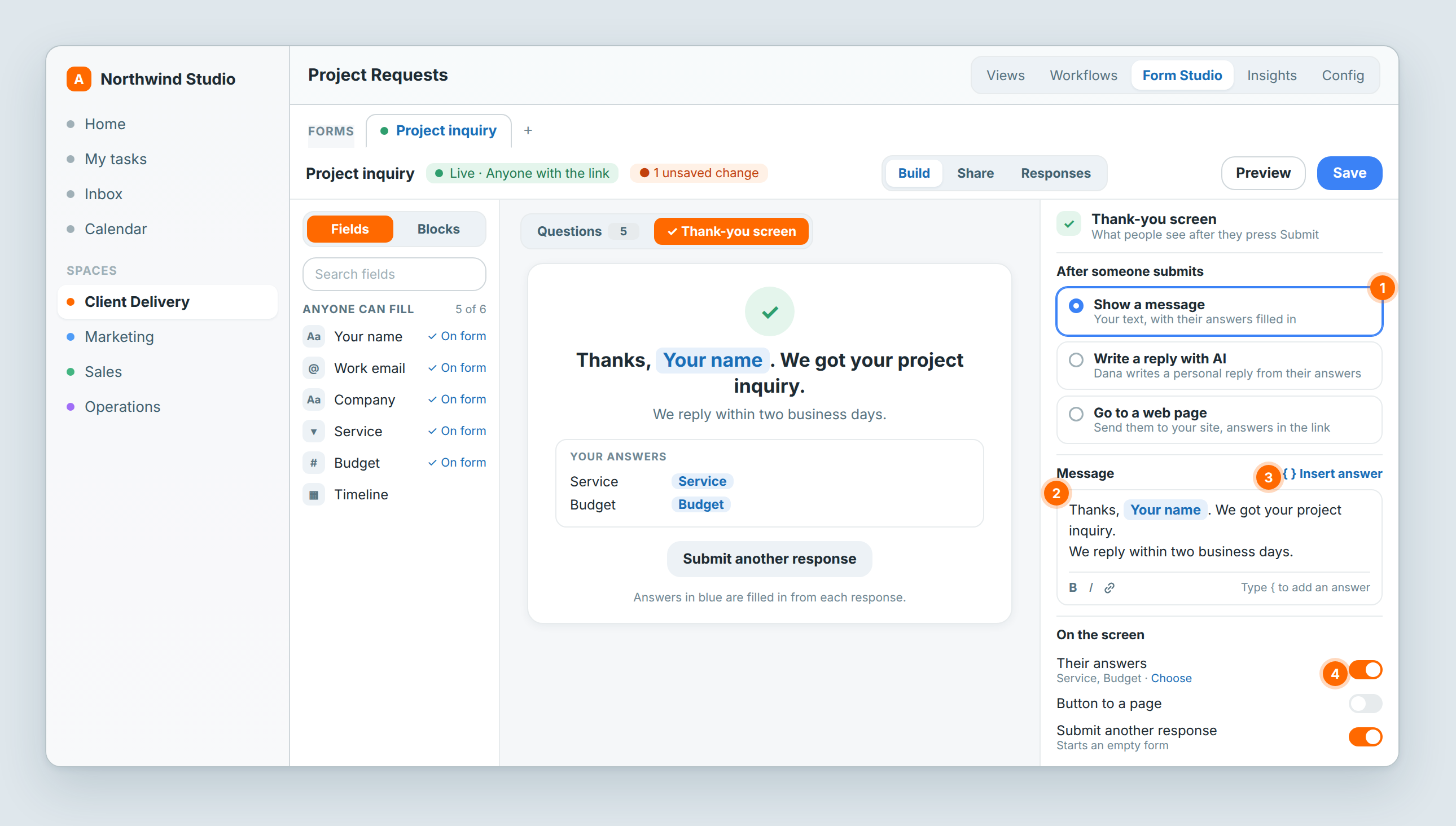
The right panel shows After someone submits, with three choices: Show a message, Write a reply with AI and Go to a web page. If you leave the message empty, people see "Thanks, we got it."
Show your message
- Under After someone submits, choose Show a message.
- In Message, type what people should read. The first line becomes the heading of the screen.
- To add someone's answer to the text, choose Insert answer and pick the field. You can also type { in the message.
- To list their answers under the message, turn on Their answers.
- Under Their answers, click Choose and tick the answers to show.
- To add a link to one of your pages, turn on Button to a page.
- Fill in the button's Label and Link. Use a full address that starts with https://.
- Submit another response is on by default and starts an empty form. Turn it off to hide that button.
- Choose Save.
The middle of the screen shows the result, with each answer in blue where a person's answer will go.
- When an answer is empty, the sentence that holds it is left out, so the message never shows a gap.
- In the Insert answer list, fields marked Members only – empty for visitors stay empty for people who aren't signed in as members of your workspace.
- B, I and the link button under the message format the selected text.
Let Dana reply to each person
With this choice, Dana reads each person's answers and writes them a short reply on the thank-you screen.
- Under After someone submits, choose Write a reply with AI.
- In What the reply should say, write the instruction, for example: thank them by name, say whether the service they picked is something you do, and say when you'll reply.
- To put an answer in the instruction, click its field under Add an answer:.
- Check the Fallback message. People see it if the reply can't be written in time. It holds up to 500 characters.
- Next to Thank-you screen above the form, choose Write a sample. Dana makes up one set of answers and writes the reply, so you can read it before anyone else does. Write another sample tries again.
- Choose Save.
After they submit, people see "Writing your reply…" for a few seconds, then Dana's reply. If it takes longer than 15 seconds, or AI is unavailable, they get the fallback message instead. The options under On the screen work with this choice too.
Each response uses AI credits from your workspace, and each sample uses a few. When credits run out, visitors get the fallback message and you get one notice. See The AI budget.
Send people to your website
- Under After someone submits, choose Go to a web page.
- In Page address, type the full address of the page, starting with https:// or http://.
- To pass an answer to your page, put the cursor after the site name, choose Insert answer and pick the field. For example, an address that ends in ?name= followed by the Your name answer lets your page greet each person by name.
- Show a short message first is on by default: people see "Thanks, taking you to northwind.studio…" for 3 seconds, then your page opens. Turn it off to send them straight there.
- Choose Save.
Answers can go after the site name, not in it: an answer placed in the site name shows "Answers can go after the site name, not in it." With no address, Save stops and shows "Add the page address".
When someone fills the form from its link, your page opens in the same tab. When the form sits on a portal or a space home, people get a button that opens your page in a new tab instead. Your page takes the place of the thank-you screen, so the On the screen options don't apply.
Check it before you share
Choose Preview, fill in the form and send it. Preview shows the thank-you screen, creates no row and runs no workflow.
- With Go to a web page, Preview shows the address with the answers filled in and stays on the form.
- With Write a reply with AI, Preview shows the fallback message. Use Write a sample to read a reply.
Ask Dana to set it
You can also ask Dana, for example: "After someone submits the Project inquiry form, send them to the thanks page on northwind.studio, with their name in the link." Dana can set the message text, the AI reply or the web page. Answers in the message, Their answers, Button to a page and Submit another response are set in Form Studio.
Workflows that run on each response
At the bottom of the panel, Also when someone submits lists the workflows that run on every response, each with Open. To be told about each new response, see Following up on form submissions.
Related: Build a form and collect responses · Share and embed a form · Following up on form submissions · The AI budget