Google Drive and Dropbox
Add files from Google Drive and Dropbox to File List fields, comments, chats and pages, without uploading them again. Atwork keeps a link to the file, so it stays where your team edits it. When a row with a Drive or Dropbox file is on your client portal, your client gets a copy they can preview and download. This page covers connecting, where each one works, and what your client sees.
Connect Google Drive
Connect Google Drive once, from your own settings, before you add files from it.
- Open Settings › Connections (under AI and apps).
- Under Browse integrations, on the Google Drive card, "Attach files from your Google Drive", click Connect.
- Sign in to Google in the popup and allow access.
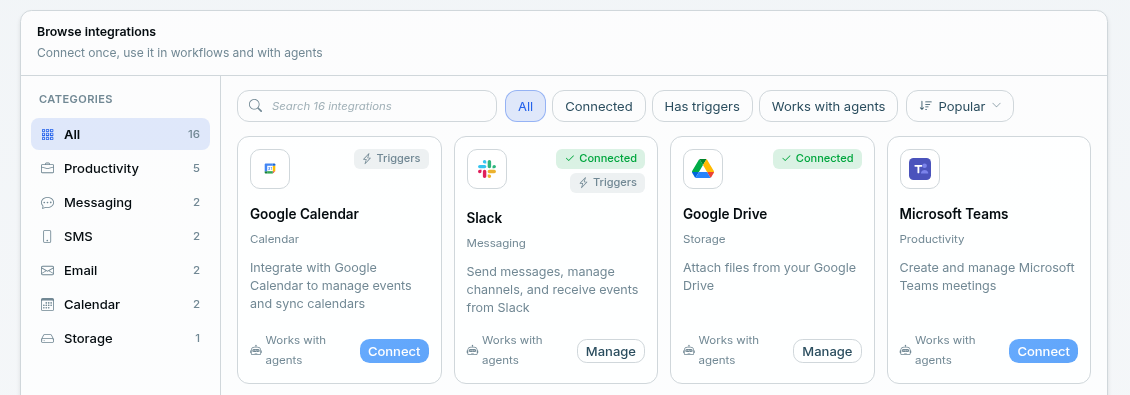
- It's your own connection. Each person connects their own Google account; there's no connection for the whole organization.
- Who can connect: owners, admins and employees. Guests and customers can't.
- What Atwork can reach: only the files you pick, and the files Atwork creates for you, such as folders from the Drive folder per row template. Atwork doesn't see the rest of your Drive.
- To disconnect: under Your connections, open the ⋯ menu on Google Drive and click Remove. Workflows and agents that use it stop working until you connect it again.
Dropbox
Dropbox has no connection in Settings. When you click Add from Dropbox or Attach from Dropbox, Dropbox opens its own window, where you sign in and pick the files.
Add files to a File List field
Open a File List cell and click Add from Google Drive or Add from Dropbox.
- You can pick several files at once. Folders can't be added.
- Atwork stores a link to each file, not a copy. The file stays in Drive or Dropbox, and edits there show up the next time someone opens it.
- If you haven't connected Google Drive yet, the cell shows Connect Google Drive to add files from it.
Previews. A Drive file opens in Google's own preview, with the viewer's own Google access. A Dropbox file opens in Dropbox's preview; when Dropbox has none, you see "No preview for this file. Open it in Dropbox." A Drive file can also show one of these messages:
| Message | What it means |
|---|---|
| You don't have access in Google Drive | The file isn't shared with your Google account. Click Request access in Drive to ask its owner. |
| This file was deleted or moved in Google Drive | The original is gone. The link stays in the cell until you remove it. |
| Your Google Drive connection expired | Click Reconnect to preview the files you added. |
Save a copy to Atwork
To keep a file even if the original changes or goes away, open the file's ⋮ menu and click Save a copy to Atwork. The link becomes an Atwork file.
- Google Drive: only the person who added the file can save a copy. Google Docs are saved as Word (.docx), Google Sheets as Excel (.xlsx), and Google Slides and Drawings as PDF. Other Google file types, such as Forms, can't be copied.
- Dropbox: anyone who can edit the cell can save a copy.
Comments and chats
In item comments, threads, inbox chats and space conversations, click Attach from Google Drive or Attach from Dropbox in the message box.
- They add a link to the file, not a copy. Everyone who reads the message needs their own access to open it.
- They aren't offered in support tickets or in chats with Dana and other agents.
Pages
Paste a Google Docs, Sheets, Slides or Drive file or folder link, or a Dropbox file or folder link, alone on an empty line, and it turns into an embedded preview. To go back to a plain link, click Turn into link. A page published to the public web shows a plain link instead of the preview.
A Drive folder for every row
The Drive folder per row template gives each row its own Google Drive folder and puts the link on the row.
- Open the sheet's Workflows tab and click Start from a template.
- Choose Drive folder per row.
- Set it up:
- Parent folder: click Choose in Google Drive and pick the folder the new folders go into.
- Field for the folder link: an existing URL field, or a new Drive folder field.
- Create a folder for every new row: on, so each new row gets a folder.
- Share the folder with the row's people: pick the People fields and the Access: Viewer, Commenter or Editor.
- Click Set up.
The setup adds a Create Drive folder button field, for rows that already existed, and the workflows that create the folders.
- It always creates a new folder, named after the row. It doesn't link a folder you already have.
- One setup per sheet. It runs on your own Google Drive connection.
- Files you put in the folder don't appear on the row. The row holds the folder's link. Add the files you want on the row, or on your portal, to a File List field.
Drive in workflows
Workflows have Google Drive actions: Create Folder, List Folders, Copy Template Doc, Upload File, Get File and Share (Viewer, Commenter or Editor, up to 20 email addresses). On a folder or file setting, click Choose in Google Drive to pick it instead of pasting an ID. When a step uses another member's Google Drive connection, you see "This step uses another member's Google Drive. Paste a link or map a variable." instead of the picker.
What your client sees in the portal
When a row on your client portal has Drive or Dropbox files, your client gets a copy that Atwork stores and serves, with Preview and Download.
- No account needed. Your client doesn't need a Google or Dropbox account, and doesn't get access to your Drive or Dropbox.
- When the copy is made. Atwork makes the copy when a customer or guest loads the rows, or when they open the file, which shows Preparing file… for a moment. Adding a file to a row doesn't make a copy by itself.
- File formats. Google Docs arrive as Word (.docx), Google Sheets as Excel (.xlsx), and Google Slides and Drawings as PDF. Other files arrive as they are.
- When the original changes. When your client opens a copy that's more than 10 minutes old, Atwork checks the original and replaces the copy if it's newer.
- When the original is deleted or can't be read. Your client keeps getting the last copy. If no copy was ever made, they see "This file was removed by the team that shared it." or "This file isn't available right now."
- To withdraw a file, remove it from the cell, or delete the row or the field. The copy is deleted with it.
- Customers and guests can't add Drive or Dropbox links in the portal.
- The copies count toward your organization's storage.
To set up the portal itself, see Build your client portal.
Agents
Agents read Google Drive files, never Dropbox files. In a chat, an agent reads the Drive files on a row that you added yourself; in a workflow, the Agent step reads them with the connection of the person who added them. An agent can also use up to 5 Drive files as knowledge. The details are in Files and agents.
Limits at a glance
| Where | Google Drive | Dropbox |
|---|---|---|
| Connect in Settings | Yes | No: sign in when you pick a file |
| File List fields | Yes | Yes |
| Comments and chats | Yes | Yes |
| Page previews | Yes | Yes |
| Client portal copies | Yes | Yes |
| Save a copy to Atwork | Yes, by the person who added it | Yes, by anyone who can edit the cell |
| Agents read the files | Yes | No |
| Workflow actions | Yes | No |
| Folder per row | Yes | No |
Frequently asked questions
Does Atwork see my whole Google Drive?
No. Atwork can reach only the files you pick and the files it creates for you, such as folders from the Drive folder per row template.
Why does a teammate see "You don't have access in Google Drive"?
The preview opens with your teammate's own Google account, and the file isn't shared with it. They can click Request access in Drive to ask the file's owner.
Does my client need a Google or Dropbox account?
No. The portal serves a copy stored in Atwork, so your client opens it with Preview or Download and never signs in to Google or Dropbox.
What happens if I delete the file in Drive?
In the cell, your team sees "This file was deleted or moved in Google Drive" and the link stays until someone removes it. On the portal, your client keeps getting the last copy Atwork made.
Can agents read Dropbox files?
No. Agents read Google Drive files only. To have an agent read a Dropbox file, save a copy to Atwork or download it and attach the file.
Related: Files and agents · Build your client portal · What is the client portal? · Field types explained · Automation actions