See where a row came from
The Source field shows what created each row: someone in the app, a form, an agent, a workflow, an API key, a CSV import or your portal. Add it once and every row shows its source.
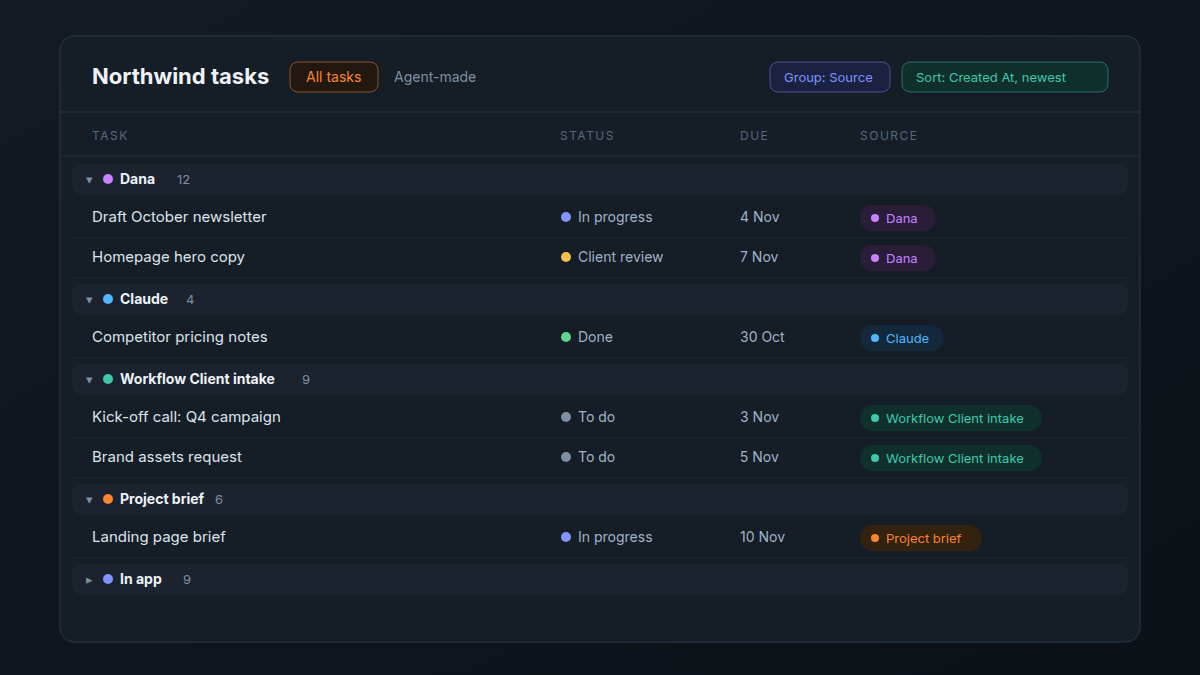
Add the Source field
- Add a new field to the sheet.
- In the System section, pick Source.
You need permission to change the sheet's structure. The field is read-only: Atwork fills it in when a row is created.
What the values mean
| Source | The row was created by |
|---|---|
| In app | Someone working in Atwork |
| The form's name | That form |
| Dana, or a custom agent's name | Dana or that custom agent |
| The assistant's name, such as Claude | An assistant connected to your workspace |
| Workflow and its name | That workflow |
| API key and its name | A tool using that API key |
| CSV import | An import |
| Portal | A client, through your portal |
| An integration's name | That integration |
| Other | A source Atwork does not recognise |
Rows created before Atwork started recording sources have no value.
Filter and group by Source
- Filter on Source to see only what one form, agent or workflow added, for example Source is Dana. Keep it as a view to review an agent's work each week.
- Group a table by Source for a count per source.
- On a board, Source can be the columns. You can't drag cards between them, because Atwork sets the value.
Source records creation only
Source never changes after a row is created. When someone, or an agent, edits the row later, the edit shows in the row's History, with the person and the source of each save, such as "Sara with Claude". See The item peek.
Related: The item peek: open a record · Filter, sort and group · Assign work to an agent
Related articles
Google Drive and Dropbox
Add Google Drive and Dropbox files to File List fields, comments and pages, and give clients a copy on the portal. What works where, and the limits.
Archive and restore rows
Archive rows in Atwork to hide them from views, counts, charts and search without deleting anything, then show or unarchive them again at any time.
Fill a field automatically
Set an Atwork field to fill itself: from a formula, from AI that reads the item, or with a default for new items. Modes, refills, marks and cost.