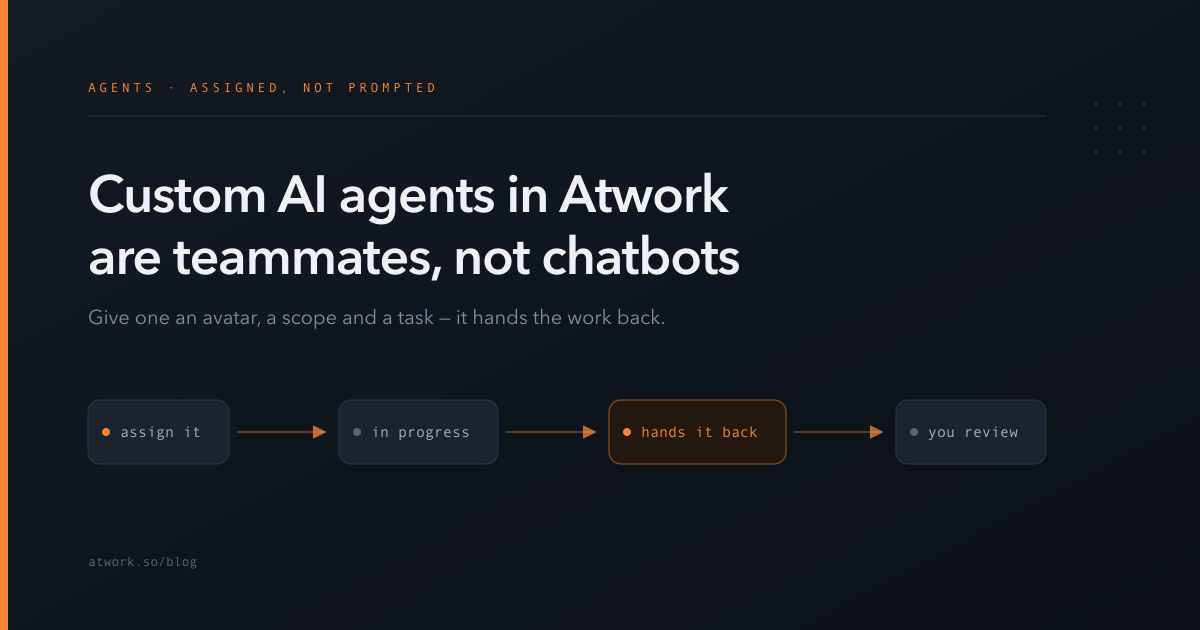
Most AI features in work tools are a sidebar you talk to. You open a panel, describe your problem, copy the answer back into the thing you were actually doing. Custom AI agents in Atwork work the other way round: you create an agent, give it a name and a face, decide what it is allowed to see, and then assign it a task like you would assign a colleague. It picks the task up, does the work in your workspace, and hands it back with a comment.
This guide covers what an agent is in Atwork, how to build one, how to scope what it can touch, and which jobs are genuinely worth delegating.
What is a custom AI agent in Atwork?
A custom AI agent is an AI teammate you configure yourself and add to your workspace. It has a name, an avatar, a personality you write, and a defined slice of your data it is allowed to work with. Once created, it appears in your team's people list, in assignee dropdowns, and in mention menus — the same places a human teammate appears.
That last point is the whole design. An agent is not a separate surface bolted onto the side of your workspace; it is a participant in it. When you assign a task to your Content Editor agent, the task looks exactly like any other assigned task on the board. When it finishes, the comment it leaves sits in the same thread your team is already reading.
You can create as many as you need, and they can differ from one another completely — a research agent with read-only access to your CRM, a triage agent that can edit rows on one support sheet, a writing agent that only ever sees the marketing space.
Why assign work to an agent instead of chatting with one?
Because chat makes you the integration layer. In a chat-based assistant, you supply the context by hand, read the answer, and then do the actual updating yourself. The AI produces text; you produce the work.
Assignment removes those two steps. The agent already has the item — its fields, its description, its comment history — because the task is the context. And it can write the result back into the workspace, so the outcome is an updated row or a posted comment rather than a paragraph you have to transcribe.
There is a second, quieter benefit: the work stays on the record. An agent's actions appear under its own identity, in the same activity history as everyone else's. You can see exactly which agent changed which field on which item, and when. A chat window leaves no such trail.
If you would rather go the other way — bring your workspace to an assistant instead of an agent to your workspace — that is what connecting Atwork to Claude over MCP does. The two approaches suit different moments, and most teams end up using both.
How do you build your first agent?
Agents are created by an administrator in your workspace settings, under the Agents section. Building one is a handful of decisions rather than a form to grind through:
- Persona. A short description in plain language of who this agent is and how it should behave — its job, its tone, its rules of thumb. This is the highest-leverage field in the whole builder, and it is worth reading how to write a persona that actually works before you fill it in. Telling an agent to summarise a customer issue in two sentences, set a priority, and never promise a delivery date produces a very different teammate than telling it to be a helpful assistant.
- Avatar and name. Pick a face and a name your team will recognise in an assignee column. Treat it as a role, not a mascot: Release Notes beats Sparkle.
- Model. Choose which underlying AI model powers it, from a grouped picker that shows relative cost and what each model is good at. The short rule is to match the tier to the shape of the job — cheap and fast for summarising and tidying, the strongest tier only for reasoning-heavy work.
- Data access and capabilities. What it can see, and what it can do. This deserves its own section.
You can edit any of these later. Changing the persona of an existing agent takes effect on its next task, so treating the persona as something you refine over a few weeks is the normal way to work.
What can an agent see, and what can it change?
Two separate settings control this, and it is worth keeping them distinct in your head.
Data access is scope: which spaces and which sheets this agent is allowed to work with. An agent scoped to your Marketing space cannot read your HR sheets — not politely declining, but genuinely unable to reach them.
Capabilities are verbs: whether the agent can only read, or also create and update items. A read-only research agent that summarises and answers questions is a much smaller commitment than one that can edit rows, and it is a good place to start with any new agent.
Above both sits a third limit: an agent always acts as a real person, never as an unbounded service account. Mention an agent in a thread and it acts with your access. Give it a task from your board and it acts with the access of the person who created that item — that is the identity the work authorises against. Either way its reach is the intersection of its configured scope and someone's real permissions, and the narrower of the two wins. Adding an agent to your workspace does not manufacture a view of data that nobody on your team can already open.
If you are the person who has to answer for this internally, what an agent can actually see goes through the permission model in full, including what to tell your team before you roll agents out.
A sensible default for a new agent
Start read-only, scoped to one space. Watch what it produces for a week. Widen the scope or grant write access only once you have seen its output on real work. Every agent that has caused someone regret was given the run of the workspace on day one.
How does an agent pick up a task?
Through your statuses. Each agent has a work policy that names three of them: the status that means this is yours now, the status it moves the task to while it is working, and the status it hands the task back to when it is done.
So the flow is one you already know. You assign an item to the agent and set it to the pickup status. The agent claims it, flips it to the working status so nobody wonders whether anything is happening, does the work, posts its result as a comment, and moves the item to the handback status for a human to review. If it fails, the task stops there rather than looping.
There is also a cap on how many tasks an agent holds at once, so a bulk import of forty rows does not turn into forty simultaneous jobs.
The reason this matters more than it sounds: nothing about your board changes. You do not learn a new interface to work with agents. Your existing statuses, your existing views, and your existing notion of done carry over, and the agent slots into the process you already run.
How do you pull an agent into a discussion?
Mention it. In the comment thread on any item, type the agent's name with an @ the way you would tag a colleague, ask your question, and it replies in the same thread.
This is the lightweight half of the feature, and in practice it is the half most teams use first. You are looking at a deal that has gone quiet and you want the history summarised. You are three replies into a bug thread and want the reproduction steps pulled out. You do not want to assign a task, you want an answer where the conversation already is.
Because the mention happens on a specific item, the agent has that item's context automatically — no pasting, no re-explaining. And it answers as you: with your access, in your thread, on the record.
Which jobs are worth delegating to an agent?
The honest answer is: the ones that are well-defined, repetitive, and cheap to check.
Good candidates share a shape — the input is already in the workspace, the output is short, and a human can verify it in a few seconds:
- Summarising a long comment thread or a stalled deal into a few lines
- Drafting a first version — release notes, a reply, a job description — for a human to edit
- Triage: reading an incoming request and setting category, priority, and owner. This is the best first agent for most teams, and there is a step-by-step build of one to follow.
- Filling in the fields everyone forgets, from information already present in the description
- Answering questions across a sheet you have not looked at in a month
Poor candidates share the opposite shape. Anything where being wrong is expensive and being wrong is hard to notice — final approvals, anything customer-facing that ships without review, decisions that depend on context that lives only in someone's head. Delegating those does not save time; it moves the work from doing to checking, and checking is the slower half.
There is also a large category of work that looks like an agent job and is not one: anything you could write down as a fixed rule. That belongs in an automation, and the difference between the two is worth being clear on before you build either.
The practical test before you create an agent: can you describe the job in three sentences, and can you tell at a glance whether it was done right? If both are yes, it is a good first agent.
Getting started
Create one agent, not five. Give it a narrow persona, read-only access to a single space, and a job you currently do yourself every week. Assign it something real. Read what it hands back.
The teams that get the most out of agents are not the ones who automated the most — they are the ones who found two or three jobs worth handing over and defined them well. Start free and give your first agent the job you have already done twice this week.