On Monday, a client asks why their content board has 40 rows nobody remembers adding, and why two deadlines moved over the weekend. If Dana, a custom agent or a connected Claude has been working on that board, you need an AI agent audit trail you can open in a minute. In Atwork, two places answer the question. The Source field shows what created each row, and History shows every save on a row since, with the person and the source on each one.
What should an AI agent audit trail tell you?
It should answer three questions: where a row came from, what changed on it since and who or what made each change, and what left the workspace. In Atwork each has its own place to look, and none needs an export.
| Question | Where to look | What you see |
|---|---|---|
| Where did this row come from? | The Source field | The form, agent, workflow, import or person in the app that created it |
| What changed on it since? | History, on the row | Every save, with the person, the source, and the old and new values |
| What did an agent change across 300 rows? | The step in the agent chat | The whole batch, with one Undo for 7 days |
| What went to a client? | The approval card | Slack messages, emails and SMS wait for Approve, unless someone chose Always allow in that chat or the owner turned on Agents can send email without asking |
The first two answer most "who put this here?" questions, and they are the subject of this post. The preview, the Undo and the approvals are covered in what happens when an AI agent wants to change 300 rows.
How do you see which form, agent or workflow added a row?
Add the Source field to the sheet once. From then on, every row shows what created it: a person in the app, a form, Dana, a custom agent, a connected assistant, a workflow, an API key, a CSV import or your client portal. Atwork sets the value itself, and nobody can edit it.
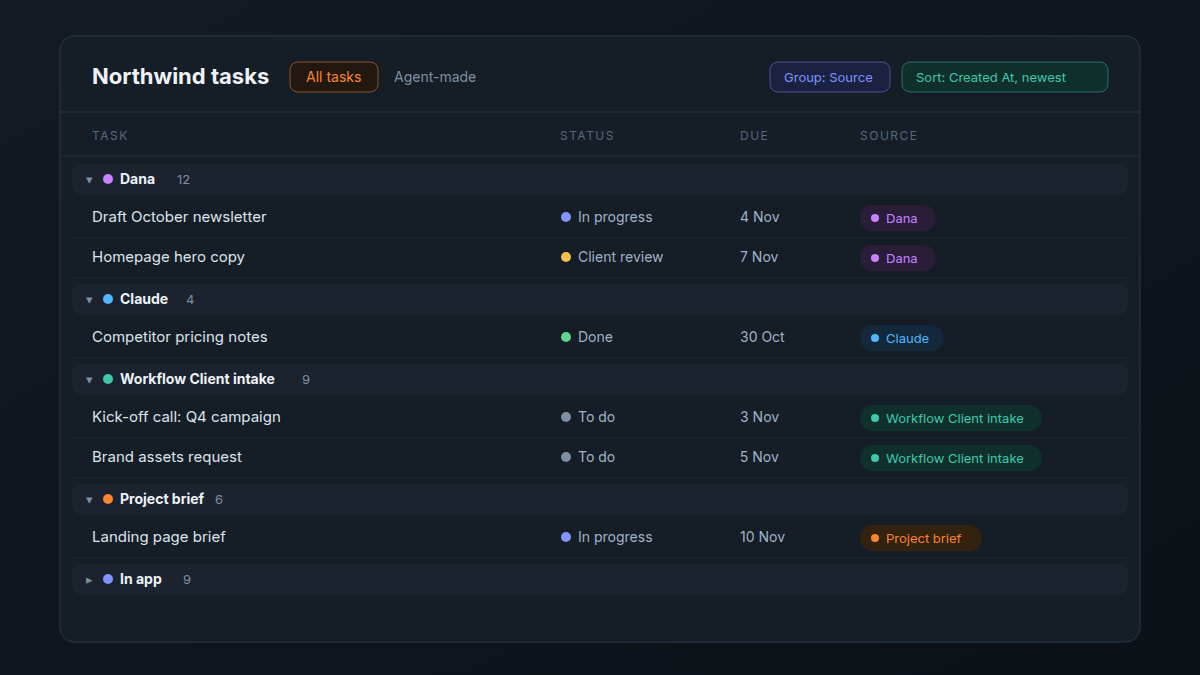
To add it, open the dialog for a new field, go to the System section and pick Source. You need permission to change the sheet's structure. The values you will see:
- In app: someone created the row in Atwork.
- The form's name, such as Project brief: the row came in through that form.
- Dana, or a custom agent's name: an agent in your workspace created it.
- The assistant's name, such as Claude: an assistant connected to your workspace created it.
- Workflow Client intake: a workflow created it, named after the workflow.
- API key plus the key's name: a tool using that key created it.
- CSV import or Portal: an import, or a client through your portal.
Rows created before Atwork started recording sources have no value, so the field leaves them empty instead of guessing. A source Atwork cannot place reads Other.
How do you review only what an agent created?
Filter the sheet on Source and keep the filter as a view. A view of the rows Dana made, newest first, turns review into a habit: open it on Friday, read what is new, fix what is wrong.
- On the client's board, create a view and call it "Agent-made".
- Add a filter: Source is Dana. If a custom agent or Claude also works on the board, include them in the filter too.
- Sort by Created At, newest first.
- For a count per source, group a table by Source. A board can use Source as its columns too; you cannot drag cards between them, because Atwork sets the value.
Trust in an agent is a view you open every Friday, not a promise you take on faith.
The same field answers the opposite question. Filter on Source is In app and you see only the rows people added themselves.
How do you see what an agent changed on a row it didn't create?
Open the row and read its History. Source never changes after a row is created, so an agent's edit to a row someone else made does not show there. Every save shows in History instead, with the person and the source on one line: "Sara with Claude", "Sara with Dana", or "Via Workflow Client intake" when no person was involved.

Each entry names the field and shows the old value and the new one, so a due date moved from 12 Nov to 19 Nov reads 12 Nov → 19 Nov. An edit to the description or another long text field shows Before and After under Show change. The oldest entry says what created the item. Three filters narrow a long history: All fields to pick one field, Anyone to pick one person, and Any date for a date range. Clear filters resets them.
On a board, the card's menu has a shortcut. Its Last edited line shows who made the latest edit and through what, without opening the row.
What can you take back once you find it?
A bulk change an agent made from the chat has one Undo on that step for 7 days, for the person who asked for it, the org owner or an admin. A single-record edit has no Undo button: History shows the old value, and you put it back by editing the field. A message sent outside the workspace waited for an Approve first, unless someone chose Always allow in that chat or the owner turned on Agents can send email without asking for shared email connections. Either way, a sent message cannot be recalled. An AI policy for a 10-person agency explains why to keep that switch off until an agent has earned it.
Some tools go further here. Notion's version history, upgraded in October 2026, lets you restore prior versions with a quick click. Atwork's History has no restore button. For a few fields, retyping the old value takes seconds; for a large mistake, the batch Undo is the tool, which is why the review happens within the week.
When a change should never happen without someone looking first, put it behind an approval. In a workflow, the Agent step's Ask before making changes option pauses the run until a person approves each change. Human-in-the-loop approvals for AI workflows walks through that setup.
What should an agency check every week?
Ten minutes per client board on Friday covers it. Open the agent-made view, read the History of a few rows, and look at any row whose source you don't recognise. You are looking for a pattern, before the client finds it.
| Check | Where | What to look for |
|---|---|---|
| Rows an agent created this week | The Agent-made view | Duplicates, the wrong client, rows nobody asked for |
| Five rows the agent touched | History on each row | Status and date edits made with an agent |
| Bulk changes in the chat | The agent chat | Anything wrong while the 7-day Undo is open |
| Rows with the source Other | Group the table by Source | What created them, and whether it should have |
When something is wrong:
- Fix the row first. Take the old value from History, or use the batch Undo while it is open.
- Then fix the instruction. If Dana keeps setting the wrong status, the row is the symptom. Change the agent's instructions or the skill it follows.
- Add a check where it repeats. A change that has gone wrong twice belongs behind an approval step.
For what to hand an agent in the first place, see what an AI teammate does in an agency.
Frequently asked questions
Can you see which records an AI agent created?
Yes. Add the Source field to the sheet, and rows an agent created show its name, such as Dana, a custom agent or Claude. Filter on Source to list only those rows.
Does the Source field change when someone edits a row?
No. Source records what created the row and stays the same after that. Edits, by people or by agents, are in the row's History, each with its source.
How do you see what an AI agent changed on a record?
Open the record and read its History. Each save shows the person and the source, such as "Sara with Claude", with the field's old value and the new one.
Can you undo a change an AI agent made?
A bulk change from the agent chat has an Undo for 7 days. A single-record edit has no Undo button, so you put the old value back by hand, reading it from History.
Why do some rows show no source?
They were created before Atwork began recording sources. The field does not guess what made them, so it stays empty.
Where should you start this week?
Pick one client board an agent works on. Add the Source field, filter it to Dana, and open the History of three rows. In fifteen minutes you will know whether that board's agent work holds up. The agents page shows what agents can take on, and assigning work to an agent covers setting one up.
Add Source to one client board and filter it to Dana. You will know what the agent made before the client asks. Start free