The calendar
Calendar in the sidebar is your own time — meetings, events and dated work in one place.
Connect your existing calendar
Do this first, or the calendar is only half your life. Connect Google Calendar or CalDAV under Profile settings → Connections and your existing meetings appear alongside your Atwork work.
It also matters for scheduling: connecting is what stops people booking you when you are already busy. See Connect Google Calendar.
Create an event
Click a day, or click and drag across a time range. Set the title, the time and who is involved. If you have a meeting tool connected, a video link can be created with it.
Meetings and work together
The useful part: a deadline sitting on the same view as your meetings. Three calls and two things due is a different day from three calls and nothing due, and you can see which one you are having.
Times are shown in your timezone
Everything renders in the timezone set under Profile settings → Working hours. If times look shifted, that setting is the first thing to check — see Dates look wrong.
Calendar view on a sheet is a different thing
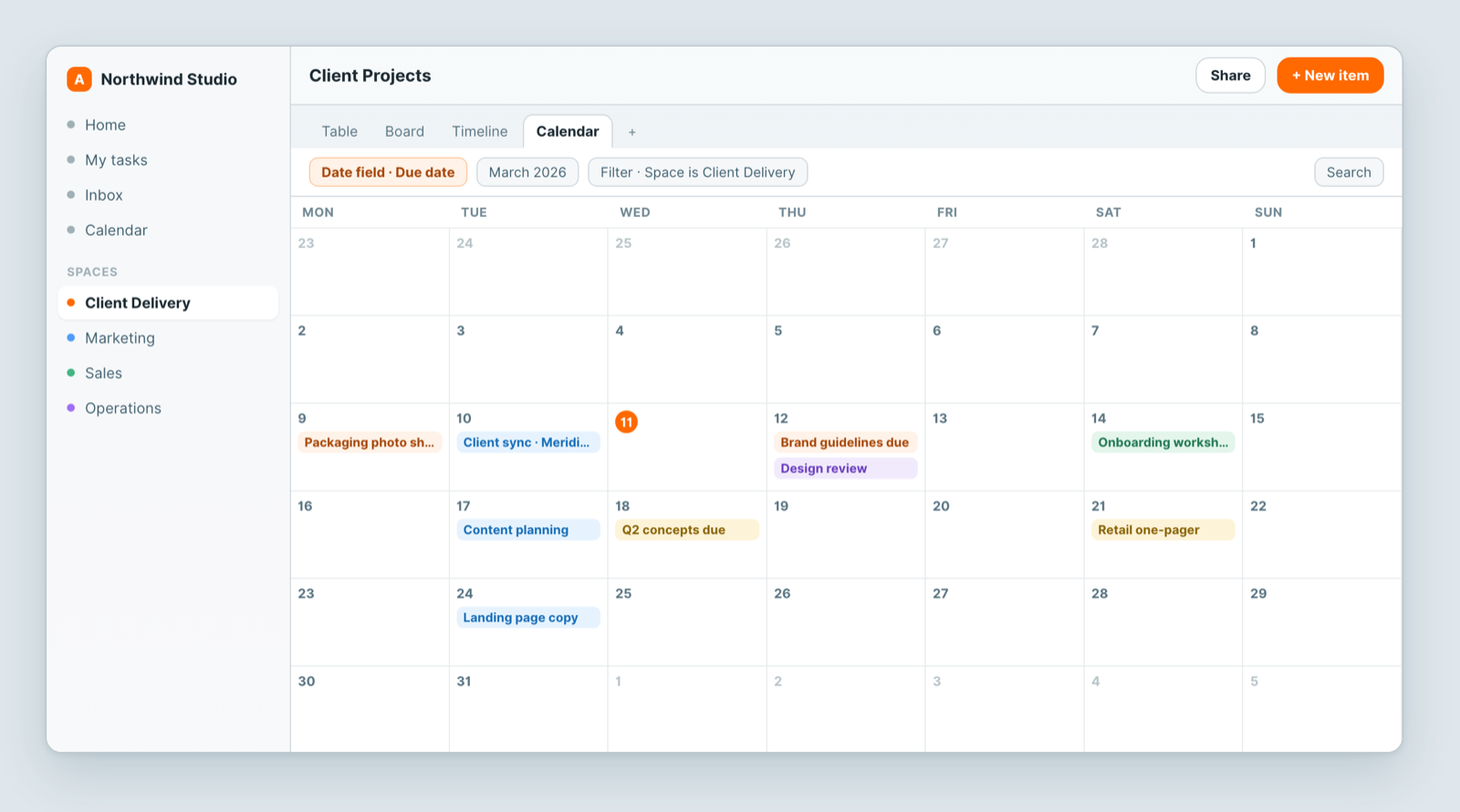
A Calendar view puts one sheet's records on a calendar — a content schedule, a shoot plan. That is a lens on that sheet. This calendar is yours, across everything. Both are useful; they answer different questions.
Related: Calendar view · Working hours and availability · Connect Google Calendar