How to send Dana a voice message
Talk to Dana instead of typing: record a request in Dana's chat, and Dana turns it into text, in Farsi or English. You don't pick the language; Dana detects it. Anyone who can chat with Dana can send a voice message, on the Pro plan and up (see pricing).
Before you start
- Your workspace is on Pro, Business or Enterprise. On Free, the microphone opens Talk to Dana is on Pro instead of recording.
- Use a browser that records audio, such as Chrome, Edge or Firefox, on a device with a microphone.
- The microphone is in the chat that opens from Ask Dana in the header. A sheet's Insights tab and the Inbox don't have one.
- Each recording uses your workspace's AI budget, by the minute of audio.
Send a voice message
- Click Ask Dana in the header to open Dana's chat.
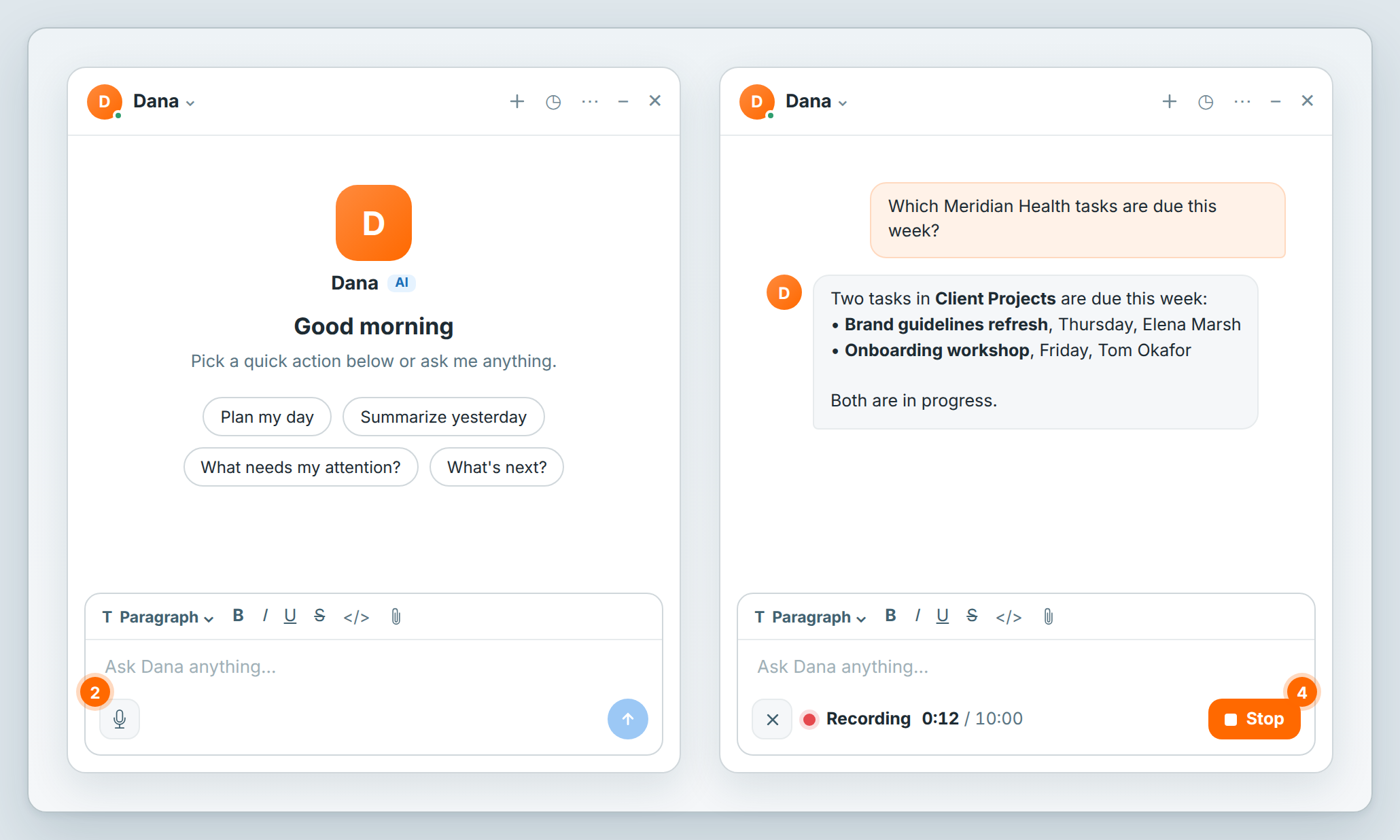
- Click the microphone, Talk to Dana, at the bottom of the message box. The first time, your browser asks to use your microphone: allow it.
- Say your request. The timer shows how long you have been recording, up to 10:00. At 10 minutes, the recording stops and Dana transcribes it.
- Click Stop. Dana shows Transcribing… while it turns your recording into text.
- Read the text in the message box and fix anything Dana misheard.
- Click Send.
Your request goes to Dana as text, and Dana answers it like any message you type. Only the text appears in the conversation.
To drop a recording, click Cancel (the ✕ beside the timer) while you record, or Cancel while Dana is transcribing. Nothing is sent.
Send it right away, without reviewing
By default, the text waits in the message box so you can check it. To have Dana take it as soon as it is ready:
- Click your profile picture to open the account menu.
- Choose Settings → AI & agents.
- In Voice messages, set After transcribing to Send right away.
The setting is yours alone: it changes your own voice messages, not your teammates'. Choose Review before sending to go back.
Send Dana a recording you already have
Attach an audio file, such as a recorded call or a voice note from your phone, and ask Dana to transcribe or summarize it.
- In Dana's chat, click the paperclip, Attach file.
- Choose the recording.
- In the same message, say what you need, for example "Transcribe this" or "Summarize this call and list the action items".
- Click Send.
Dana answers in the chat with the transcript or the summary.
- Each recording can be up to 10 minutes long. Trim a longer one or split it into parts.
- Dana takes WAV, MP3, M4A, MP4, AAC, OGG, OGA, OPUS, FLAC, WEBM, AMR and WMA files.
- Dana can also transcribe an audio file in a row's File List field: name the row and ask.
- Like a voice message, it needs the Pro plan and up and uses the AI budget by the minute of audio.
If something goes wrong
| What you see | What to do |
|---|---|
| Microphone access is blocked. Allow it in your browser's site settings to talk to Dana. | Allow the microphone for Atwork in your browser's site settings, then click the microphone again. |
| No microphone found. | Connect a microphone or turn yours on, then try again. |
| Too short — hold on a little longer | Recordings under 1 second aren't transcribed. Record again and speak a little longer. |
| Dana didn't catch any words. Try again a little closer to the mic. | Record again, closer to the microphone. |
| Couldn't transcribe your recording | Your recording is kept. Click Retry. |
| Your organization's AI budget is used up | The budget comes back at the monthly reset, or as soon as the workspace owner buys AI credit. See The AI budget. |
| Voice input isn't supported in this browser | This shows when you point at a greyed-out microphone. Switch to Chrome, Edge or Firefox. |
| This browser records audio in a format Dana can't transcribe yet. Try Chrome, Edge or Firefox. | Switch to one of those browsers. |
Related: Meet Dana, your AI assistant · Files and agents · The AI budget