How to run a workflow from a button on a row
Add an Action Button field to a sheet and every row gets a button that runs a workflow for that row. The workflow receives the values you choose from the clicked row, such as its Item ID or its Status. To set it up you need permission to change the sheet's structure. Workflows come with the Pro plan and up (see pricing).
Before you start
- You need permission to change the sheet's structure.
- The workflow must belong to the same sheet and start with a Manual Trigger. The next section creates one.
Create the workflow
- Open the sheet and choose Workflows at the top.
- Choose Start from scratch. On a sheet that already has workflows, choose + next to their tabs to get there.
- In the Node library, choose Manual Trigger.
- Choose the gear icon above the trigger on the canvas.
- Choose Add parameter once for each value the workflow needs from the row.
- Fill in each parameter's Name, Label and Type. Use the type Item ID for the row itself, or a type such as Status or Date for one of its fields.
- Choose Save.
- Add the steps the workflow runs, such as Add comment or Update Item.
- In each step's fields, pick your parameters from the button at the end of the field, where they're listed under Manual Trigger.
- Choose Publish.
The workflow now shows in Workflow to run when you add the button.
Add the button to the sheet
- In the sheet's table, choose + at the right end of the column headers.
- Choose All Column Types.
- In Shape your Data, pick Action Button.
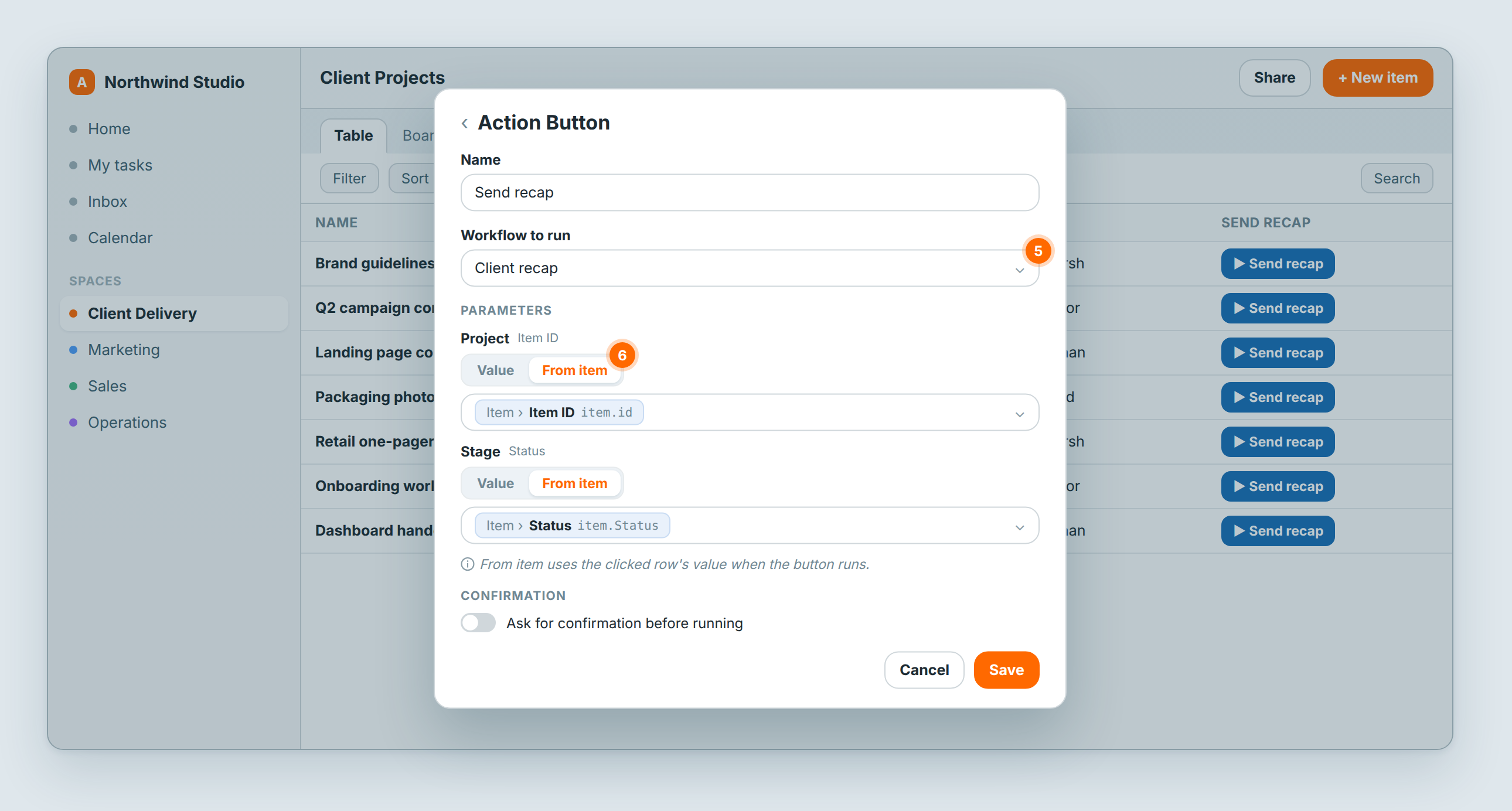
- In Name, type the text the button shows on each row.
- In Workflow to run, choose your workflow.
- Under Parameters, choose Value or From item for each parameter.
- Optional: turn on Ask for confirmation before running. People then confirm each run, with your Confirmation message or a default one.
- Choose Save.
Every row now has the button, in a column with the button's name. To change it later, choose the column header, then Setting → Action.
Value or From item
- Value sends the same value from every row. You type it once in the button's settings.
- From item sends the clicked row's value. Choose it in Pick an item value, and it shows as a chip such as Item › Status.
An Item ID parameter starts on From item, set to the row's Item ID.
From item lists only what fits the parameter's type:
| Parameter type | From item lists |
|---|---|
| Item ID | The row's Item ID |
| Text, Long text, JSON | The row's Item ID and its fields |
| Status | Status fields |
| Select | Select fields |
| Multi-select | Multi-select fields |
| Date, Date & time | Date fields |
| Number | Number fields |
| Yes / No | Checkbox fields |
| Email fields | |
| URL | URL fields |
Status, Select and Multi-select fields send the option's name, such as In review. If the list shows No fields of this type on this sheet, add a field of that type to the sheet, or use Value.
If you add a parameter to the workflow later, open the button's settings, set the new parameter and choose Save.
Run it and check the run
- Choose the button on a row.
- If you turned on confirmation, choose Confirm.
Atwork shows Action triggered successfully, and the workflow runs with that row's values.
To see what the run did, open the workflow and choose Executions, the history icon in the builder's toolbar. A button run is marked Run by hand. Open it and choose Manual Trigger to see the values the button sent. If a run is missing or failed, see Test and debug an automation.
Who can click the button
Members who can open the sheet can click it. Guests can't. A click always runs the workflow and the values saved in the button's settings.
The workflow isn't in the list
Workflow to run lists only workflows on the same sheet that start with a Manual Trigger. A workflow on another sheet, or one that starts with a different trigger, doesn't appear. The list also offers Create new workflow, which adds an empty workflow with a Manual Trigger to the sheet: open it from Workflows to add its parameters and steps.
Related: Automation triggers · Test and debug an automation · Automation actions · Field types explained