How to send a long Dana job to the background
When Dana is working on a long job, such as going through every sheet in a space, you can send it to the background and use Dana's chat for something else. Dana keeps working, and you get a notification when the job is done, couldn't finish, or needs your approval. Anyone who can chat with Dana can do this.
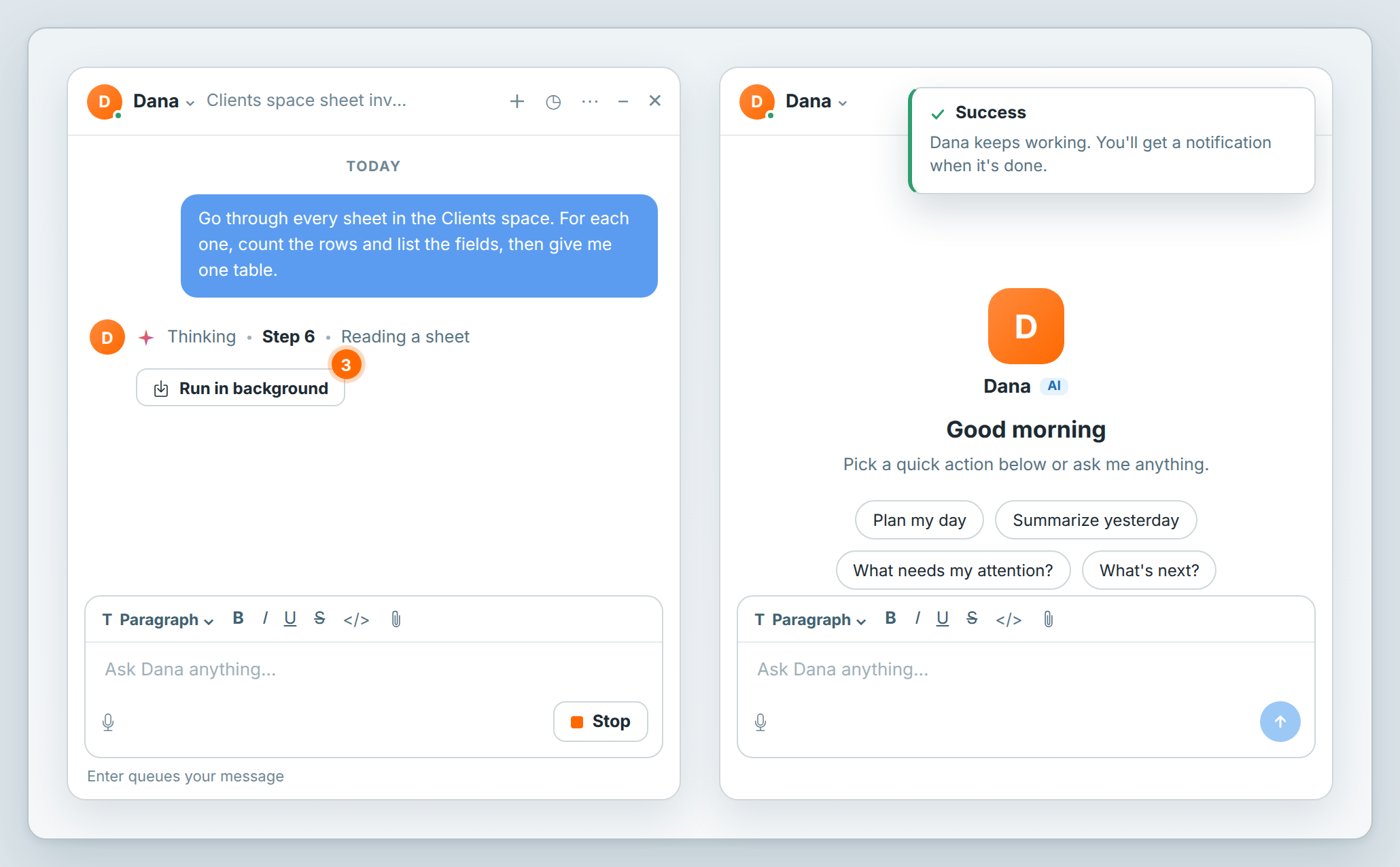
Send a job to the background
- Click Ask Dana in the header to open Dana's chat.
- Send Dana your request.
- While Dana works, click Run in background under the line that shows Dana's progress.
A message says Dana keeps working. You'll get a notification when it's done., and a new, empty chat opens. Ask Dana something else, or close the chat and go on with your work.
Run in background works the same way in a Dana chat in the Inbox. It shows only while Dana is working on a reply, and not after you click Stop.
Check on the job
- In Dana's chat, click History.
- Open the job's chat.
You see Dana's progress, step by step. Click Run in background to leave it again, or Stop to end the job. A job you stop sends no notification.
The list shows Working next to the job while Dana is on it. After a page reload, it shows the time instead.
Read the reply
When the job ends, Dana sends a notification to your Inbox. It says what happened:
| In the Inbox | What it means |
|---|---|
| Agent finished: finished “the chat's title” | Dana finished the job. |
| Agent finished: couldn't finish “the chat's title” | Something went wrong before Dana finished. Open the chat to see how far Dana got. |
| Agent needs your approval: needs your approval to run, then the action | Dana is waiting for your answer before a step. See the next section. |
- Open the Inbox and click the notification.
- Click Open.
The chat opens with Dana's full reply. Only jobs you send to the background notify you: if you stay in the chat, the reply shows there.
Answer an approval
Some steps Dana asks you about first, such as sending a message in a connected tool like Slack. See the list in Meet Dana, your AI assistant. In the background, Dana stops at that step and waits. Nothing is sent or changed until you answer.
- In the Inbox, click Agent needs your approval. It's also under Approvals.
- Click Open.
- On the card Dana shows, such as Approval required, choose Approve or Deny.
Dana carries on with the job in that chat, with or without that step. To leave it again, click Run in background.
Choose where the notifications reach you
The notifications come to your Inbox, and also by push and email unless you turned those off.
- Click your profile picture to open the account menu.
- Choose Settings → Notifications.
- Under AI agents, tick or clear In-app, Push, Email or Telegram for Agent completed task and Agent needs my input. Telegram needs a linked chat first.
If something goes wrong
| What you see | What to do |
|---|---|
| Couldn't move this to the background. It keeps running here. | Dana keeps working in the open chat. Wait for the reply there, or click Run in background again. |
| No notification after the job ended | Check Settings → Notifications (above), then see Notifications aren't arriving. |
Related: Meet Dana, your AI assistant · The Inbox · Your profile and notifications · Notifications aren't arriving