Invite your team
Everyone who works in your data needs an account in your workspace. Invites are sent by email.
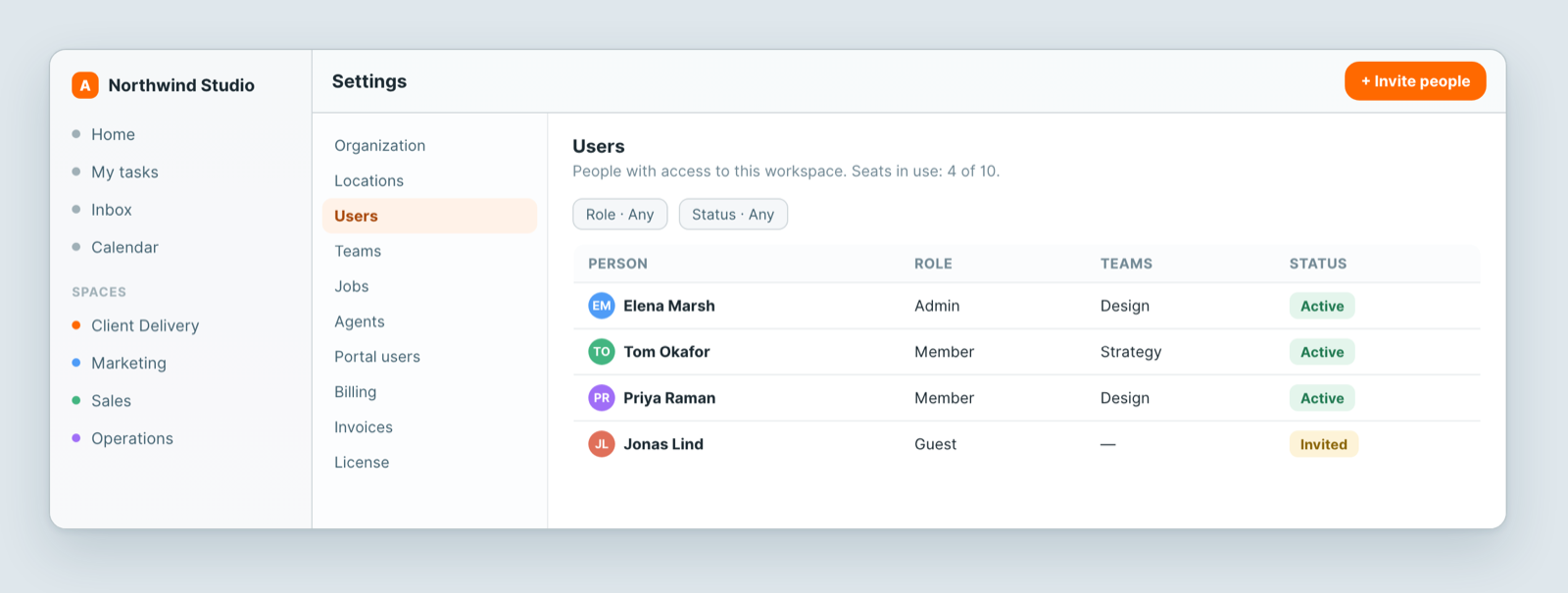
Steps
- Open Settings → Users.
- Click Invite people.
- Enter their email address and choose a role.
- Send. They get an email with a link to set a password and join.
Until someone accepts, their row shows as Invited. You can resend or withdraw an invite from the same screen.
Roles
A role decides what someone can do across the workspace. Access to a specific sheet also depends on the space it lives in — adding someone to the workspace does not automatically show them everything.
Notes
- Each active user takes a seat on your plan. The Users screen shows how many seats are in use.
- Teams and Jobs group people for assignment and reporting. They do not grant access on their own.
- Working with clients rather than colleagues? Those people belong in the client portal, not here, and do not take a workspace seat.
Related: Why can't my teammate see a sheet? · Create your first workspace
Related articles
Create a sheet
How to create a sheet in Atwork: from the space sidebar or a folder, as a worksheet, tasksheet or template, and the access you need to do it.
Atwork in 5 minutes
The Atwork model explained: workspace, spaces, sheets, items and views, and the shortest path to something useful.
Install a template
Install an Atwork template to get a ready-made sheet with fields and views, then adapt it to how you actually work.