How to ask Dana or an agent to check back later
Ask Dana or one of your agents in a chat to come back to something at a set time, such as “check at 9 on Friday whether the client has paid”. At that time it runs your request again in the same chat and sends you a notification. Anyone who can chat with Dana can do this. Custom agents come with the Pro plan and up (see pricing).
Before you start
- Dana reads a time such as “9 on Friday” in the time zone in your settings, and in UTC when you haven't set one. To check yours, see Set your language, calendar and timezone.
Ask for a check-back
- Click Ask Dana in the header.
- To ask a custom agent instead, click Dana at the top of the chat and pick the agent under Your agents.
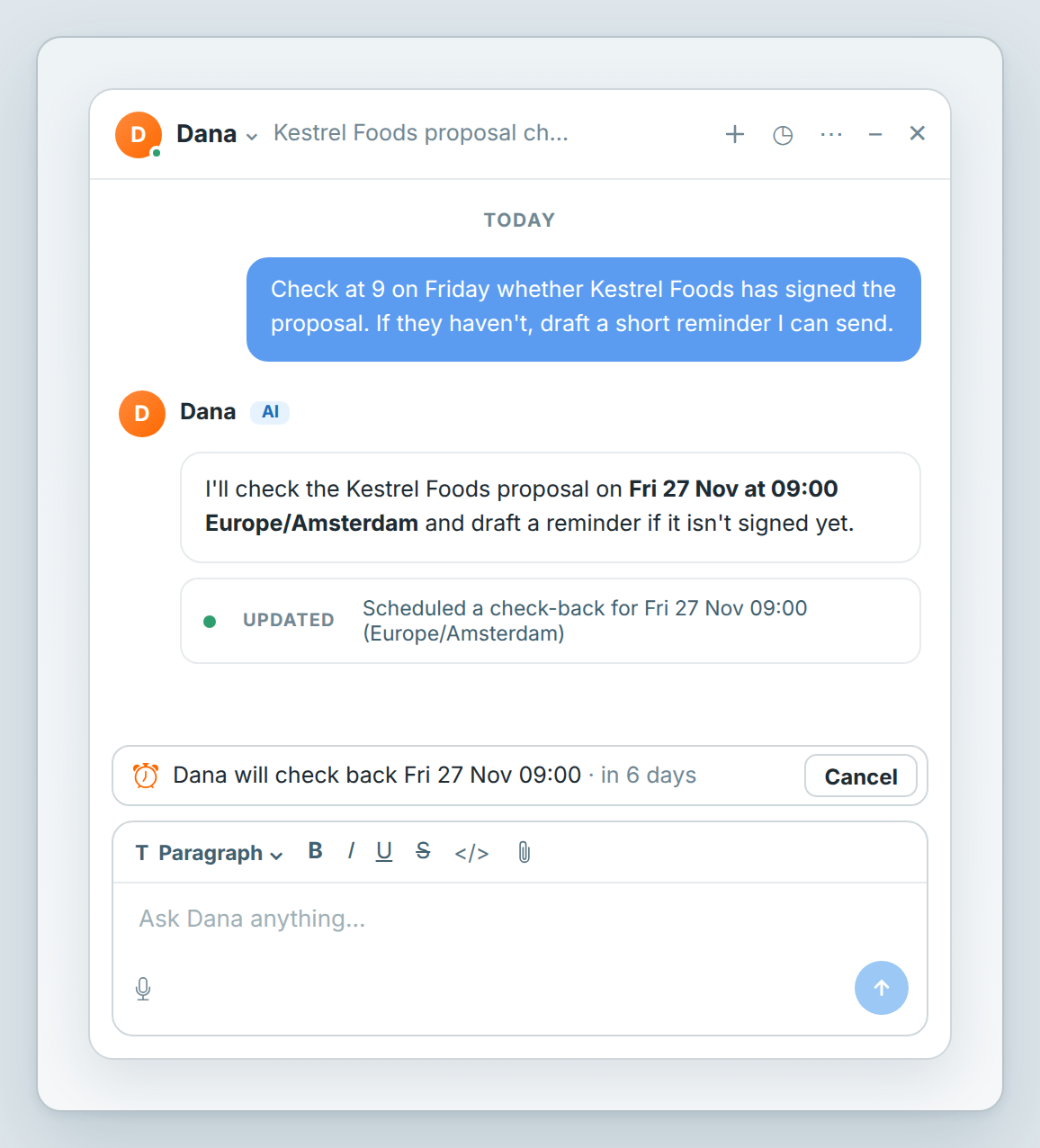
- Write what to check, when, and what to do then. For example: “Check at 9 on Friday whether Kestrel Foods has signed the proposal. If they haven't, draft a short reminder I can send.”
- Send it and read the reply. Dana repeats the time with your time zone, such as 09:00 Europe/Amsterdam.
A line above the message box now shows Dana will check back with the day, the time and how long until then, such as “Fri 27 Nov 09:00 · in 6 days”, and Cancel. Hover over it to see the full date and time zone. For a custom agent, the line shows the agent's name.
What to ask for
A check-back fits anything you are waiting on. Some examples from client work:
- A reply: “At 4 this afternoon, check whether Meridian Health answered my question about the brief, and summarise what they said.”
- A payment: “On Monday at 9, see whether the Atlas Logistics invoice is marked Paid. If it isn't, draft a friendly reminder.”
- A review before a call: “Tomorrow at 8:30, before my call with Kestrel Foods, list what changed on their project this week.”
Nobody watches a check-back while it runs, so Dana skips steps that would need your approval in a chat, such as sending a message in a connected tool. Ask for a draft instead, and send it yourself when you read the reply.
When it runs
At the time you gave, usually within a minute, Dana runs the request in the same chat. A divider, Checked back as you asked, shows above the reply, with the instruction Dana saved for itself.
You also get a notification in your Inbox:
| In the Inbox | What it means |
|---|---|
| Agent finished: checked back on “the chat's title” | The check-back ran. Click the notification, then Open, to read the reply. |
| Agent finished: couldn't check back on “the chat's title” | Something went wrong. Open the chat to see how far Dana got. |
The notification also comes by push and email, unless you turned those off for Agent completed task in Settings → Notifications, under AI agents.
Cancel a check-back
- Open the chat. In Dana's chat, click History and pick it.
- Click Cancel on the line above the message box.
A message says Check-back cancelled. You can also ask in the chat: “Cancel the check-back.” When the chat has more than one, Dana asks which.
Deleting the chat, or deleting the custom agent, also cancels its check-backs.
Limits
- A check-back can be from 5 minutes to 30 days ahead.
- Up to 3 waiting check-backs in one chat, and 10 for you across all chats. Cancel one to add another.
- A check-back runs once. Dana can't repeat it on a schedule, and a check-back can't set up the next one. For work that repeats, use a workflow: see Automate the repetitive parts.
- Each check-back is a new answer from Dana, so it draws on your workspace's AI budget. See The AI budget.
Check back on a task
An agent that works on a task can check back on it too. To give an agent a task, see Assign work to an agent.
- Ask in the task, for example in its description: “On Friday at 9, check whether Meridian Health approved the draft. If they did, start the final version.”
- The agent comments with the time it will check back. The strip above the task's comments shows Waiting until and the time, such as “Waiting until Fri 09:00 · about 2 days”. Hover over the time to see the full date.
- At that time, the agent works on the task again and posts its reply as a comment.
- While it waits, a comment from you or another member wakes the agent early. The check-back still runs at its time.
- An agent can also check back by itself when the work depends on something that hasn't happened yet.
- A task holds up to 3 check-backs. The time is read in the time zone of the person who created the task.
- Stop on the strip, moving the task to another status, taking the agent off the task, or archiving or deleting the task ends the agent's work on it and cancels its check-backs.
Related: Meet Dana, your AI assistant · How to send a long Dana job to the background · Assign work to an agent · The AI budget